> ## Documentation Index
> Fetch the complete documentation index at: https://docs.wpos.ai/llms.txt
> Use this file to discover all available pages before exploring further.
# Invite members
> Add agency managers and operators to your workspace by email or with a one-time invite link, and choose what they may do before they join.
Invite people from the [Members](/agencies/members) page at
[app.wpos.ai](https://app.wpos.ai). You can email an invite to one address, or
create a link to share with the person yourself. Either way, you choose their
role and what they may do before they join.
Owners can invite **Agency Managers** and **Operators**. Agency Managers can
invite **Operators** to their own team.
## Open the invite screen
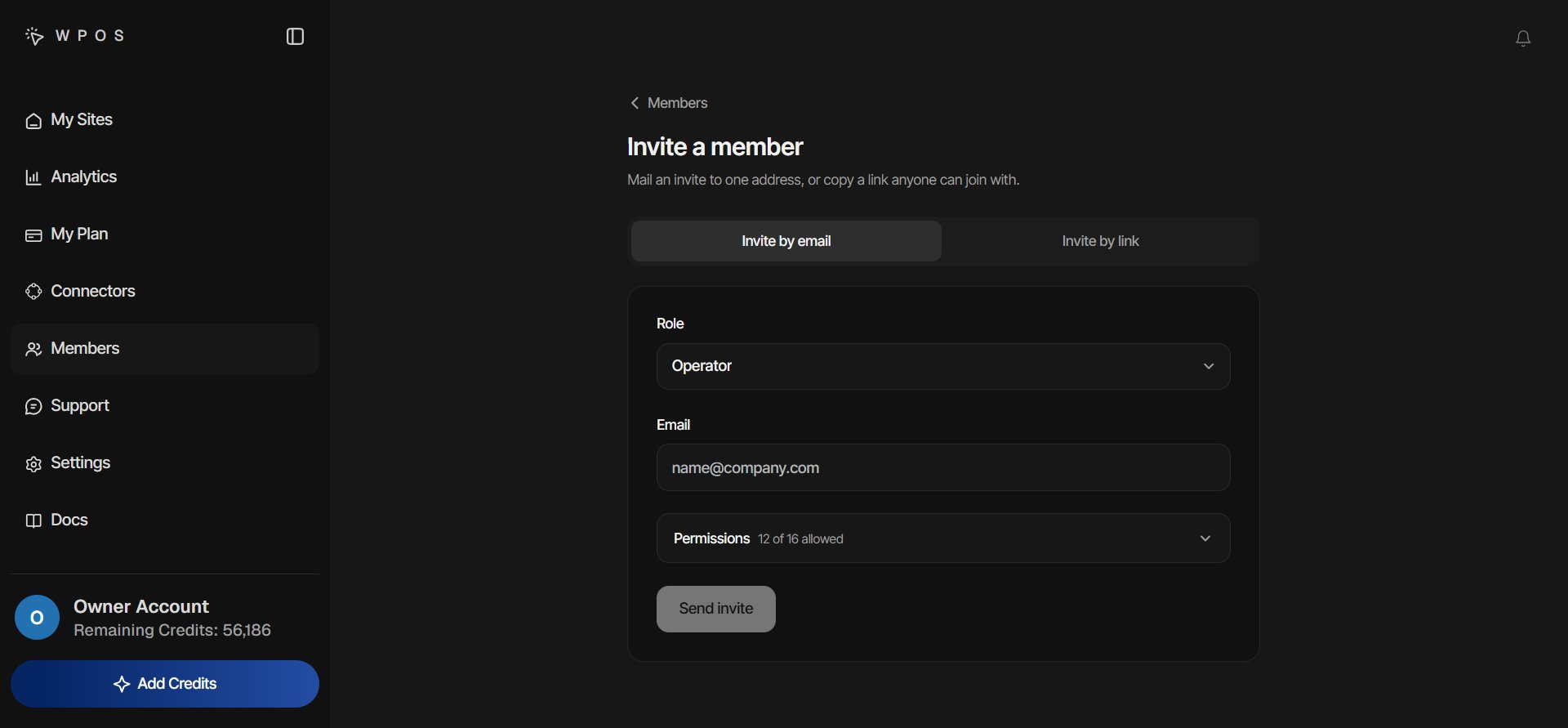
On the Members page, click **Add member**. The **Invite a member** screen has
two tabs: **Invite by email** and **Invite by link**.
 ## Choose the role and what they may do
Both tabs start with the same two choices.
* **Role.** The owner picks **Agency Manager** or **Operator** (Operator is the
default). A manager can only invite operators, so the role is fixed for
them.
* **Permissions.** The strip shows how many switches are on, for example
**12 of 16 allowed**. Open it to see **What an Operator may do** (or **What
an Agency Manager may do**) and switch individual permissions on or off.
Filter the list by area: Sandbox, Site, Handoff, Plan, Connector, or
Support.
The switches start on for everything you can pass on, except a few powerful
ones that always start off: **Create sandboxes**, **Delete sandboxes**,
**Delete sites**, **Cancel the plan**, **Create WordPress users**, and
**Disconnect connectors**. Turn those on only for someone who needs them.
Operators are never offered the billing permissions or **Create WordPress
users**.
An Agency Manager can only pass on permissions they hold themselves. The
exceptions are **Add sites** and **Create sandboxes**, which a manager can
give even without holding them.
## Invite by email
On **Invite by email**, type their address in **Email**, set the role and
permissions, and click **Send invite**.
Before anything is sent, WPOS stops invites that cannot work: your own
address, someone who is already a member, or an address that already has
an invite waiting. To send a fresh invite to that address, remove the
waiting one under **Pending invites** first.
The invite is for that email address only and expires after 7 days. The
confirmation on screen tells you how they will get in.
How they get in depends on whether they already use WPOS:
* **New to WPOS.** WPOS creates their account, and the email carries a
temporary password. They sign in and join the workspace straight away.
* **Already have a WPOS account.** They sign in with their existing account
and accept the invite from the email.
* **Sign in with Google.** They join with **Continue with Google**.
If the email cannot be delivered, the screen shows the invite link instead so
you can share it yourself.
## Invite by link
A link is useful when you do not know the person's address yet, or want to
send the invite through chat.
1. On **Invite by link**, set the role and permissions.
2. Click **Create invite link**, then copy the link and share it.
Each link works once: the first person who joins with it uses it up. A link
expires after 3 days. There is one live link per role, so if a link already
exists, **Show link** brings it back instead of making a new one.
The permissions are fixed when the link is created. To change them, or to
close a link you shared by mistake, click **Reset link**. The old link stops
working immediately and a new one replaces it.
When someone opens the link while signed out, they click **Continue with
email**, enter their work address, and click **Send my invite**. WPOS then
emails them their sign-in details for your workspace.
## What the invited person sees
The invite opens a **Join** page showing the workspace, the role they are
joining as, and who invited them.
| Situation | What happens |
| ---------------------------------- | ---------------------------------------------------------------------------------------------------------------------------- |
| Signed in with the invited account | They click **Accept invite** and land on the dashboard. There are no setup questions. |
| Signed in with a different account | A warning names both addresses, with **Sign in with a different account**. |
| Signed out, emailed invite | They click **Sign in to accept**, sign in, and come back to accept. |
| Already joined | The page says they are already in the workspace and offers **Go to dashboard**. |
| Invite no longer works | The page says **Invite unavailable** and why: expired, revoked, already used, or not found. They need a new invite from you. |
Once they join, they see only the sites you assign them. See
[Members](/agencies/members) for roles, budgets, and assigning sites.
## Pending invites
Invites that have not been accepted appear on the Members page under **Pending
invites**. Each shows the role, the address (for email invites), when it
expires, and **Not accepted yet**.
* **Copy link** copies the invite's joining link, so you can send it again
yourself.
* **Remove** cancels the invite at once. Its link stops working and the row
goes away.
Agency Managers see the invites they sent; the owner sees them all.
Roles, teams, credit budgets, and managing each member.
The account view your team shares at app.wpos.ai.
## Choose the role and what they may do
Both tabs start with the same two choices.
* **Role.** The owner picks **Agency Manager** or **Operator** (Operator is the
default). A manager can only invite operators, so the role is fixed for
them.
* **Permissions.** The strip shows how many switches are on, for example
**12 of 16 allowed**. Open it to see **What an Operator may do** (or **What
an Agency Manager may do**) and switch individual permissions on or off.
Filter the list by area: Sandbox, Site, Handoff, Plan, Connector, or
Support.
The switches start on for everything you can pass on, except a few powerful
ones that always start off: **Create sandboxes**, **Delete sandboxes**,
**Delete sites**, **Cancel the plan**, **Create WordPress users**, and
**Disconnect connectors**. Turn those on only for someone who needs them.
Operators are never offered the billing permissions or **Create WordPress
users**.
An Agency Manager can only pass on permissions they hold themselves. The
exceptions are **Add sites** and **Create sandboxes**, which a manager can
give even without holding them.
## Invite by email
On **Invite by email**, type their address in **Email**, set the role and
permissions, and click **Send invite**.
Before anything is sent, WPOS stops invites that cannot work: your own
address, someone who is already a member, or an address that already has
an invite waiting. To send a fresh invite to that address, remove the
waiting one under **Pending invites** first.
The invite is for that email address only and expires after 7 days. The
confirmation on screen tells you how they will get in.
How they get in depends on whether they already use WPOS:
* **New to WPOS.** WPOS creates their account, and the email carries a
temporary password. They sign in and join the workspace straight away.
* **Already have a WPOS account.** They sign in with their existing account
and accept the invite from the email.
* **Sign in with Google.** They join with **Continue with Google**.
If the email cannot be delivered, the screen shows the invite link instead so
you can share it yourself.
## Invite by link
A link is useful when you do not know the person's address yet, or want to
send the invite through chat.
1. On **Invite by link**, set the role and permissions.
2. Click **Create invite link**, then copy the link and share it.
Each link works once: the first person who joins with it uses it up. A link
expires after 3 days. There is one live link per role, so if a link already
exists, **Show link** brings it back instead of making a new one.
The permissions are fixed when the link is created. To change them, or to
close a link you shared by mistake, click **Reset link**. The old link stops
working immediately and a new one replaces it.
When someone opens the link while signed out, they click **Continue with
email**, enter their work address, and click **Send my invite**. WPOS then
emails them their sign-in details for your workspace.
## What the invited person sees
The invite opens a **Join** page showing the workspace, the role they are
joining as, and who invited them.
| Situation | What happens |
| ---------------------------------- | ---------------------------------------------------------------------------------------------------------------------------- |
| Signed in with the invited account | They click **Accept invite** and land on the dashboard. There are no setup questions. |
| Signed in with a different account | A warning names both addresses, with **Sign in with a different account**. |
| Signed out, emailed invite | They click **Sign in to accept**, sign in, and come back to accept. |
| Already joined | The page says they are already in the workspace and offers **Go to dashboard**. |
| Invite no longer works | The page says **Invite unavailable** and why: expired, revoked, already used, or not found. They need a new invite from you. |
Once they join, they see only the sites you assign them. See
[Members](/agencies/members) for roles, budgets, and assigning sites.
## Pending invites
Invites that have not been accepted appear on the Members page under **Pending
invites**. Each shows the role, the address (for email invites), when it
expires, and **Not accepted yet**.
* **Copy link** copies the invite's joining link, so you can send it again
yourself.
* **Remove** cancels the invite at once. Its link stops working and the row
goes away.
Agency Managers see the invites they sent; the owner sees them all.
Roles, teams, credit budgets, and managing each member.
The account view your team shares at app.wpos.ai.