> ## Documentation Index
> Fetch the complete documentation index at: https://docs.wpos.ai/llms.txt
> Use this file to discover all available pages before exploring further.
# Permissions
> Choose what each agency manager and operator may do in your workspace, one switch at a time, and answer their requests for more.
A member's role decides the shape of their job. Their permissions decide the
details: whether they can add sites, create sandboxes, see the plan, disconnect
a connector, and so on. Each member has their own set of switches, so two
operators on the same team can be trusted with different things.
These switches control what people can do in the Workspace at
[app.wpos.ai](https://app.wpos.ai). Which client sites a member sees is
decided separately, by [assigning sites](/agencies/assign-sites).
## How permissions work
* **The owner holds every permission.** The owner has no switches and never
needs to ask for anything.
* **Agency Managers and Operators each have their own switches.** Every switch
is on or off for that one person, whatever anyone else on their team has.
* **Operators are offered fewer switches.** The Plan switches and **Create
WordPress users** belong to an Agency Manager's job, so they are not offered
for an Operator. An Operator has 16 switches; an Agency Manager has 22.
* **Changes apply straight away.** A switch saves the moment you flip it, and
the member's dashboard updates by itself, with no need for them to sign out.
## Change a member's permissions
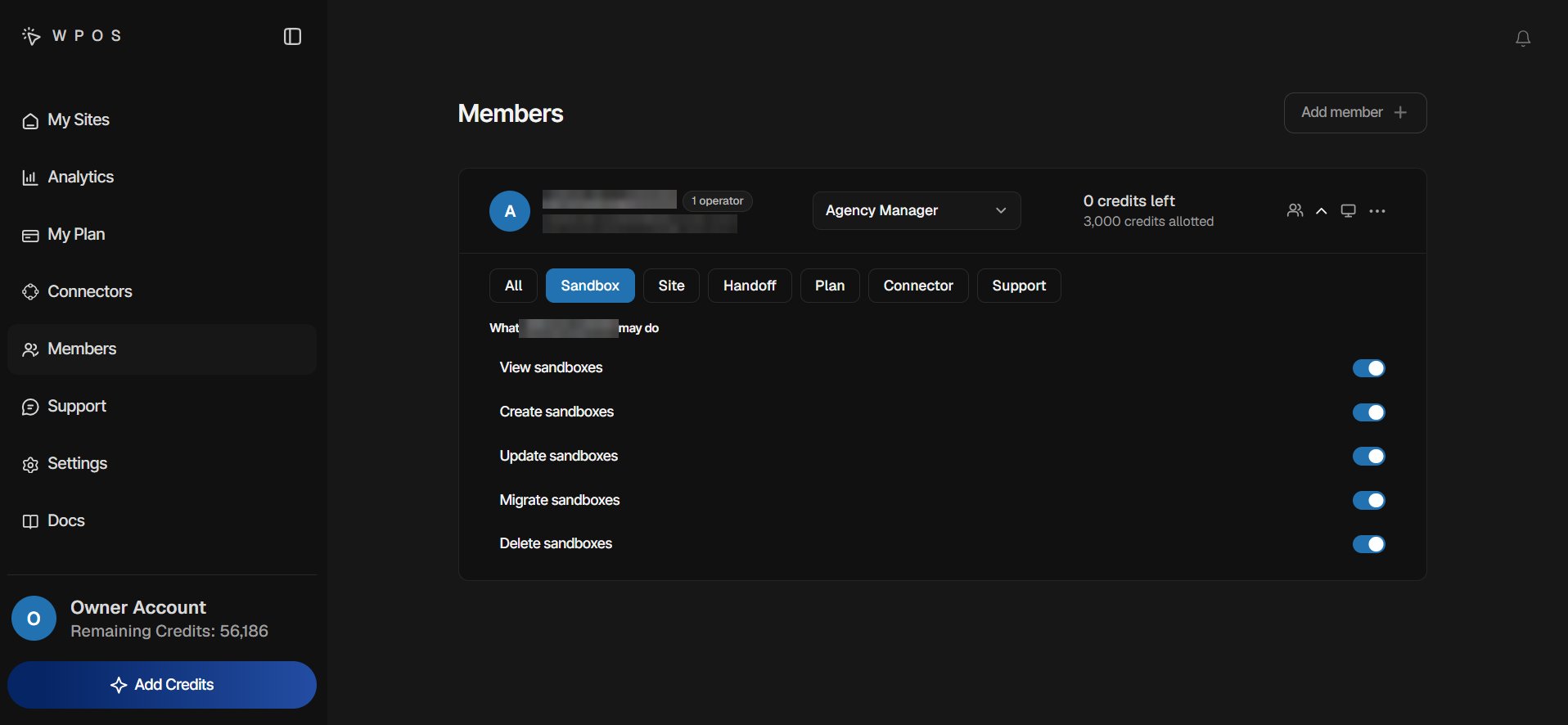
On the [Members](/agencies/members) page, click the **Permissions** arrow
on the member's row. The list opens under the row, headed **What (their
name) may do**.
The chips along the top show one area at a time: **All**, **Sandbox**,
**Site**, **Handoff**, **Plan**, **Connector**, and **Support**. Click the
active chip again to go back to all of them.
Each switch names what it allows, with a line explaining it. Turn it on or
off; there is no Save button.
 ## Every permission
**New invite** is whether the switch is already on when you open the invite
screen. An invite only switches on what the person sending it holds, and the
ones marked **Off** are never switched on by an invite. You can still turn them
on yourself, in the invite or later.
### Sandbox
| Switch | What it allows | Operators | New invite |
| --------------------- | ------------------------------------------------------------------------------------------------------- | --------- | ---------- |
| **View sandboxes** | See their own sandboxes, the plugins on them, and whether they are still running. | Yes | On |
| **Create sandboxes** | Create a new [sandbox](/agencies/sandboxes), a WordPress site to test on without connecting a real one. | Yes | Off |
| **Update sandboxes** | Rename a sandbox's address, and attach or detach a custom domain. | Yes | On |
| **Migrate sandboxes** | Take a sandbox's migration key to move it, and everything on it, to another install. | Yes | On |
| **Delete sandboxes** | Destroy a sandbox and everything on it. This cannot be undone. | Yes | Off |
### Site
| Switch | What it allows | Operators | New invite |
| -------------------------- | ----------------------------------------------------------------------------------------------------------- | --------- | ---------- |
| **View sites** | Open the sites they are assigned and see how they are doing. | Yes | On |
| **Add sites** | Connect a new WordPress site to the workspace. | Yes | On |
| **Migrate sites** | Take a site's migration key to move it, and everything on it, to another install. | Yes | On |
| **Create WordPress users** | Create a new WordPress account on a site. Giving someone an account that already exists does not need this. | No | Off |
| **Deactivate sites** | Pause a site without removing it. Its chats, keys, and history stay where they are. | Yes | On |
| **Delete sites** | Take a site off the workspace for good. The WordPress install itself is untouched. | Yes | Off |
### Handoff
| Switch | What it allows | Operators | New invite |
| ---------------- | -------------------------------------------------------------------------------------- | --------- | ---------- |
| **Handoff mode** | Put a site behind the [client handoff](/agencies/handoff) screen, or take it back out. | Yes | On |
### Plan
| Switch | What it allows | Operators | New invite |
| -------------------------- | ------------------------------------------------------------------------------- | --------- | ---------- |
| **See My Plan** | See the workspace plan, credits, and usage. | No | On |
| **See billing history** | See past invoices and what the workspace has been charged. | No | On |
| **Manage payment methods** | Add or replace the card the workspace is billed on. | No | On |
| **Change the plan** | Upgrade, downgrade, or start a plan. This changes what the workspace is billed. | No | On |
| **Cancel the plan** | End the subscription. Everybody in the workspace loses access when it lapses. | No | Off |
When the owner invites an Agency Manager, the invite starts with **See My
Plan**, **See billing history**, **Manage payment methods**, and **Change the
plan** switched on. If you do not want the manager to have them, open the
**Permissions** strip on the invite screen and switch those off before you
send it.
### Connector
| Switch | What it allows | Operators | New invite |
| ------------------------- | --------------------------------------------------------------------------------------- | --------- | ---------- |
| **View connectors** | See which [connectors](/connect/connectors) the workspace has and which sites use them. | Yes | On |
| **Connect connectors** | Link a new third-party account, and put it on a site. | Yes | On |
| **Disconnect connectors** | Unlink a connected account. Every site using it stops being able to. | Yes | Off |
### Support
| Switch | What it allows | Operators | New invite |
| ------------------------ | ---------------------------------------------------------------- | --------- | ---------- |
| **View support tickets** | Read the workspace's support conversations with WPOS. | Yes | On |
| **Reply to support** | Answer a support ticket. Replies go out in the workspace's name. | Yes | On |
The switches marked **Off** are the ones that end something: a sandbox, a site,
a connection, or the plan. **Create WordPress users** is off for a similar
reason: it adds a login to your client's WordPress that stays there until
someone removes it.
## What managers can pass on
An Agency Manager sets the switches for their own operators, with one rule:
**you can only pass on what you hold yourself.** The panel says so above the
switches.
* **Two exceptions.** A manager can switch on **Add sites** and **Create
sandboxes** for their operators even without holding them. The panel names
these beside the rule.
* **Switches they cannot give are greyed out.** Hovering one says "You do not
have (the permission) yourself, so you cannot give it".
* **Switching off is always allowed.** A manager can turn off anything that is
on for their own operators, even a permission they do not hold.
* **Nothing to pass on.** A manager who holds none of the switches sees a note
asking them to get them from the workspace owner first.
When the owner takes a permission away from an Agency Manager, it is taken
from that manager's operators too, except **Add sites** and **Create
sandboxes**. Switching a permission on for a manager does not switch it on for
their team; each operator gets it separately.
## When a member needs more
A control a member is not allowed to use shows a padlock and a **Request
access** button. The **My Plan**, **Connectors**, and **Support** items are
hidden from the left nav when the member cannot view them.
The member clicks **Request access**. The button changes to **Access
requested** and stays that way until someone decides.
The request appears under **Access requests** on the Members page, and in
the notification bell as "(name) asked for access to (the permission)".
**Approve** switches the permission on for them. **Decline** refuses it.
If a request is declined, hovering the button tells the member who declined
it, and they can ask again.
Who decides depends on the permission:
* **An Agency Manager answers their own team**, for anything they can pass
on: what they hold themselves, plus **Add sites** and **Create sandboxes**.
* **The owner answers the rest.** That is every request from someone who
reports to the owner, and anything a manager cannot pass on. Because the
switches that end something start off, those usually go to the owner. The
manager still sees these rows from their team, grouped as **Waiting on the
owner** and marked "owner-level, so the owner decides this one". They can
decline them but not approve them.
If an operator moves to another manager, their open requests move with them.
Switching the permission on from the member's row also closes any request
waiting for it.
## What no switch changes
Some things stay with the owner whatever the switches say:
* Making someone an Agency Manager, resetting a member's password, and moving
an operator to another manager. See [Members](/agencies/members).
* Creating a WordPress **Administrator** account on a site, even for a manager
who holds **Create WordPress users**. See
[Assign sites](/agencies/assign-sites).
Roles, teams, credit budgets, and managing each member.
Choose a new member's role and permissions before they join.
## Every permission
**New invite** is whether the switch is already on when you open the invite
screen. An invite only switches on what the person sending it holds, and the
ones marked **Off** are never switched on by an invite. You can still turn them
on yourself, in the invite or later.
### Sandbox
| Switch | What it allows | Operators | New invite |
| --------------------- | ------------------------------------------------------------------------------------------------------- | --------- | ---------- |
| **View sandboxes** | See their own sandboxes, the plugins on them, and whether they are still running. | Yes | On |
| **Create sandboxes** | Create a new [sandbox](/agencies/sandboxes), a WordPress site to test on without connecting a real one. | Yes | Off |
| **Update sandboxes** | Rename a sandbox's address, and attach or detach a custom domain. | Yes | On |
| **Migrate sandboxes** | Take a sandbox's migration key to move it, and everything on it, to another install. | Yes | On |
| **Delete sandboxes** | Destroy a sandbox and everything on it. This cannot be undone. | Yes | Off |
### Site
| Switch | What it allows | Operators | New invite |
| -------------------------- | ----------------------------------------------------------------------------------------------------------- | --------- | ---------- |
| **View sites** | Open the sites they are assigned and see how they are doing. | Yes | On |
| **Add sites** | Connect a new WordPress site to the workspace. | Yes | On |
| **Migrate sites** | Take a site's migration key to move it, and everything on it, to another install. | Yes | On |
| **Create WordPress users** | Create a new WordPress account on a site. Giving someone an account that already exists does not need this. | No | Off |
| **Deactivate sites** | Pause a site without removing it. Its chats, keys, and history stay where they are. | Yes | On |
| **Delete sites** | Take a site off the workspace for good. The WordPress install itself is untouched. | Yes | Off |
### Handoff
| Switch | What it allows | Operators | New invite |
| ---------------- | -------------------------------------------------------------------------------------- | --------- | ---------- |
| **Handoff mode** | Put a site behind the [client handoff](/agencies/handoff) screen, or take it back out. | Yes | On |
### Plan
| Switch | What it allows | Operators | New invite |
| -------------------------- | ------------------------------------------------------------------------------- | --------- | ---------- |
| **See My Plan** | See the workspace plan, credits, and usage. | No | On |
| **See billing history** | See past invoices and what the workspace has been charged. | No | On |
| **Manage payment methods** | Add or replace the card the workspace is billed on. | No | On |
| **Change the plan** | Upgrade, downgrade, or start a plan. This changes what the workspace is billed. | No | On |
| **Cancel the plan** | End the subscription. Everybody in the workspace loses access when it lapses. | No | Off |
When the owner invites an Agency Manager, the invite starts with **See My
Plan**, **See billing history**, **Manage payment methods**, and **Change the
plan** switched on. If you do not want the manager to have them, open the
**Permissions** strip on the invite screen and switch those off before you
send it.
### Connector
| Switch | What it allows | Operators | New invite |
| ------------------------- | --------------------------------------------------------------------------------------- | --------- | ---------- |
| **View connectors** | See which [connectors](/connect/connectors) the workspace has and which sites use them. | Yes | On |
| **Connect connectors** | Link a new third-party account, and put it on a site. | Yes | On |
| **Disconnect connectors** | Unlink a connected account. Every site using it stops being able to. | Yes | Off |
### Support
| Switch | What it allows | Operators | New invite |
| ------------------------ | ---------------------------------------------------------------- | --------- | ---------- |
| **View support tickets** | Read the workspace's support conversations with WPOS. | Yes | On |
| **Reply to support** | Answer a support ticket. Replies go out in the workspace's name. | Yes | On |
The switches marked **Off** are the ones that end something: a sandbox, a site,
a connection, or the plan. **Create WordPress users** is off for a similar
reason: it adds a login to your client's WordPress that stays there until
someone removes it.
## What managers can pass on
An Agency Manager sets the switches for their own operators, with one rule:
**you can only pass on what you hold yourself.** The panel says so above the
switches.
* **Two exceptions.** A manager can switch on **Add sites** and **Create
sandboxes** for their operators even without holding them. The panel names
these beside the rule.
* **Switches they cannot give are greyed out.** Hovering one says "You do not
have (the permission) yourself, so you cannot give it".
* **Switching off is always allowed.** A manager can turn off anything that is
on for their own operators, even a permission they do not hold.
* **Nothing to pass on.** A manager who holds none of the switches sees a note
asking them to get them from the workspace owner first.
When the owner takes a permission away from an Agency Manager, it is taken
from that manager's operators too, except **Add sites** and **Create
sandboxes**. Switching a permission on for a manager does not switch it on for
their team; each operator gets it separately.
## When a member needs more
A control a member is not allowed to use shows a padlock and a **Request
access** button. The **My Plan**, **Connectors**, and **Support** items are
hidden from the left nav when the member cannot view them.
The member clicks **Request access**. The button changes to **Access
requested** and stays that way until someone decides.
The request appears under **Access requests** on the Members page, and in
the notification bell as "(name) asked for access to (the permission)".
**Approve** switches the permission on for them. **Decline** refuses it.
If a request is declined, hovering the button tells the member who declined
it, and they can ask again.
Who decides depends on the permission:
* **An Agency Manager answers their own team**, for anything they can pass
on: what they hold themselves, plus **Add sites** and **Create sandboxes**.
* **The owner answers the rest.** That is every request from someone who
reports to the owner, and anything a manager cannot pass on. Because the
switches that end something start off, those usually go to the owner. The
manager still sees these rows from their team, grouped as **Waiting on the
owner** and marked "owner-level, so the owner decides this one". They can
decline them but not approve them.
If an operator moves to another manager, their open requests move with them.
Switching the permission on from the member's row also closes any request
waiting for it.
## What no switch changes
Some things stay with the owner whatever the switches say:
* Making someone an Agency Manager, resetting a member's password, and moving
an operator to another manager. See [Members](/agencies/members).
* Creating a WordPress **Administrator** account on a site, even for a manager
who holds **Create WordPress users**. See
[Assign sites](/agencies/assign-sites).
Roles, teams, credit budgets, and managing each member.
Choose a new member's role and permissions before they join.