> ## Documentation Index
> Fetch the complete documentation index at: https://docs.wpos.ai/llms.txt
> Use this file to discover all available pages before exploring further.
# Canva
> Canva is a drag-and-drop design suite. Connect it to WPOS and the agent can use it as part of the work it does on your site.
Canva is where a lot of agency artwork lives. Connected to WPOS, the agent can list your designs, create new ones, and export finished artwork, which shortens the path from a design to a published page.
**Category:** Design and forms **Actions available:** 46+
## What you can do
* List and search your designs and folders
* Create designs and upload assets
* Export finished artwork for use on a site
## Example requests
Once Canva is connected, ask in the [Command Center](/operate/command-center):
```text theme={null}
List my most recent Canva designs.
Export this design and place it on the homepage.
Create a social image from our brand template.
```
## Before you connect
* A Canva account. Free works for basic use. **Canva Pro** is needed for brand kits, premium templates, and some export options.
* Know which **team** owns the designs you want. Team and brand kit features require a Canva for Teams plan.
## Connect it
In WordPress admin, open **WPOS**. You land on the chat screen.
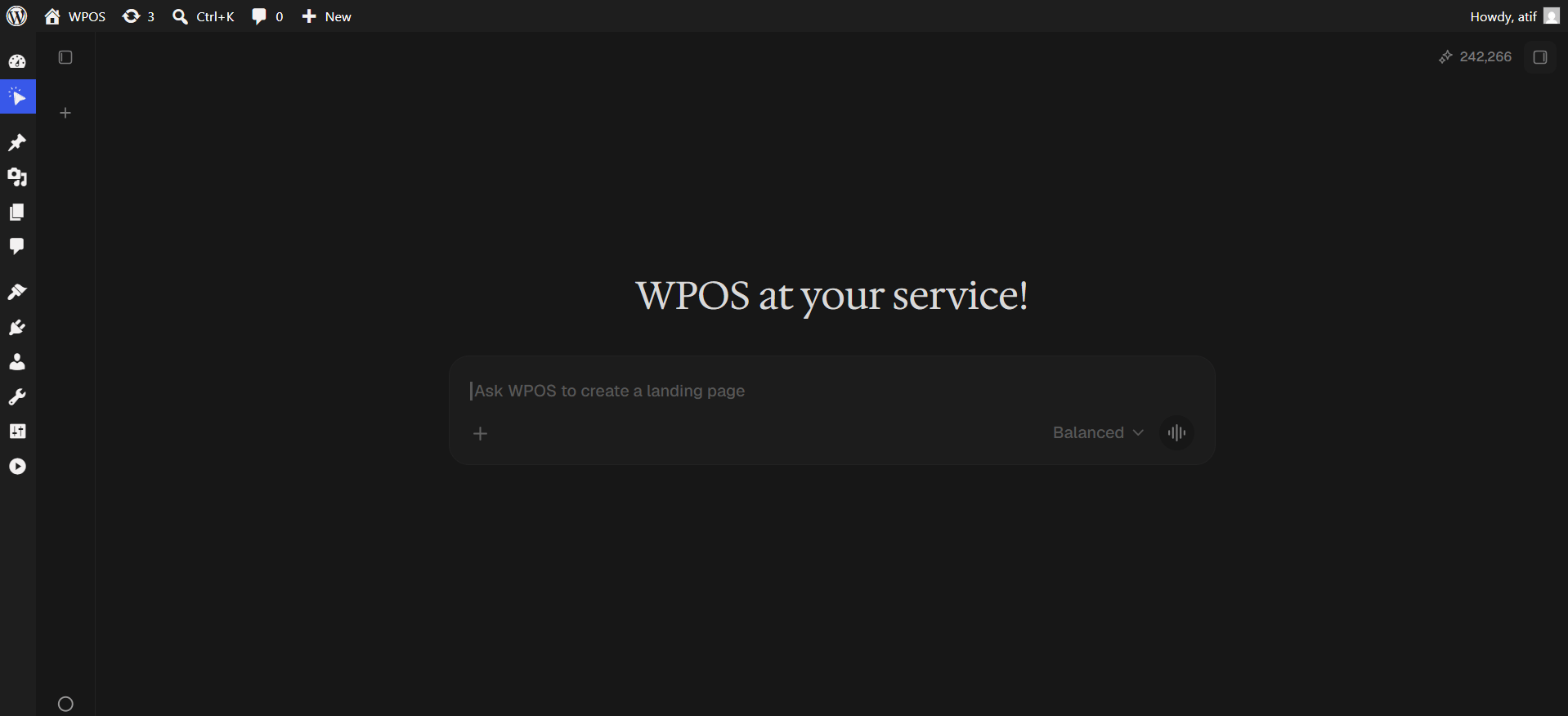 Click the **+** button to open the launcher panel, then choose **Connectors**.
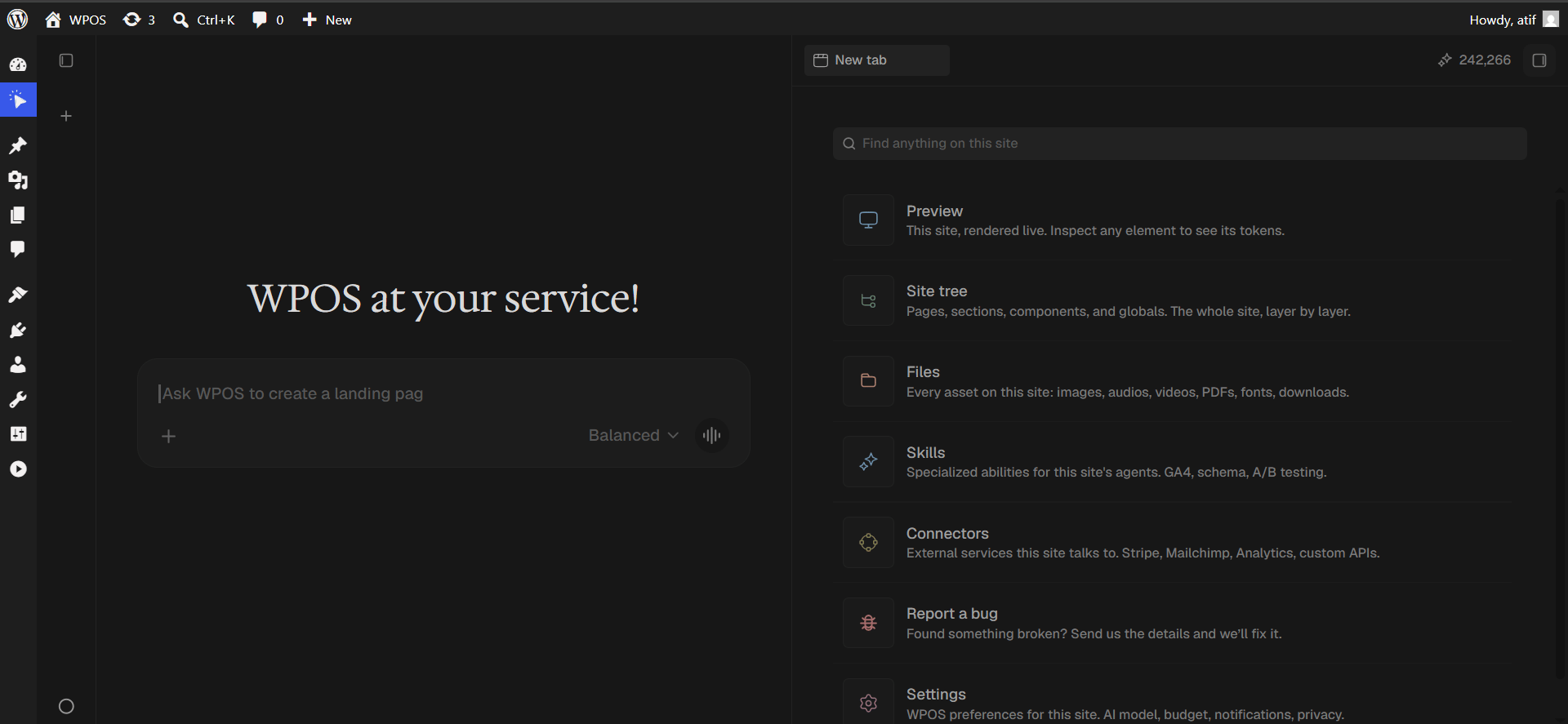 Every available connector is listed alphabetically, each with a button showing what it needs.
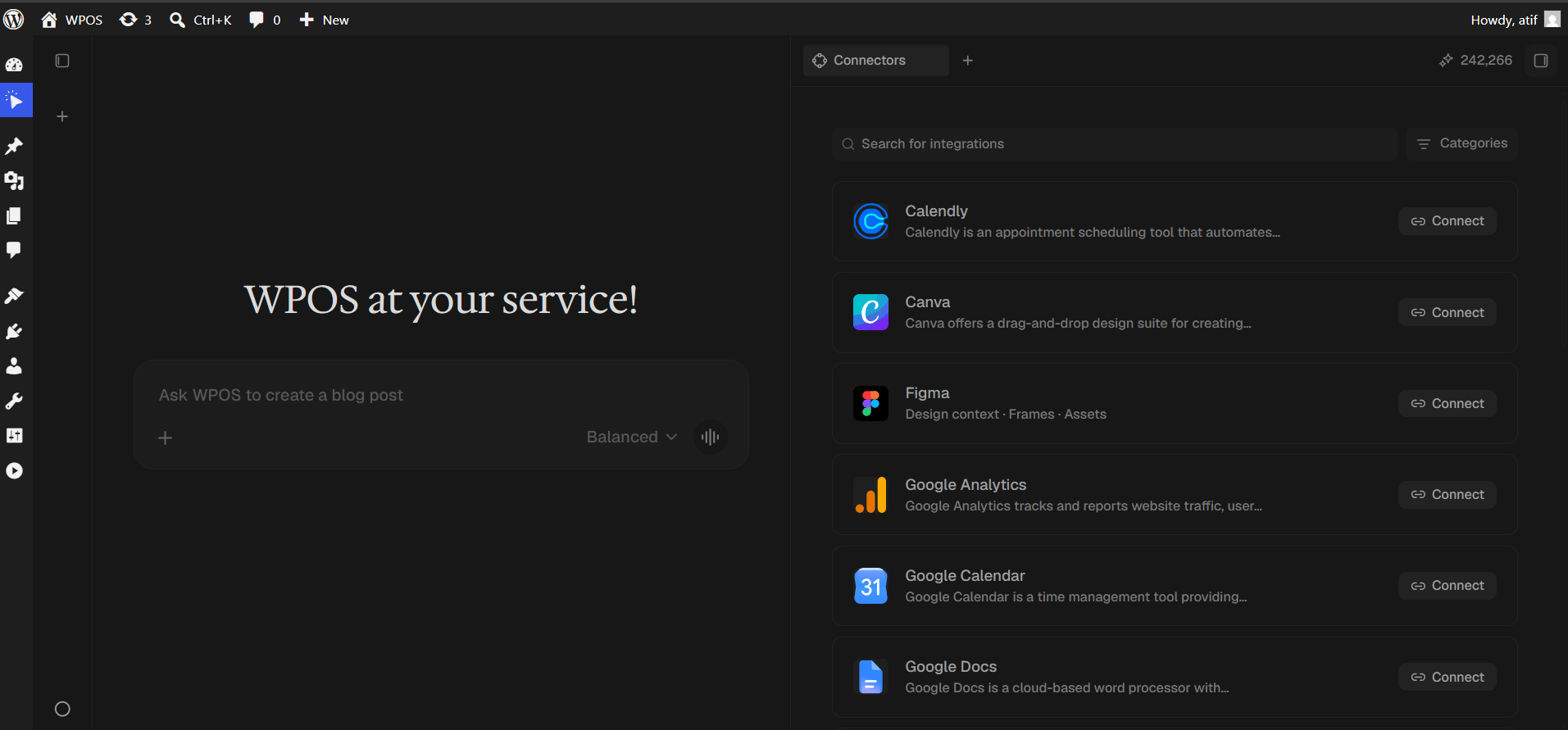 Type `Canva` into **Search for integrations**, then press **Connect**.
 A popup opens on Canva headed "Composio would like access to your Canva account". It shows which account you are signed in as, with a **Switch accounts** link if it is wrong.
Below that, **Select a team**. Brand templates and shared assets belong to the team you pick, so choosing wrong means WPOS cannot see them.
A popup opens on Canva headed "Composio would like access to your Canva account". It shows which account you are signed in as, with a **Switch accounts** link if it is wrong.
Below that, **Select a team**. Brand templates and shared assets belong to the team you pick, so choosing wrong means WPOS cannot see them.
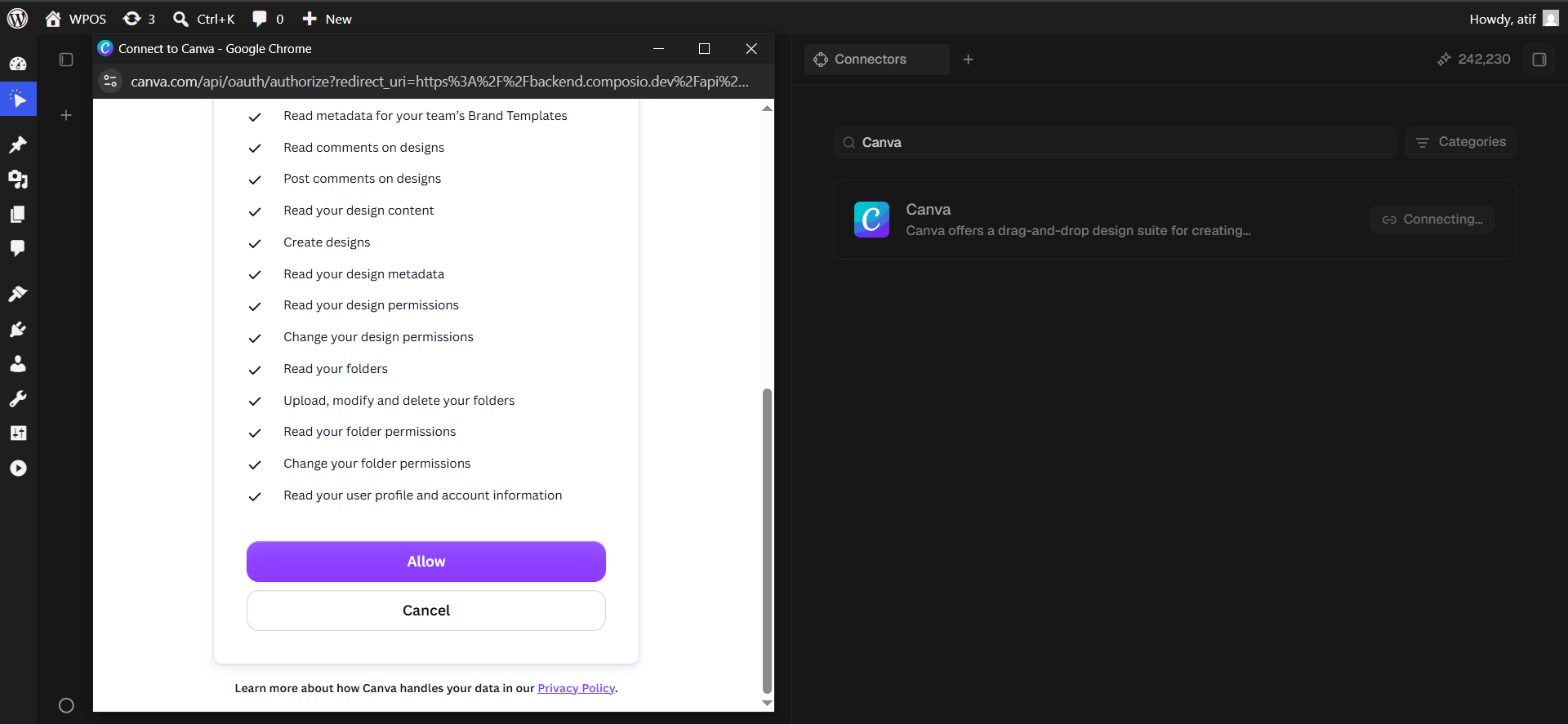
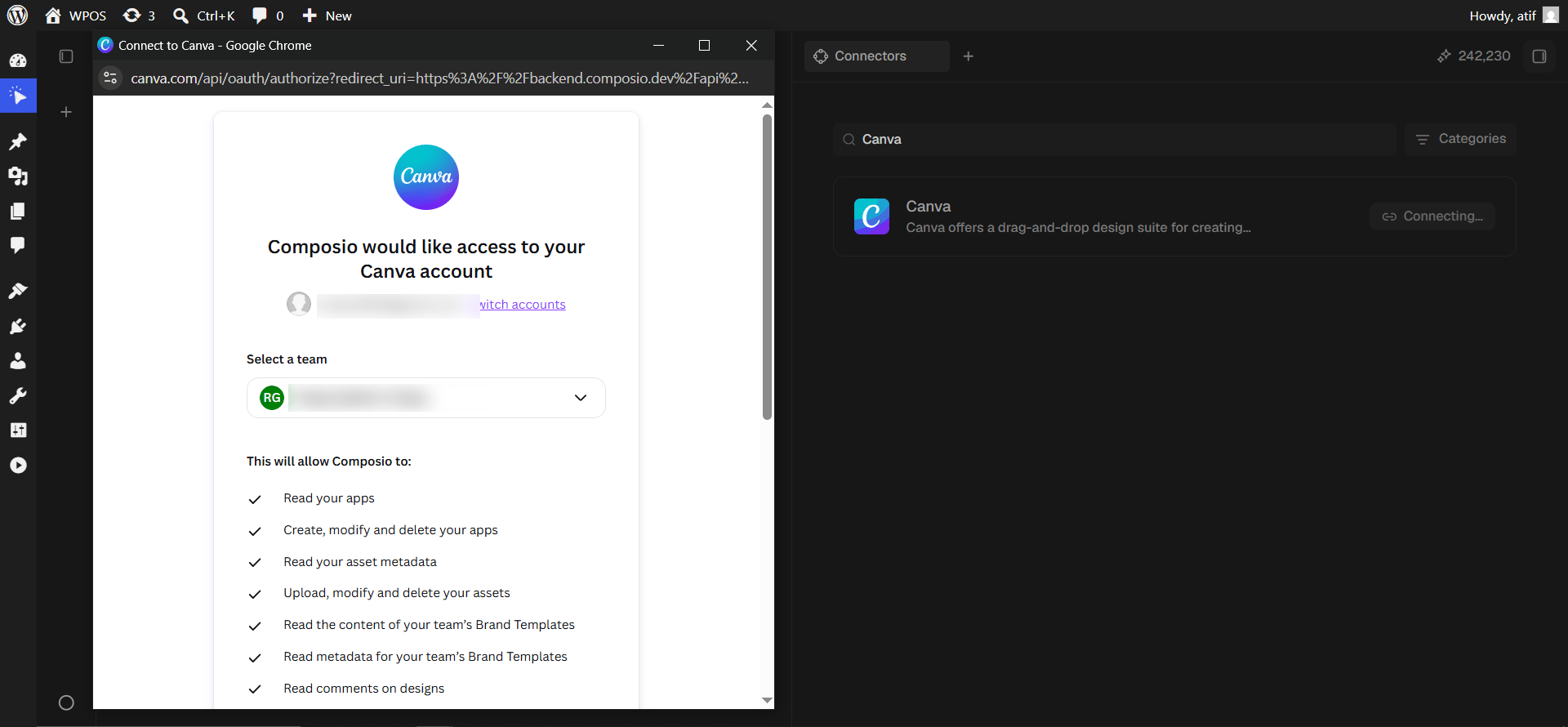 Canva lists everything Composio will be able to do. It is a long list, so scroll through it.
Two entries change who can reach your work, not just the work itself: **change your design permissions** and **change your folder permissions**. Read them before approving, and use a test account if that is a concern.
Click **Allow**.
Canva lists everything Composio will be able to do. It is a long list, so scroll through it.
Two entries change who can reach your work, not just the work itself: **change your design permissions** and **change your folder permissions**. Read them before approving, and use a test account if that is a concern.
Click **Allow**.
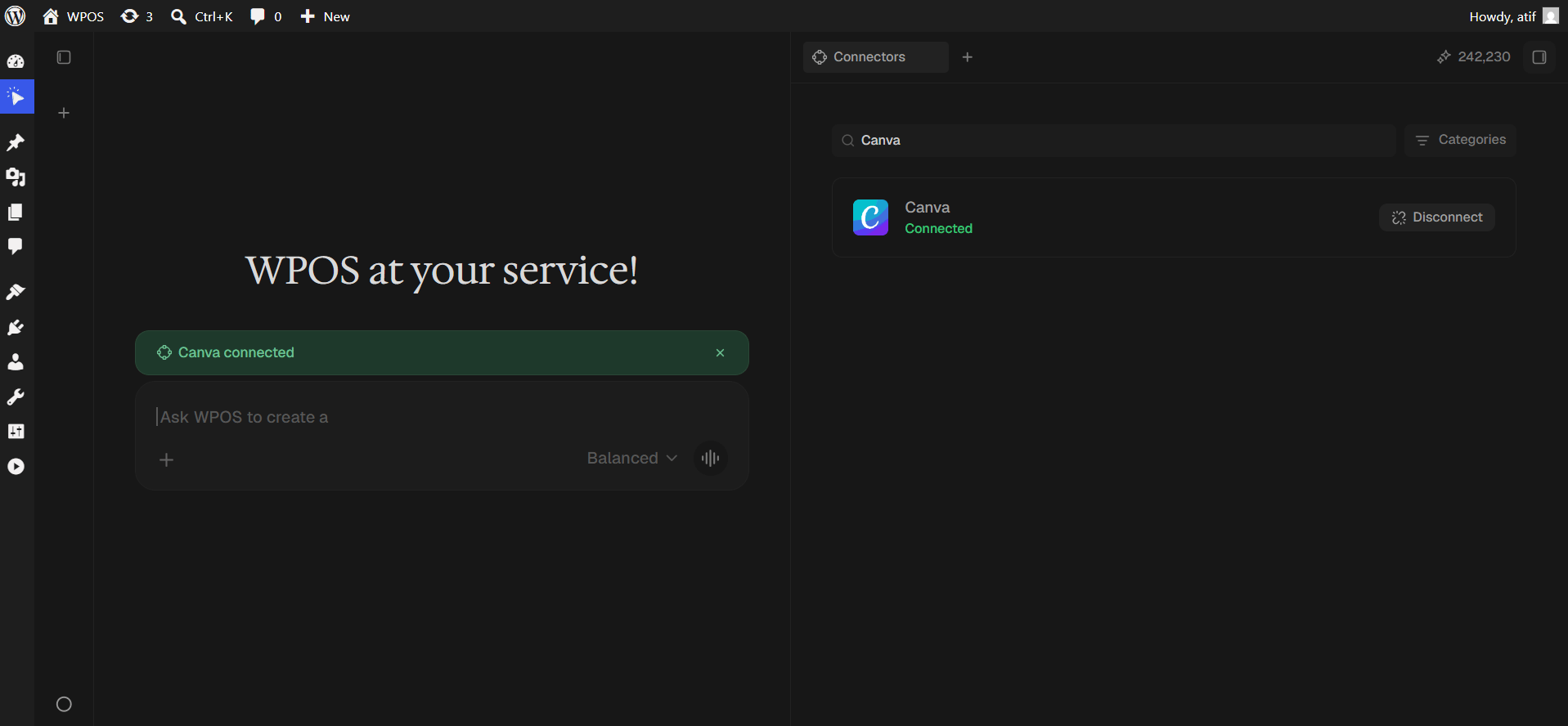
 The row reads **Connected** and a green "Canva connected" banner appears in the chat.
 ## Troubleshooting
Free accounts cannot export designs containing paid stock or Pro features without purchasing them. Replace the premium elements or upgrade.
You connected a personal account, or picked the wrong team. Reconnect and select the team that owns the designs.
Large or multi page designs render asynchronously. Allow time before assuming failure.
Brand kits require Canva Pro or Teams. On a free account they do not exist.
For popup failures, expired connections, and other issues shared across every
connector, see [Introducing Connectors](/connect/connectors).
## Troubleshooting
Free accounts cannot export designs containing paid stock or Pro features without purchasing them. Replace the premium elements or upgrade.
You connected a personal account, or picked the wrong team. Reconnect and select the team that owns the designs.
Large or multi page designs render asynchronously. Allow time before assuming failure.
Brand kits require Canva Pro or Teams. On a free account they do not exist.
For popup failures, expired connections, and other issues shared across every
connector, see [Introducing Connectors](/connect/connectors).