> ## Documentation Index
> Fetch the complete documentation index at: https://docs.wpos.ai/llms.txt
> Use this file to discover all available pages before exploring further.
# Google Calendar
> Google Calendar is a scheduling and events service. Connect it to WPOS and the agent can use it as part of the work it does on your site.
Google Calendar holds your schedule and events. Connected to WPOS, the agent can read availability and create events as part of the work it does on a site, which is useful for events pages and booking flows that need to respect a real calendar.
**Category:** Scheduling **Actions available:** 45+
## What you can do
* Read events across your calendars
* Create, update, and delete events
* Check availability before confirming a booking
## Example requests
Once Google Calendar is connected, ask in the [Command Center](/operate/command-center):
```text theme={null}
List my events for the next seven days.
Publish an events page from the team calendar.
Create a calendar entry for each post in the content schedule.
```
## Before you connect
* A Google account with Calendar. A free personal account is enough.
* **Make changes to events** permission on any calendar WPOS should write to.
* Know which calendar you mean. Most accounts have several.
## Connect it
In WordPress admin, open **WPOS**. You land on the chat screen.
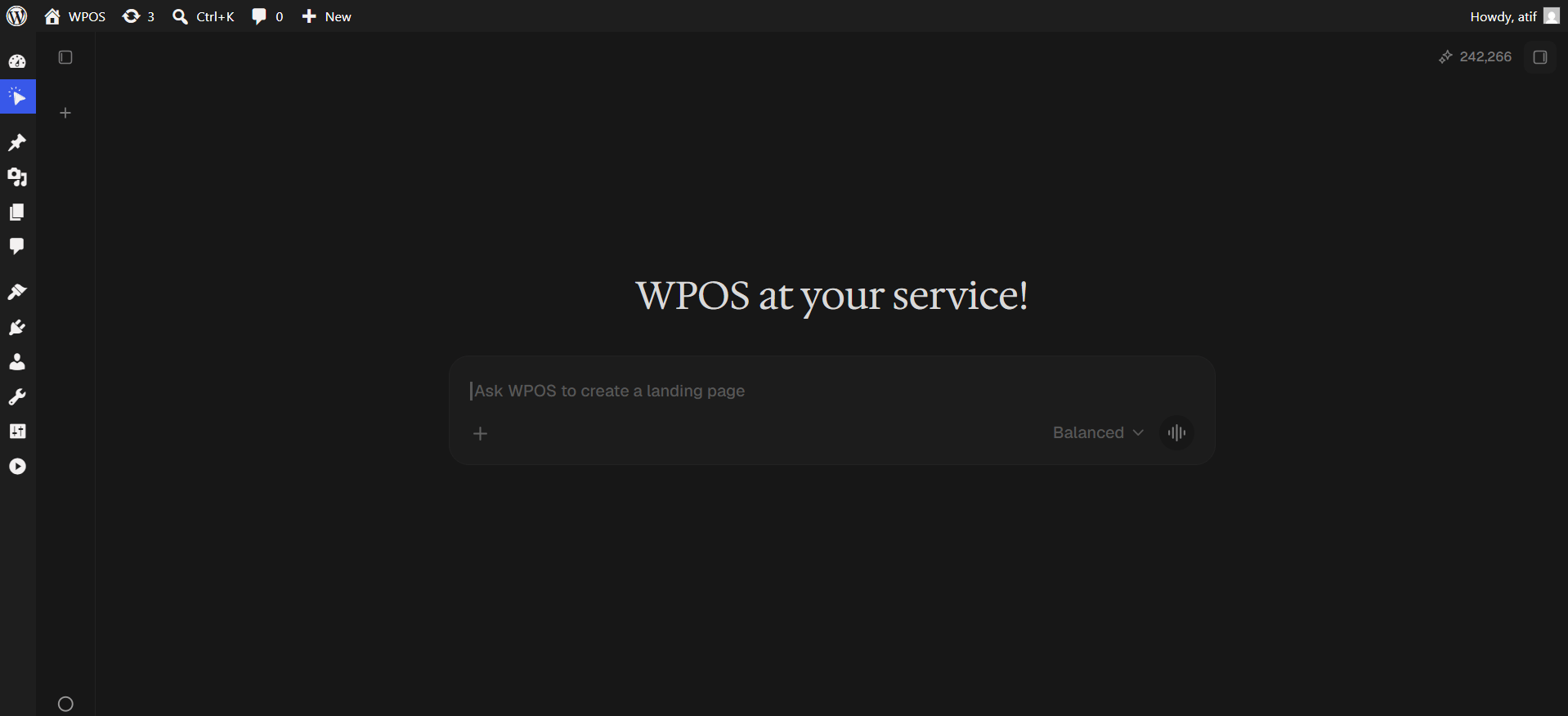 Click the **+** button to open the launcher panel, then choose **Connectors**.
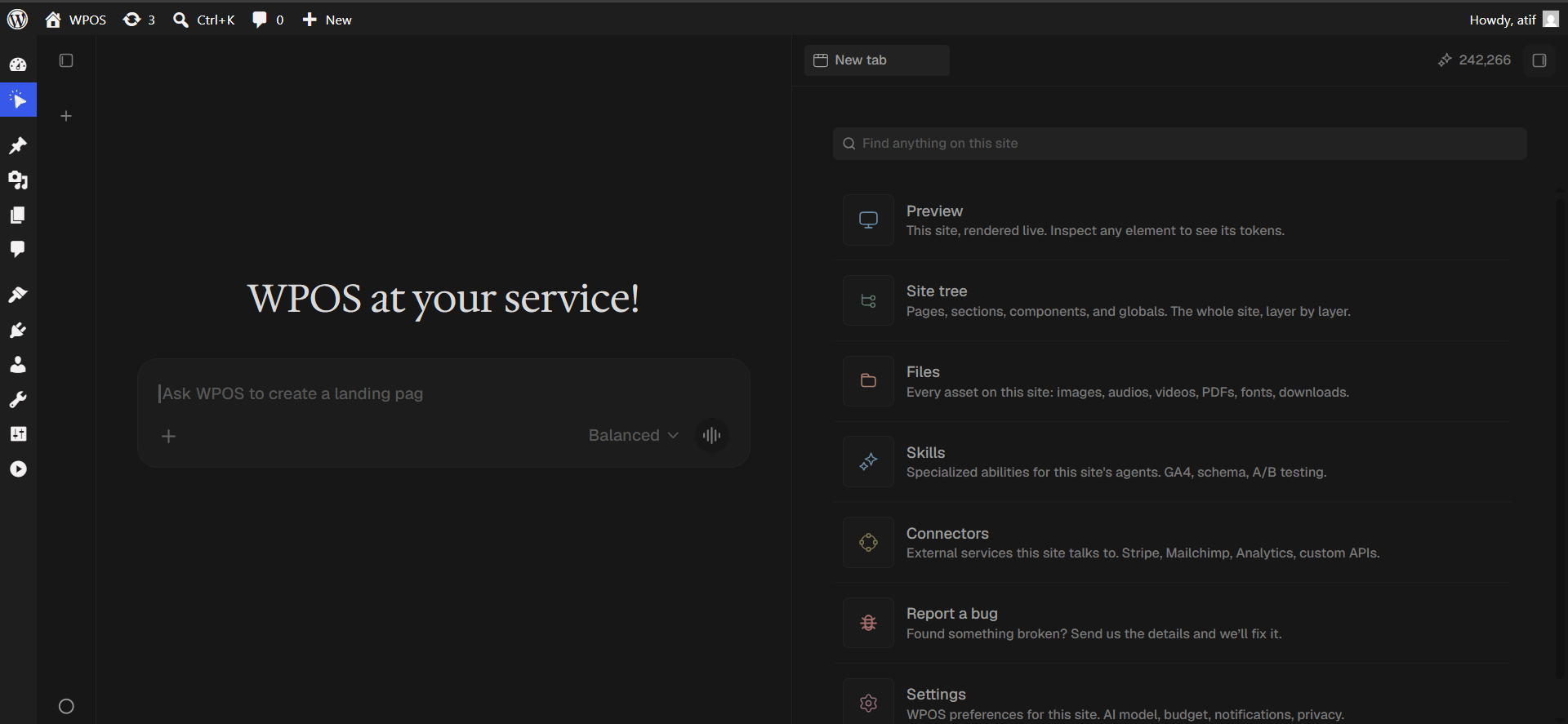 Every available connector is listed alphabetically, each with a button showing what it needs.
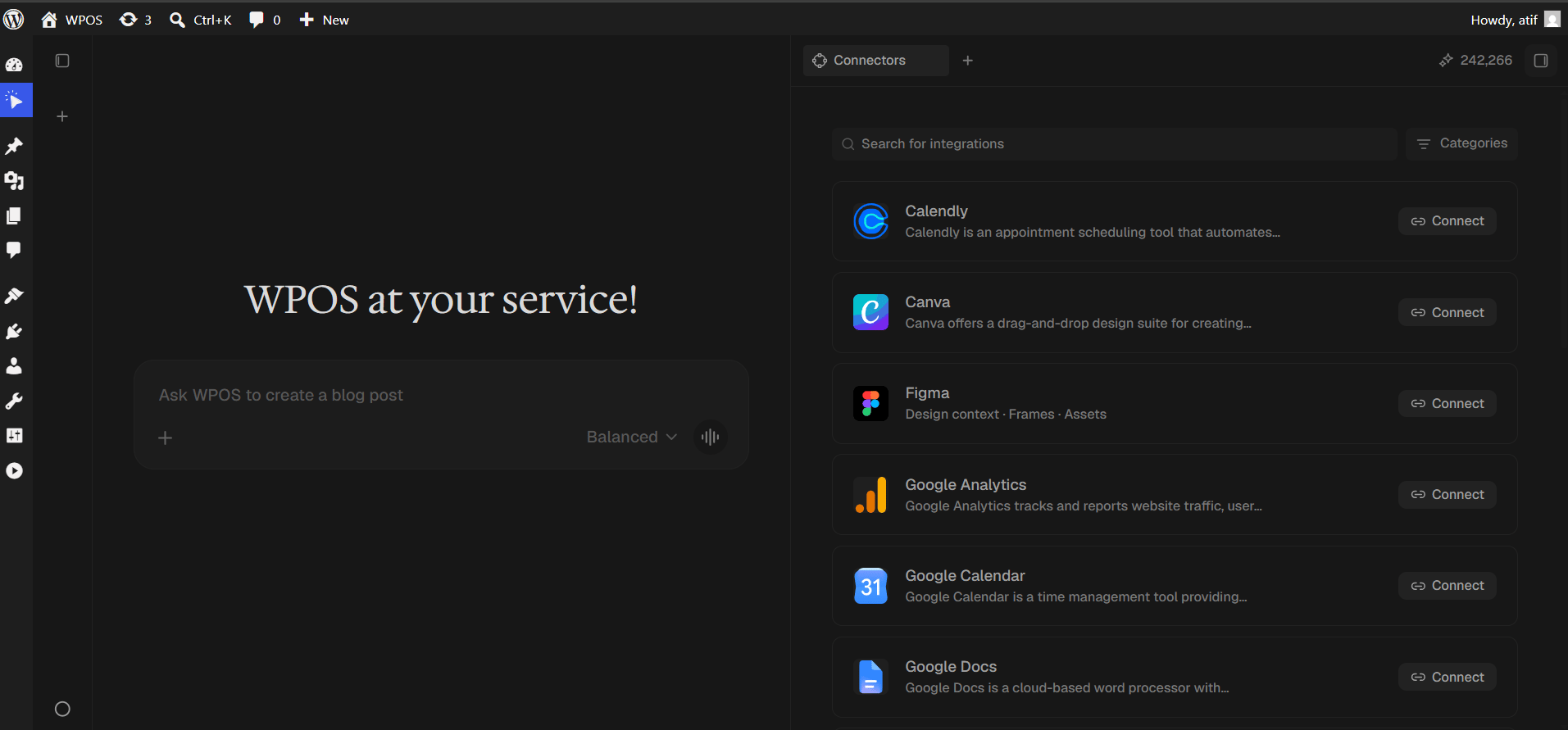 Type `Google Calendar` into **Search for integrations**, then press **Connect**.
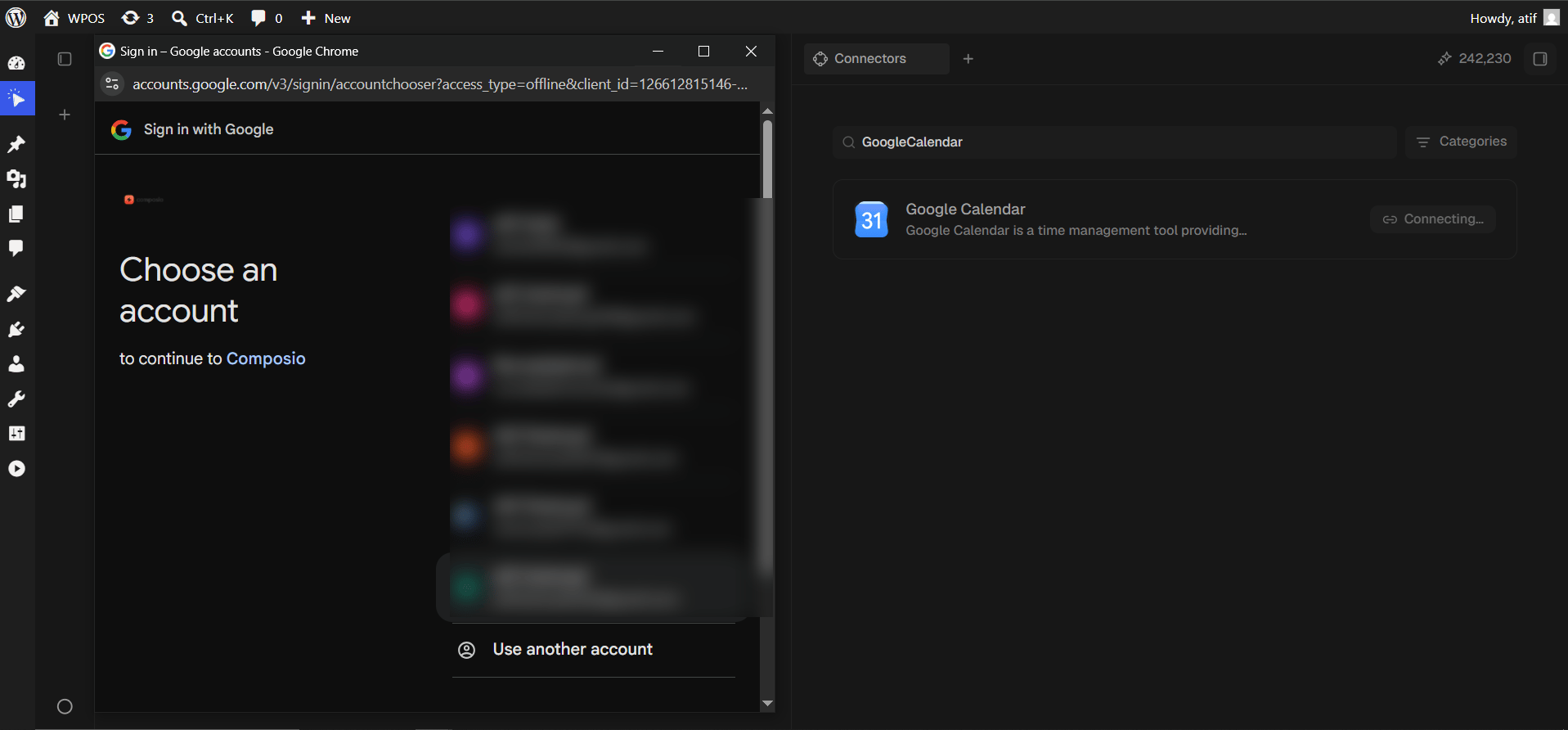
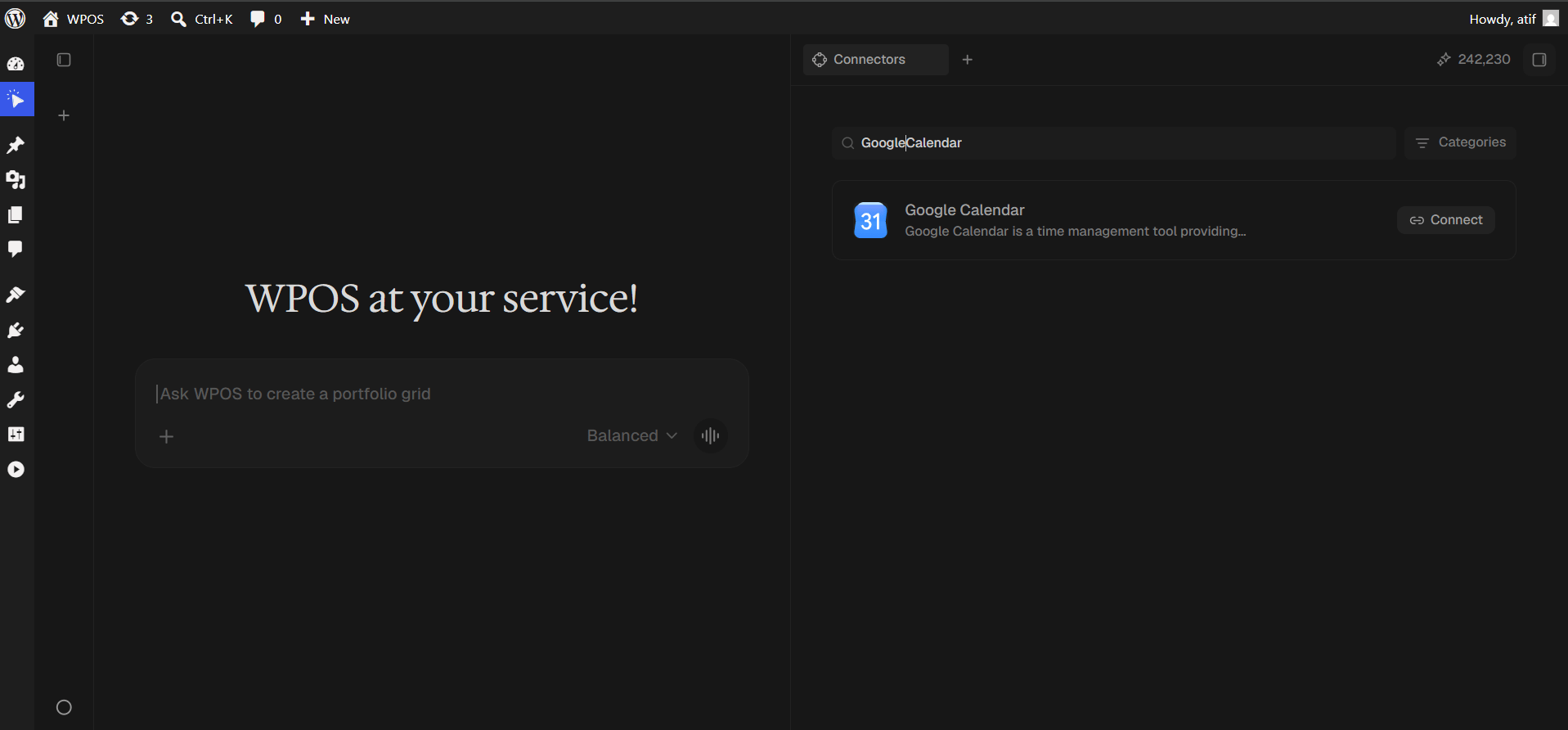 Pick the account whose calendars you want WPOS to reach.
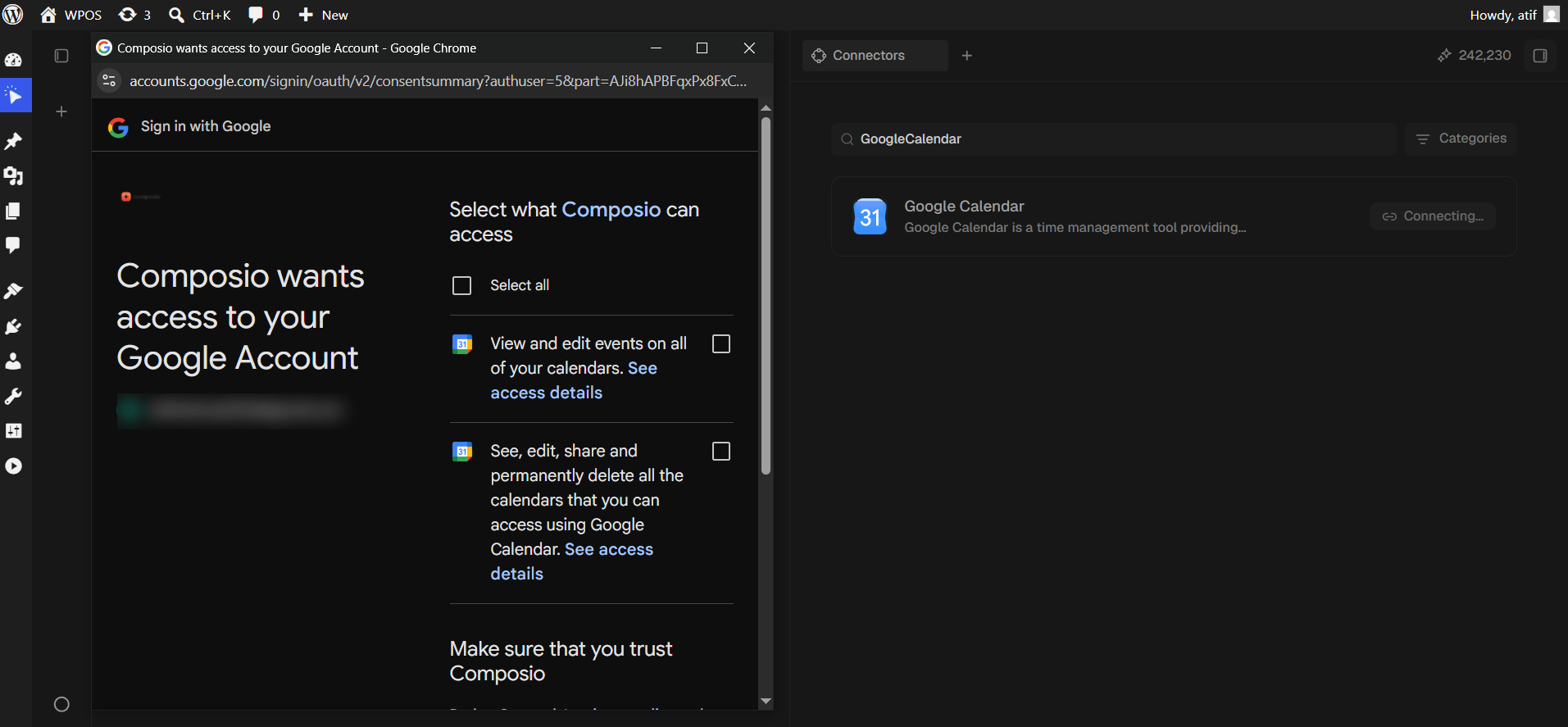
 Google asks for two permissions: view and edit events on all your calendars, and see, edit, share and permanently delete all the calendars you can access.
The second permission includes **permanent deletion of calendars**. Read it before approving, and connect a test account first if that concerns you. The checkboxes also start empty, so tick **Select all**.
Google asks for two permissions: view and edit events on all your calendars, and see, edit, share and permanently delete all the calendars you can access.
The second permission includes **permanent deletion of calendars**. Read it before approving, and connect a test account first if that concerns you. The checkboxes also start empty, so tick **Select all**.
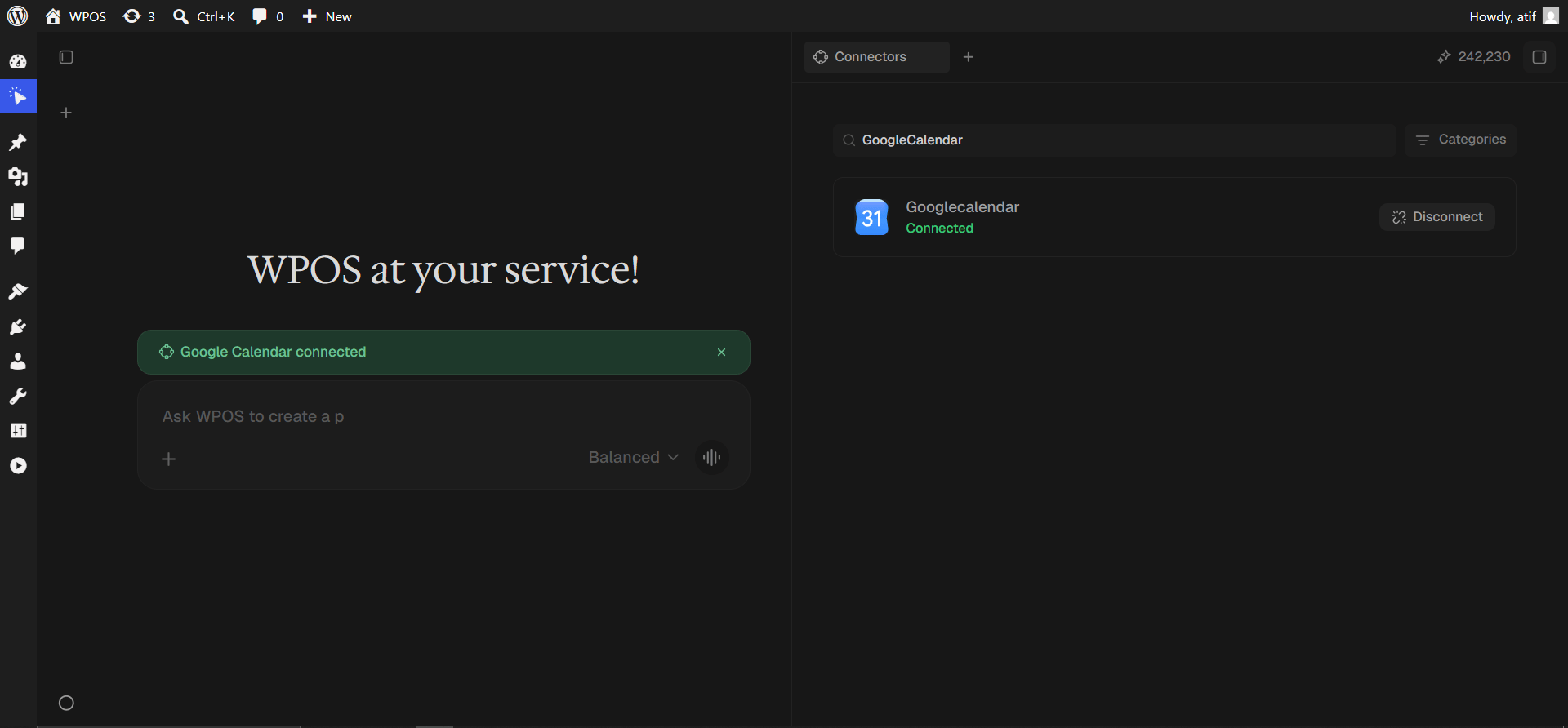
 The row reads **Connected** and a green "Google Calendar connected" banner appears in the chat.
The connected row is labelled **Googlecalendar**, one word. Cosmetic only.
The row reads **Connected** and a green "Google Calendar connected" banner appears in the chat.
The connected row is labelled **Googlecalendar**, one word. Cosmetic only.
 ## Troubleshooting
The permission checkboxes were left unticked. Disconnect, reconnect, and tick **Select all**.
A timezone mismatch. State the timezone explicitly in your prompt, or set the calendar default to match your audience.
Without a calendar named, events go to the primary one. Name the target calendar in your prompt.
Google sometimes severs the popup link to WordPress. WPOS keeps waiting for up to 45 seconds, so let it finish rather than pressing Connect again.
For popup failures, expired connections, and other issues shared across every
connector, see [Introducing Connectors](/connect/connectors).
## Troubleshooting
The permission checkboxes were left unticked. Disconnect, reconnect, and tick **Select all**.
A timezone mismatch. State the timezone explicitly in your prompt, or set the calendar default to match your audience.
Without a calendar named, events go to the primary one. Name the target calendar in your prompt.
Google sometimes severs the popup link to WordPress. WPOS keeps waiting for up to 45 seconds, so let it finish rather than pressing Connect again.
For popup failures, expired connections, and other issues shared across every
connector, see [Introducing Connectors](/connect/connectors).