> ## Documentation Index
> Fetch the complete documentation index at: https://docs.wpos.ai/llms.txt
> Use this file to discover all available pages before exploring further.
# Google Search Console
> Google Search Console reports how a site performs in Google Search. Connect it to WPOS and the agent can use it as part of the work it does on your site.
Google Search Console reports how your site performs in Google Search: the queries people search, your ranking positions, click-through rates, and indexing problems. Connected to WPOS, the agent can read that data and act on it in the same session, beside your site's live preview.
**Category:** Analytics and SEO **Actions available:** 9+
## What you can do
* Read search performance by query, page, country, and device
* Check whether a URL is indexed, and why it is not
* Pull impressions, clicks, and average position over a date range
## Example requests
Once Google Search Console is connected, ask in the [Command Center](/operate/command-center):
```text theme={null}
Show me the queries where we rank on page two.
Which pages lost impressions this month?
Rewrite the meta description for our highest-impression page.
```
## Before you connect
* A **verified property** in Search Console. Unverified sites return no data.
* **Full** or **Restricted** user access on the property. Restricted users cannot submit URLs for indexing.
* Know whether yours is a domain property (covers every subdomain) or a URL prefix property (exact match only). They report different data.
## Connect it
In WordPress admin, open **WPOS**. You land on the chat screen.
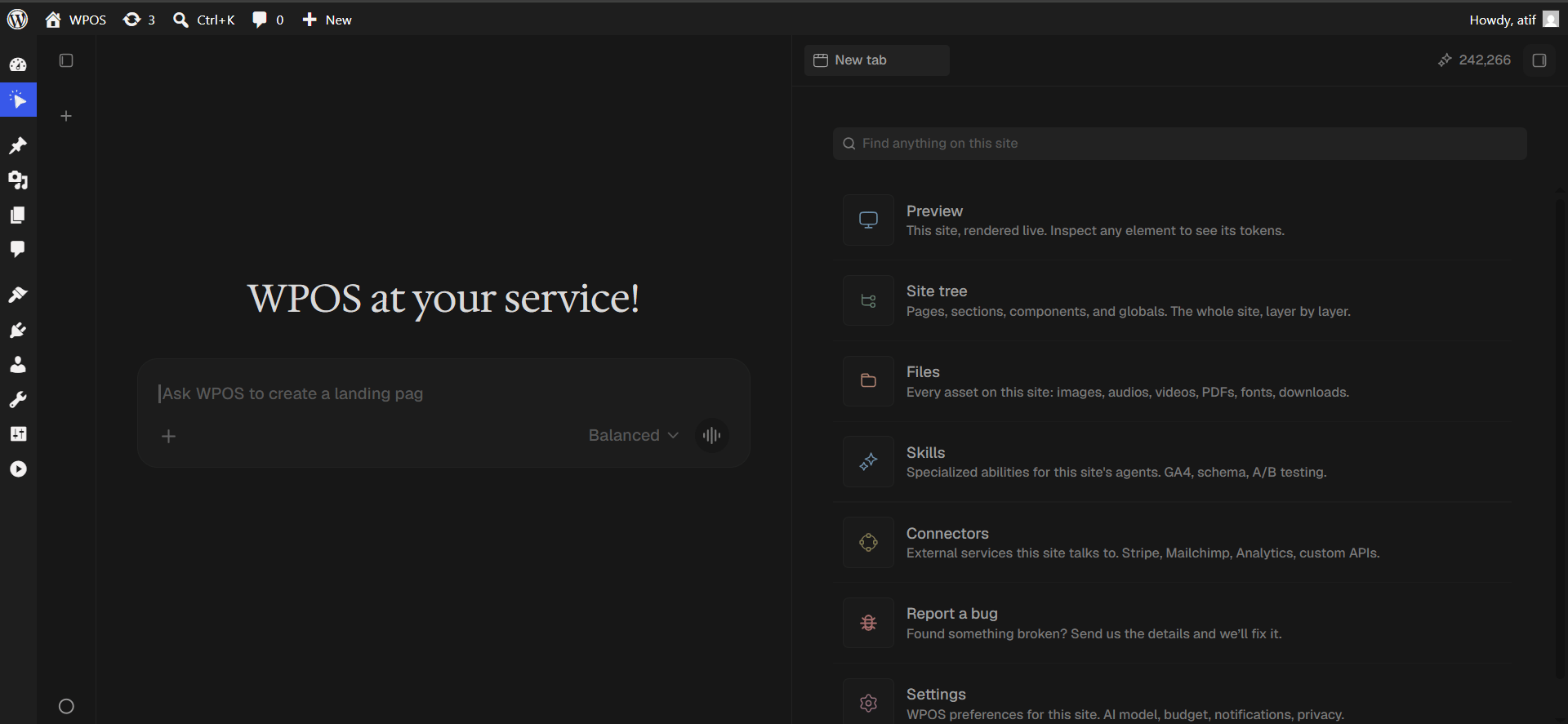
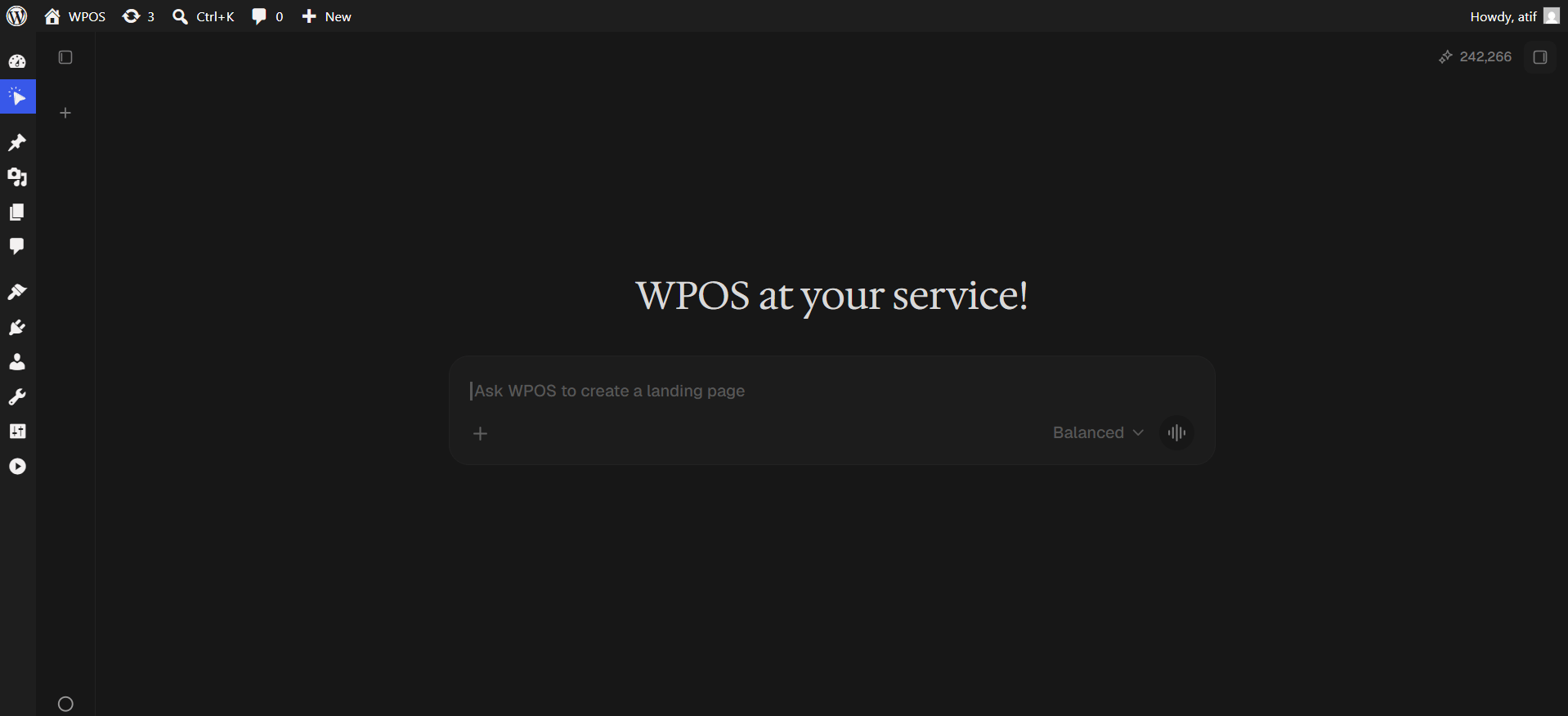 Click the **+** button to open the launcher panel, then choose **Connectors**.
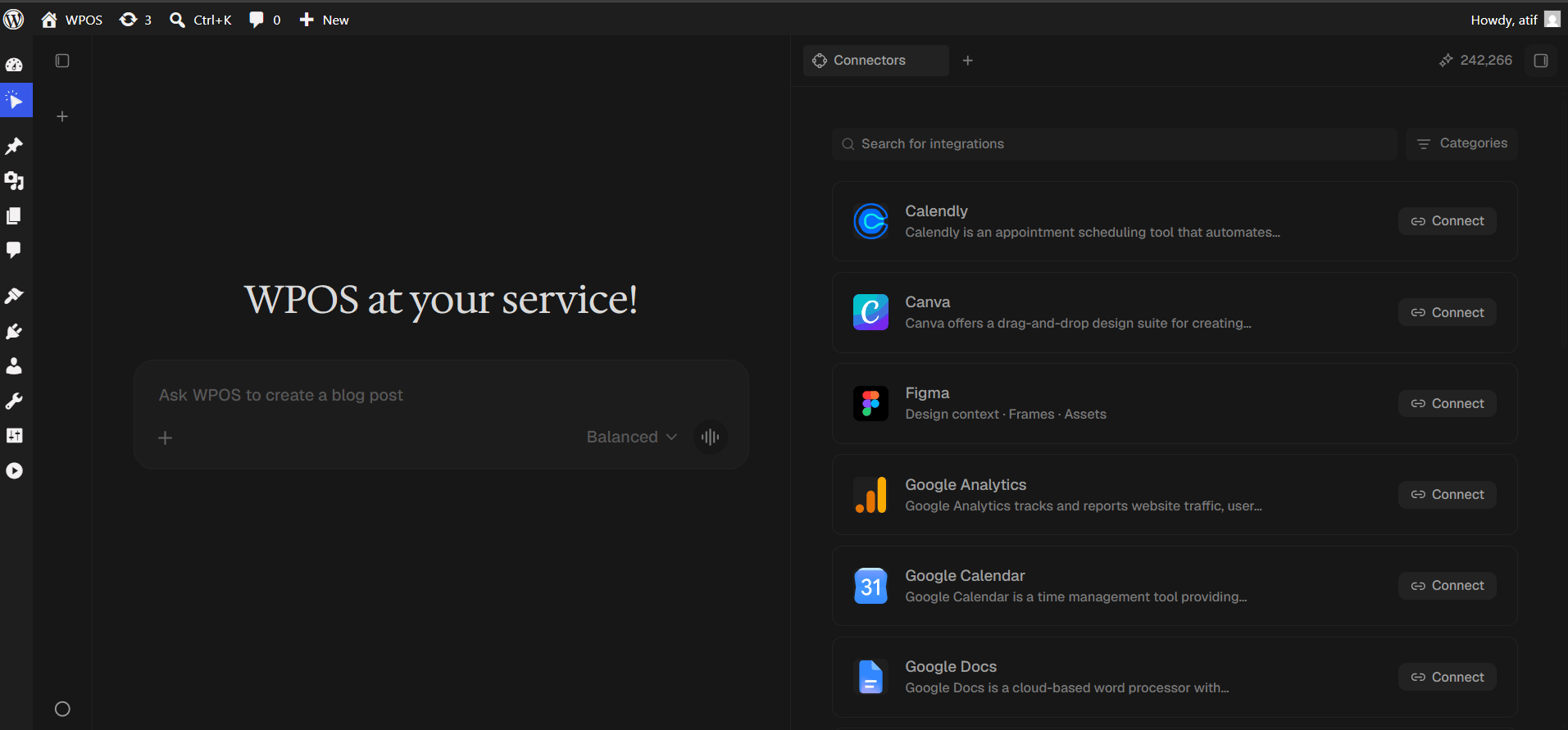
 Every available connector is listed alphabetically, each with a button showing what it needs.
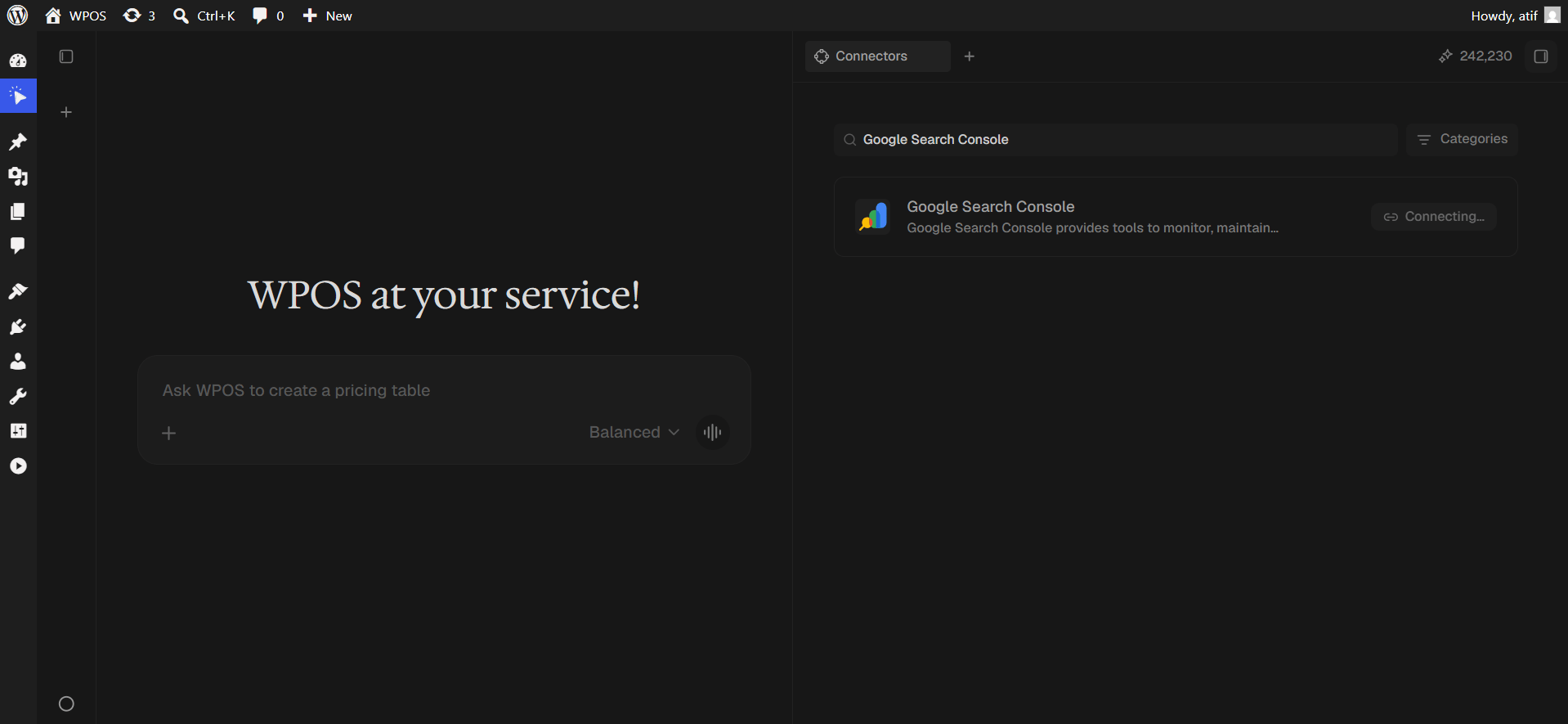
 Type `Google Search Console` into **Search for integrations**, then press **Connect**.
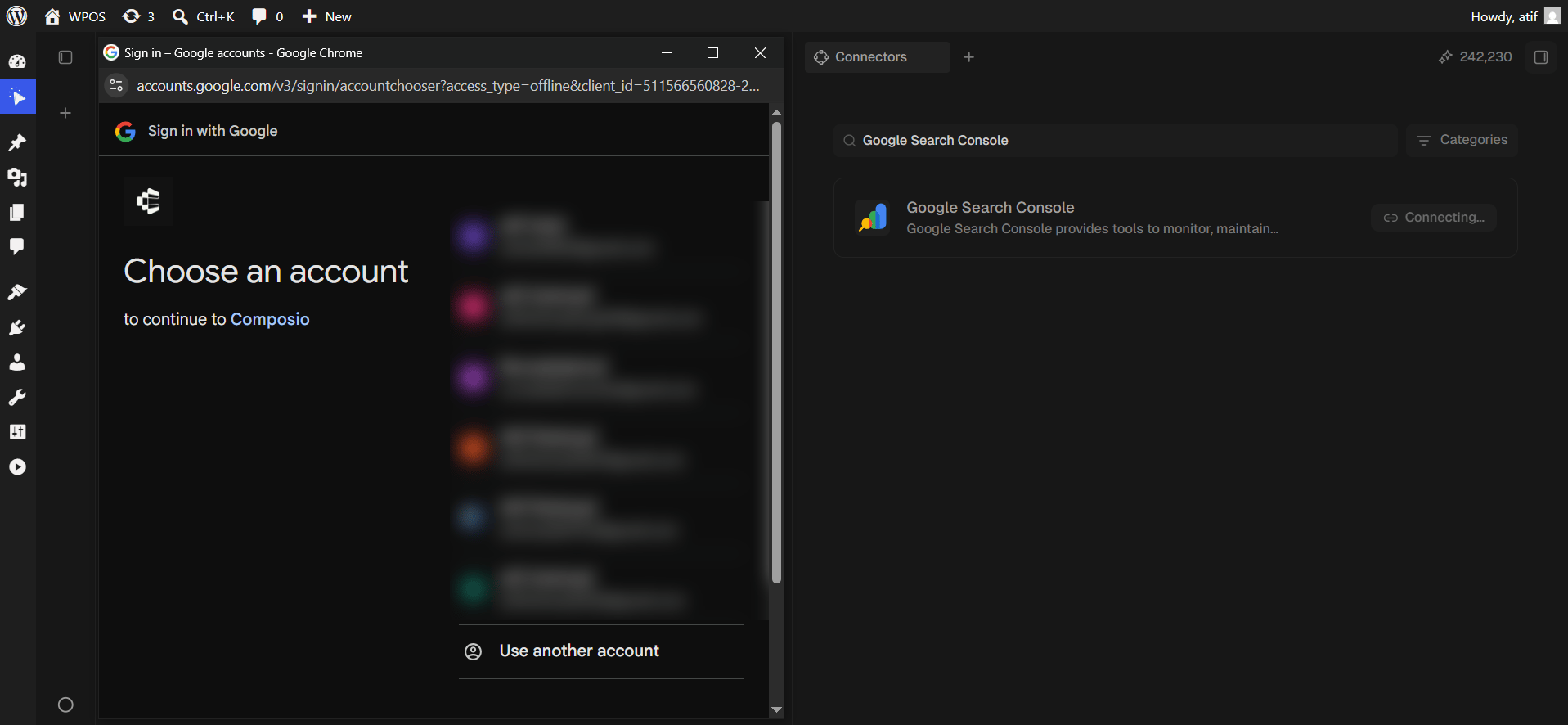
 Pick the account that has access to the verified property.
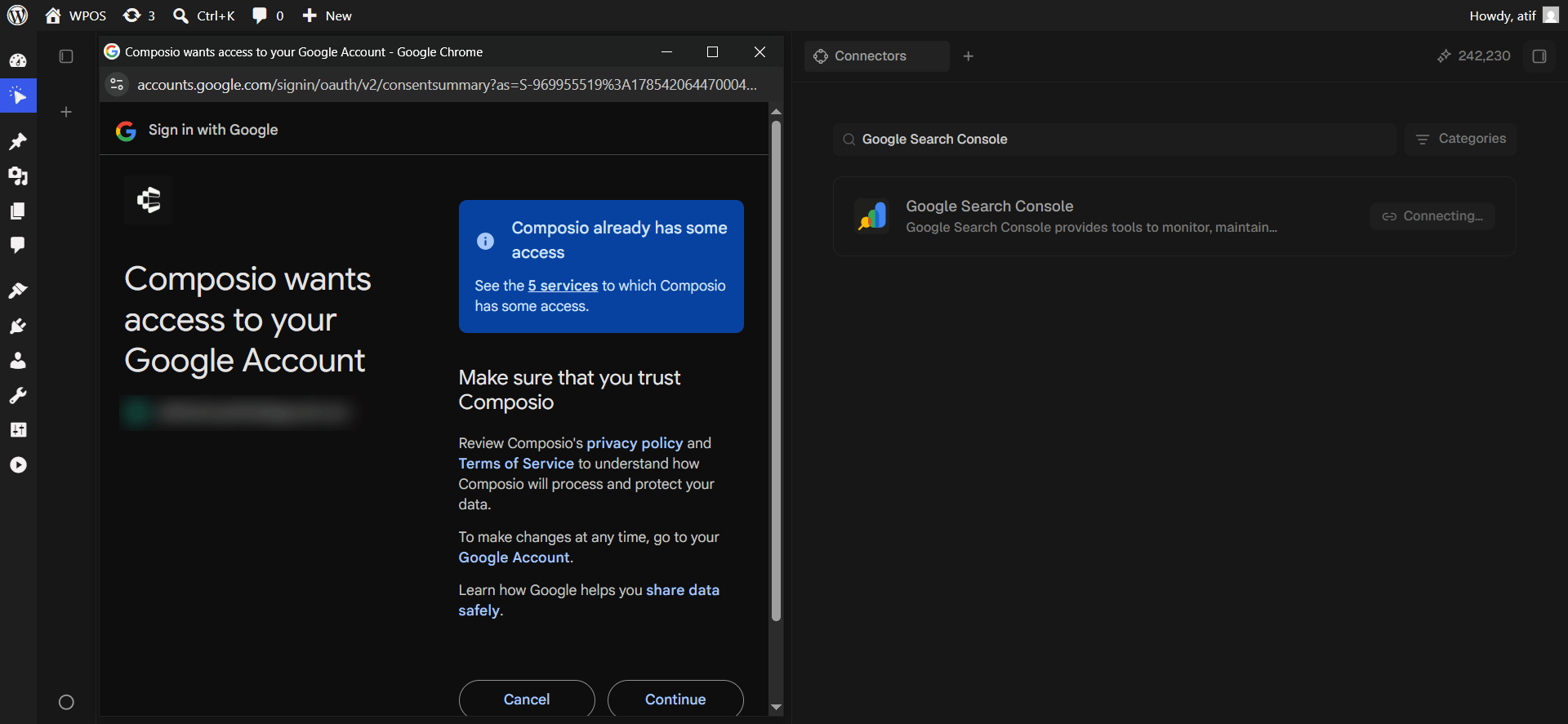
 Review the request and click **Continue**.
This screen has two shapes. On a first authorization Google shows permission **checkboxes that start empty**, and you must tick **Select all**. Once Composio already holds access for your account it shows the shorter "Composio already has some access" screen with just Cancel and Continue, as pictured.
Review the request and click **Continue**.
This screen has two shapes. On a first authorization Google shows permission **checkboxes that start empty**, and you must tick **Select all**. Once Composio already holds access for your account it shows the shorter "Composio already has some access" screen with just Cancel and Continue, as pictured.
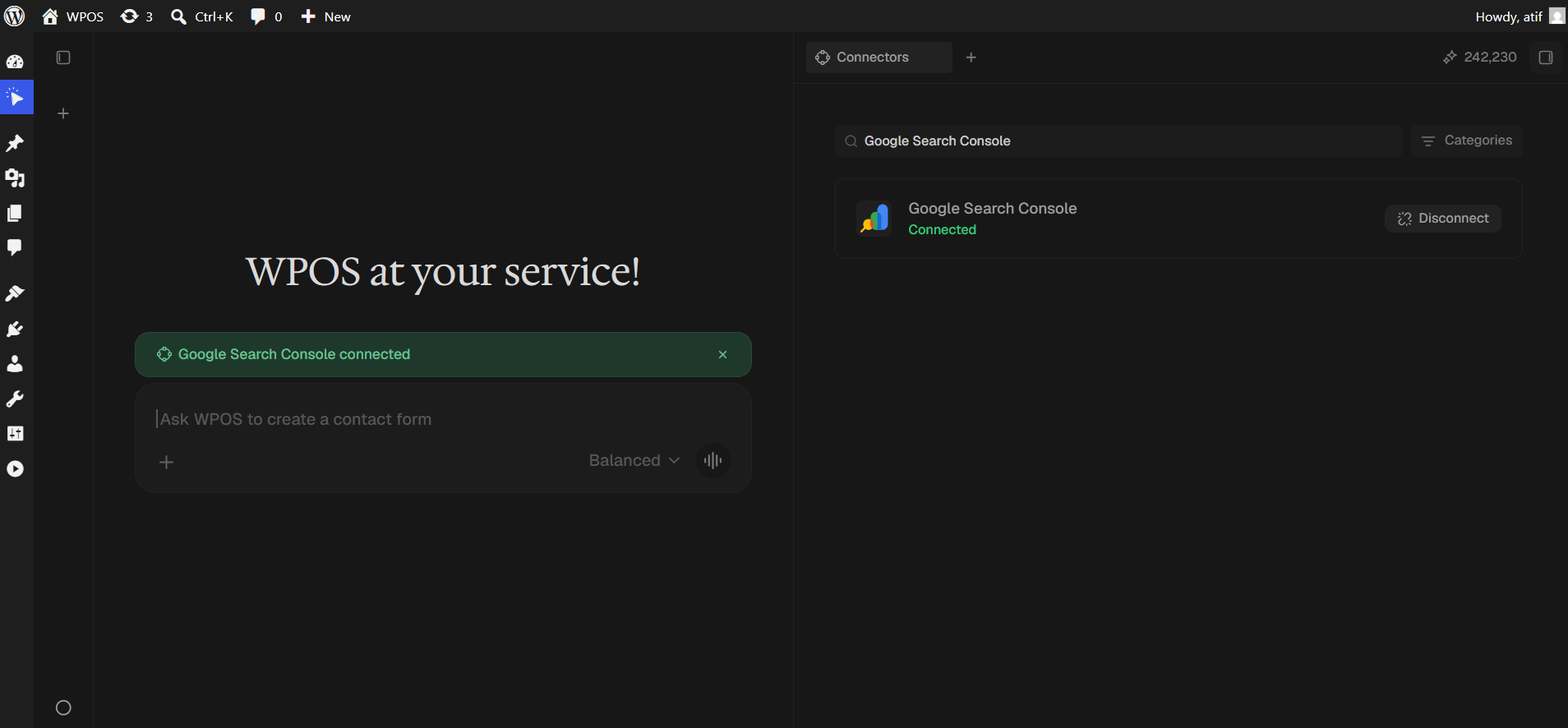
 The row reads **Connected** with a **Disconnect** button, and a green "Google Search Console connected" banner appears in the chat.
 ## Disconnect
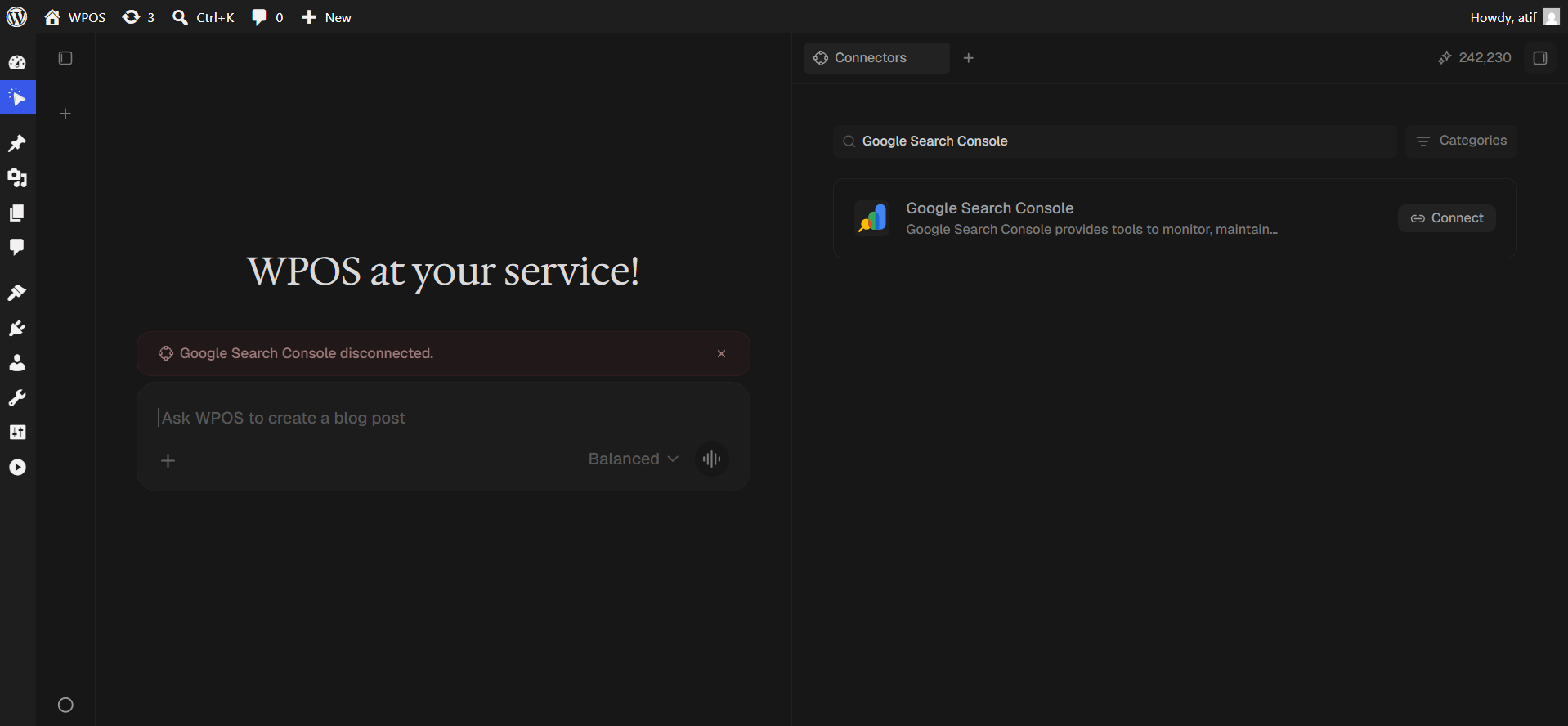
Press **Disconnect** on the row. A red "Google Search Console disconnected" banner confirms it, and the row returns to **Connect**.
## Disconnect
Press **Disconnect** on the row. A red "Google Search Console disconnected" banner confirms it, and the row returns to **Connect**.
 ## Troubleshooting
On a first authorization the permission checkboxes were left unticked. Disconnect, reconnect, and tick **Select all**.
Search Console lags by two to three days. This is Google behaviour, not a WPOS problem. Ask for ranges ending a few days back.
Domain properties aggregate every subdomain and both protocols. For one hostname only, use the matching URL prefix property.
For popup failures, expired connections, and other issues shared across every
connector, see [Introducing Connectors](/connect/connectors).
## Troubleshooting
On a first authorization the permission checkboxes were left unticked. Disconnect, reconnect, and tick **Select all**.
Search Console lags by two to three days. This is Google behaviour, not a WPOS problem. Ask for ranges ending a few days back.
Domain properties aggregate every subdomain and both protocols. For one hostname only, use the matching URL prefix property.
For popup failures, expired connections, and other issues shared across every
connector, see [Introducing Connectors](/connect/connectors).