> ## Documentation Index
> Fetch the complete documentation index at: https://docs.wpos.ai/llms.txt
> Use this file to discover all available pages before exploring further.
# Notion
> Notion is a workspace for notes, docs, wikis, and databases. Connect it to WPOS and the agent can use it as part of the work it does on your site.
Notion is where a lot of agencies plan content. Connected to WPOS, the agent can read and write the pages and databases you share with it, so a content calendar in Notion can drive what gets published on the site.
**Category:** Productivity and documents **Actions available:** 45+
## What you can do
* Read pages and databases you have shared
* Create and update pages
* Read and post comments
## Example requests
Once Notion is connected, ask in the [Command Center](/operate/command-center):
```text theme={null}
Publish this Notion page as a blog post.
Read the content calendar database and draft the next three pages.
Mark this row as published in Notion.
```
## Before you connect
* A Notion account. A free personal workspace is enough.
* Decide upfront **which pages** to share. Notion authorization is page by page, not workspace-wide.
* Adding more pages later means editing the integration access in Notion.
## Connect it
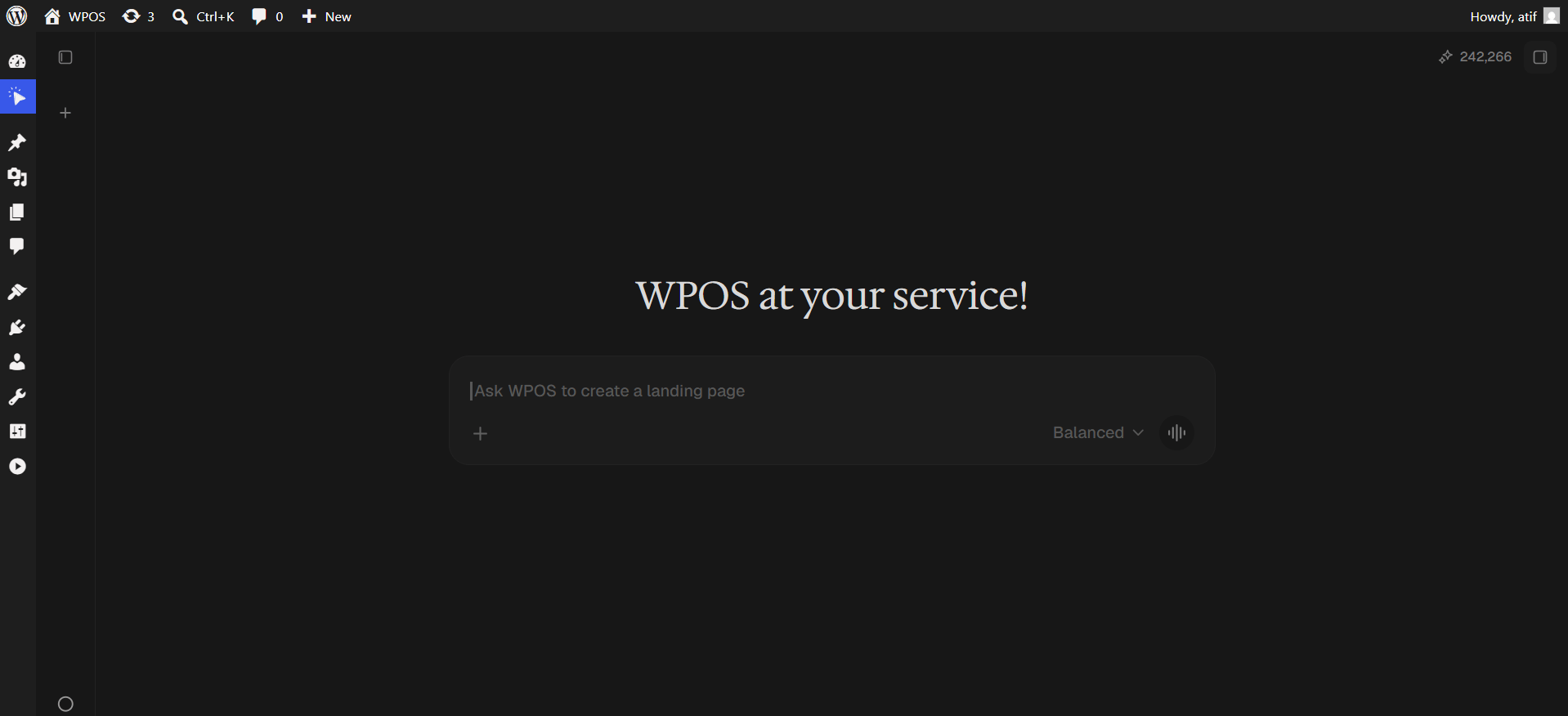
In WordPress admin, open **WPOS**. You land on the chat screen.
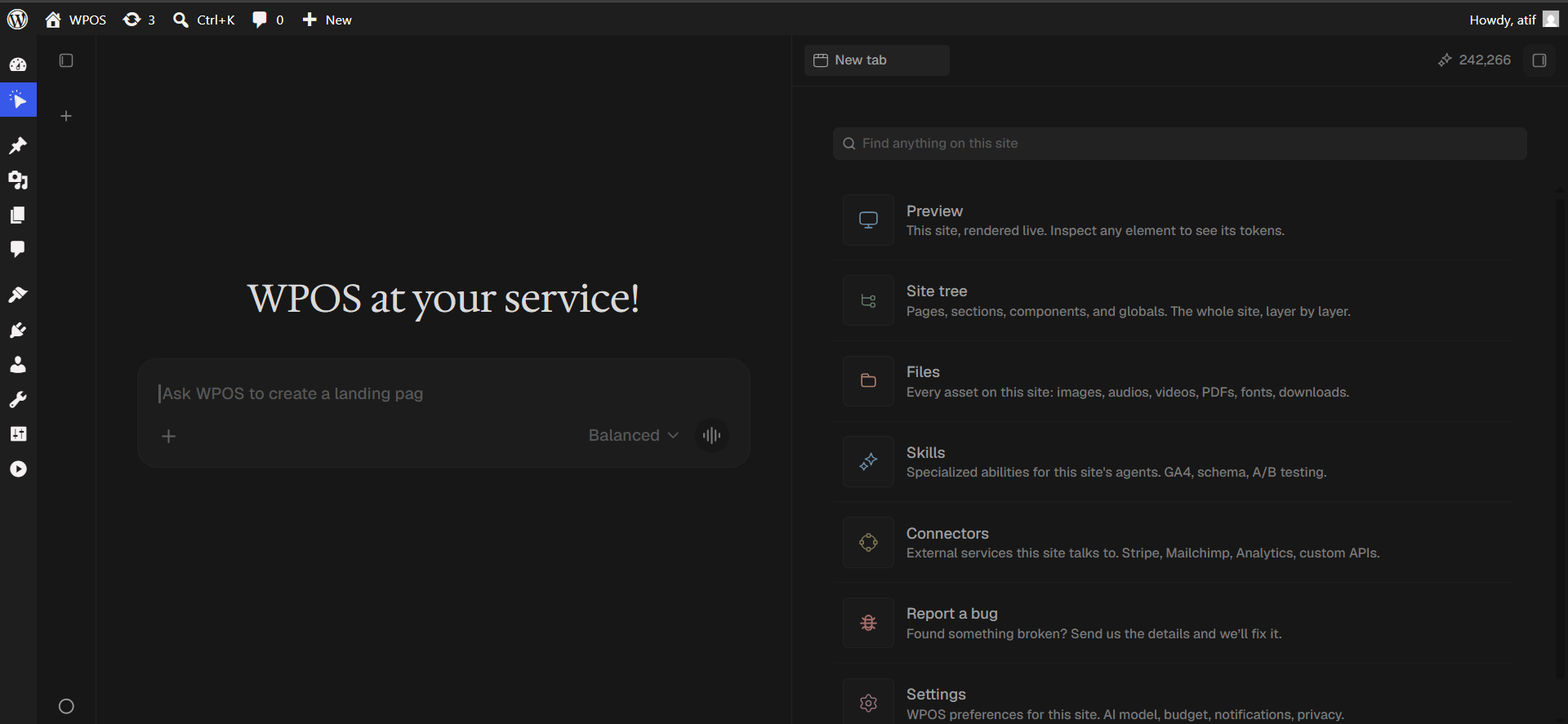
 Click the **+** button to open the launcher panel, then choose **Connectors**.
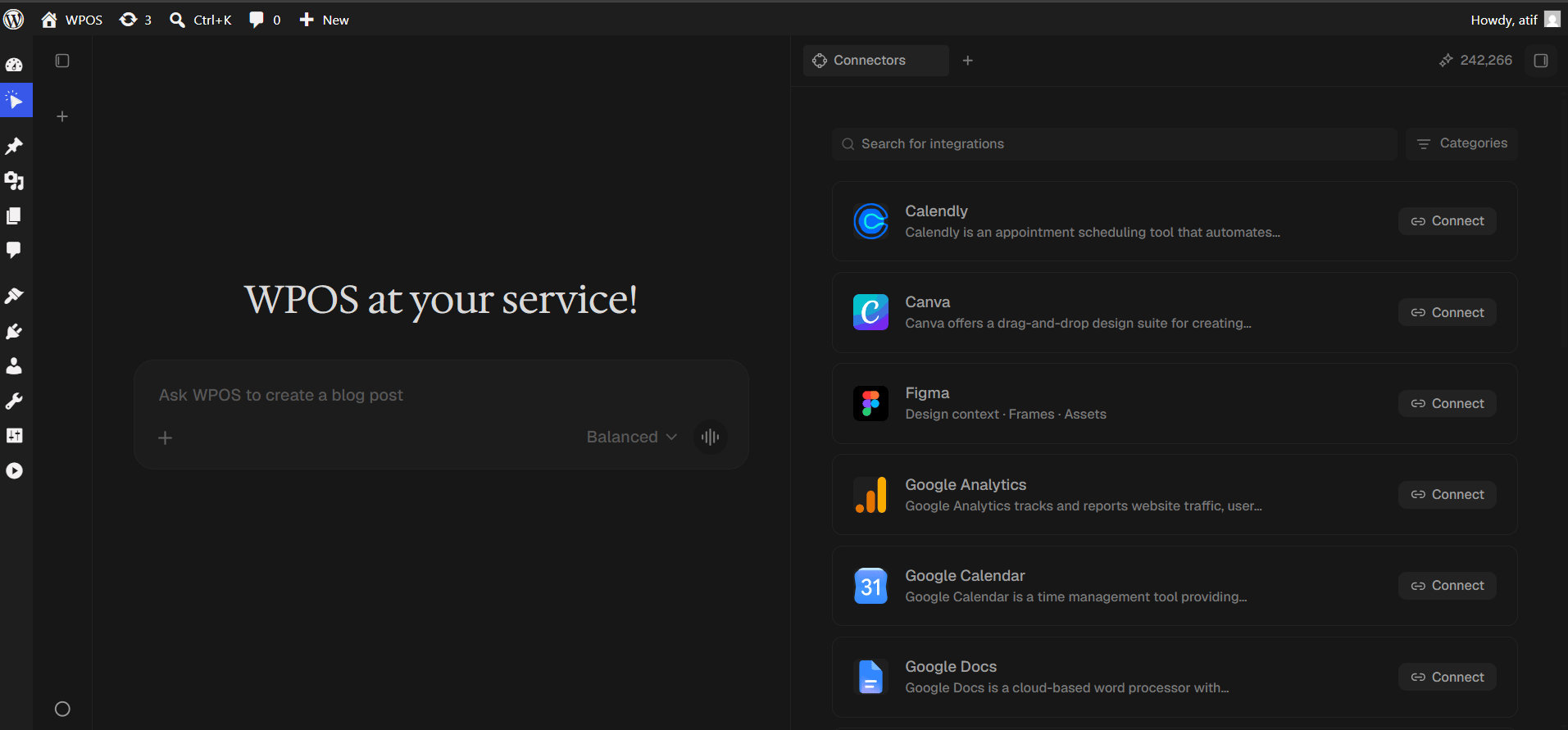
 Every available connector is listed alphabetically, each with a button showing what it needs.
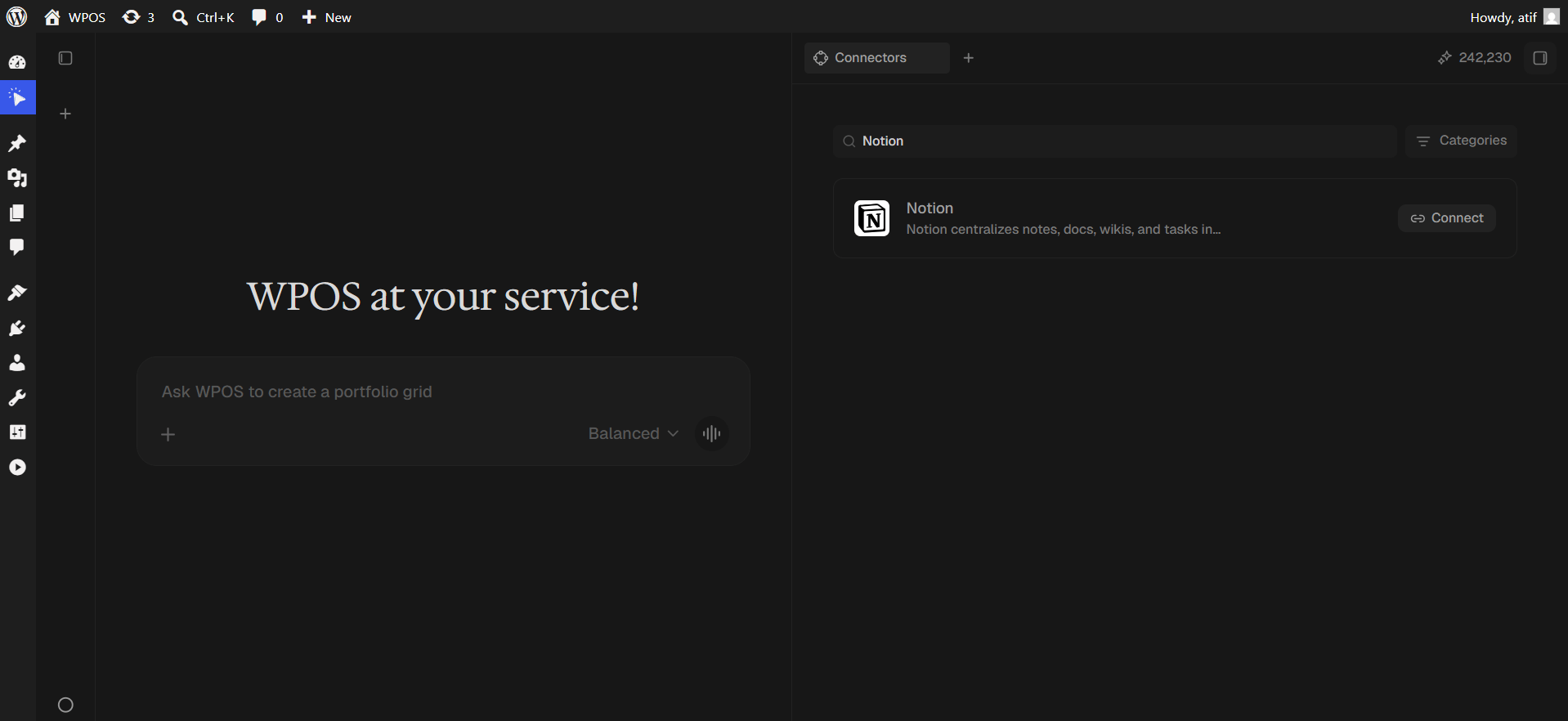
 Type `Notion` into **Search for integrations**, then press **Connect**.
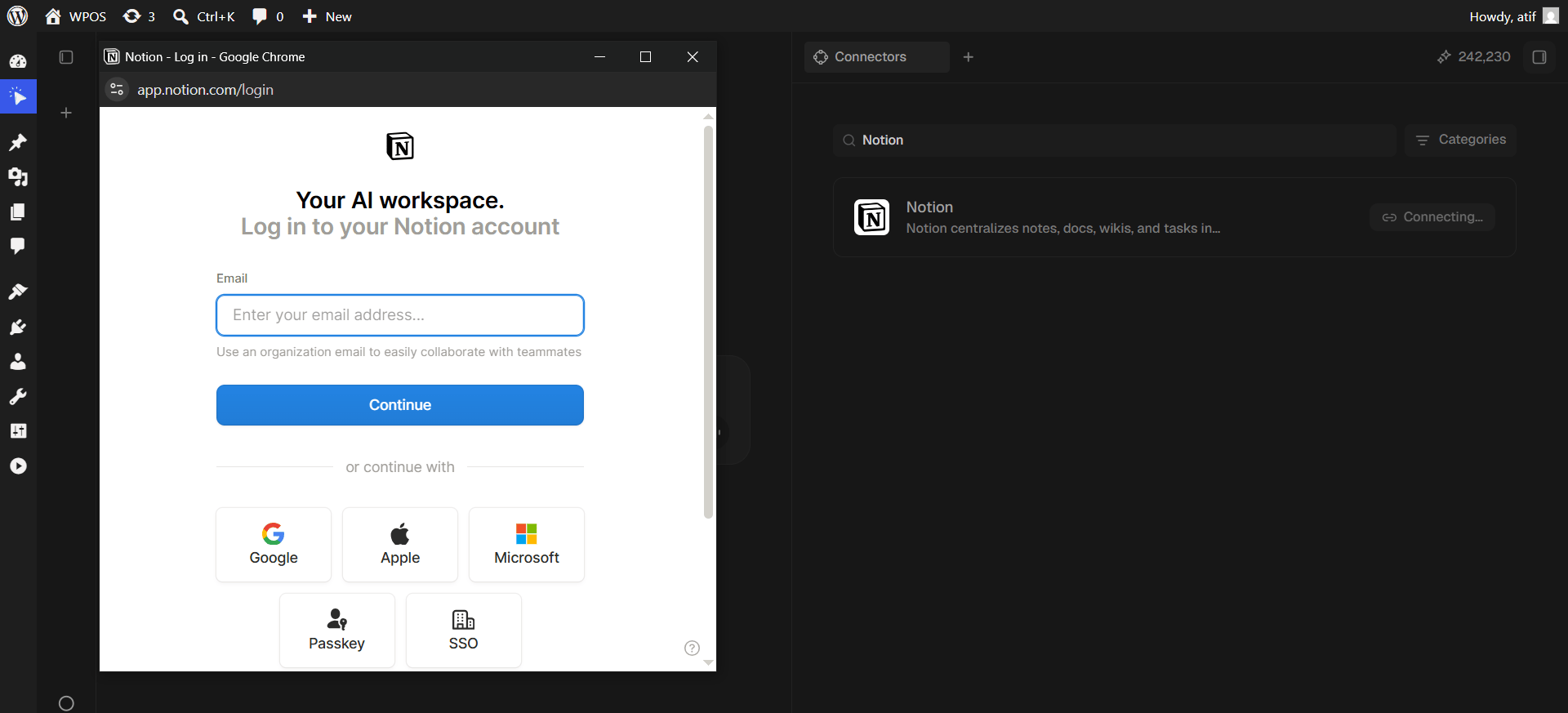
 A popup opens on Notion's login page. Enter your email and click **Continue**, or use Google, Apple, Microsoft, Passkey, or SSO.
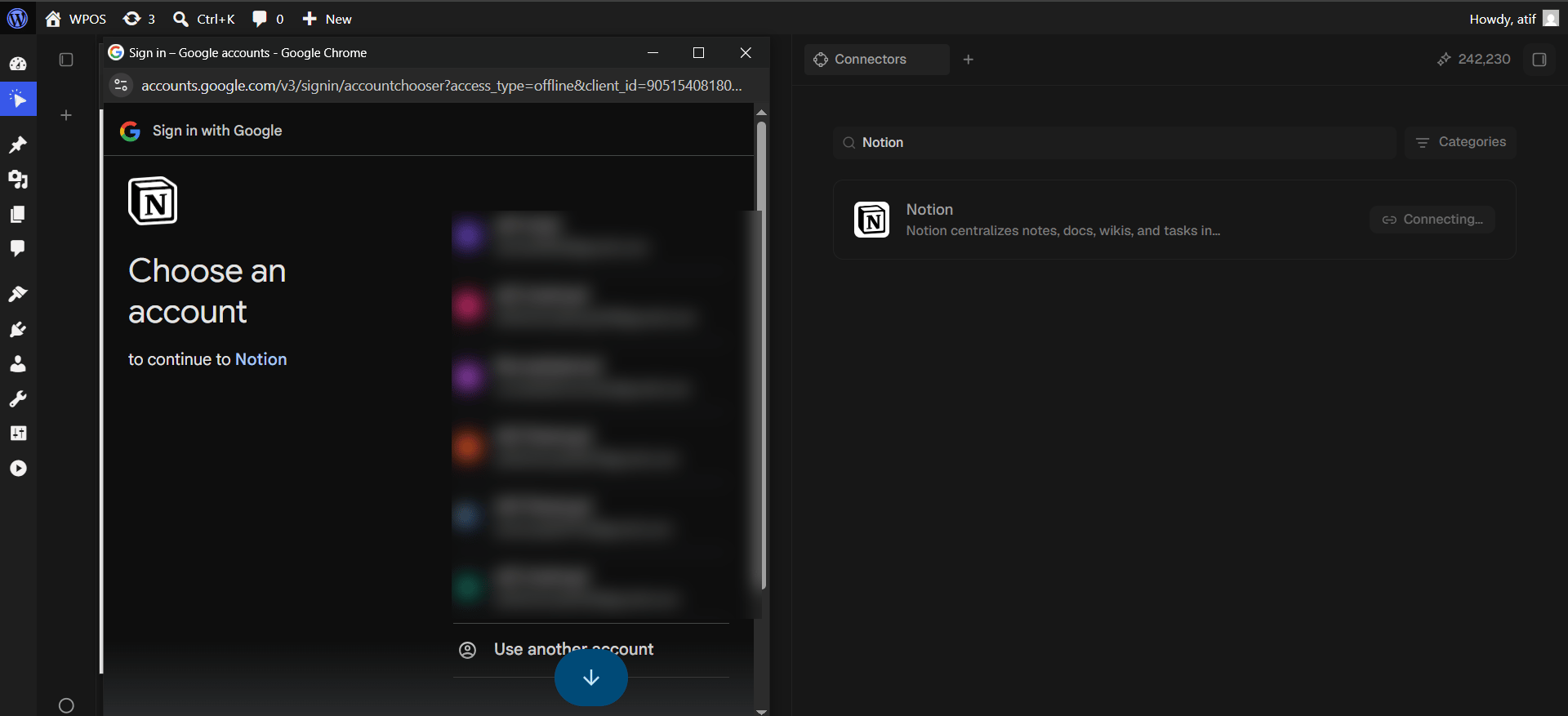
 If you log in with Google, its account chooser appears headed "to continue to Notion".
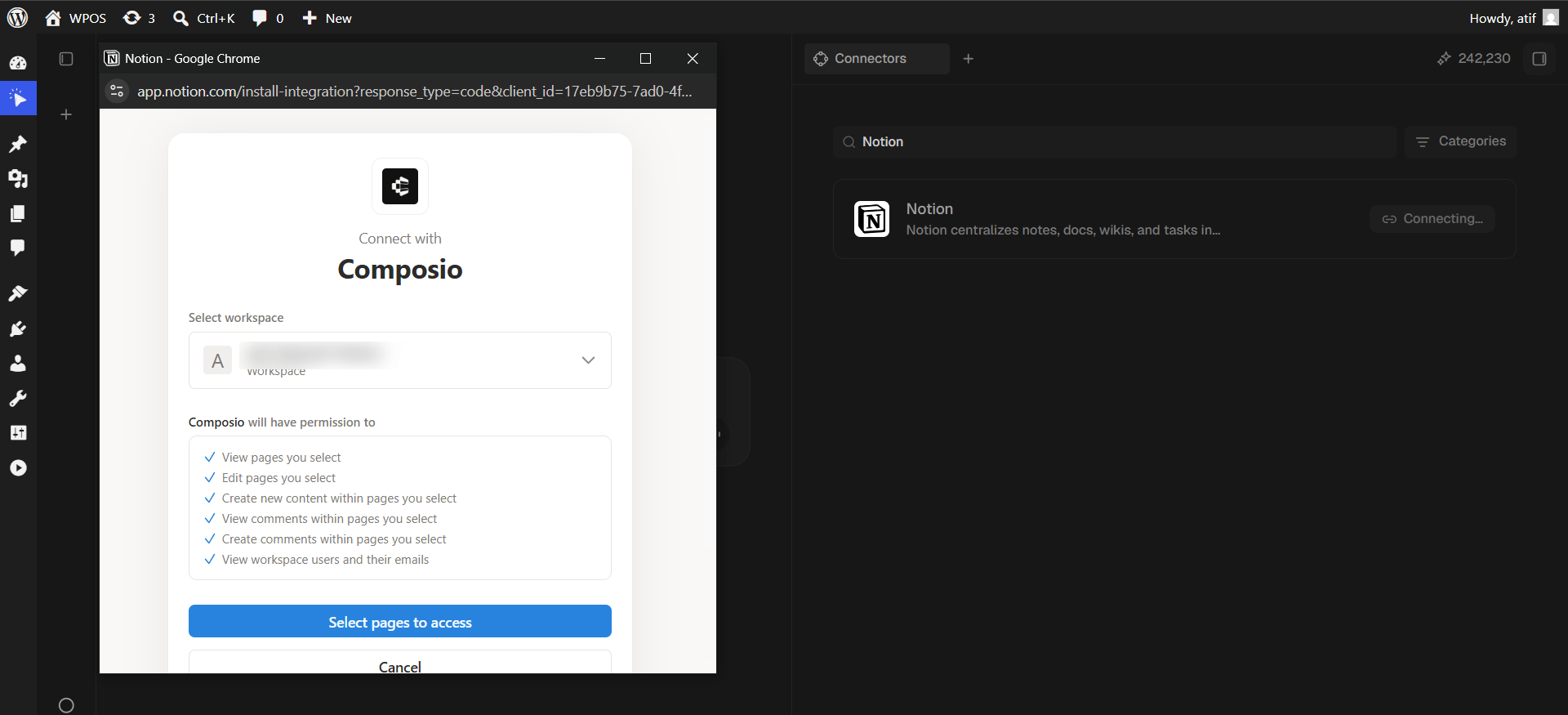
 Notion shows "Connect with Composio". Pick the workspace from the dropdown and review what Composio will be permitted to do: view, edit, and create content in **pages you select**, view and create comments, and view workspace users and their emails.
Click **Select pages to access**.
Notion shows "Connect with Composio". Pick the workspace from the dropdown and review what Composio will be permitted to do: view, edit, and create content in **pages you select**, view and create comments, and view workspace users and their emails.
Click **Select pages to access**.
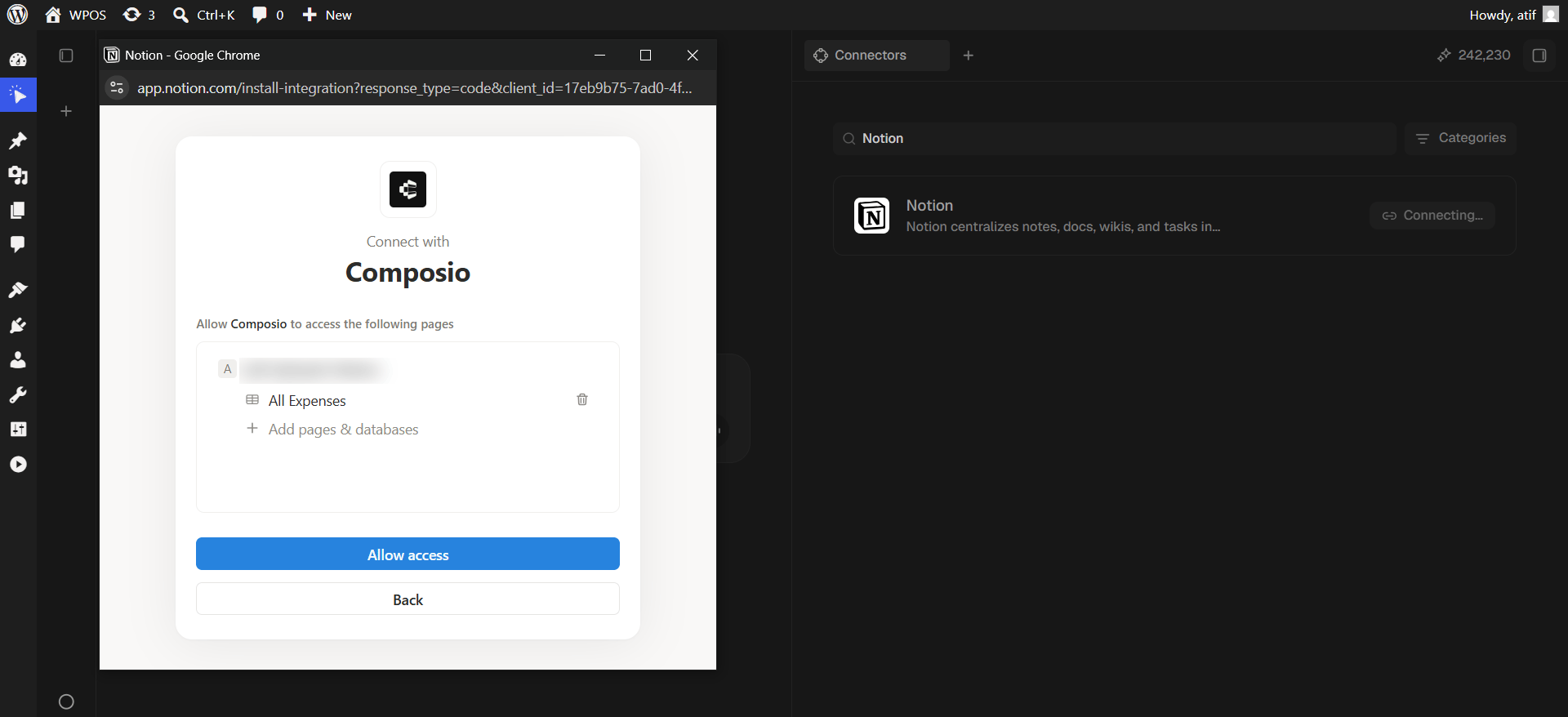
 Add every page or database WPOS should reach. Selecting a parent page includes its children.
Anything you do not add here is invisible to WPOS. This is the biggest difference between Notion and the other connectors: Notion grants access page by page, never workspace-wide. It is also the most common cause of "page not found" later.
Click **Allow access**.
Add every page or database WPOS should reach. Selecting a parent page includes its children.
Anything you do not add here is invisible to WPOS. This is the biggest difference between Notion and the other connectors: Notion grants access page by page, never workspace-wide. It is also the most common cause of "page not found" later.
Click **Allow access**.
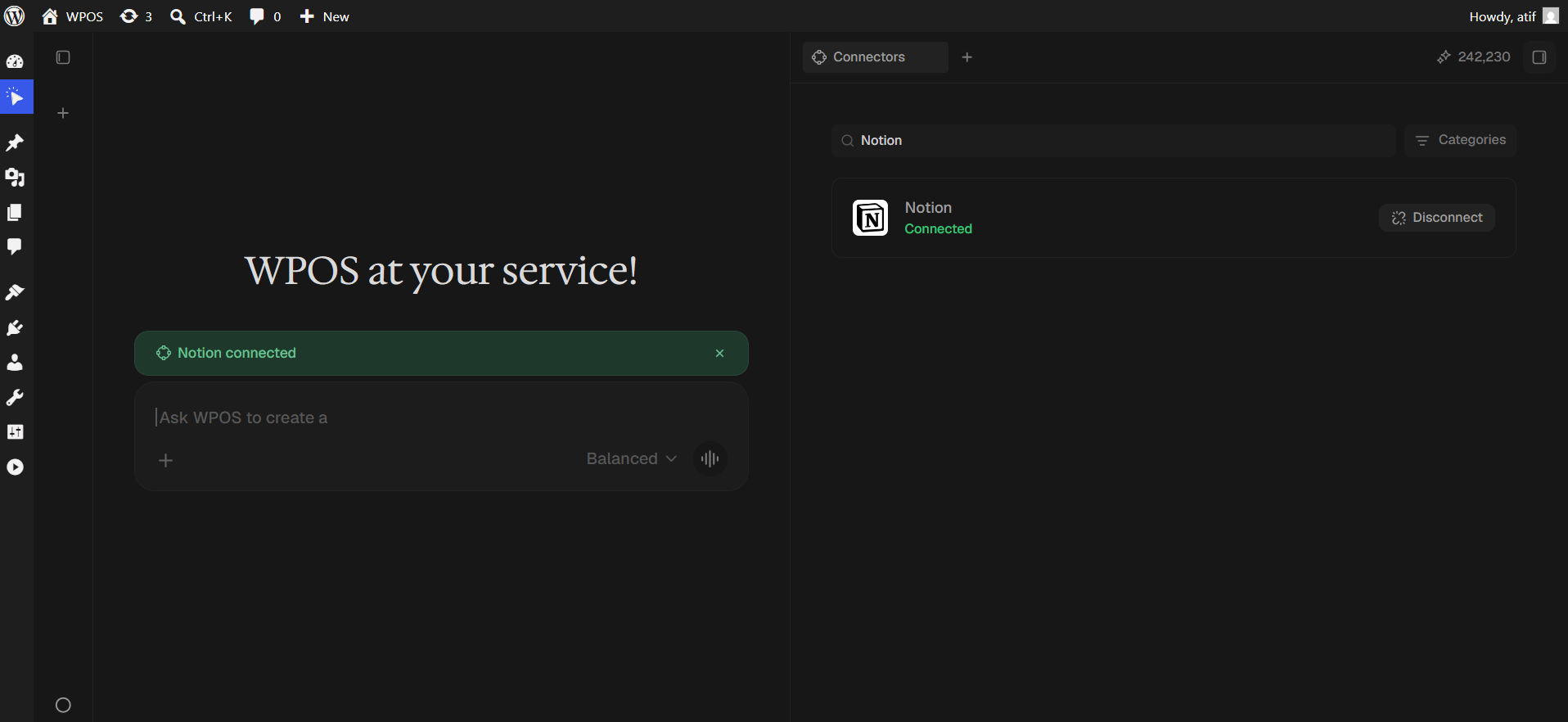
 The row reads **Connected** and a green "Notion connected" banner appears in the chat.
 ## Troubleshooting
It was not shared with the integration. In Notion, open the page, then the more menu, then **Connections**, and add WPOS. Or disconnect and reconnect, ticking more pages.
A page created outside a shared parent is not shared automatically. Create pages inside an already shared parent, or share each new one explicitly.
Relations, rollups, and formulas have no WordPress equivalent. Title, text, select, date, number, and checkbox transfer reliably.
Headings, paragraphs, lists, quotes, code, and images transfer well. Toggles, synced blocks, columns, and embeds do not.
For popup failures, expired connections, and other issues shared across every
connector, see [Introducing Connectors](/connect/connectors).
## Troubleshooting
It was not shared with the integration. In Notion, open the page, then the more menu, then **Connections**, and add WPOS. Or disconnect and reconnect, ticking more pages.
A page created outside a shared parent is not shared automatically. Create pages inside an already shared parent, or share each new one explicitly.
Relations, rollups, and formulas have no WordPress equivalent. Title, text, select, date, number, and checkbox transfer reliably.
Headings, paragraphs, lists, quotes, code, and images transfer well. Toggles, synced blocks, columns, and embeds do not.
For popup failures, expired connections, and other issues shared across every
connector, see [Introducing Connectors](/connect/connectors).