> ## Documentation Index
> Fetch the complete documentation index at: https://docs.wpos.ai/llms.txt
> Use this file to discover all available pages before exploring further.
# Welcome to WPOS
> WPOS builds and operates client WordPress sites with AI agents. Work in a chat beside a live preview, point at anything, and ask for the change in plain language.
WPOS is the AI-native operating system for WordPress, built for agencies. You work in a chat that sits right next
to a live preview of your site, inside wp-admin. Click any element in the preview,
say what you want in plain language, and WPOS makes the change: building sections
and pages, editing content, adjusting layout and styling, writing the CSS or code,
and wiring up forms.
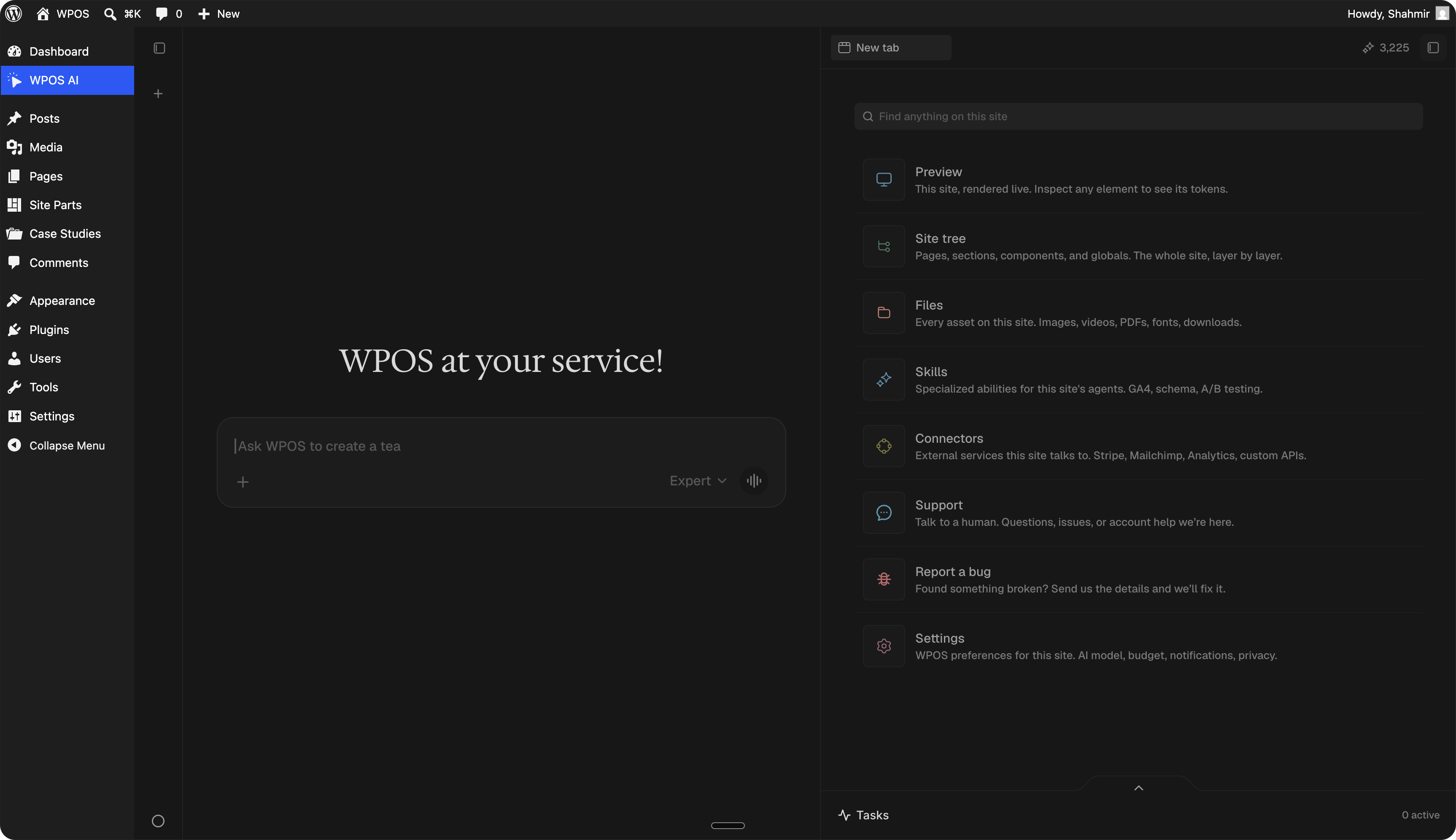 It works on one site through the [Command Center](/operate/command-center) and
across many sites through the [Workspace](/agencies/workspace). This is the
operator manual: connecting a site, working in the Command Center, building and
styling pages, wiring up forms and the tools your agency already uses, and
operating WPOS from your own agent over MCP.
## What WPOS is not
WPOS is not an AI website builder that spits out a generic site and locks you
inside a closed platform. The sites stay native WordPress, on your host, in your
control. The point is not to generate a site once and walk away. The point is to
operate sites continuously: the same chat-and-preview loop handles the first
build, the client's later requests, and the upkeep months down the line.
## How it fits together
Install the plugin on a WordPress site and link it to your WPOS account. WPOS
reads how the site is built. See [Install](/get-started/install).
Work from the Command Center inside wp-admin. Click an element in the preview,
ask for the change, and watch it land on the page. See
[The Command Center](/operate/command-center).
Bring in the tools you already use, like forms and the rest of your stack,
through [Connectors](/connect/connectors).
## Start here
Connect your first site and make your first change in under ten minutes.
Get WPOS onto a site and connected to your account.
Chat plus a live preview inside wp-admin. Click an element to work on it.
Bring tools like forms and the rest of your stack into the work.
## Built for agencies
WPOS is built for WordPress delivery agencies that build and maintain client sites at scale. Whether you run one site or fifty,
the operating model is the same: connect a site, then operate it from the chat
beside its live preview. If you run many sites, the
[Workspace](/agencies/workspace) is the cross-site view, and
[Billing](/agencies/billing) covers plans, credits, and site licenses.
It works on one site through the [Command Center](/operate/command-center) and
across many sites through the [Workspace](/agencies/workspace). This is the
operator manual: connecting a site, working in the Command Center, building and
styling pages, wiring up forms and the tools your agency already uses, and
operating WPOS from your own agent over MCP.
## What WPOS is not
WPOS is not an AI website builder that spits out a generic site and locks you
inside a closed platform. The sites stay native WordPress, on your host, in your
control. The point is not to generate a site once and walk away. The point is to
operate sites continuously: the same chat-and-preview loop handles the first
build, the client's later requests, and the upkeep months down the line.
## How it fits together
Install the plugin on a WordPress site and link it to your WPOS account. WPOS
reads how the site is built. See [Install](/get-started/install).
Work from the Command Center inside wp-admin. Click an element in the preview,
ask for the change, and watch it land on the page. See
[The Command Center](/operate/command-center).
Bring in the tools you already use, like forms and the rest of your stack,
through [Connectors](/connect/connectors).
## Start here
Connect your first site and make your first change in under ten minutes.
Get WPOS onto a site and connected to your account.
Chat plus a live preview inside wp-admin. Click an element to work on it.
Bring tools like forms and the rest of your stack into the work.
## Built for agencies
WPOS is built for WordPress delivery agencies that build and maintain client sites at scale. Whether you run one site or fifty,
the operating model is the same: connect a site, then operate it from the chat
beside its live preview. If you run many sites, the
[Workspace](/agencies/workspace) is the cross-site view, and
[Billing](/agencies/billing) covers plans, credits, and site licenses.