> ## Documentation Index
> Fetch the complete documentation index at: https://docs.wpos.ai/llms.txt
> Use this file to discover all available pages before exploring further.
# Chat and modes
> How the WPOS chat works: modes, auto plan, voice, attachments, context, conversations, and tasks.
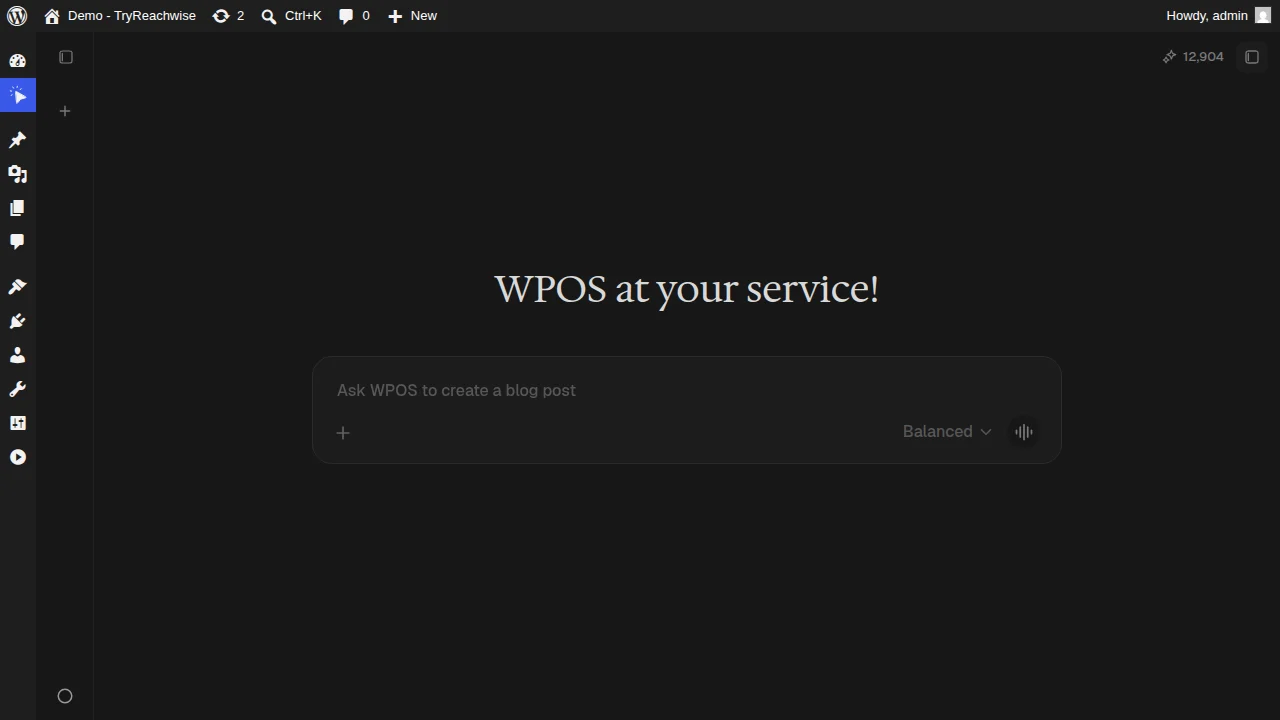
The chat is the heart of the [Command Center](/operate/command-center). You ask in
plain language, the agent acts on the site, and the preview updates. A few controls
shape how it works.
 ## Modes
The mode sets how the agent approaches a request. You can change it per chat, and
set a default in [Settings](/operate/settings).
The default. A good balance of speed and depth for everyday changes.
More thorough reasoning for harder or higher-stakes work.
Expert with a large context window, for work that spans a lot of the site at
once.
## Controls
* **Auto plan.** When enabled in [Settings](/operate/settings), the agent shows a
plan before executing complex tasks, so you can review the steps before it
touches the site.
* **Voice input.** Dictate your request instead of typing.
* **Attach.** Add a file to your message, or click an element in the preview to
attach it (the [click-then-ask](/operate/command-center) loop).
* **Context window.** Each conversation has a context budget. You can clear context
or compact a long conversation from [Settings](/operate/settings) when it gets
heavy.
## Conversations and tasks
* **Conversations.** Your chat history is kept, so you can reopen earlier threads
and pick up where you left off.
* **Tasks.** Longer pieces of work show up in the Tasks panel with their status, so
you can track what the agent is doing without watching the chat the whole time.
Start in Balanced for routine edits and switch to Expert when a task is tricky or
important. Turn on Auto plan when you want to see the agent's intended steps
before anything changes.
## Modes
The mode sets how the agent approaches a request. You can change it per chat, and
set a default in [Settings](/operate/settings).
The default. A good balance of speed and depth for everyday changes.
More thorough reasoning for harder or higher-stakes work.
Expert with a large context window, for work that spans a lot of the site at
once.
## Controls
* **Auto plan.** When enabled in [Settings](/operate/settings), the agent shows a
plan before executing complex tasks, so you can review the steps before it
touches the site.
* **Voice input.** Dictate your request instead of typing.
* **Attach.** Add a file to your message, or click an element in the preview to
attach it (the [click-then-ask](/operate/command-center) loop).
* **Context window.** Each conversation has a context budget. You can clear context
or compact a long conversation from [Settings](/operate/settings) when it gets
heavy.
## Conversations and tasks
* **Conversations.** Your chat history is kept, so you can reopen earlier threads
and pick up where you left off.
* **Tasks.** Longer pieces of work show up in the Tasks panel with their status, so
you can track what the agent is doing without watching the chat the whole time.
Start in Balanced for routine edits and switch to Expert when a task is tricky or
important. Turn on Auto plan when you want to see the agent's intended steps
before anything changes.