> ## Documentation Index
> Fetch the complete documentation index at: https://docs.wpos.ai/llms.txt
> Use this file to discover all available pages before exploring further.
# Files
> Every asset on the site in one place: images, videos, and documents the agent can use.
The Files surface is the asset library for a site inside the
[Command Center](/operate/command-center). It is where the images, videos, and
documents the site uses live, so the agent can pull from them as it builds.
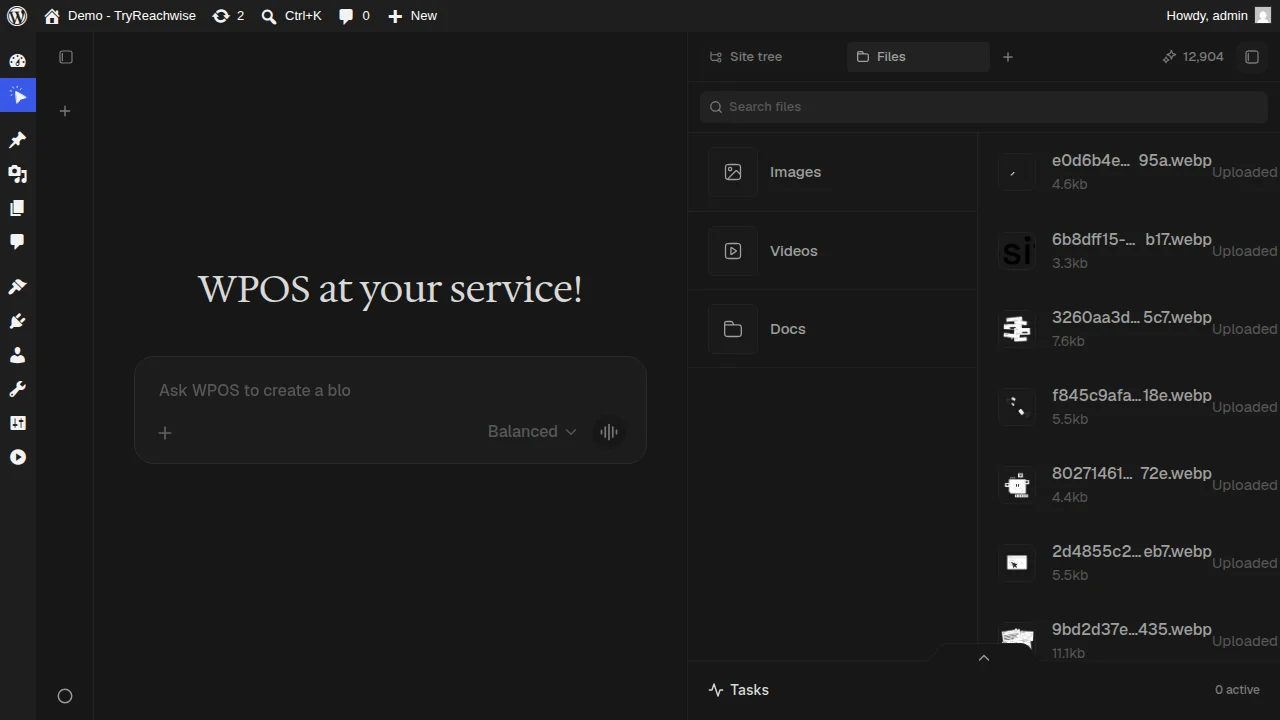 ## What you see
Every image on the site, ready to drop into a page.
Video assets the site uses.
PDFs and other documents, including things you want the agent to reference.
## Working with files
* **Search** the library to find an asset fast.
* **Reference assets in chat.** Ask the agent to use a specific file by name, for
example "use the hero image from Files on the homepage."
* **Bring assets in from a connector.** Pull files from a tool like Google Drive
through [Connectors](/connect/connectors), then use them in a build.
Uploading your brand assets (logo, hero images, product shots) into Files first
means you can refer to them by name later instead of re-uploading them each time.
## What you see
Every image on the site, ready to drop into a page.
Video assets the site uses.
PDFs and other documents, including things you want the agent to reference.
## Working with files
* **Search** the library to find an asset fast.
* **Reference assets in chat.** Ask the agent to use a specific file by name, for
example "use the hero image from Files on the homepage."
* **Bring assets in from a connector.** Pull files from a tool like Google Drive
through [Connectors](/connect/connectors), then use them in a build.
Uploading your brand assets (logo, hero images, product shots) into Files first
means you can refer to them by name later instead of re-uploading them each time.