> ## Documentation Index
> Fetch the complete documentation index at: https://docs.wpos.ai/llms.txt
> Use this file to discover all available pages before exploring further.
# Site tree
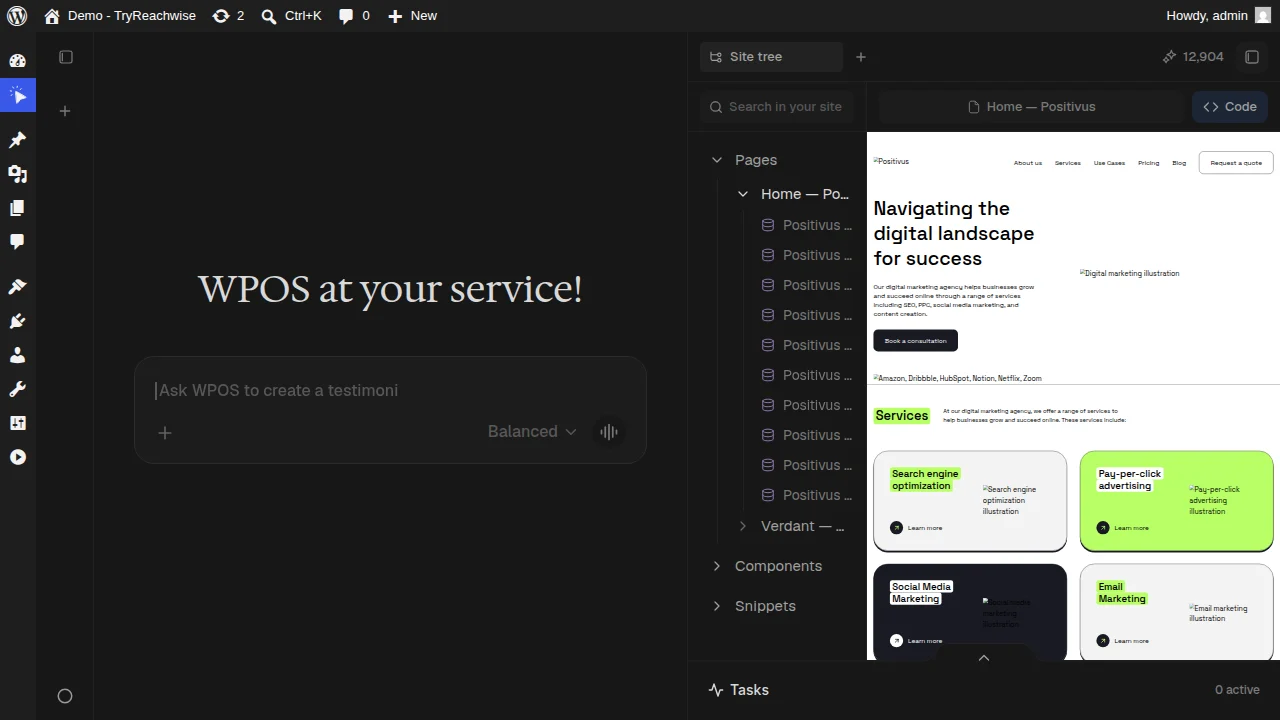
> See the whole site layer by layer: pages, components, and snippets, with a live preview of any of them.
The Site tree is the structural view of a site inside the
[Command Center](/operate/command-center). It shows the whole site, layer by
layer, so you can navigate by structure instead of hunting through wp-admin.
 ## What you see
Every page on the site. Expand one to see its sections and the components
inside it.
The reusable building blocks used across the site, in one place.
Saved pieces you can reuse anywhere, kept with the site.
## Working in the tree
* **Search the site.** Use the search box to find any page, section, or component
quickly.
* **Preview anything.** Select a page and it loads in the live preview beside the
tree, so you see exactly what you are working on.
* **Switch to Code.** Toggle the Code view to see the underlying markup for what is
selected.
* **Point and ask.** Once a page is in the preview, click an element and ask for a
change, the same [click-then-ask](/operate/command-center) loop as everywhere
else.
The Site tree is the fastest way to move around a large site. Find the page in
the tree, load it in the preview, then make your change, instead of clicking
through the front end to get there.
## What you see
Every page on the site. Expand one to see its sections and the components
inside it.
The reusable building blocks used across the site, in one place.
Saved pieces you can reuse anywhere, kept with the site.
## Working in the tree
* **Search the site.** Use the search box to find any page, section, or component
quickly.
* **Preview anything.** Select a page and it loads in the live preview beside the
tree, so you see exactly what you are working on.
* **Switch to Code.** Toggle the Code view to see the underlying markup for what is
selected.
* **Point and ask.** Once a page is in the preview, click an element and ask for a
change, the same [click-then-ask](/operate/command-center) loop as everywhere
else.
The Site tree is the fastest way to move around a large site. Find the page in
the tree, load it in the preview, then make your change, instead of clicking
through the front end to get there.