> ## Documentation Index
> Fetch the complete documentation index at: https://docs.wpos.ai/llms.txt
> Use this file to discover all available pages before exploring further.
# Tasks
> Every conversation with WPOS is a task. Start one, come back to it, reuse an earlier task as context, and follow a run while it works.
Everything you ask WPOS happens inside a **task**. A task is one conversation:
your requests, the agent's replies, and the work it did on the site. The task
list on the left of the [Command Center](/operate/command-center) keeps every
task you have run on this site, so you can reopen one, pick up where you left
off, or hand an earlier task to WPOS as context for a new one.
## Start a new task
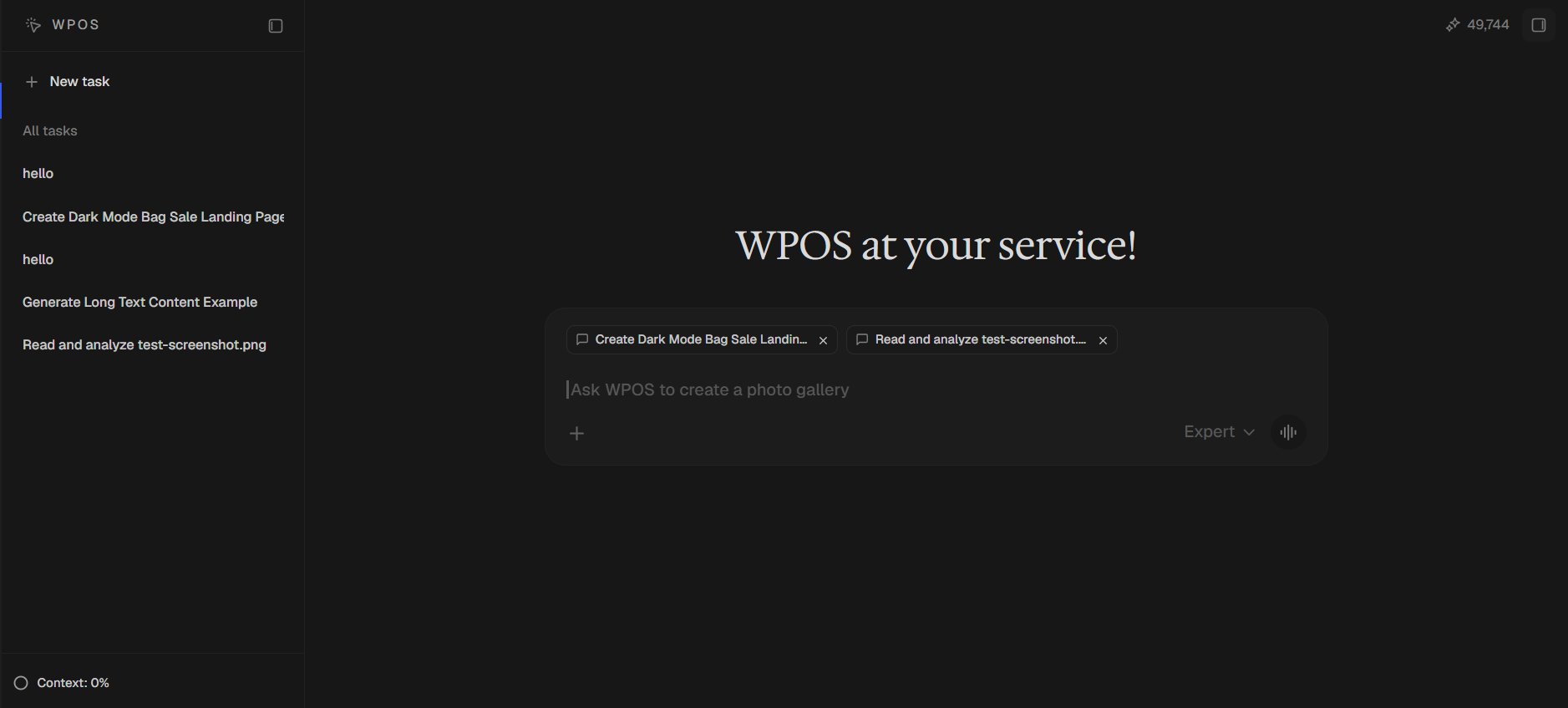
**New task** sits at the top of the left sidebar. It opens an empty chat
with the **WPOS at your service!** greeting.
Type or [speak](/operate/voice) your request and send it. Pick the mode
(Balanced or Expert) in the chat box first if you want a different one. See
[Chat and modes](/operate/chat).
Your first message creates the task. After WPOS answers, it names the task
from what you asked, for example "Create Dark Mode Bag Sale Landing Page",
and the task appears in the list.
One task per job. A focused task stays fast and cheap to continue. When you
move on to something unrelated, start a new task instead of adding it to an
old one. You can still bring the old one along as context (see below).
## Your task list
The **All tasks** section of the sidebar lists your tasks on this site. The
task you have open is highlighted.
* **Reopen a task.** Click it. The full conversation comes back and you can
keep going from where you stopped.
* **Rename a task.** Hover over it and click the pencil. Type the new name,
press **Enter** to save or **Esc** to cancel.
* **Delete a task.** Hover over it and click the bin, then confirm. This
permanently deletes the conversation and all its messages. It cannot be
undone.
* **See older tasks.** Scroll to the bottom of the list and click **Load
more...**.
* **Make room.** The icon at the top of the sidebar collapses it to a narrow
strip. **New task** and the context ring stay available there.
### Find a task
To search instead of scrolling, open a new tab in the right panel with
**+** and type in the **Find anything on this site** box. Matching tasks
appear under **Tasks** (up to eight, matched on the task name). Click one to
open it. The same search also finds steps of the task that is running right
now.
## Use earlier tasks as context
You can hand WPOS the history of earlier tasks so it knows what was already
decided or built, without pasting anything.
Drag any task from **All tasks** and drop it on the chat box. It appears
above your message as a chip with the task's name.
Drag in up to **three** tasks for one message. Remove one with the **x**
on its chip.
For example: "Build the About page in the same style as these two." The
chips stay on your sent message, so you can always see which tasks it
used.
 What WPOS reads from a referenced task:
* **The most recent part of the conversation.** Up to the last 60 messages,
and roughly 12,000 characters per task. For a long task, that is the latest
stretch, which is usually the part that matters.
* **A record, not the live site.** WPOS treats it as what was said at the
time, and checks the site itself before relying on it. If the page has
changed since, the live page wins.
* **Only your tasks on this site.** You cannot reference a task from another
site, or the task you are already in (its context is already there).
A referenced task adds to the size of your message, so reference the tasks
that matter for this request rather than all of them.
## While a task is running
### The Tasks panel
For bigger requests, WPOS plans the work as a list of steps. The plan shows
in the **Tasks** panel just above the chat box, collapsed to a single line
such as **Tasks · 3 active · 1 running**. Click it to expand the list:
* The step being worked on sits at the top and is marked running.
* Steps still to come are next.
* Finished steps move to the bottom.
Each step can show more detail, such as how far along it is, and the smaller
actions it took along the way with how long each one ran.
The panel goes away on its own as soon as every step is done, and it stays
hidden if you stop the run. A small request that needs no plan never shows
it.
### Keep talking, stop, or switch
* **Add to the running task.** Send a message while WPOS is working and it
goes into the run in progress, so you can steer it ("use the brand green
instead") without waiting. Files and referenced tasks cannot join a run
already in progress: a message carrying them is held and sent as soon as
the run finishes.
* **Stop it.** Click **Stop** in the chat box, or press **Esc** while you are
typing in it. The Tasks panel clears for that run.
* **Switch to another task.** A running task keeps working while you look at
something else. Open it again from the list and its progress is there.
* **Reload the page.** WPOS reconnects to the task that was running and
carries on showing its progress.
## When a task finishes
A banner above the chat box says whether the task **completed** or
**failed**, with a short summary. If you let your browser show
notifications for this site (WPOS offers to turn them on), you also get a
desktop notification, **Task completed** or **Task failed**, so you can work
in another tab while a long task runs.
## The context meter
At the bottom of the sidebar, **Context: X%** shows how much of the task's
context window is used: everything WPOS has read in this task so far, against
the most it can hold at once. Next to it is the same figure in tokens, for
example `48k / 200k`.
The ring beside it changes colour as the task fills up:
| Ring | Context used | What it means |
| ------ | ------------ | -------------------------------------------------------- |
| Grey | Up to 50% | Plenty of room. |
| Orange | Over 50% | A long task. Consider starting a fresh one for new work. |
| Red | Over 80% | Nearly full. WPOS will soon need to compact it. |
When a task fills up, WPOS **compacts** it: you see a **Compacting...**
notice, then **Context compacted**, and the task carries on with a summary of
what came before instead of every message. You can also do this yourself, or
clear the context completely, from **Settings, Preferences, Context window**.
See [Settings](/operate/settings).
A task that keeps growing costs more to continue, because WPOS reads more
of it with every message. For a new job, start a **New task** and drag the
old one in as context. You keep the history without carrying all of it.
What WPOS reads from a referenced task:
* **The most recent part of the conversation.** Up to the last 60 messages,
and roughly 12,000 characters per task. For a long task, that is the latest
stretch, which is usually the part that matters.
* **A record, not the live site.** WPOS treats it as what was said at the
time, and checks the site itself before relying on it. If the page has
changed since, the live page wins.
* **Only your tasks on this site.** You cannot reference a task from another
site, or the task you are already in (its context is already there).
A referenced task adds to the size of your message, so reference the tasks
that matter for this request rather than all of them.
## While a task is running
### The Tasks panel
For bigger requests, WPOS plans the work as a list of steps. The plan shows
in the **Tasks** panel just above the chat box, collapsed to a single line
such as **Tasks · 3 active · 1 running**. Click it to expand the list:
* The step being worked on sits at the top and is marked running.
* Steps still to come are next.
* Finished steps move to the bottom.
Each step can show more detail, such as how far along it is, and the smaller
actions it took along the way with how long each one ran.
The panel goes away on its own as soon as every step is done, and it stays
hidden if you stop the run. A small request that needs no plan never shows
it.
### Keep talking, stop, or switch
* **Add to the running task.** Send a message while WPOS is working and it
goes into the run in progress, so you can steer it ("use the brand green
instead") without waiting. Files and referenced tasks cannot join a run
already in progress: a message carrying them is held and sent as soon as
the run finishes.
* **Stop it.** Click **Stop** in the chat box, or press **Esc** while you are
typing in it. The Tasks panel clears for that run.
* **Switch to another task.** A running task keeps working while you look at
something else. Open it again from the list and its progress is there.
* **Reload the page.** WPOS reconnects to the task that was running and
carries on showing its progress.
## When a task finishes
A banner above the chat box says whether the task **completed** or
**failed**, with a short summary. If you let your browser show
notifications for this site (WPOS offers to turn them on), you also get a
desktop notification, **Task completed** or **Task failed**, so you can work
in another tab while a long task runs.
## The context meter
At the bottom of the sidebar, **Context: X%** shows how much of the task's
context window is used: everything WPOS has read in this task so far, against
the most it can hold at once. Next to it is the same figure in tokens, for
example `48k / 200k`.
The ring beside it changes colour as the task fills up:
| Ring | Context used | What it means |
| ------ | ------------ | -------------------------------------------------------- |
| Grey | Up to 50% | Plenty of room. |
| Orange | Over 50% | A long task. Consider starting a fresh one for new work. |
| Red | Over 80% | Nearly full. WPOS will soon need to compact it. |
When a task fills up, WPOS **compacts** it: you see a **Compacting...**
notice, then **Context compacted**, and the task carries on with a summary of
what came before instead of every message. You can also do this yourself, or
clear the context completely, from **Settings, Preferences, Context window**.
See [Settings](/operate/settings).
A task that keeps growing costs more to continue, because WPOS reads more
of it with every message. For a new job, start a **New task** and drag the
old one in as context. You keep the history without carrying all of it.