Canva is a drag-and-drop design suite. Connect it to WPOS and the agent can use it as part of the work it does on your site.
Canva is where a lot of agency artwork lives. Connected to WPOS, the agent can list your designs, create new ones, and export finished artwork, which shortens the path from a design to a published page.Category: Design and forms Actions available: 46+
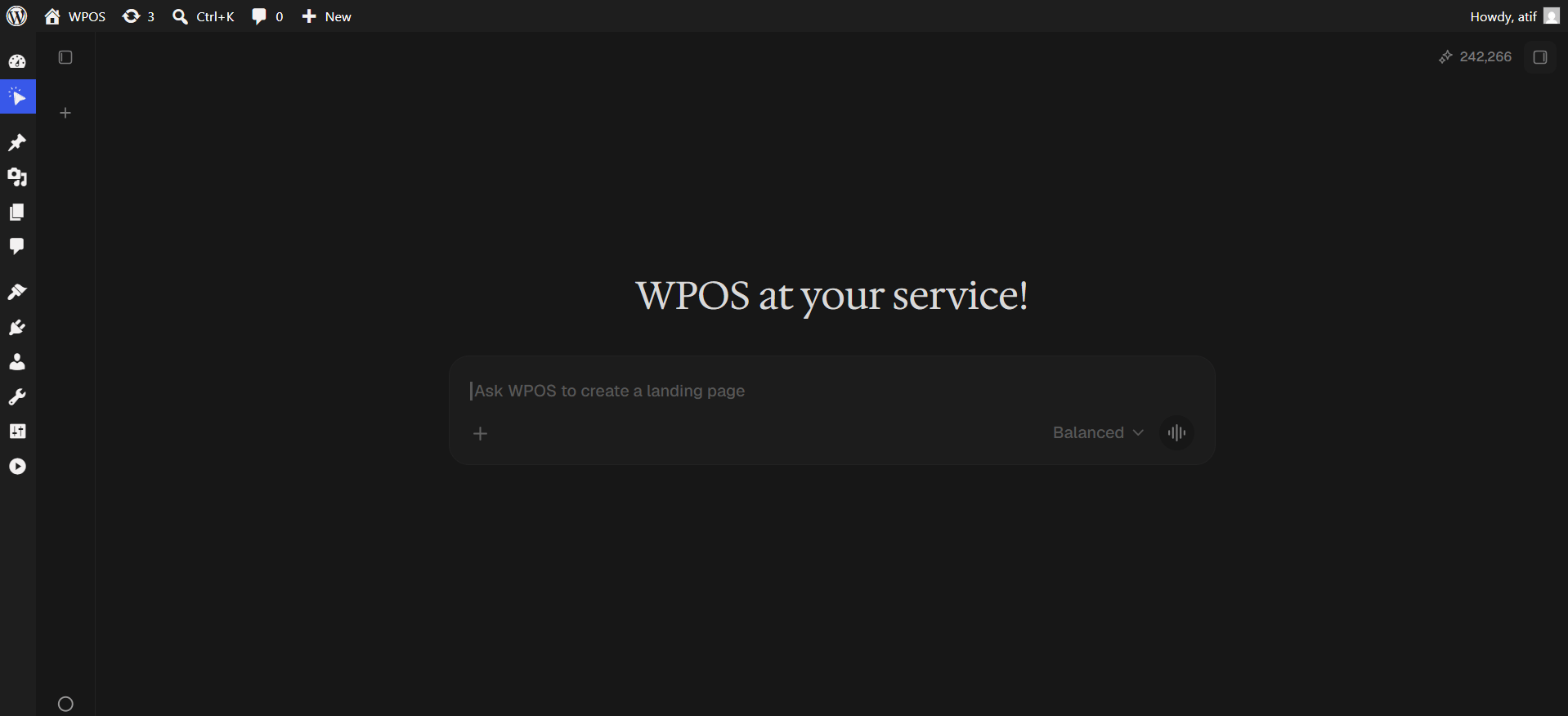
In WordPress admin, open WPOS. You land on the chat screen.
WPOS opens on the chat screen.
2
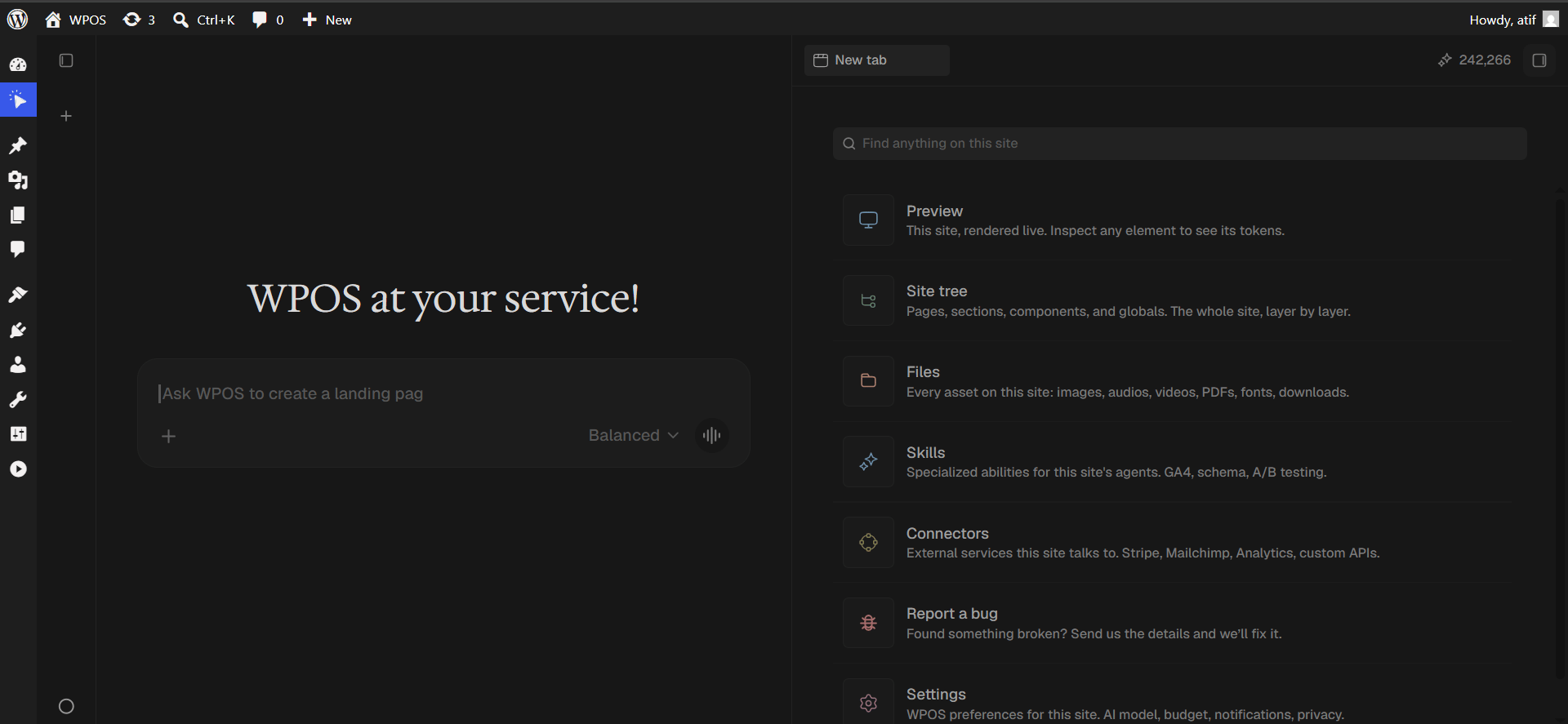
Open a new tab and choose Connectors
Click the + button to open the launcher panel, then choose Connectors.
The launcher panel. Connectors is the fifth entry.
3
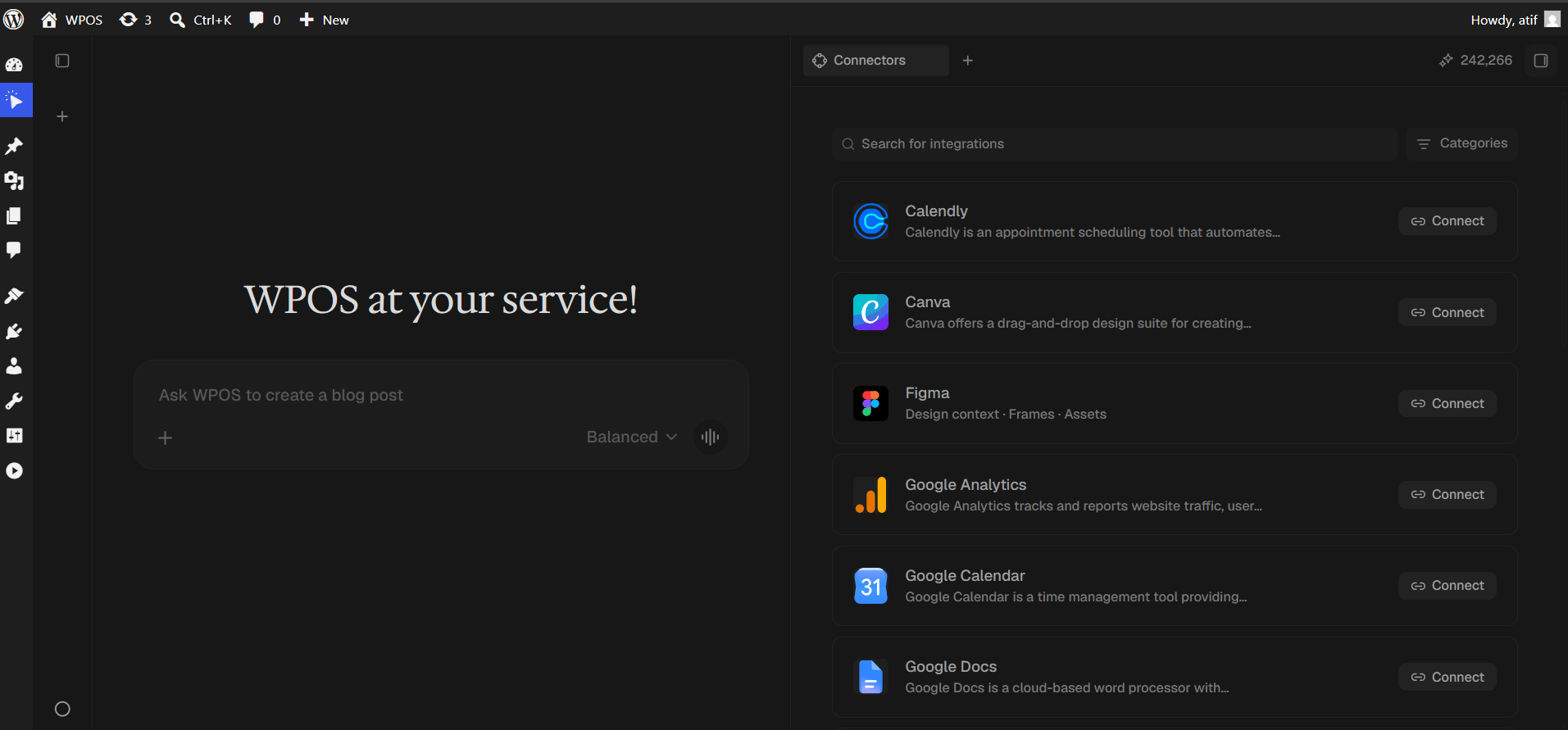
Find the connector
Every available connector is listed alphabetically, each with a button showing what it needs.
The Connectors panel, sorted alphabetically.
4
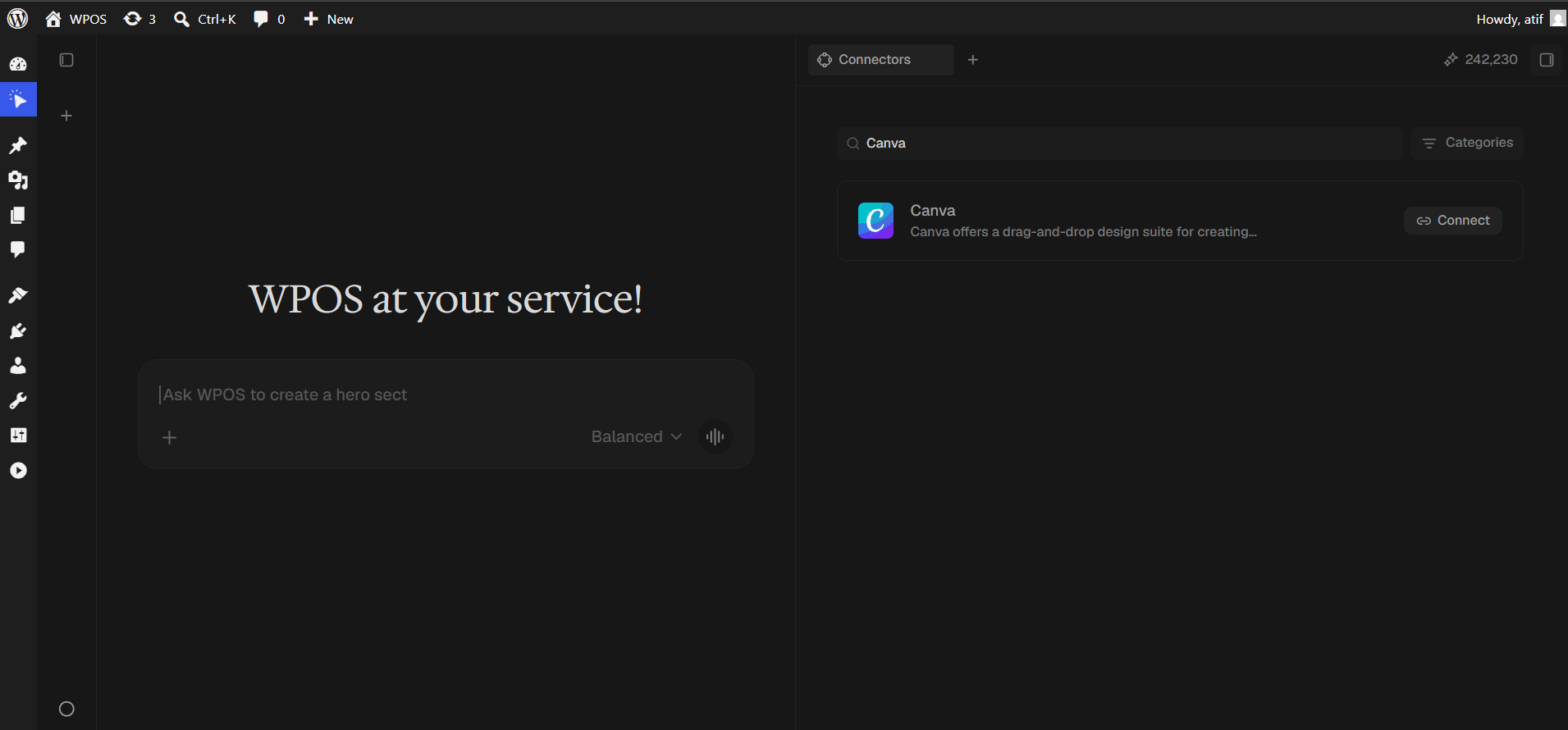
Search and press Connect
Type Canva into Search for integrations, then press Connect.
Search narrows the list to one row.
5
Confirm the account and pick a team
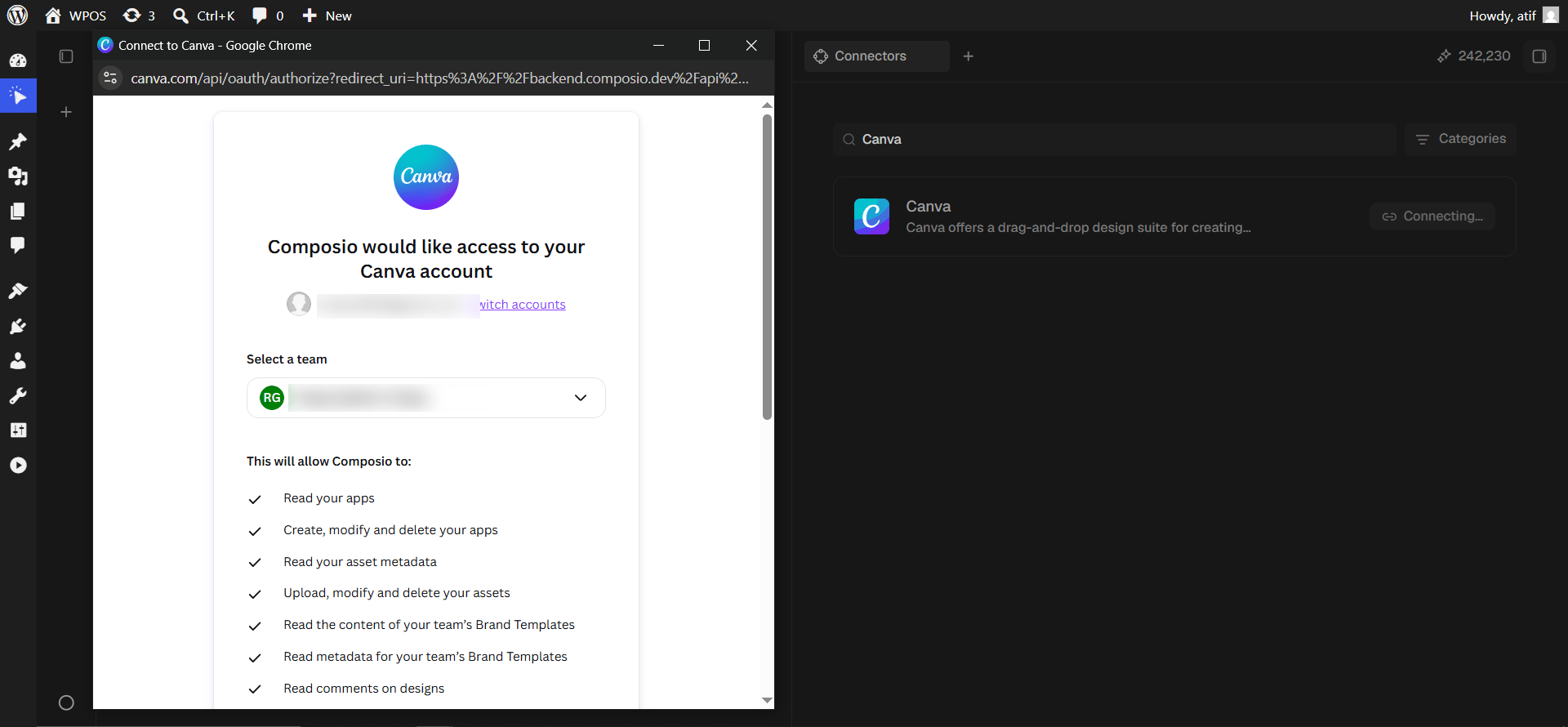
A popup opens on Canva headed “Composio would like access to your Canva account”. It shows which account you are signed in as, with a Switch accounts link if it is wrong.Below that, Select a team. Brand templates and shared assets belong to the team you pick, so choosing wrong means WPOS cannot see them.
Confirm the account, then pick the right team.
6
Review the permissions and allow
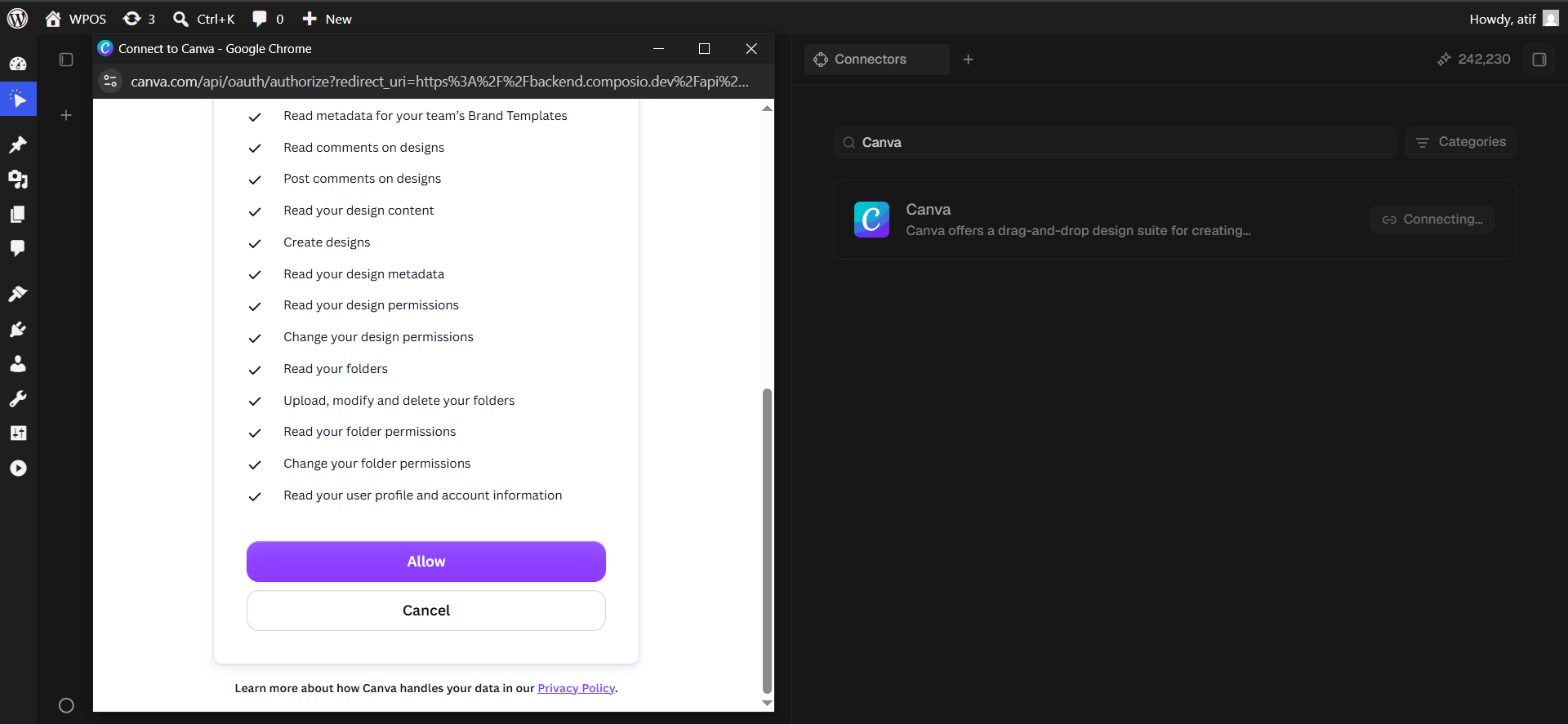
Canva lists everything Composio will be able to do. It is a long list, so scroll through it.
Two entries change who can reach your work, not just the work itself: change your design permissions and change your folder permissions. Read them before approving, and use a test account if that is a concern.
Click Allow.
The full permission list, including permission changes.
7
Confirm in WPOS
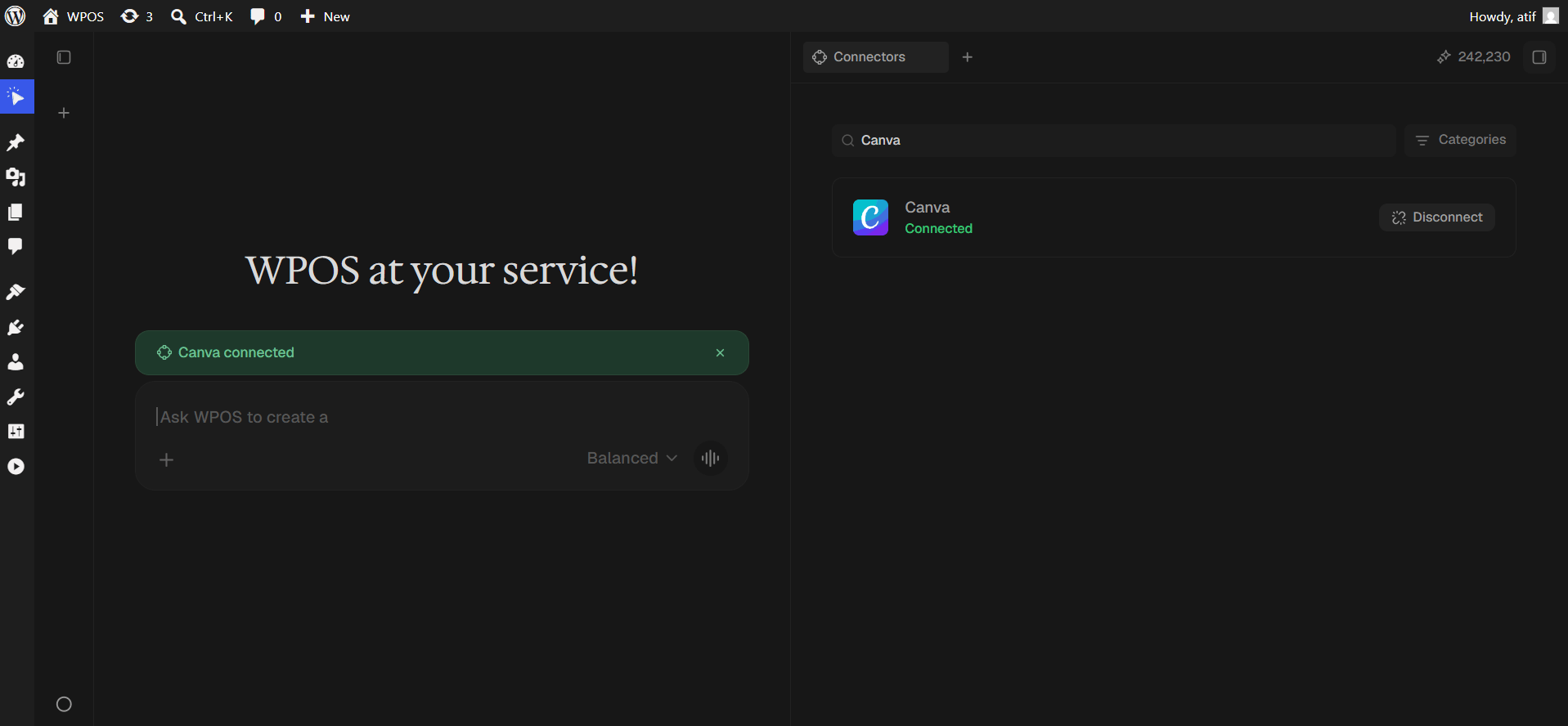
The row reads Connected and a green “Canva connected” banner appears in the chat.