Google Analytics (GA4) is a web analytics platform. Connect it to WPOS and the agent can use it as part of the work it does on your site.
Google Analytics (GA4) is a web analytics platform. Connected to WPOS, it lets the agent pull traffic, audience, and property data to inform decisions about a site, all from the chat beside your site’s live preview.Category: Analytics and SEO Actions available: 65+
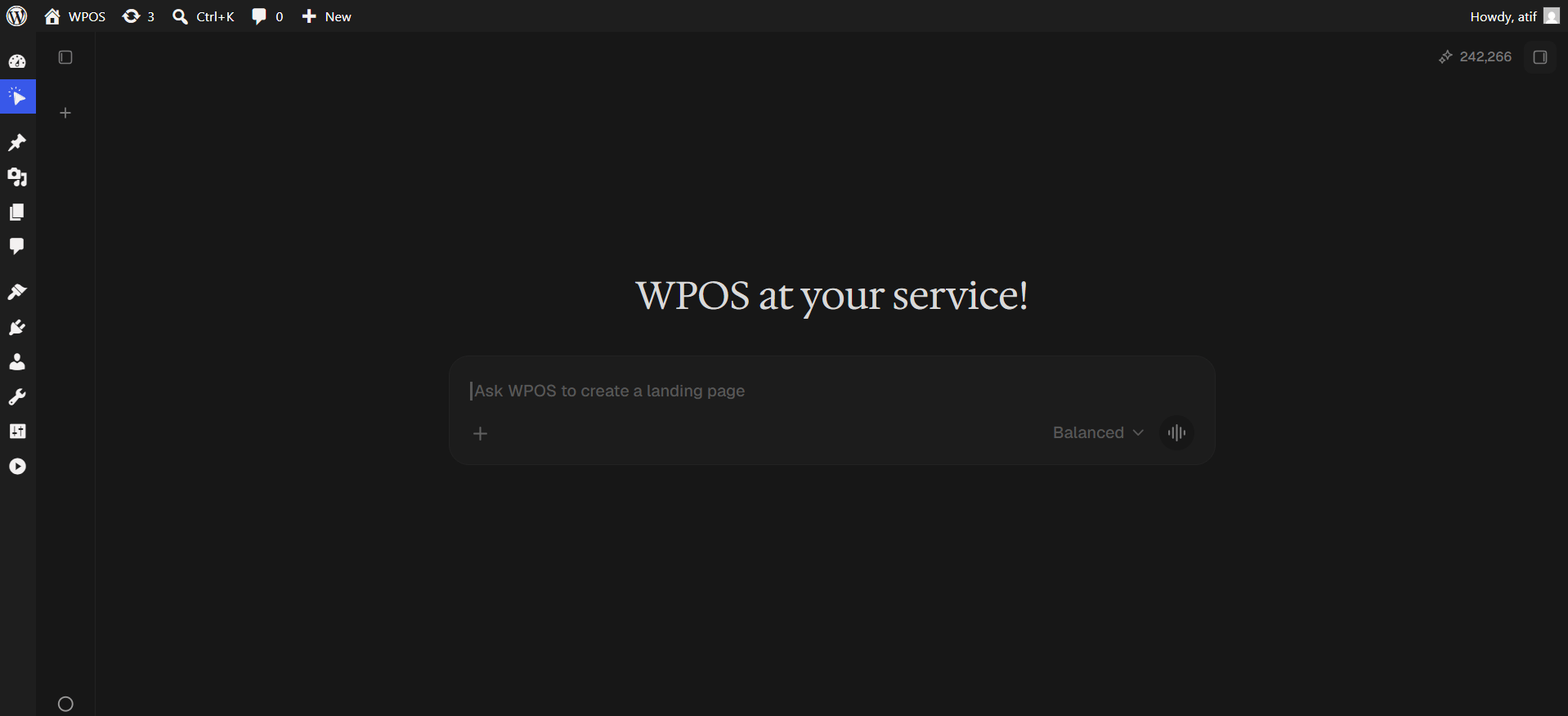
In WordPress admin, open WPOS. You land on the chat screen.
WPOS opens on the chat screen.
2
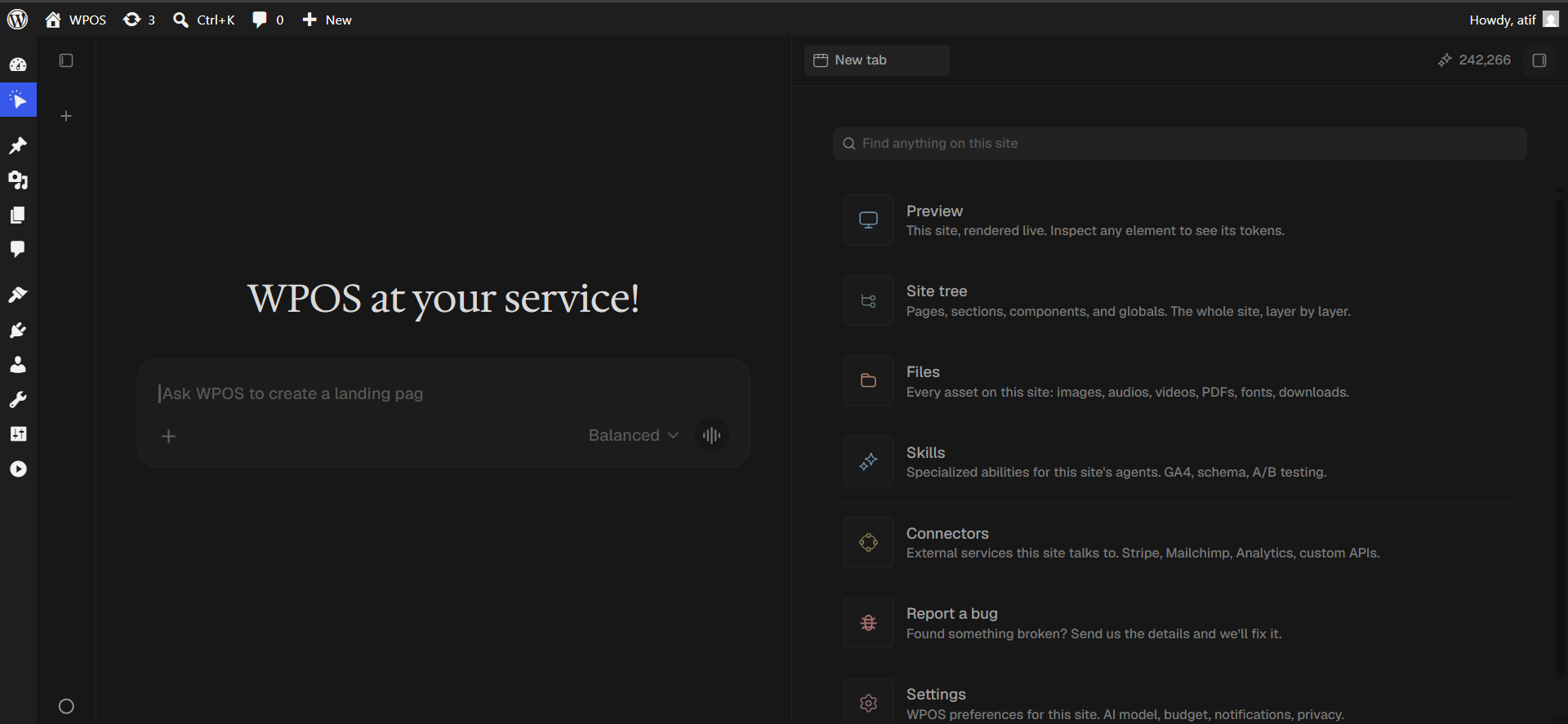
Open a new tab and choose Connectors
Click the + button to open the launcher panel, then choose Connectors.
The launcher panel. Connectors is the fifth entry.
3
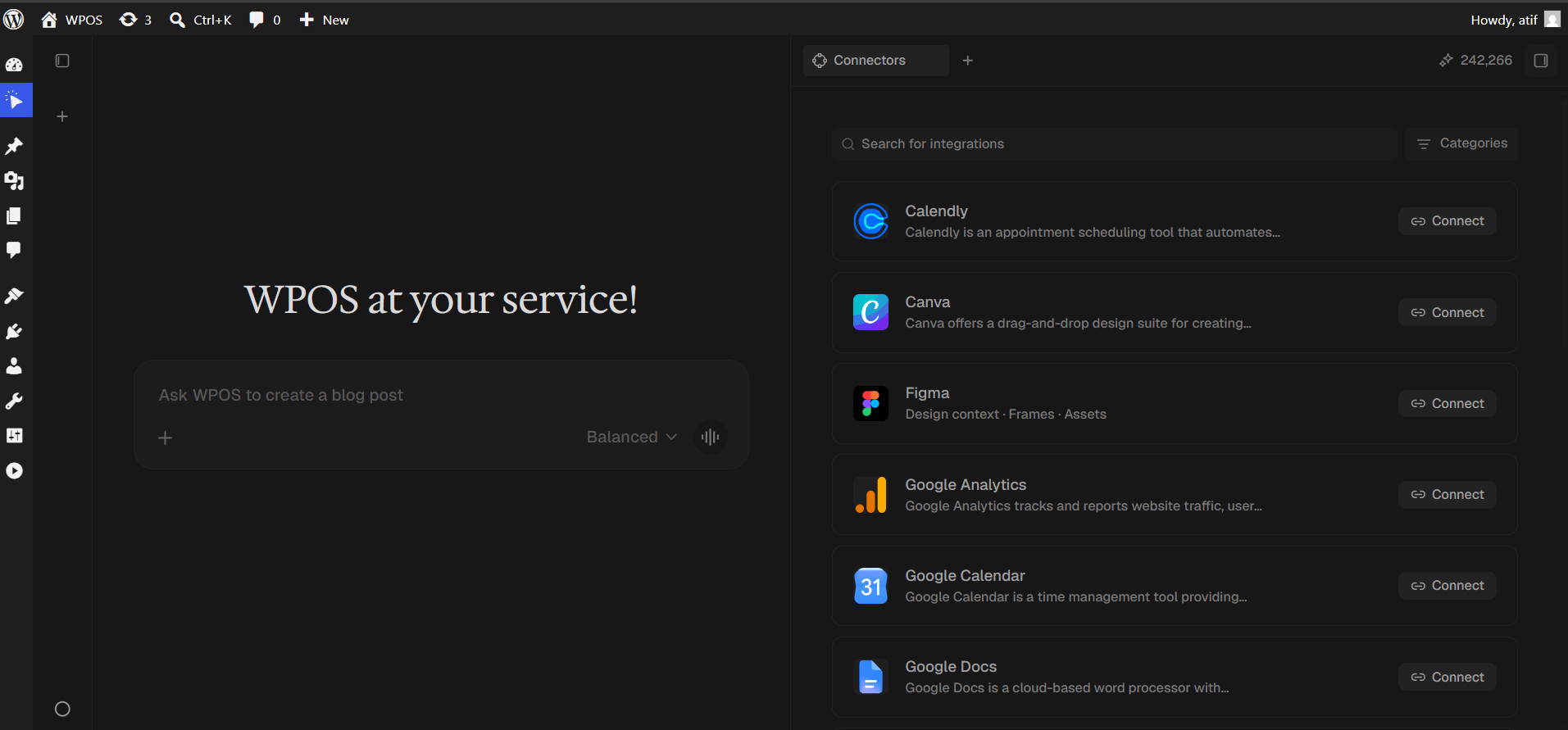
Find the connector
Every available connector is listed alphabetically, each with a button showing what it needs.
The Connectors panel, sorted alphabetically.
4
Search and press Connect
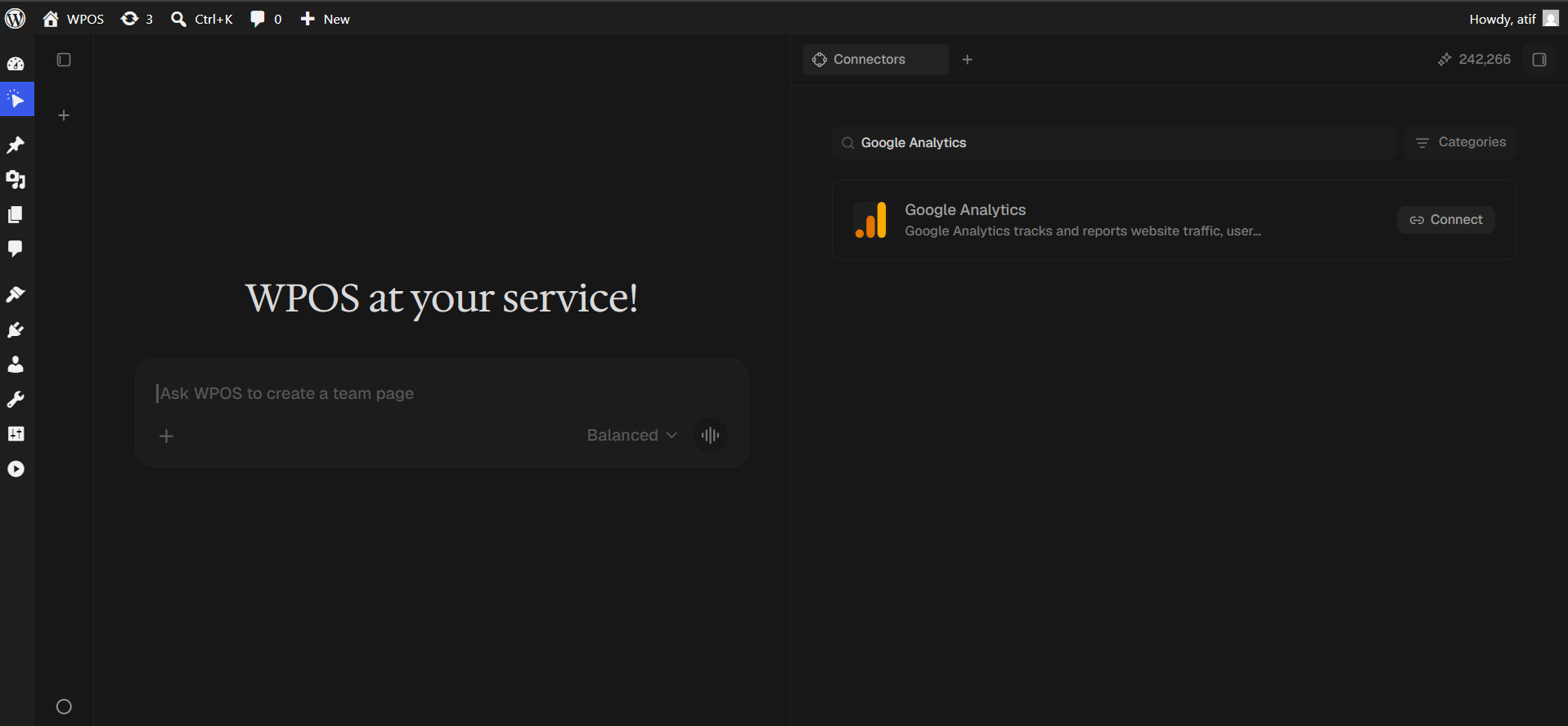
Type Google Analytics into Search for integrations, then press Connect. The button changes to Connecting while the popup opens.
Search narrows the list to one row.
5
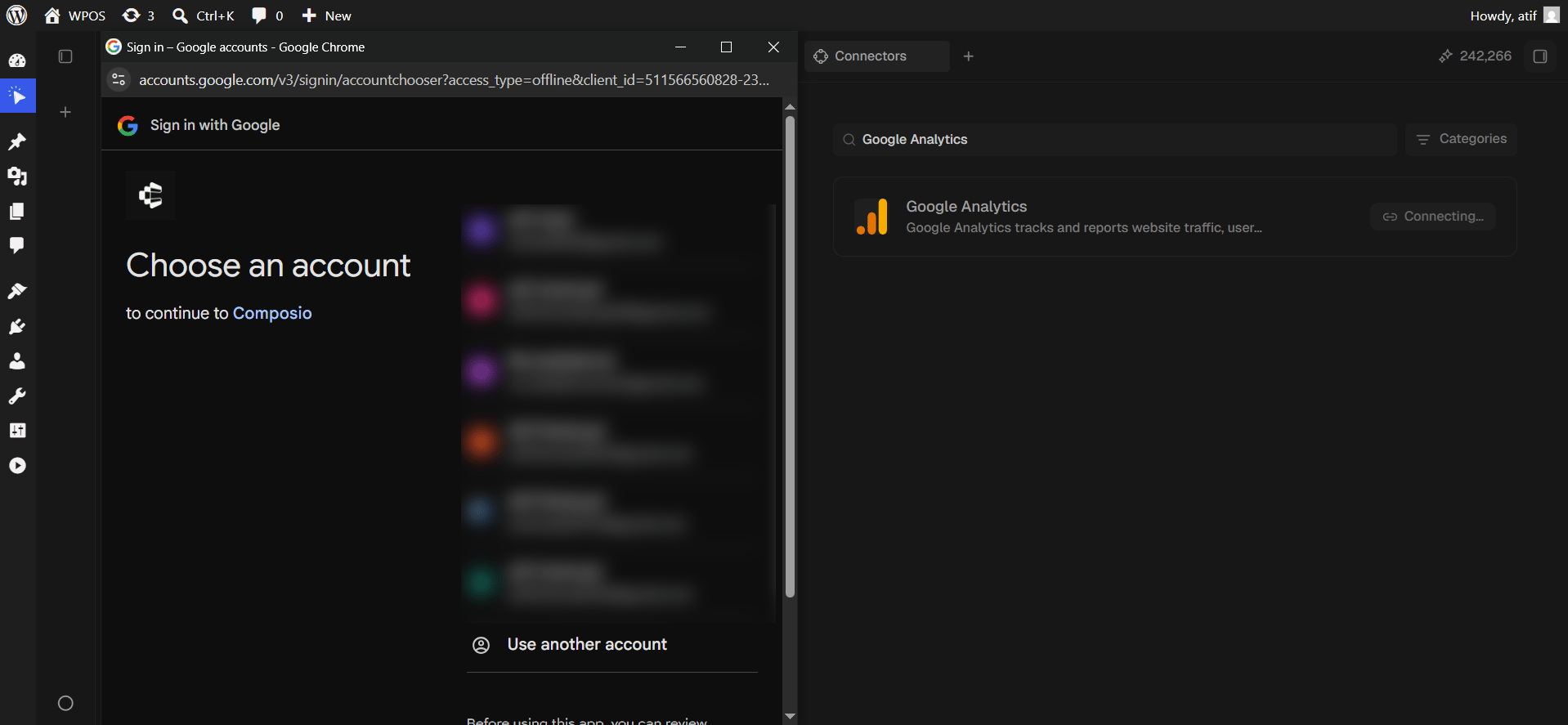
Choose your Google account
A popup opens on Google’s account chooser, headed “to continue to Composio”. Pick the account with access to your GA4 property.
If you are signed in to several Google accounts, read the addresses carefully. Connecting the wrong one is the most common mistake here, and it produces confidently wrong numbers rather than an error.
Google asks which account to connect.
6
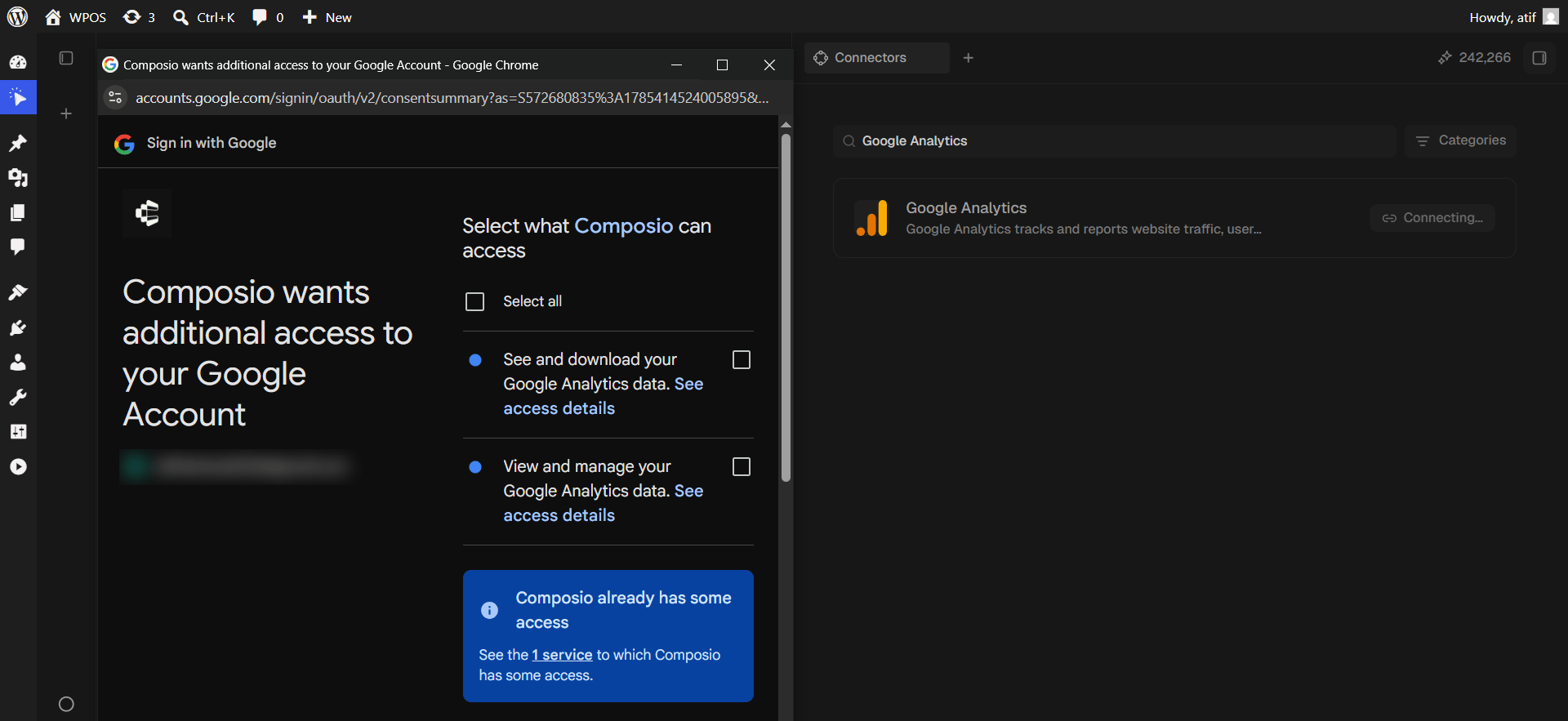
Grant the Analytics permissions
Google lists two permissions: See and download your Google Analytics data and View and manage your Google Analytics data.
The checkboxes start empty. Tick Select all, or both boxes individually, before continuing. Skipping this is the most common cause of a connection that completes but then returns no data.
Then click Continue.
Both permission boxes start unticked.
7
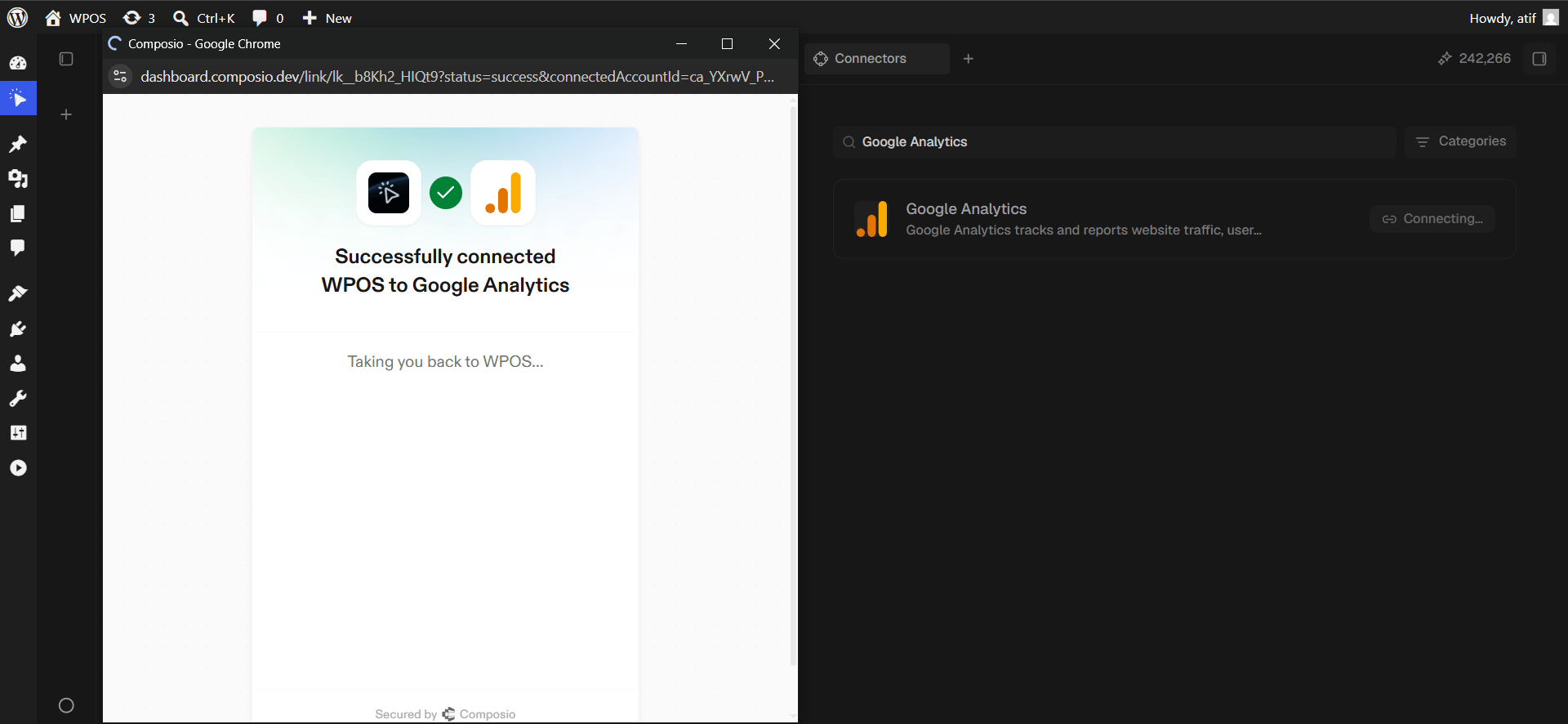
Composio confirms and returns you
A Composio page confirms “Successfully connected WPOS to Google Analytics” and reports “Taking you back to WPOS”. The popup closes on its own, so do not close it manually.
Composio confirms, then returns you to WPOS.
8
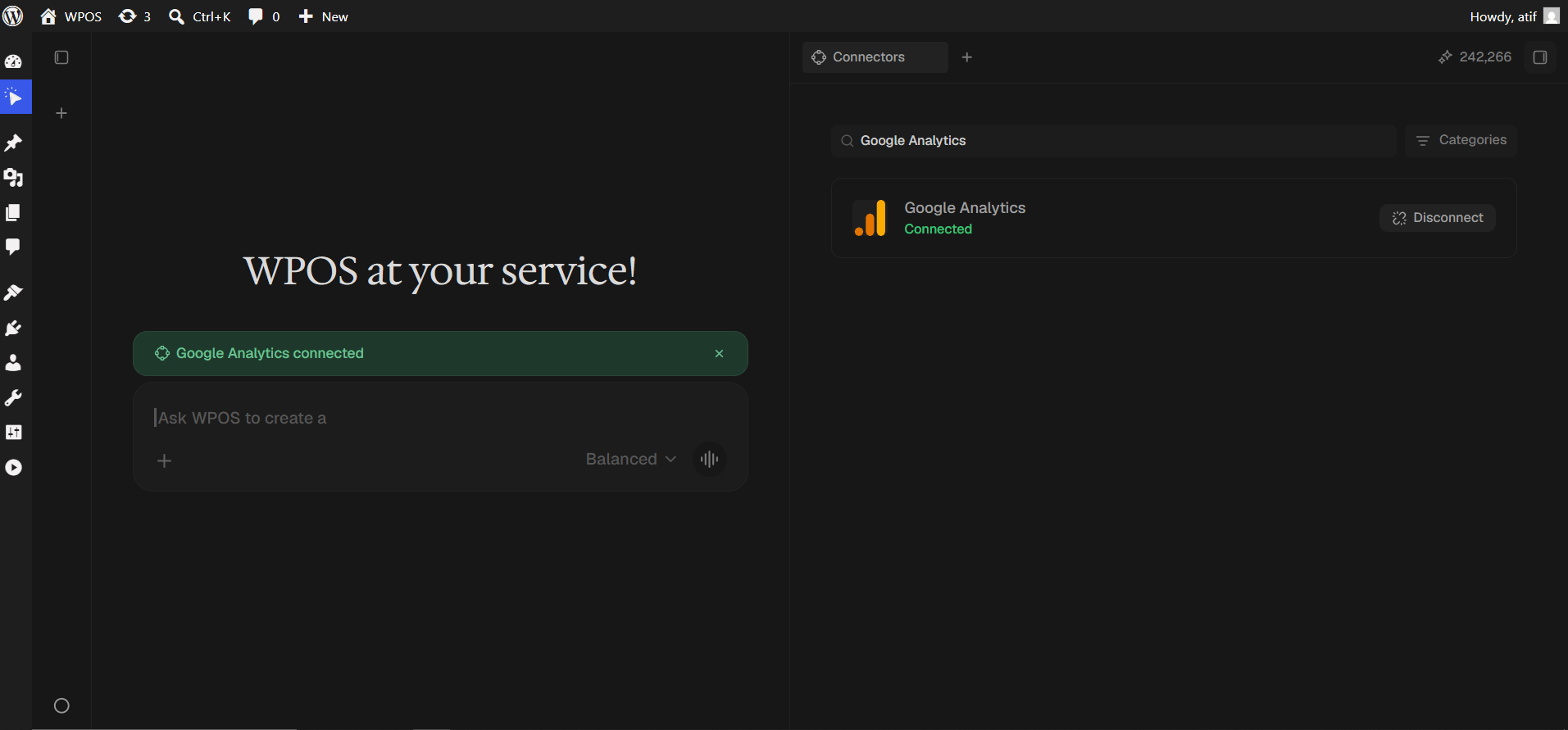
Confirm in WPOS
The row reads Connected with a Disconnect button, and a green “Google Analytics connected” banner appears in the chat.
The permission checkboxes at step five were left unticked. Disconnect, reconnect, and tick Select all.
No properties found
The account has no GA4 property, or only Universal Analytics properties. Confirm a GA4 property exists at analytics.google.com.
Numbers do not match the GA dashboard
Almost always a date range or timezone difference. GA reports in the property timezone, so state the range explicitly in your prompt.
For popup failures, expired connections, and other issues shared across every
connector, see Introducing Connectors.
Was this page helpful?
{"docsConfig":{"theme":"mint","$schema":"https://mintlify.com/docs.json","name":"WPOS","description":"WordPress, finally operated. The operator manual for running WordPress sites with WPOS.","colors":{"primary":"#062565","light":"#89CAFF","dark":"#0A3A8F"},"logo":{"light":"https://mintcdn.com/wpos/r3ng18J_nwt1_fD2/logo/light.svg?fit=max\u0026auto=format\u0026n=r3ng18J_nwt1_fD2\u0026q=85\u0026s=67939bfd870e9c049cc8758c0d204b2b","dark":"https://mintcdn.com/wpos/r3ng18J_nwt1_fD2/logo/dark.svg?fit=max\u0026auto=format\u0026n=r3ng18J_nwt1_fD2\u0026q=85\u0026s=3b51beaae8bc10056a48a7979e2003e4","href":"https://wpos.ai"},"favicon":"https://mintcdn.com/wpos/JjJVXqByJvEYoF5u/favicon.png?fit=max\u0026auto=format\u0026n=JjJVXqByJvEYoF5u\u0026q=85\u0026s=72e51f12f02f818bbff4787ef2044acd","navbar":{"primary":{"type":"button","label":"Open the app","href":"https://app.wpos.ai"}},"footer":{"socials":{"x":"https://x.com/wpos_ai","website":"https://wpos.ai"}},"seo":{"metatags":{"og:site_name":"WPOS Docs"}},"fonts":{"family":"Inter Tight"},"integrations":{"posthog":{"apiKey":"phc_WpD8BFKAYUNIpEUU7ggxUue33nwbYg36d2Qyx0AlmqD","apiHost":"https://us.i.posthog.com","sessionRecording":true}},"contextual":{"options":["copy","view"],"display":"header"},"styling":{"latex":true},"navigation":{"pages":[]}},"deployment":{"deploymentMetadataValue":{"subdomain":"wpos","hasAudioNarration":false,"actualSubdomain":"wpos","customDomains":["docs.wpos.ai"],"gitSource":{"type":"github","owner":"wpcursor","repo":"wpos-docs","deployBranch":"main","contentDirectory":"","isPrivate":true,"mountPath":"","label":""},"chroma":{"liveDeploymentHistoryId":"6ae0c45d6c1a15a18d9e413a","collectionId":"c6f8b5c2-db73-43f8-919e-013914f8580a","schemaVersion":"v3","latestBuiltDeploymentHistoryId":"6ae0c45d6c1a15a18d9e413a"},"feedback":{"thumbs":true},"entitlements":{"AI_CHAT":{"status":"DISABLED"}},"buildId":"6ae0c45d6c1a15a18d9e413a","clientVersion":"0.0.4054","searchFilterCounts":[{"language":"default","tag":"Introduction","count":38},{"language":"default","tag":"Elementor Ultra","count":27},{"language":"default","tag":"Connectors","count":20},{"language":"default","tag":"Operate","count":11},{"language":"default","tag":"For agencies","count":10},{"language":"default","tag":"Partners","count":10},{"language":"default","tag":"Get started","count":9},{"language":"default","tag":"Build","count":9},{"language":"default","tag":"Examples","count":9},{"language":"default","tag":"Guides","count":5}]},"assistantConfig":{"enableAskAiButton":false,"enableStarterQuestions":false,"enableContextualStarterQuestions":false,"enableAskAiSearchBar":true},"basePath":"","hasChatPermissions":false,"hasWebMcpPermissions":false,"toggles":[{"name":"kill-isr","enabled":true,"variant":{"name":"disabled","enabled":false,"feature_enabled":true},"impressionData":false},{"name":"agent-mintlify-slack","enabled":true,"variant":{"name":"disabled","enabled":false,"feature_enabled":true},"impressionData":false},{"name":"agent-integrations-settings","enabled":true,"variant":{"name":"disabled","enabled":false,"feature_enabled":true},"impressionData":false},{"name":"automations-pr-grouping","enabled":true,"variant":{"name":"disabled","enabled":false,"feature_enabled":true},"impressionData":false},{"name":"custom-prefix","enabled":true,"variant":{"name":"disabled","enabled":false,"feature_enabled":true},"impressionData":false},{"name":"analytics-v7","enabled":true,"variant":{"name":"disabled","enabled":false,"feature_enabled":true},"impressionData":false},{"name":"user-flows-analytics","enabled":true,"variant":{"name":"disabled","enabled":false,"feature_enabled":true},"impressionData":false},{"name":"no-publish-flow","enabled":true,"variant":{"name":"disabled","enabled":false,"feature_enabled":true},"impressionData":false},{"name":"workos-onboarding","enabled":true,"variant":{"name":"disabled","enabled":false,"feature_enabled":true},"impressionData":false},{"name":"llms-txt-v2","enabled":true,"variant":{"name":"disabled","enabled":false,"feature_enabled":true},"impressionData":false},{"name":"snapshot-serving-live","enabled":true,"variant":{"name":"disabled","enabled":false,"feature_enabled":true},"impressionData":false},{"name":"stripTemperatureMiddleware","enabled":true,"variant":{"name":"disabled","enabled":false,"feature_enabled":true},"impressionData":false},{"name":"support-platform-pylon-zendesk","enabled":true,"variant":{"name":"disabled","enabled":false,"feature_enabled":true},"impressionData":false},{"name":"snapshot-serving","enabled":true,"variant":{"name":"disabled","enabled":false,"feature_enabled":true},"impressionData":false},{"name":"instant-rollback","enabled":true,"variant":{"name":"disabled","enabled":false,"feature_enabled":true},"impressionData":false},{"name":"granular-notifications-server","enabled":true,"variant":{"name":"disabled","enabled":false,"feature_enabled":true},"impressionData":false},{"name":"granular-notifications","enabled":true,"variant":{"name":"disabled","enabled":false,"feature_enabled":true},"impressionData":false},{"name":"automations-fable","enabled":true,"variant":{"name":"disabled","enabled":false,"feature_enabled":true},"impressionData":false},{"name":"fixed-ai-action-pricing","enabled":true,"variant":{"name":"disabled","enabled":false,"feature_enabled":true},"impressionData":false},{"name":"automation-resolve-merge-conflict","enabled":true,"variant":{"name":"disabled","enabled":false,"feature_enabled":true},"impressionData":false},{"name":"scoped-publishing","enabled":true,"variant":{"name":"disabled","enabled":false,"feature_enabled":true},"impressionData":false},{"name":"mintql","enabled":true,"variant":{"name":"disabled","enabled":false,"feature_enabled":true},"impressionData":false},{"name":"page-level-analytics","enabled":true,"variant":{"name":"disabled","enabled":false,"feature_enabled":true},"impressionData":false},{"name":"editor-version-history-v2","enabled":true,"variant":{"name":"disabled","enabled":false,"feature_enabled":true},"impressionData":false},{"name":"billing-page-v2","enabled":true,"variant":{"name":"disabled","enabled":false,"feature_enabled":true},"impressionData":false},{"name":"full-page-search","enabled":true,"variant":{"name":"disabled","enabled":false,"feature_enabled":true},"impressionData":false},{"name":"workspace-projects","enabled":true,"variant":{"name":"disabled","enabled":false,"feature_enabled":true},"impressionData":false},{"name":"assistant-v5","enabled":true,"variant":{"name":"disabled","enabled":false,"feature_enabled":true},"impressionData":false},{"name":"byok-sep-25","enabled":true,"variant":{"name":"disabled","enabled":false,"feature_enabled":true},"impressionData":false},{"name":"fork-pr-previews","enabled":true,"variant":{"name":"disabled","enabled":false,"feature_enabled":true},"impressionData":false},{"name":"revalidation-jwt","enabled":true,"variant":{"name":"disabled","enabled":false,"feature_enabled":true},"impressionData":false},{"name":"vite-origin","enabled":true,"variant":{"name":"disabled","enabled":false,"feature_enabled":true},"impressionData":false},{"name":"billing-updated-9-15","enabled":true,"variant":{"name":"disabled","enabled":false,"feature_enabled":true},"impressionData":false},{"name":"workos-sso-scim","enabled":true,"variant":{"name":"disabled","enabled":false,"feature_enabled":true},"impressionData":false},{"name":"hobby-abuse-scan","enabled":true,"variant":{"name":"disabled","enabled":false,"feature_enabled":true},"impressionData":false},{"name":"dashboard-inbox","enabled":true,"variant":{"name":"disabled","enabled":false,"feature_enabled":true},"impressionData":false},{"name":"workos-signup","enabled":true,"variant":{"name":"disabled","enabled":false,"feature_enabled":true},"impressionData":false},{"name":"turbopuffer-dual-write","enabled":true,"variant":{"name":"disabled","enabled":false,"feature_enabled":true},"impressionData":false},{"name":"workos-enabled","enabled":true,"variant":{"name":"disabled","enabled":false,"feature_enabled":true},"impressionData":false},{"name":"approve-review-flow","enabled":true,"variant":{"name":"disabled","enabled":false,"feature_enabled":true},"impressionData":false},{"name":"sso-setup-deadline-banner","enabled":true,"variant":{"name":"disabled","enabled":false,"feature_enabled":true},"impressionData":false},{"name":"rbac-expansion","enabled":true,"variant":{"name":"disabled","enabled":false,"feature_enabled":true},"impressionData":false}],"googleFontsInlined":true},"customCss":[{"filePath":"style.css","content":"html.dark{--background-dark:11 11 11;--gray-950:11 11 11;--gray-900:23 23 23;--default-border-color:34 34 34;--gray-800:66 66 66}html.light{--background-light:255 255 255;--default-border-color:229 229 229}.demo-embed{margin:1.75rem 0}.demo-embed+.demo-embed{margin-top:2.75rem}.demo-embed iframe,.demo-embed video,.yt-facade{display:block;width:100%;aspect-ratio:16/9;border:0;border-radius:14px;background:#0b0b0b}.yt-facade{position:relative;padding:0;overflow:hidden;cursor:pointer}.yt-facade-thumb{position:absolute;inset:0;background-size:cover;background-position:center;transition:transform .45s ease,filter .3s ease}.yt-facade:hover .yt-facade-thumb{transform:scale(1.02);filter:brightness(.88)}.yt-facade-play{position:absolute;top:50%;left:50%;display:flex;align-items:center;justify-content:center;width:72px;height:72px;padding:0;border-radius:50%;color:#fff;background:rgba(6,37,101,.88);box-shadow:0 6px 24px rgba(0,0,0,.35);transform:translate(-50%,-50%);transition:transform .2s ease,background .2s ease}.yt-facade-play svg{display:block;flex:none}.yt-facade:hover .yt-facade-play{background:#0a3a8f;transform:translate(-50%,-50%) scale(1.06)}.yt-facade:focus-visible{outline:3px solid #89caff;outline-offset:3px}.demo-caption{margin:.7rem 0 0;text-align:center;font-size:.85rem;line-height:1.4;color:rgb(115 115 115)}html.dark .demo-caption{color:rgb(150 150 150)}"}],"page":{"pagePath":"connectors/google-analytics","slug":"/connectors/google-analytics","pageMetadata":{"title":"Google Analytics","icon":"chart-line","description":"Google Analytics (GA4) is a web analytics platform. Connect it to WPOS and the agent can use it as part of the work it does on your site.","href":"/connectors/google-analytics"},"description":{"compiledSource":"\"use strict\";\nconst {jsx: _jsx} = arguments[0];\nconst {useMDXComponents: _provideComponents} = arguments[0];\nfunction _createMdxContent(props) {\n const _components = {\n p: \"p\",\n ..._provideComponents(),\n ...props.components\n };\n return _jsx(_components.p, {\n children: \"Google Analytics (GA4) is a web analytics platform. Connect it to WPOS and the agent can use it as part of the work it does on your site.\"\n });\n}\nfunction MDXContent(props = {}) {\n const {wrapper: MDXLayout} = {\n ..._provideComponents(),\n ...props.components\n };\n return MDXLayout ? _jsx(MDXLayout, {\n ...props,\n children: _jsx(_createMdxContent, {\n ...props\n })\n }) : _createMdxContent(props);\n}\nreturn {\n default: MDXContent\n};\n","frontmatter":{},"scope":{}},"pageType":"default","mdx":{"mdxSource":{"compiledSource":"\"use strict\";const{Fragment:_Fragment,jsx:_jsx,jsxs:_jsxs}=arguments[0];const{useMDXComponents:_provideComponents}=arguments[0];const YouTubeVideo=({id,title,caption})=>{const[playing,setPlaying]=useState(false);return _jsxs(`div`,{className:`demo-embed`,children:[playing?_jsx(`iframe`,{src:`https://www.youtube-nocookie.com/embed/${id}?autoplay=1\u0026rel=0\u0026playsinline=1`,title,allow:`accelerometer; autoplay; clipboard-write; encrypted-media; gyroscope; picture-in-picture; web-share`,referrerPolicy:`strict-origin-when-cross-origin`,allowFullScreen:true}):_jsxs(`button`,{type:`button`,className:`yt-facade`,onClick:()=>setPlaying(true),\"aria-label\":`Play video: ${title}`,title,children:[_jsx(`span`,{className:`yt-facade-thumb`,style:{backgroundImage:`url(https://i.ytimg.com/vi/${id}/maxresdefault.jpg)`},\"aria-hidden\":`true`}),_jsx(`span`,{className:`yt-facade-play`,\"aria-hidden\":`true`,children:_jsx(`svg`,{width:`26`,height:`26`,viewBox:`0 0 24 24`,fill:`currentColor`,children:_jsx(`path`,{d:`M8 5.14v13.72a1 1 0 0 0 1.52.85l10.97-6.86a1 1 0 0 0 0-1.7L9.52 4.29A1 1 0 0 0 8 5.14z`})})})]}),caption?_jsx(`p`,{className:`demo-caption`,children:caption}):null]})};function _createMdxContent(props){const _components={a:`a`,code:`code`,li:`li`,p:`p`,pre:`pre`,span:`span`,strong:`strong`,ul:`ul`,..._provideComponents(),...props.components},{Accordion,AccordionGroup,CodeBlock,Frame,Heading,OptimizedImage,Step,Steps,Warning,_MdxComponentBoundary}=_components;if(!Accordion)_missingMdxReference(`Accordion`,true);if(!AccordionGroup)_missingMdxReference(`AccordionGroup`,true);if(!CodeBlock)_missingMdxReference(`CodeBlock`,true);if(!Frame)_missingMdxReference(`Frame`,true);if(!Heading)_missingMdxReference(`Heading`,true);if(!OptimizedImage)_missingMdxReference(`OptimizedImage`,true);if(!Step)_missingMdxReference(`Step`,true);if(!Steps)_missingMdxReference(`Steps`,true);if(!Warning)_missingMdxReference(`Warning`,true);if(!_MdxComponentBoundary)_missingMdxReference(`_MdxComponentBoundary`,true);return _jsxs(_Fragment,{children:[_jsx(_components.p,{children:`Google Analytics (GA4) is a web analytics platform. Connected to WPOS, it lets the agent pull traffic, audience, and property data to inform decisions about a site, all from the chat beside your site’s live preview.`}),`\n`,_jsx(_MdxComponentBoundary,{name:`YouTubeVideo`,children:_jsx(YouTubeVideo,{id:`c4ZqNeWp6vY`,title:`Connect Google Analytics to WPOS`,caption:`Add analytics to your WordPress site in seconds`})}),`\n`,_jsxs(_components.p,{children:[_jsx(_components.strong,{children:`Category:`}),` Analytics and SEO `,_jsx(_components.strong,{children:`Actions available:`}),` 65+`]}),`\n`,_jsx(Heading,{level:`2`,id:`what-you-can-do`,children:`What you can do`}),`\n`,_jsxs(_components.ul,{children:[`\n`,_jsx(_components.li,{children:`Read property and account data`}),`\n`,_jsx(_components.li,{children:`Work with audiences`}),`\n`,_jsx(_components.li,{children:`Pull metadata and reports`}),`\n`]}),`\n`,_jsx(Heading,{level:`2`,id:`example-requests`,children:`Example requests`}),`\n`,_jsxs(_components.p,{children:[`Once Google Analytics is connected, ask in the `,_jsx(_components.a,{href:`/operate/command-center`,children:`Command Center`}),`:`]}),`\n`,_jsx(CodeBlock,{filename:``,numberOfLines:`3`,language:`text`,children:_jsx(_components.pre,{className:`shiki shiki-themes github-light-default dark-plus`,style:{backgroundColor:`#ffffff`,\"--shiki-dark-bg\":`#0B0C0E`,color:`#1f2328`,\"--shiki-dark\":`#D4D4D4`},language:`text`,children:_jsxs(_components.code,{language:`text`,numberOfLines:`3`,children:[_jsx(_components.span,{className:`line`,children:_jsx(_components.span,{children:`Show me the top landing pages from Google Analytics this month.`})}),`\n`,_jsx(_components.span,{className:`line`,children:_jsx(_components.span,{children:`Pull the audience data for this property.`})}),`\n`,_jsx(_components.span,{className:`line`,children:_jsx(_components.span,{})})]})})}),`\n`,_jsx(Heading,{level:`2`,id:`before-you-connect`,children:`Before you connect`}),`\n`,_jsxs(_components.ul,{children:[`\n`,_jsxs(_components.li,{children:[`A `,_jsx(_components.strong,{children:`Google Analytics 4 property`}),` that already has data. Universal Analytics properties are shut down and will not work.`]}),`\n`,_jsxs(_components.li,{children:[`At least `,_jsx(_components.strong,{children:`Viewer`}),` access on the property. If you cannot open it at analytics.google.com, WPOS cannot read it either.`]}),`\n`,_jsx(_components.li,{children:`Popups allowed for your WordPress admin domain.`}),`\n`]}),`\n`,_jsx(Heading,{level:`2`,id:`connect-it`,children:`Connect it`}),`\n`,_jsxs(Steps,{children:[_jsxs(Step,{title:`Open WPOS`,children:[_jsxs(_components.p,{children:[`In WordPress admin, open `,_jsx(_components.strong,{children:`WPOS`}),`. You land on the chat screen.`]}),_jsx(Frame,{caption:`WPOS opens on the chat screen.`,children:_jsx(OptimizedImage,{src:`https://mintcdn.com/wpos/xCBpSE-QeFfm67KI/images/connectors/google-analytics/01-wpos-home.png?fit=max\u0026auto=format\u0026n=xCBpSE-QeFfm67KI\u0026q=85\u0026s=4faf713e35f256db50964a63b1b41948`,alt:`The WPOS chat screen in WordPress admin.`,\"data-og-width\":`1918`,width:`1918`,\"data-og-height\":`876`,height:`876`,\"data-path\":`images/connectors/google-analytics/01-wpos-home.png`,\"data-optimize\":`true`,\"data-opv\":`3`,srcset:`https://mintcdn.com/wpos/xCBpSE-QeFfm67KI/images/connectors/google-analytics/01-wpos-home.png?w=280\u0026fit=max\u0026auto=format\u0026n=xCBpSE-QeFfm67KI\u0026q=85\u0026s=ec3b8aa7e44df78671f006d2cfb29781 280w, https://mintcdn.com/wpos/xCBpSE-QeFfm67KI/images/connectors/google-analytics/01-wpos-home.png?w=560\u0026fit=max\u0026auto=format\u0026n=xCBpSE-QeFfm67KI\u0026q=85\u0026s=860b827e495ddac0cf0a431d14d8aeb4 560w, https://mintcdn.com/wpos/xCBpSE-QeFfm67KI/images/connectors/google-analytics/01-wpos-home.png?w=840\u0026fit=max\u0026auto=format\u0026n=xCBpSE-QeFfm67KI\u0026q=85\u0026s=aae40c5c62843b28dc7f3e88aebf37c3 840w, https://mintcdn.com/wpos/xCBpSE-QeFfm67KI/images/connectors/google-analytics/01-wpos-home.png?w=1100\u0026fit=max\u0026auto=format\u0026n=xCBpSE-QeFfm67KI\u0026q=85\u0026s=f293108ac939afbd3558b2ae27ba664e 1100w, https://mintcdn.com/wpos/xCBpSE-QeFfm67KI/images/connectors/google-analytics/01-wpos-home.png?w=1650\u0026fit=max\u0026auto=format\u0026n=xCBpSE-QeFfm67KI\u0026q=85\u0026s=c66664a391f79b00bb51c24d28bbb7b6 1650w, https://mintcdn.com/wpos/xCBpSE-QeFfm67KI/images/connectors/google-analytics/01-wpos-home.png?w=2500\u0026fit=max\u0026auto=format\u0026n=xCBpSE-QeFfm67KI\u0026q=85\u0026s=311a803d0ba9ebc2f5329012dc940276 2500w`})})]}),_jsxs(Step,{title:`Open a new tab and choose Connectors`,children:[_jsxs(_components.p,{children:[`Click the `,_jsx(_components.strong,{children:`+`}),` button to open the launcher panel, then choose `,_jsx(_components.strong,{children:`Connectors`}),`.`]}),_jsx(Frame,{caption:`The launcher panel. Connectors is the fifth entry.`,children:_jsx(OptimizedImage,{src:`https://mintcdn.com/wpos/xCBpSE-QeFfm67KI/images/connectors/google-analytics/02-new-tab-connectors.png?fit=max\u0026auto=format\u0026n=xCBpSE-QeFfm67KI\u0026q=85\u0026s=1538ac50e557f933a1e283ec8895d0cc`,alt:`The WPOS launcher panel listing Preview, Site tree, Files, Skills, Connectors, and Settings.`,\"data-og-width\":`1920`,width:`1920`,\"data-og-height\":`887`,height:`887`,\"data-path\":`images/connectors/google-analytics/02-new-tab-connectors.png`,\"data-optimize\":`true`,\"data-opv\":`3`,srcset:`https://mintcdn.com/wpos/xCBpSE-QeFfm67KI/images/connectors/google-analytics/02-new-tab-connectors.png?w=280\u0026fit=max\u0026auto=format\u0026n=xCBpSE-QeFfm67KI\u0026q=85\u0026s=1c190133ccd2aa13c163c209701f9725 280w, https://mintcdn.com/wpos/xCBpSE-QeFfm67KI/images/connectors/google-analytics/02-new-tab-connectors.png?w=560\u0026fit=max\u0026auto=format\u0026n=xCBpSE-QeFfm67KI\u0026q=85\u0026s=eb8e11b1d24e37529991d36637271a24 560w, https://mintcdn.com/wpos/xCBpSE-QeFfm67KI/images/connectors/google-analytics/02-new-tab-connectors.png?w=840\u0026fit=max\u0026auto=format\u0026n=xCBpSE-QeFfm67KI\u0026q=85\u0026s=1f2f61baccdd03c14b193a2732c631ce 840w, https://mintcdn.com/wpos/xCBpSE-QeFfm67KI/images/connectors/google-analytics/02-new-tab-connectors.png?w=1100\u0026fit=max\u0026auto=format\u0026n=xCBpSE-QeFfm67KI\u0026q=85\u0026s=b8677c36f5834b3325f98b0a8107cdb7 1100w, https://mintcdn.com/wpos/xCBpSE-QeFfm67KI/images/connectors/google-analytics/02-new-tab-connectors.png?w=1650\u0026fit=max\u0026auto=format\u0026n=xCBpSE-QeFfm67KI\u0026q=85\u0026s=eff19928743fd97972fef47313297961 1650w, https://mintcdn.com/wpos/xCBpSE-QeFfm67KI/images/connectors/google-analytics/02-new-tab-connectors.png?w=2500\u0026fit=max\u0026auto=format\u0026n=xCBpSE-QeFfm67KI\u0026q=85\u0026s=7a46dfe43342ab5f1307bd8d0464dcd5 2500w`})})]}),_jsxs(Step,{title:`Find the connector`,children:[_jsx(_components.p,{children:`Every available connector is listed alphabetically, each with a button showing what it needs.`}),_jsx(Frame,{caption:`The Connectors panel, sorted alphabetically.`,children:_jsx(OptimizedImage,{src:`https://mintcdn.com/wpos/xCBpSE-QeFfm67KI/images/connectors/google-analytics/03-connectors-list.png?fit=max\u0026auto=format\u0026n=xCBpSE-QeFfm67KI\u0026q=85\u0026s=7b72667688905121404331b33e73ceec`,alt:`The WPOS Connectors panel listing Calendly, Canva, Figma, Google Analytics, Google Calendar, and Google Docs.`,\"data-og-width\":`1913`,width:`1913`,\"data-og-height\":`891`,height:`891`,\"data-path\":`images/connectors/google-analytics/03-connectors-list.png`,\"data-optimize\":`true`,\"data-opv\":`3`,srcset:`https://mintcdn.com/wpos/xCBpSE-QeFfm67KI/images/connectors/google-analytics/03-connectors-list.png?w=280\u0026fit=max\u0026auto=format\u0026n=xCBpSE-QeFfm67KI\u0026q=85\u0026s=0d5cda4e16dc43f2b1023d24d3acf131 280w, https://mintcdn.com/wpos/xCBpSE-QeFfm67KI/images/connectors/google-analytics/03-connectors-list.png?w=560\u0026fit=max\u0026auto=format\u0026n=xCBpSE-QeFfm67KI\u0026q=85\u0026s=0eb7ab85efb46ee6581e4a822ee597b0 560w, https://mintcdn.com/wpos/xCBpSE-QeFfm67KI/images/connectors/google-analytics/03-connectors-list.png?w=840\u0026fit=max\u0026auto=format\u0026n=xCBpSE-QeFfm67KI\u0026q=85\u0026s=373be92d56a81269d8fa65ead9169ae3 840w, https://mintcdn.com/wpos/xCBpSE-QeFfm67KI/images/connectors/google-analytics/03-connectors-list.png?w=1100\u0026fit=max\u0026auto=format\u0026n=xCBpSE-QeFfm67KI\u0026q=85\u0026s=a3a681b8353d7690721ddd9eb41b4bce 1100w, https://mintcdn.com/wpos/xCBpSE-QeFfm67KI/images/connectors/google-analytics/03-connectors-list.png?w=1650\u0026fit=max\u0026auto=format\u0026n=xCBpSE-QeFfm67KI\u0026q=85\u0026s=2bfc33bf8cb86efff00a6d7ed1a011e3 1650w, https://mintcdn.com/wpos/xCBpSE-QeFfm67KI/images/connectors/google-analytics/03-connectors-list.png?w=2500\u0026fit=max\u0026auto=format\u0026n=xCBpSE-QeFfm67KI\u0026q=85\u0026s=04980448f1d9f77d8176f4991d94540b 2500w`})})]}),_jsxs(Step,{title:`Search and press Connect`,children:[_jsxs(_components.p,{children:[`Type `,_jsx(_components.code,{children:`Google Analytics`}),` into `,_jsx(_components.strong,{children:`Search for integrations`}),`, then press `,_jsx(_components.strong,{children:`Connect`}),`. The button changes to `,_jsx(_components.strong,{children:`Connecting`}),` while the popup opens.`]}),_jsx(Frame,{caption:`Search narrows the list to one row.`,children:_jsx(OptimizedImage,{src:`https://mintcdn.com/wpos/xCBpSE-QeFfm67KI/images/connectors/google-analytics/04-search.png?fit=max\u0026auto=format\u0026n=xCBpSE-QeFfm67KI\u0026q=85\u0026s=360a26b9421778d9c09f8a4e2b44781a`,alt:`The Connectors panel filtered to Google Analytics with a Connect button.`,\"data-og-width\":`1917`,width:`1917`,\"data-og-height\":`888`,height:`888`,\"data-path\":`images/connectors/google-analytics/04-search.png`,\"data-optimize\":`true`,\"data-opv\":`3`,srcset:`https://mintcdn.com/wpos/xCBpSE-QeFfm67KI/images/connectors/google-analytics/04-search.png?w=280\u0026fit=max\u0026auto=format\u0026n=xCBpSE-QeFfm67KI\u0026q=85\u0026s=869a93ffba0d01acc23e84549c3b8fb5 280w, https://mintcdn.com/wpos/xCBpSE-QeFfm67KI/images/connectors/google-analytics/04-search.png?w=560\u0026fit=max\u0026auto=format\u0026n=xCBpSE-QeFfm67KI\u0026q=85\u0026s=03375cb8cb272e877cf89437c4c0a0f3 560w, https://mintcdn.com/wpos/xCBpSE-QeFfm67KI/images/connectors/google-analytics/04-search.png?w=840\u0026fit=max\u0026auto=format\u0026n=xCBpSE-QeFfm67KI\u0026q=85\u0026s=a0cb4e21d7783acd335b25a0be1b1c8d 840w, https://mintcdn.com/wpos/xCBpSE-QeFfm67KI/images/connectors/google-analytics/04-search.png?w=1100\u0026fit=max\u0026auto=format\u0026n=xCBpSE-QeFfm67KI\u0026q=85\u0026s=55e21125ad3d0b497c39e027ff5d5728 1100w, https://mintcdn.com/wpos/xCBpSE-QeFfm67KI/images/connectors/google-analytics/04-search.png?w=1650\u0026fit=max\u0026auto=format\u0026n=xCBpSE-QeFfm67KI\u0026q=85\u0026s=25c863e0c019ccc0d549a937e8eaa2f1 1650w, https://mintcdn.com/wpos/xCBpSE-QeFfm67KI/images/connectors/google-analytics/04-search.png?w=2500\u0026fit=max\u0026auto=format\u0026n=xCBpSE-QeFfm67KI\u0026q=85\u0026s=3df8c17598e916b6dbb7006f56c2ecae 2500w`})})]}),_jsxs(Step,{title:`Choose your Google account`,children:[_jsx(_components.p,{children:`A popup opens on Google’s account chooser, headed “to continue to Composio”. Pick the account with access to your GA4 property.`}),_jsx(Warning,{children:_jsx(_components.p,{children:`If you are signed in to several Google accounts, read the addresses carefully. Connecting the wrong one is the most common mistake here, and it produces confidently wrong numbers rather than an error.`})}),_jsx(Frame,{caption:`Google asks which account to connect.`,children:_jsx(OptimizedImage,{src:`https://mintcdn.com/wpos/xCBpSE-QeFfm67KI/images/connectors/google-analytics/05-google-account-chooser.png?fit=max\u0026auto=format\u0026n=xCBpSE-QeFfm67KI\u0026q=85\u0026s=20e00a19dac62cae4487e8021a2b38e0`,alt:`Google's account chooser, headed to continue to Composio.`,\"data-og-width\":`1918`,width:`1918`,\"data-og-height\":`887`,height:`887`,\"data-path\":`images/connectors/google-analytics/05-google-account-chooser.png`,\"data-optimize\":`true`,\"data-opv\":`3`,srcset:`https://mintcdn.com/wpos/xCBpSE-QeFfm67KI/images/connectors/google-analytics/05-google-account-chooser.png?w=280\u0026fit=max\u0026auto=format\u0026n=xCBpSE-QeFfm67KI\u0026q=85\u0026s=083c81a4cb036bffe399443261a611c1 280w, https://mintcdn.com/wpos/xCBpSE-QeFfm67KI/images/connectors/google-analytics/05-google-account-chooser.png?w=560\u0026fit=max\u0026auto=format\u0026n=xCBpSE-QeFfm67KI\u0026q=85\u0026s=cd2372f495453f00cc34a35cdcc4190e 560w, https://mintcdn.com/wpos/xCBpSE-QeFfm67KI/images/connectors/google-analytics/05-google-account-chooser.png?w=840\u0026fit=max\u0026auto=format\u0026n=xCBpSE-QeFfm67KI\u0026q=85\u0026s=72e88a7532f6a8c6d987214963b4c218 840w, https://mintcdn.com/wpos/xCBpSE-QeFfm67KI/images/connectors/google-analytics/05-google-account-chooser.png?w=1100\u0026fit=max\u0026auto=format\u0026n=xCBpSE-QeFfm67KI\u0026q=85\u0026s=65436fb05285c72a999113df346fb221 1100w, https://mintcdn.com/wpos/xCBpSE-QeFfm67KI/images/connectors/google-analytics/05-google-account-chooser.png?w=1650\u0026fit=max\u0026auto=format\u0026n=xCBpSE-QeFfm67KI\u0026q=85\u0026s=fbe750cc5cbaff7bb424731299bffaa1 1650w, https://mintcdn.com/wpos/xCBpSE-QeFfm67KI/images/connectors/google-analytics/05-google-account-chooser.png?w=2500\u0026fit=max\u0026auto=format\u0026n=xCBpSE-QeFfm67KI\u0026q=85\u0026s=abc55bbedce617c0a7e5fbbdddc12dc2 2500w`})})]}),_jsxs(Step,{title:`Grant the Analytics permissions`,children:[_jsxs(_components.p,{children:[`Google lists two permissions: `,_jsx(_components.strong,{children:`See and download your Google Analytics data`}),` and `,_jsx(_components.strong,{children:`View and manage your Google Analytics data`}),`.`]}),_jsx(Warning,{children:_jsxs(_components.p,{children:[`The checkboxes start empty. Tick `,_jsx(_components.strong,{children:`Select all`}),`, or both boxes individually, before continuing. Skipping this is the most common cause of a connection that completes but then returns no data.`]})}),_jsxs(_components.p,{children:[`Then click `,_jsx(_components.strong,{children:`Continue`}),`.`]}),_jsx(Frame,{caption:`Both permission boxes start unticked.`,children:_jsx(OptimizedImage,{src:`https://mintcdn.com/wpos/xCBpSE-QeFfm67KI/images/connectors/google-analytics/06-google-consent.png?fit=max\u0026auto=format\u0026n=xCBpSE-QeFfm67KI\u0026q=85\u0026s=cce015a3216c9b522576840a0a1856b5`,alt:`The Google consent screen listing two Analytics permissions with empty checkboxes.`,\"data-og-width\":`1920`,width:`1920`,\"data-og-height\":`883`,height:`883`,\"data-path\":`images/connectors/google-analytics/06-google-consent.png`,\"data-optimize\":`true`,\"data-opv\":`3`,srcset:`https://mintcdn.com/wpos/xCBpSE-QeFfm67KI/images/connectors/google-analytics/06-google-consent.png?w=280\u0026fit=max\u0026auto=format\u0026n=xCBpSE-QeFfm67KI\u0026q=85\u0026s=a26dcc2386a031cfbe49f23ea18efe59 280w, https://mintcdn.com/wpos/xCBpSE-QeFfm67KI/images/connectors/google-analytics/06-google-consent.png?w=560\u0026fit=max\u0026auto=format\u0026n=xCBpSE-QeFfm67KI\u0026q=85\u0026s=c6e2d36947c0973dd3745be063985ff2 560w, https://mintcdn.com/wpos/xCBpSE-QeFfm67KI/images/connectors/google-analytics/06-google-consent.png?w=840\u0026fit=max\u0026auto=format\u0026n=xCBpSE-QeFfm67KI\u0026q=85\u0026s=83b3f7610a9a0982961fef9beafe6553 840w, https://mintcdn.com/wpos/xCBpSE-QeFfm67KI/images/connectors/google-analytics/06-google-consent.png?w=1100\u0026fit=max\u0026auto=format\u0026n=xCBpSE-QeFfm67KI\u0026q=85\u0026s=761ec985a8973f2c48f9e2c898df7d88 1100w, https://mintcdn.com/wpos/xCBpSE-QeFfm67KI/images/connectors/google-analytics/06-google-consent.png?w=1650\u0026fit=max\u0026auto=format\u0026n=xCBpSE-QeFfm67KI\u0026q=85\u0026s=2f75f59b7b13a6e14a7eef1796d5f2da 1650w, https://mintcdn.com/wpos/xCBpSE-QeFfm67KI/images/connectors/google-analytics/06-google-consent.png?w=2500\u0026fit=max\u0026auto=format\u0026n=xCBpSE-QeFfm67KI\u0026q=85\u0026s=a132ef365b58f09c68338561d9aed7a6 2500w`})})]}),_jsxs(Step,{title:`Composio confirms and returns you`,children:[_jsx(_components.p,{children:`A Composio page confirms “Successfully connected WPOS to Google Analytics” and reports “Taking you back to WPOS”. The popup closes on its own, so do not close it manually.`}),_jsx(Frame,{caption:`Composio confirms, then returns you to WPOS.`,children:_jsx(OptimizedImage,{src:`https://mintcdn.com/wpos/xCBpSE-QeFfm67KI/images/connectors/google-analytics/07-composio-success.png?fit=max\u0026auto=format\u0026n=xCBpSE-QeFfm67KI\u0026q=85\u0026s=abb04623b0389859e4eb9587a8195318`,alt:`The Composio success page confirming WPOS is connected to Google Analytics.`,\"data-og-width\":`1920`,width:`1920`,\"data-og-height\":`886`,height:`886`,\"data-path\":`images/connectors/google-analytics/07-composio-success.png`,\"data-optimize\":`true`,\"data-opv\":`3`,srcset:`https://mintcdn.com/wpos/xCBpSE-QeFfm67KI/images/connectors/google-analytics/07-composio-success.png?w=280\u0026fit=max\u0026auto=format\u0026n=xCBpSE-QeFfm67KI\u0026q=85\u0026s=e811788cb79abc826fc13b8a7a500c70 280w, https://mintcdn.com/wpos/xCBpSE-QeFfm67KI/images/connectors/google-analytics/07-composio-success.png?w=560\u0026fit=max\u0026auto=format\u0026n=xCBpSE-QeFfm67KI\u0026q=85\u0026s=fdb492b3aed12753d01a71a466baaadf 560w, https://mintcdn.com/wpos/xCBpSE-QeFfm67KI/images/connectors/google-analytics/07-composio-success.png?w=840\u0026fit=max\u0026auto=format\u0026n=xCBpSE-QeFfm67KI\u0026q=85\u0026s=19cf308069fdcf6af0c41695973b3320 840w, https://mintcdn.com/wpos/xCBpSE-QeFfm67KI/images/connectors/google-analytics/07-composio-success.png?w=1100\u0026fit=max\u0026auto=format\u0026n=xCBpSE-QeFfm67KI\u0026q=85\u0026s=bb9fb54e3c15c35f56519dc536666079 1100w, https://mintcdn.com/wpos/xCBpSE-QeFfm67KI/images/connectors/google-analytics/07-composio-success.png?w=1650\u0026fit=max\u0026auto=format\u0026n=xCBpSE-QeFfm67KI\u0026q=85\u0026s=5cbf5dc261ae038610ea2780bf7b9c87 1650w, https://mintcdn.com/wpos/xCBpSE-QeFfm67KI/images/connectors/google-analytics/07-composio-success.png?w=2500\u0026fit=max\u0026auto=format\u0026n=xCBpSE-QeFfm67KI\u0026q=85\u0026s=9a7c2e21b75644cd059299a0d41db22e 2500w`})})]}),_jsxs(Step,{title:`Confirm in WPOS`,children:[_jsxs(_components.p,{children:[`The row reads `,_jsx(_components.strong,{children:`Connected`}),` with a `,_jsx(_components.strong,{children:`Disconnect`}),` button, and a green “Google Analytics connected” banner appears in the chat.`]}),_jsx(Frame,{caption:`Connected, with the confirmation banner in chat.`,children:_jsx(OptimizedImage,{src:`https://mintcdn.com/wpos/xCBpSE-QeFfm67KI/images/connectors/google-analytics/08-connected.png?fit=max\u0026auto=format\u0026n=xCBpSE-QeFfm67KI\u0026q=85\u0026s=fa6e842270ca7df906390e86574a54b1`,alt:`The Google Analytics row showing Connected, with a green confirmation banner in the chat.`,\"data-og-width\":`1913`,width:`1913`,\"data-og-height\":`891`,height:`891`,\"data-path\":`images/connectors/google-analytics/08-connected.png`,\"data-optimize\":`true`,\"data-opv\":`3`,srcset:`https://mintcdn.com/wpos/xCBpSE-QeFfm67KI/images/connectors/google-analytics/08-connected.png?w=280\u0026fit=max\u0026auto=format\u0026n=xCBpSE-QeFfm67KI\u0026q=85\u0026s=b00c6f88e8914f2f1fd74bb5df038fd0 280w, https://mintcdn.com/wpos/xCBpSE-QeFfm67KI/images/connectors/google-analytics/08-connected.png?w=560\u0026fit=max\u0026auto=format\u0026n=xCBpSE-QeFfm67KI\u0026q=85\u0026s=dce86b4f50fb550c80ac84c927026ac1 560w, https://mintcdn.com/wpos/xCBpSE-QeFfm67KI/images/connectors/google-analytics/08-connected.png?w=840\u0026fit=max\u0026auto=format\u0026n=xCBpSE-QeFfm67KI\u0026q=85\u0026s=471a5742902bd2ee0cb949394bcb2ddf 840w, https://mintcdn.com/wpos/xCBpSE-QeFfm67KI/images/connectors/google-analytics/08-connected.png?w=1100\u0026fit=max\u0026auto=format\u0026n=xCBpSE-QeFfm67KI\u0026q=85\u0026s=431384608d2e3098d4f5f5c0736cc16a 1100w, https://mintcdn.com/wpos/xCBpSE-QeFfm67KI/images/connectors/google-analytics/08-connected.png?w=1650\u0026fit=max\u0026auto=format\u0026n=xCBpSE-QeFfm67KI\u0026q=85\u0026s=464a521d06d64fb26a8ac425a247812d 1650w, https://mintcdn.com/wpos/xCBpSE-QeFfm67KI/images/connectors/google-analytics/08-connected.png?w=2500\u0026fit=max\u0026auto=format\u0026n=xCBpSE-QeFfm67KI\u0026q=85\u0026s=85de14e5fe93730f9617caa2730fb1d6 2500w`})})]})]}),`\n`,_jsx(Heading,{level:`2`,id:`troubleshooting`,children:`Troubleshooting`}),`\n`,_jsxs(AccordionGroup,{children:[_jsx(Accordion,{title:`Connected, but every query returns no data`,id:`connected-but-every-query-returns-no-data`,children:_jsxs(_components.p,{children:[`The permission checkboxes at step five were left unticked. Disconnect, reconnect, and tick `,_jsx(_components.strong,{children:`Select all`}),`.`]})}),_jsx(Accordion,{title:`No properties found`,id:`no-properties-found`,children:_jsx(_components.p,{children:`The account has no GA4 property, or only Universal Analytics properties. Confirm a GA4 property exists at analytics.google.com.`})}),_jsx(Accordion,{title:`Numbers do not match the GA dashboard`,id:`numbers-do-not-match-the-ga-dashboard`,children:_jsx(_components.p,{children:`Almost always a date range or timezone difference. GA reports in the property timezone, so state the range explicitly in your prompt.`})})]}),`\n`,_jsxs(_components.p,{children:[`For popup failures, expired connections, and other issues shared across every\nconnector, see `,_jsx(_components.a,{href:`/connect/connectors`,children:`Introducing Connectors`}),`.`]})]})}function MDXContent(props={}){const{wrapper:MDXLayout}={..._provideComponents(),...props.components};return MDXLayout?_jsx(MDXLayout,{...props,children:_jsx(_createMdxContent,{...props})}):_createMdxContent(props)}return{YouTubeVideo,default:MDXContent};function _missingMdxReference(id,component){throw new Error(`Expected `+(component?`component`:`object`)+\" `\"+id+\"` to be defined: you likely forgot to import, pass, or provide it.\")}","frontmatter":{},"scope":{"config":{},"pageMetadata":{"title":"Google Analytics","icon":"chart-line","description":"Google Analytics (GA4) is a web analytics platform. Connect it to WPOS and the agent can use it as part of the work it does on your site.","href":"/connectors/google-analytics"}}},"mdxSourceWithNoJs":null,"noJsSplices":[[148,1181,")=>null;function _cr"]]},"mdxExtracts":{"tableOfContents":[{"title":"What you can do","slug":"what-you-can-do","depth":2,"children":[]},{"title":"Example requests","slug":"example-requests","depth":2,"children":[]},{"title":"Before you connect","slug":"before-you-connect","depth":2,"children":[]},{"title":"Connect it","slug":"connect-it","depth":2,"children":[]},{"title":"Troubleshooting","slug":"troubleshooting","depth":2,"children":[]}],"codeExamples":{}},"jsLinks":[],"subdomain":"wpos","siteName":"WPOS","title":"Google Analytics - WPOS","navMaps":{"firstHrefInVersion":{},"firstHrefInLanguage":{}},"lastModified":"2026-09-19T13:28:35.186Z","originalFileLocation":"connectors/google-analytics.mdx"},"headHtml":"\u003cscript data-mint-head>(function(){var d=document.documentElement,p=null;if(!p){try{p=localStorage.getItem(\"isDarkMode\")}catch(e){}if(p==='true')p='dark';else if(p==='false')p='light';if(p!=='light'\u0026\u0026p!=='dark'\u0026\u0026p!=='system')p=\"system\"}var r=p==='system'?(matchMedia(\"(prefers-color-scheme: dark)\").matches?'dark':'light'):p;d.classList.remove(r==='dark'?'light':'dark');d.classList.add(r);d.setAttribute(\"data-theme-preference\",p)})();\u003c/script>\u003cmeta data-mint-head name=\"description\" content=\"Google Analytics (GA4) is a web analytics platform. Connect it to WPOS and the agent can use it as part of the work it does on your site.\">\u003cmeta data-mint-head name=\"application-name\" content=\"WPOS\">\u003cmeta data-mint-head name=\"generator\" content=\"Mintlify\">\u003clink data-mint-head rel=\"icon\" type=\"image/png\" sizes=\"192x192\" href=\"/mintlify-assets/_mintlify/favicons/wpos/p4lnAUWxZyTXLe9X/_generated/favicon/android-chrome-192x192.png\" media=\"(prefers-color-scheme: light)\">\u003clink data-mint-head rel=\"apple-touch-icon\" type=\"image/png\" sizes=\"180x180\" href=\"/mintlify-assets/_mintlify/favicons/wpos/p4lnAUWxZyTXLe9X/_generated/favicon/apple-touch-icon.png\">\u003clink data-mint-head rel=\"icon\" type=\"image/png\" sizes=\"16x16\" href=\"/mintlify-assets/_mintlify/favicons/wpos/p4lnAUWxZyTXLe9X/_generated/favicon/favicon-16x16.png\" media=\"(prefers-color-scheme: light)\">\u003clink data-mint-head rel=\"icon\" type=\"image/png\" sizes=\"32x32\" href=\"/mintlify-assets/_mintlify/favicons/wpos/p4lnAUWxZyTXLe9X/_generated/favicon/favicon-32x32.png\" media=\"(prefers-color-scheme: light)\">\u003clink data-mint-head rel=\"shortcut icon\" type=\"image/x-icon\" href=\"/mintlify-assets/_mintlify/favicons/wpos/p4lnAUWxZyTXLe9X/_generated/favicon/favicon.ico\" media=\"(prefers-color-scheme: light)\">\u003clink data-mint-head rel=\"icon\" type=\"image/png\" sizes=\"192x192\" href=\"/mintlify-assets/_mintlify/favicons/wpos/p4lnAUWxZyTXLe9X/_generated/favicon-dark/android-chrome-192x192.png\" media=\"(prefers-color-scheme: dark)\">\u003clink data-mint-head rel=\"icon\" type=\"image/png\" sizes=\"16x16\" href=\"/mintlify-assets/_mintlify/favicons/wpos/p4lnAUWxZyTXLe9X/_generated/favicon-dark/favicon-16x16.png\" media=\"(prefers-color-scheme: dark)\">\u003clink data-mint-head rel=\"icon\" type=\"image/png\" sizes=\"32x32\" href=\"/mintlify-assets/_mintlify/favicons/wpos/p4lnAUWxZyTXLe9X/_generated/favicon-dark/favicon-32x32.png\" media=\"(prefers-color-scheme: dark)\">\u003clink data-mint-head rel=\"shortcut icon\" type=\"image/x-icon\" href=\"/mintlify-assets/_mintlify/favicons/wpos/p4lnAUWxZyTXLe9X/_generated/favicon-dark/favicon.ico\" media=\"(prefers-color-scheme: dark)\">\u003cmeta data-mint-head property=\"og:title\" content=\"Google Analytics - WPOS\">\u003cmeta data-mint-head property=\"og:description\" content=\"Google Analytics (GA4) is a web analytics platform. Connect it to WPOS and the agent can use it as part of the work it does on your site.\">\u003cmeta data-mint-head property=\"og:site_name\" content=\"WPOS Docs\">\u003cmeta data-mint-head property=\"og:url\" content=\"https://docs.wpos.ai/connectors/google-analytics\">\u003cmeta data-mint-head property=\"og:type\" content=\"website\">\u003cmeta data-mint-head property=\"og:image\" content=\"https://wpos.mintlify.app/_mintlify/api/og/v2?division=Analytics+and+SEO\u0026amp;title=Google+Analytics\u0026amp;description=Google+Analytics+%28GA4%29+is+a+web+analytics+platform.+Connect+it+to+WPOS+and+the+agent+can+use+it+as+part+of+the+work+it+does+on+your+site.\u0026amp;theme=192c5c8437afe107ca6b4ae8\u0026amp;signature=ddf9c7e76c710014ba90e07fd1ae69a0e136f5aed19a577f6bfcad8f2b69cce5\">\u003cmeta data-mint-head property=\"og:image:width\" content=\"1200\">\u003cmeta data-mint-head property=\"og:image:height\" content=\"630\">\u003cmeta data-mint-head name=\"twitter:card\" content=\"summary_large_image\">\u003cmeta data-mint-head name=\"twitter:title\" content=\"Google Analytics - WPOS\">\u003cmeta data-mint-head name=\"twitter:description\" content=\"Google Analytics (GA4) is a web analytics platform. Connect it to WPOS and the agent can use it as part of the work it does on your site.\">\u003cmeta data-mint-head name=\"twitter:image\" content=\"https://wpos.mintlify.app/_mintlify/api/og/v2?division=Analytics+and+SEO\u0026amp;title=Google+Analytics\u0026amp;description=Google+Analytics+%28GA4%29+is+a+web+analytics+platform.+Connect+it+to+WPOS+and+the+agent+can+use+it+as+part+of+the+work+it+does+on+your+site.\u0026amp;theme=192c5c8437afe107ca6b4ae8\u0026amp;signature=ddf9c7e76c710014ba90e07fd1ae69a0e136f5aed19a577f6bfcad8f2b69cce5\">\u003cmeta data-mint-head name=\"twitter:image:width\" content=\"1200\">\u003cmeta data-mint-head name=\"twitter:image:height\" content=\"630\">\u003cmeta data-mint-head name=\"msapplication-config\" content=\"/mintlify-assets/_mintlify/favicons/wpos/p4lnAUWxZyTXLe9X/_generated/favicon/browserconfig.xml\">\u003cmeta data-mint-head name=\"apple-mobile-web-app-title\" content=\"WPOS\">\u003cmeta data-mint-head name=\"msapplication-TileColor\" content=\"#062565\">\u003clink data-mint-head rel=\"canonical\" href=\"https://docs.wpos.ai/connectors/google-analytics\">\u003clink data-mint-head rel=\"alternate\" type=\"application/xml\" href=\"/sitemap.xml\">\u003clink data-mint-head rel=\"alternate\" type=\"text/markdown\" href=\"/connectors/google-analytics.md\">\u003cscript data-mint-head type=\"application/ld+json\">{\"@context\":\"https://schema.org\",\"@graph\":[{\"@type\":\"Organization\",\"@id\":\"https://docs.wpos.ai/#organization\",\"name\":\"WPOS\",\"url\":\"https://docs.wpos.ai\",\"logo\":{\"@type\":\"ImageObject\",\"url\":\"https://mintcdn.com/wpos/r3ng18J_nwt1_fD2/logo/light.svg?fit=max\u0026auto=format\u0026n=r3ng18J_nwt1_fD2\u0026q=85\u0026s=67939bfd870e9c049cc8758c0d204b2b\"}},{\"@type\":\"WebSite\",\"@id\":\"https://docs.wpos.ai#website\",\"name\":\"WPOS\",\"url\":\"https://docs.wpos.ai\",\"publisher\":{\"@id\":\"https://docs.wpos.ai/#organization\"}},{\"@type\":\"WebPage\",\"@id\":\"https://docs.wpos.ai/connectors/google-analytics#webpage\",\"url\":\"https://docs.wpos.ai/connectors/google-analytics\",\"name\":\"Google Analytics\",\"description\":\"Google Analytics (GA4) is a web analytics platform. Connect it to WPOS and the agent can use it as part of the work it does on your site.\",\"dateModified\":\"2026-09-19T13:28:35.186Z\",\"isPartOf\":{\"@id\":\"https://docs.wpos.ai#website\"},\"breadcrumb\":{\"@id\":\"https://docs.wpos.ai/connectors/google-analytics#breadcrumb\"}},{\"@type\":\"BreadcrumbList\",\"@id\":\"https://docs.wpos.ai/connectors/google-analytics#breadcrumb\",\"itemListElement\":[{\"@type\":\"ListItem\",\"position\":1,\"name\":\"WPOS\",\"item\":\"https://docs.wpos.ai\"},{\"@type\":\"ListItem\",\"position\":2,\"name\":\"Google Analytics\",\"item\":\"https://docs.wpos.ai/connectors/google-analytics\"}]},{\"@type\":[\"Article\",\"TechArticle\"],\"@id\":\"https://docs.wpos.ai/connectors/google-analytics#article\",\"headline\":\"Google Analytics\",\"name\":\"Google Analytics\",\"description\":\"Google Analytics (GA4) is a web analytics platform. Connect it to WPOS and the agent can use it as part of the work it does on your site.\",\"url\":\"https://docs.wpos.ai/connectors/google-analytics\",\"mainEntityOfPage\":{\"@id\":\"https://docs.wpos.ai/connectors/google-analytics#webpage\"},\"dateModified\":\"2026-09-19T13:28:35.186Z\",\"publisher\":{\"@id\":\"https://docs.wpos.ai/#organization\"},\"isPartOf\":{\"@id\":\"https://docs.wpos.ai#website\"}}]}\u003c/script>\u003cscript data-mint-head type=\"application/ld+json\">{\"@context\":\"https://schema.org\",\"@type\":\"WebSite\",\"name\":\"WPOS\",\"creator\":{\"@type\":\"Organization\",\"name\":\"Mintlify\",\"url\":\"https://mintlify.com\"}}\u003c/script>","siteName":"WPOS","nav":{"global":null,"tabs":[{"tab":"Introduction","pages":[{"title":"Introduction","href":""}]},{"tab":"Partners","pages":[{"title":"Partners","href":"/partners/overview"}]},{"tab":"Connectors","groups":[{"group":"About","pages":[{"title":"Introducing Connectors","icon":"plug","href":"/connect/connectors"}]},{"group":"CRM and sales","pages":[{"title":"HubSpot","icon":"hubspot","href":"/connectors/hubspot"},{"title":"Intercom","icon":"intercom","href":"/connectors/intercom"}]},{"group":"Marketing","pages":[{"title":"Mailchimp","icon":"mailchimp","href":"/connectors/mailchimp"}]},{"group":"Payments","pages":[{"title":"Stripe","icon":"stripe","href":"/connectors/stripe"},{"title":"PayPal","icon":"paypal","href":"/connectors/paypal"}]},{"group":"E-commerce","pages":[{"title":"WooCommerce","icon":"cart-shopping","description":"WooCommerce is the store plugin for WordPress. Connect it to WPOS and the agent can read and manage the store's products, orders, and customers.","href":"/connectors/woocommerce"}]},{"group":"Analytics and SEO","pages":[{"title":"Google Analytics","icon":"chart-line","href":"/connectors/google-analytics"},{"title":"Google Search Console","icon":"magnifying-glass-chart","description":"Google Search Console reports how a site performs in Google Search. Connect it to WPOS and the agent can use it as part of the work it does on your site.","href":"/connectors/google-search-console"}]},{"group":"Productivity and documents","pages":[{"title":"Google Drive","icon":"google-drive","href":"/connectors/google-drive"},{"title":"Google Sheets","icon":"table","href":"/connectors/google-sheets"},{"title":"Google Docs","icon":"file-lines","href":"/connectors/google-docs"},{"title":"Notion","icon":"note-sticky","href":"/connectors/notion"}]},{"group":"Scheduling","pages":[{"title":"Calendly","icon":"calendar","href":"/connectors/calendly"},{"title":"Google Calendar","icon":"calendar-days","href":"/connectors/google-calendar"}]},{"group":"Design and forms","pages":[{"title":"Figma","icon":"figma","href":"/connectors/figma"},{"title":"Jotform","icon":"wpforms","href":"/connectors/jotform"},{"title":"Canva","icon":"palette","href":"/connectors/canva"},{"title":"Stitch","icon":"table-cells-large","href":"/connectors/stitch"}]},{"group":"Messaging","pages":[{"title":"Slack","icon":"slack","href":"/connectors/slack"}]}]},{"tab":"Elementor Ultra","pages":[{"title":"Elementor Ultra","href":"/ultra/overview"}]}]},"basePath":"","title":"Google Analytics - WPOS","buildId":"dpl_345ReqzYaAjzS9QpeJemsKdb7KDj","deploymentId":"dpl_345ReqzYaAjzS9QpeJemsKdb7KDj","dynamics":["07c022d89b","a74be98ba7"],"chunks":["Frame-PS-3COT9.js","DynamicMarkdown-BcnBltEQ.js","zoom-image-lightbox-B4-wUcHm.js","lightbox-handle-r17bVUz3.js"]}