Slack is a channel-based messaging platform. Connect it to WPOS and the agent can use it as part of the work it does on your site.
Slack is where most teams already talk. Connected to WPOS, the agent can read and post messages, which is the usual way to get a site to tell your team something without anyone checking a dashboard.Category: Messaging Actions available: 158+
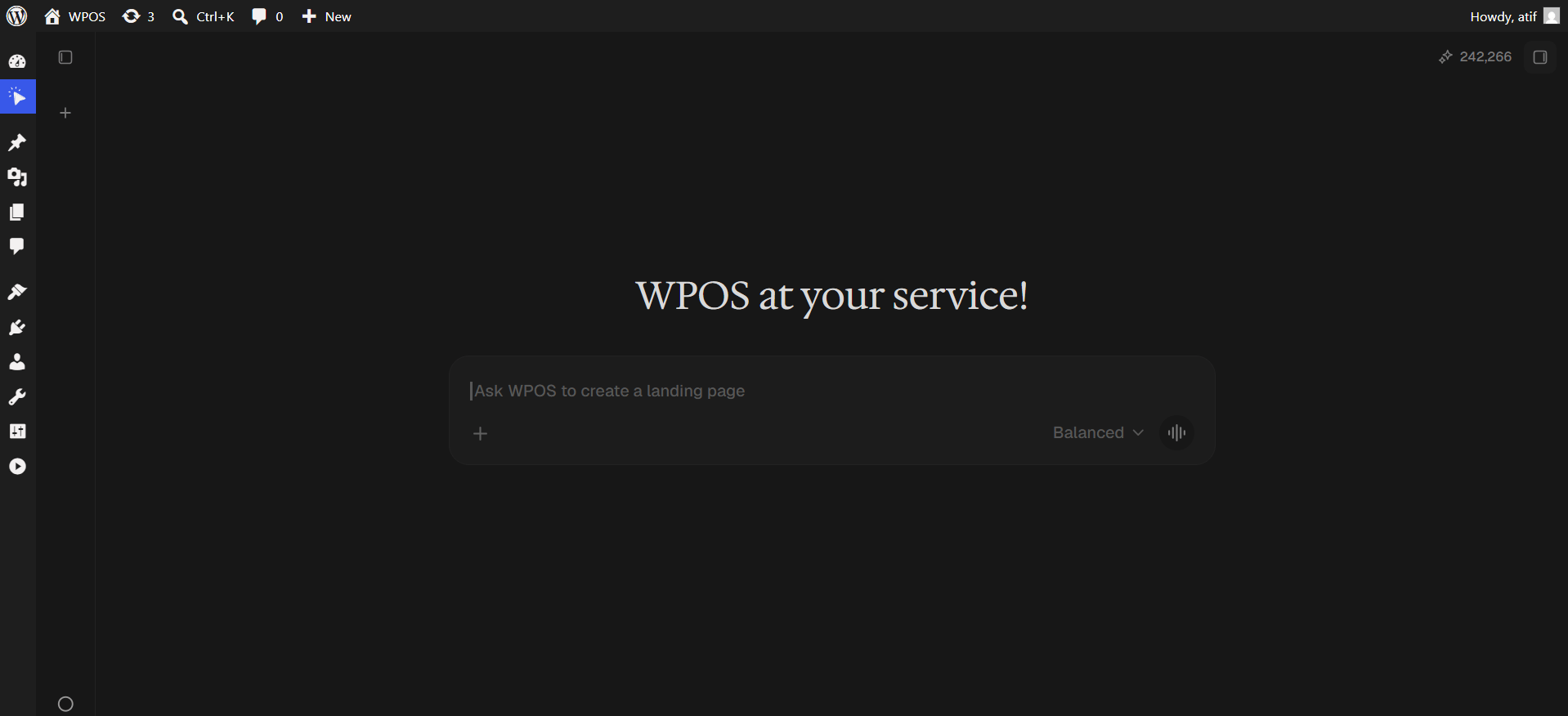
In WordPress admin, open WPOS. You land on the chat screen.
WPOS opens on the chat screen.
2
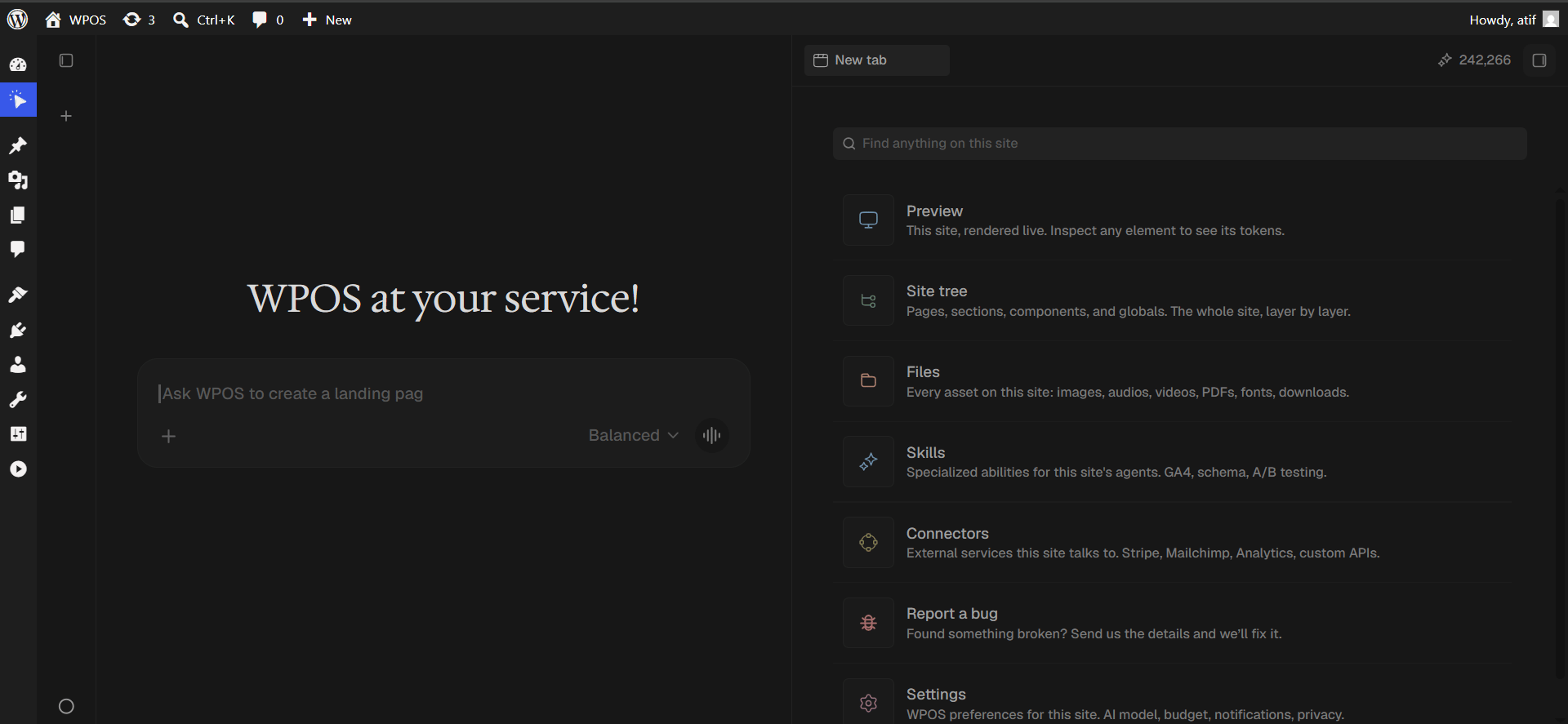
Open a new tab and choose Connectors
Click the + button to open the launcher panel, then choose Connectors.
The launcher panel. Connectors is the fifth entry.
3
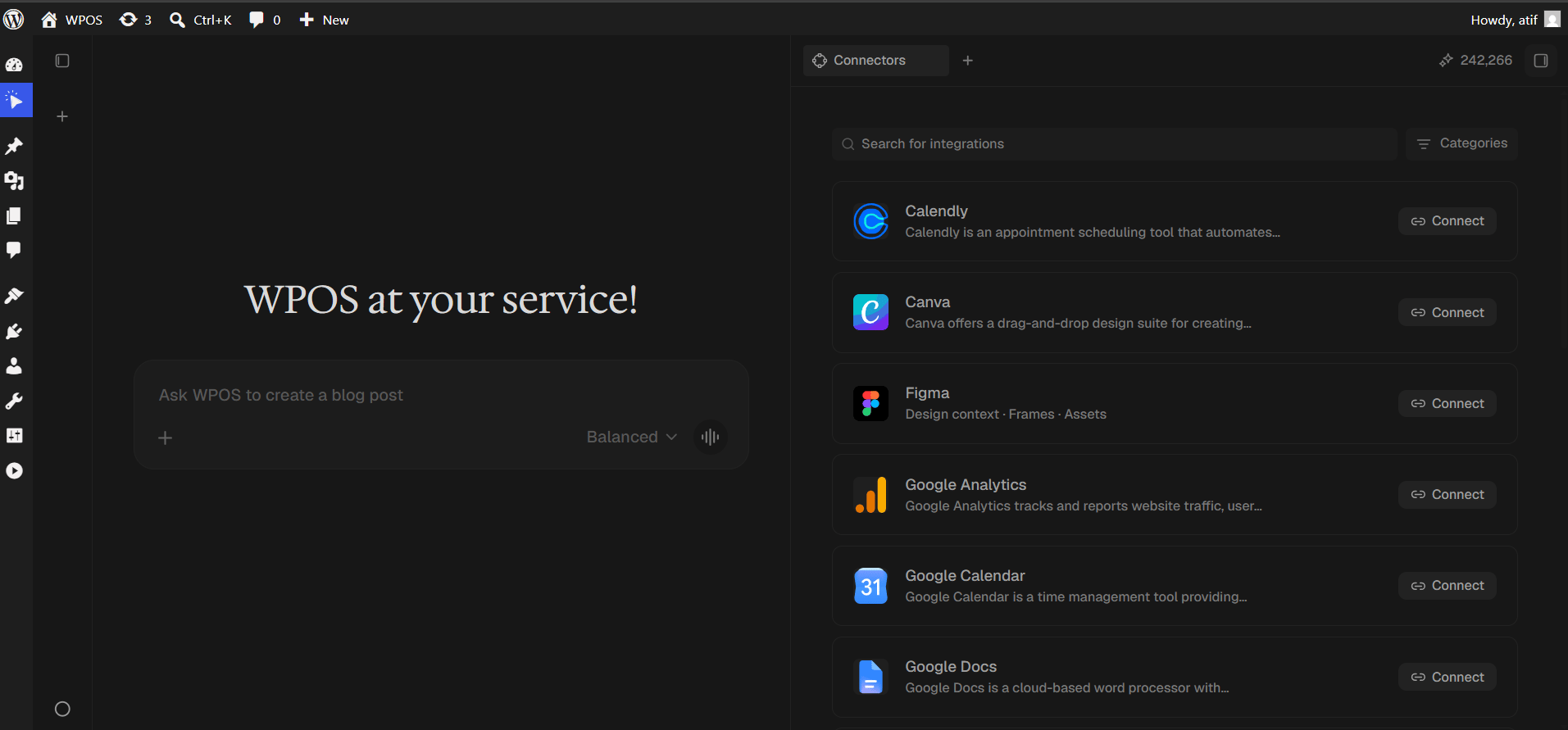
Find the connector
Every available connector is listed alphabetically, each with a button showing what it needs.
The Connectors panel, sorted alphabetically.
4
Search and press Connect
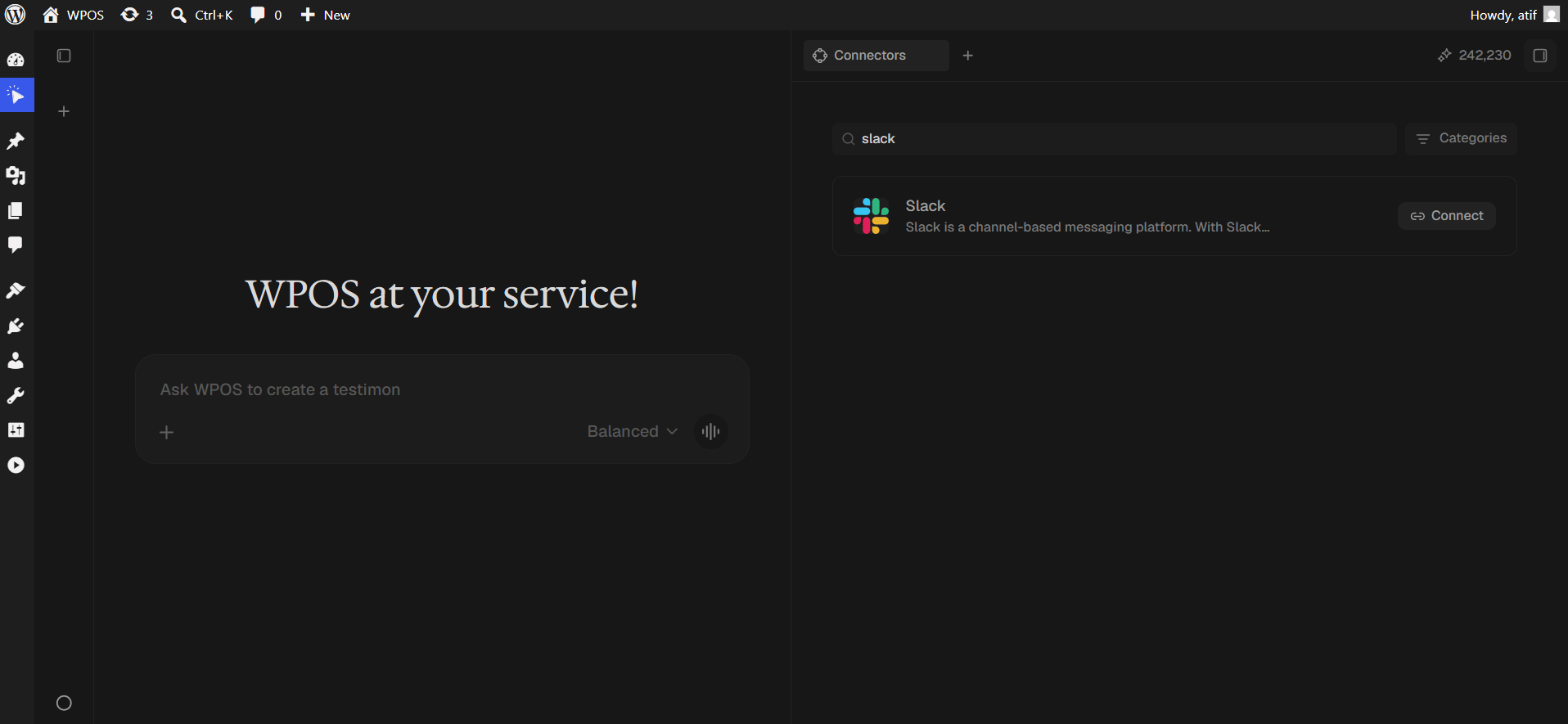
Type Slack into Search for integrations, then press Connect.
Search narrows the list to one row.
5
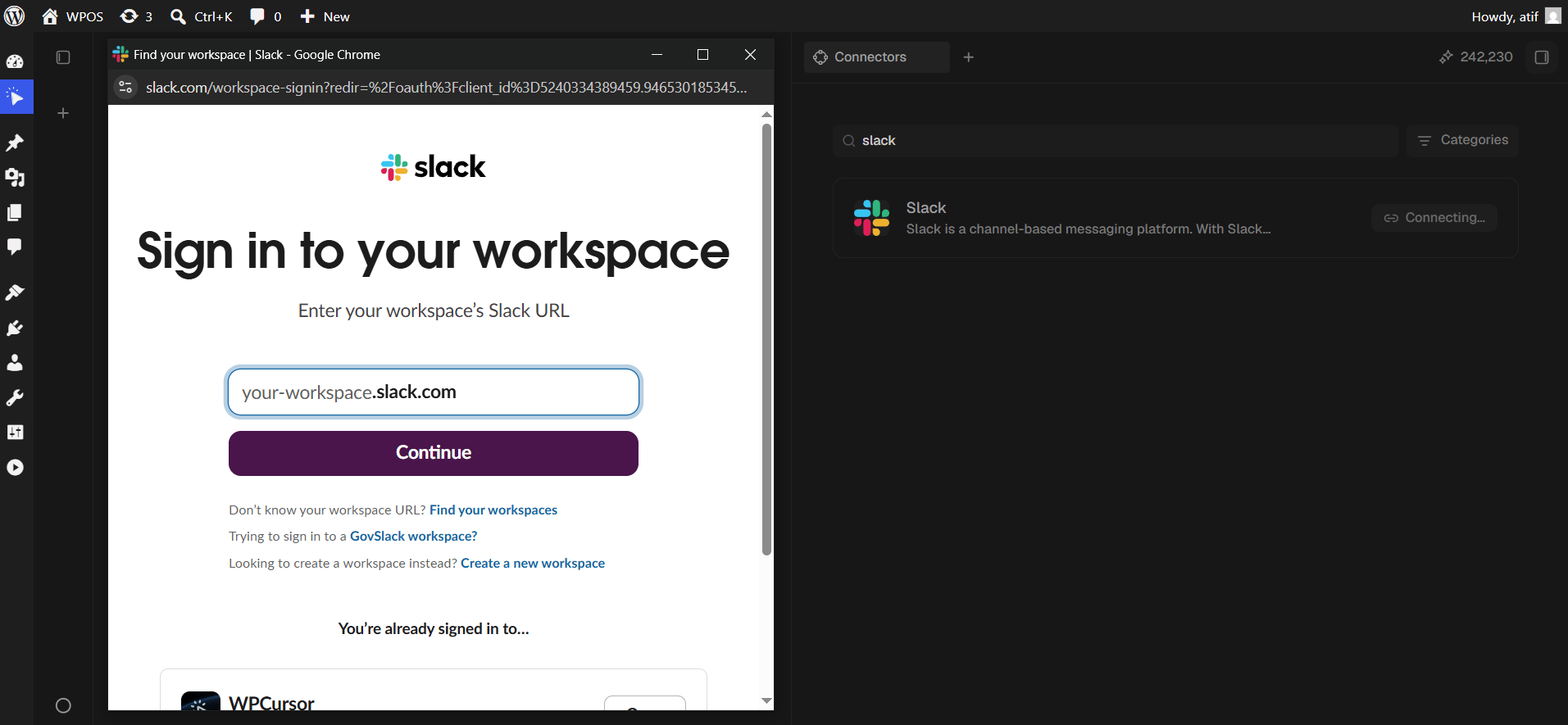
Sign in to your workspace
A popup opens on Slack’s “Sign in to your workspace” page. Enter your workspace URL, the your-workspace part of your-workspace.slack.com, and click Continue. If you are already signed in, your workspaces are listed under “You’re already signed in to”.
Pick carefully if you belong to several workspaces. Connecting the wrong one means WPOS posts into the wrong company Slack, and the only undo is to disconnect and reconnect.
Slack asks for the workspace URL.
6
Allow the requested permissions
Slack lists what the app may do, including reading channel content and posting messages. Review and click Allow.
7
Confirm in WPOS
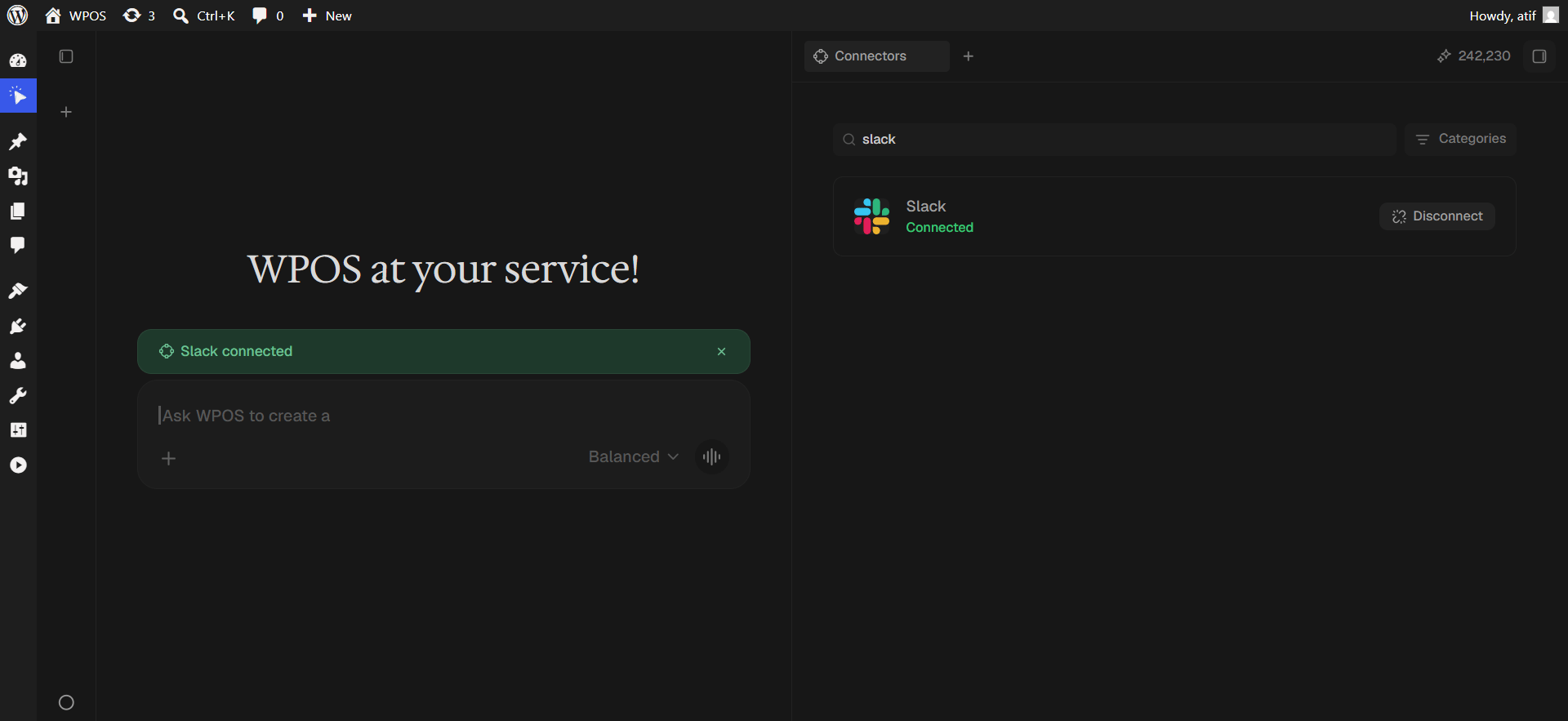
The row reads Connected and a green “Slack connected” banner appears in the chat.
Connected, with the confirmation banner in chat.
8
Invite the app to private channels
Public channels need nothing further. For a private channel, open it in Slack and run /invite @WPOS. Without this, posting to a private channel fails with a not-in-channel error.