Google Sheets is a spreadsheet application. Connect it to WPOS and the agent can use it as part of the work it does on your site.
Google Sheets is a spreadsheet application. Connected to WPOS, it lets the agent read and write rows, format cells, and use sheet data on a site, all from the chat beside your site’s live preview.Category: Productivity and documents Actions available: 50+
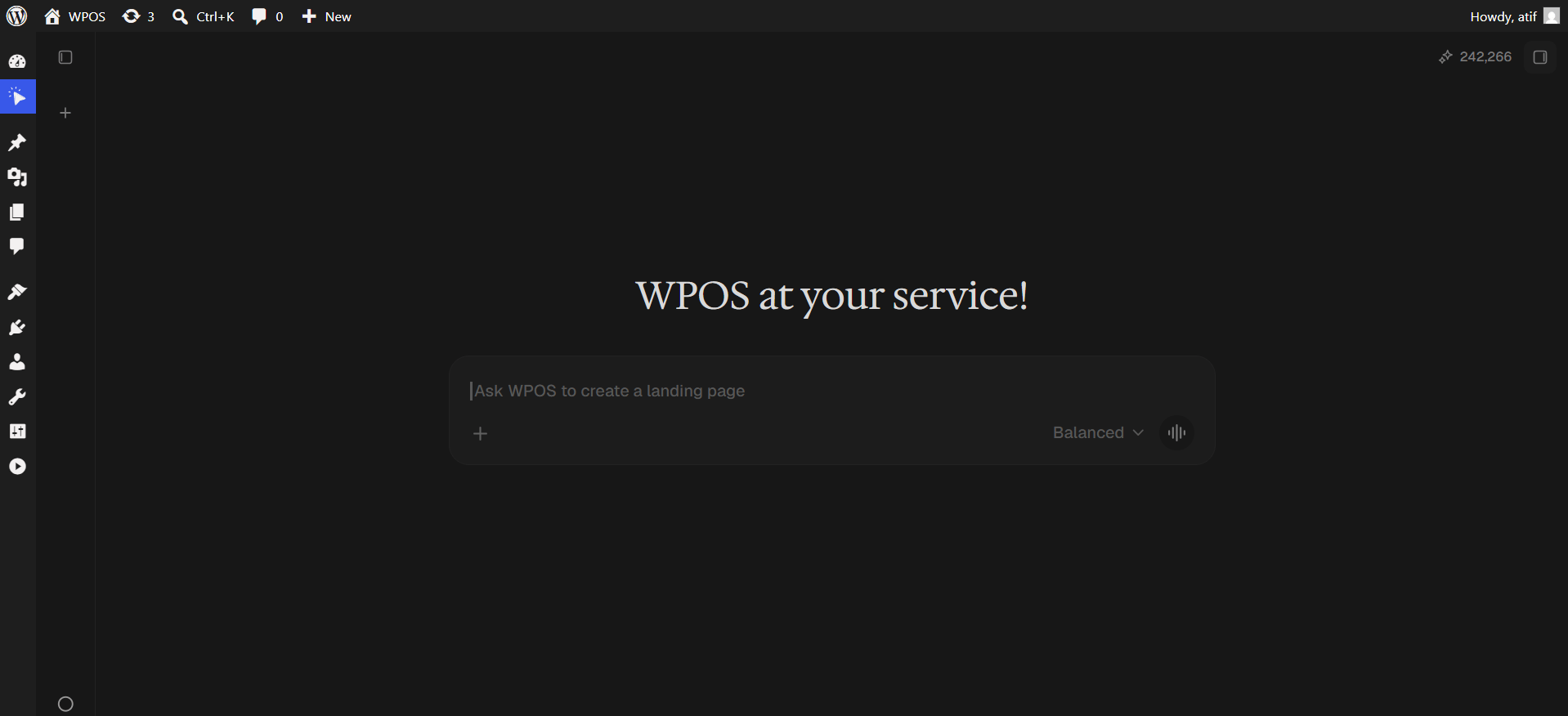
In WordPress admin, open WPOS. You land on the chat screen.
WPOS opens on the chat screen.
2
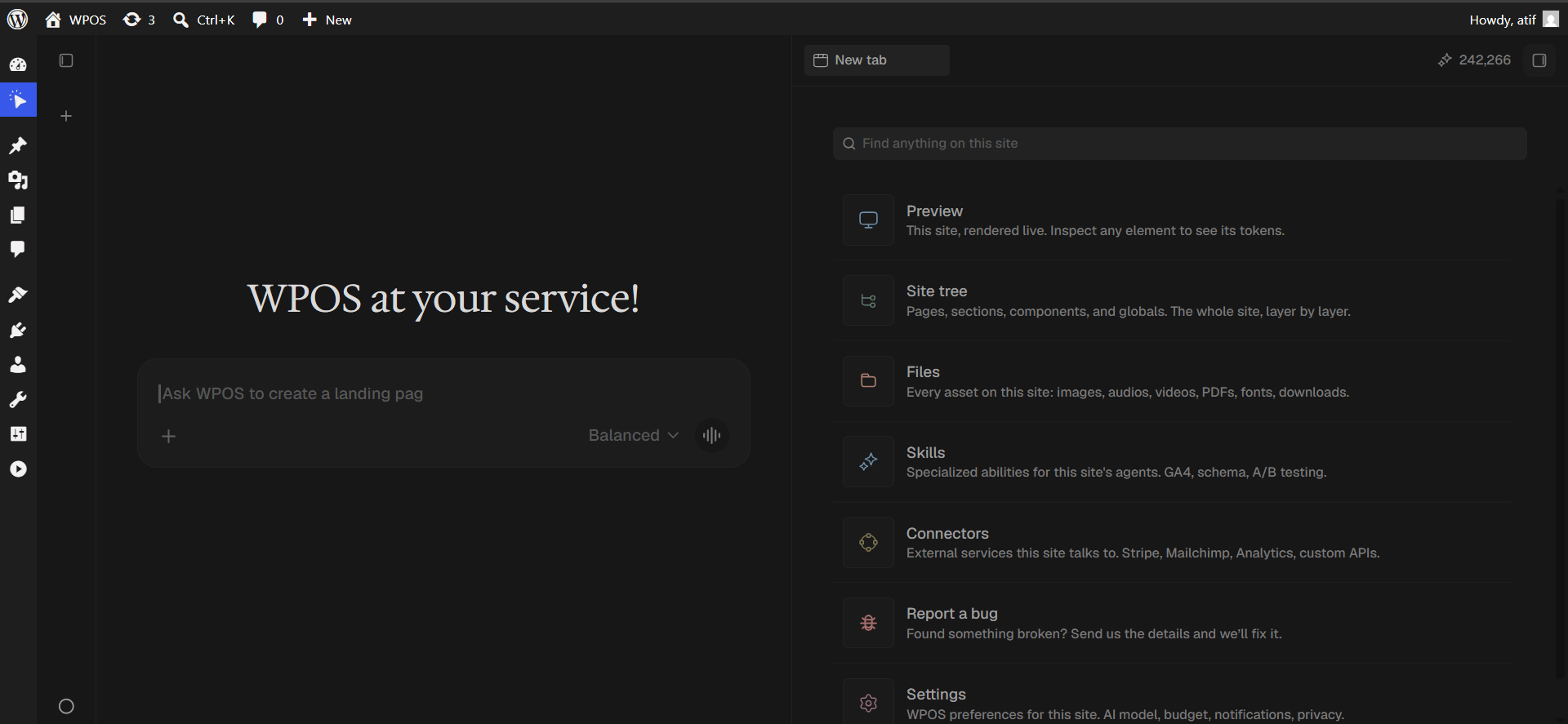
Open a new tab and choose Connectors
Click the + button to open the launcher panel, then choose Connectors.
The launcher panel. Connectors is the fifth entry.
3
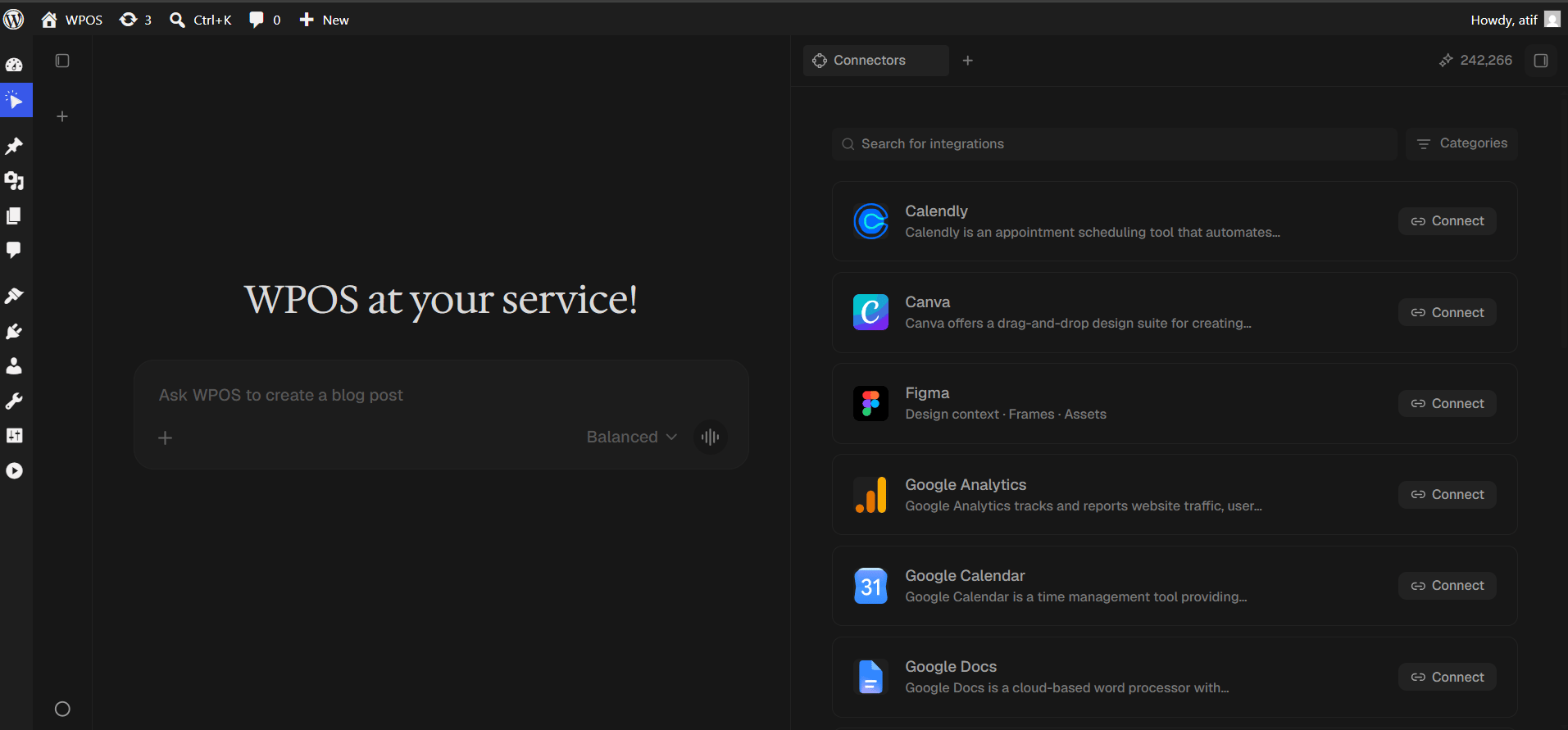
Find the connector
Every available connector is listed alphabetically, each with a button showing what it needs.
The Connectors panel, sorted alphabetically.
4
Search and press Connect
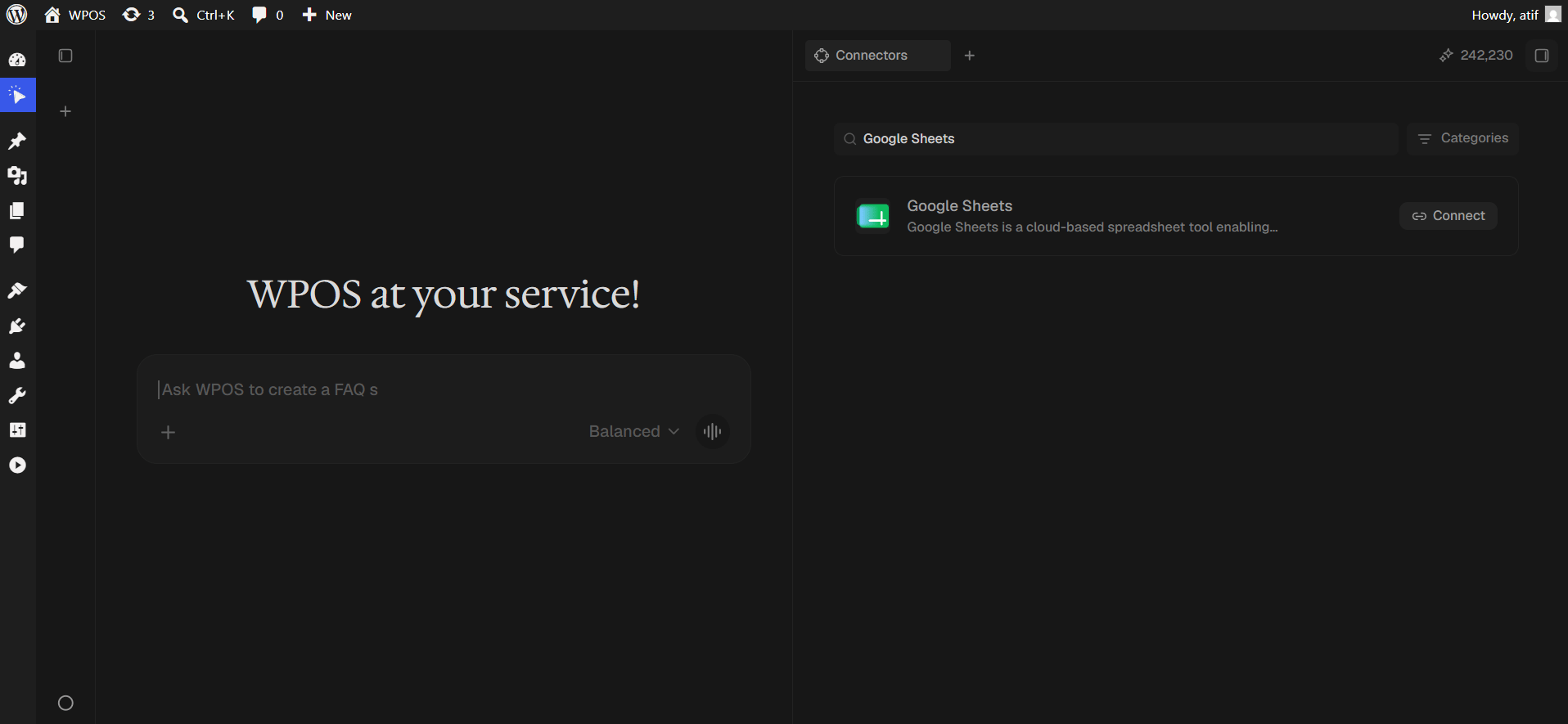
Type Google Sheets into Search for integrations, then press Connect.
Search narrows the list to one row.
5
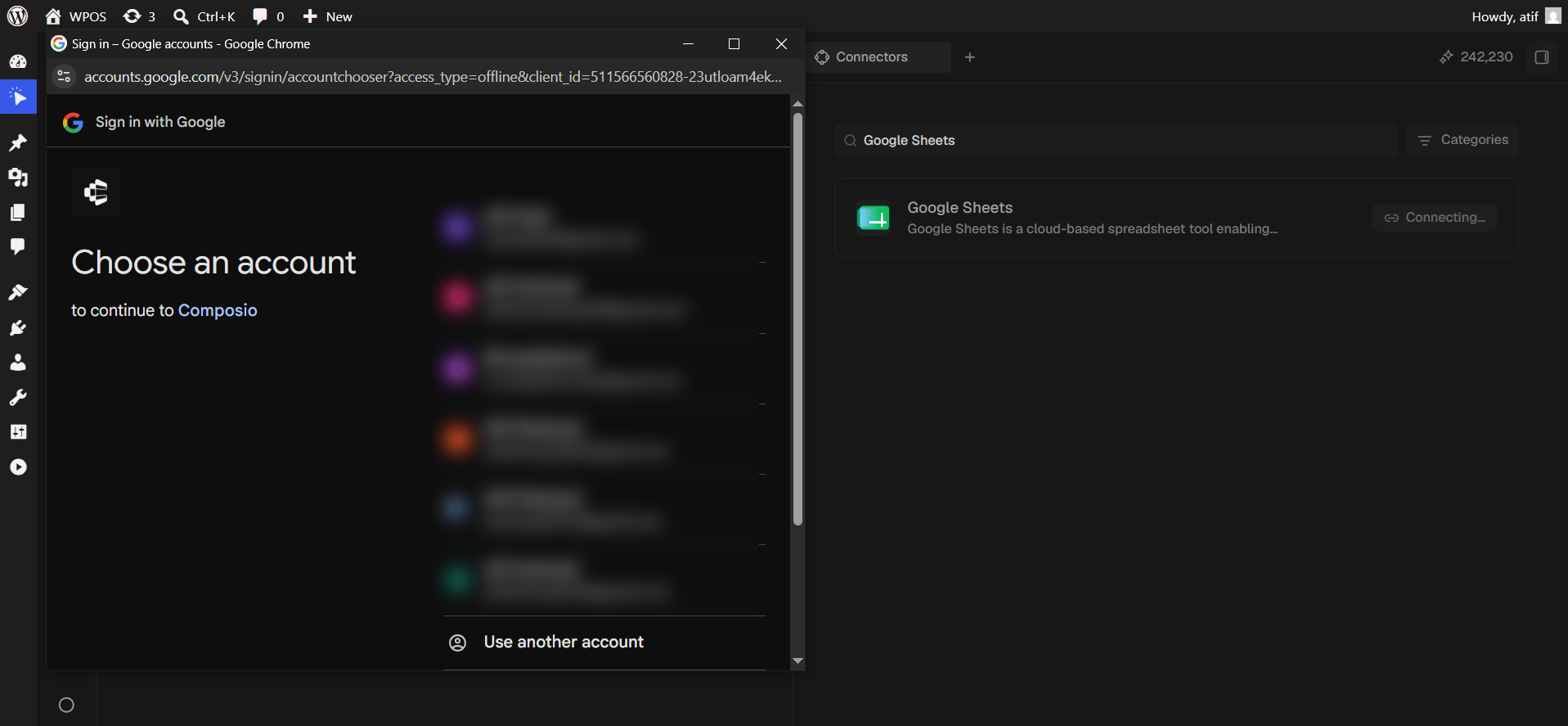
Choose your Google account
Pick the account whose spreadsheets you want WPOS to reach.
Google asks which account to connect.
6
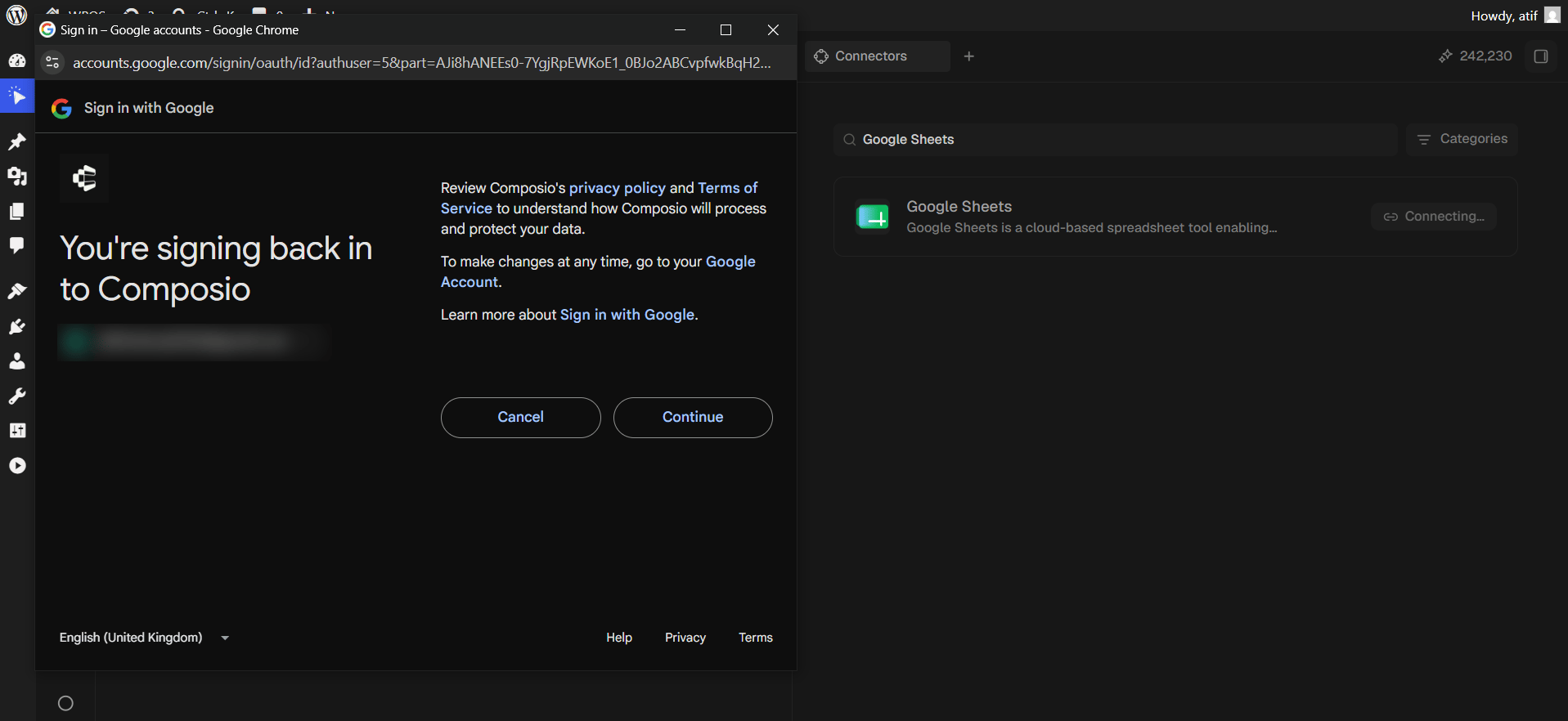
Confirm you are signing back in
If you have authorized Composio with this account before, Google shows “You’re signing back in to Composio”. Click Continue. First time users skip this screen.
Returning users see this extra confirmation.
7
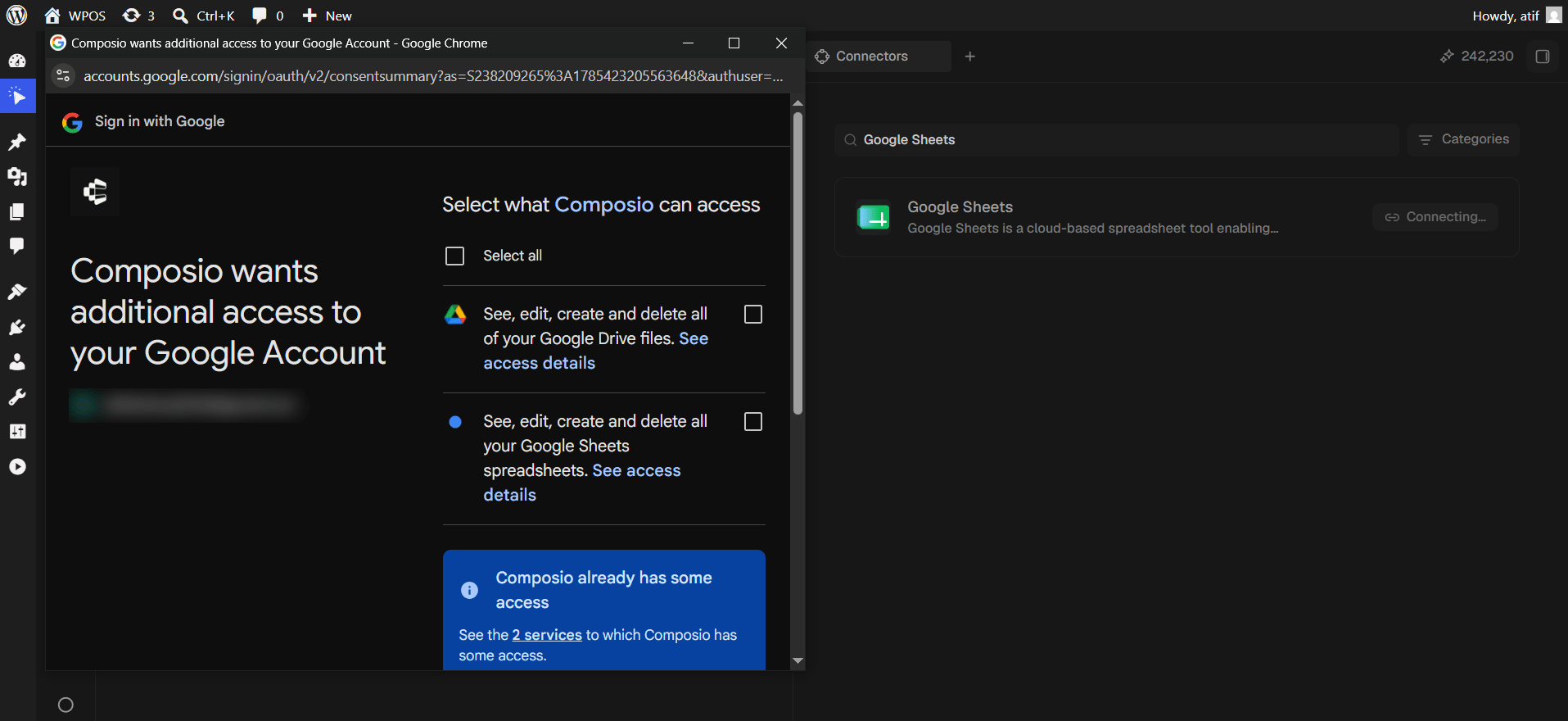
Grant Drive and Sheets access
Google asks for two permissions: full access to your Drive files, and full access to your Sheets spreadsheets.
Drive access is required, not optional. Spreadsheets live in Drive, so they cannot be listed, opened, or created without it. Ticking only the Sheets box leaves most operations failing. Tick Select all.
Two permissions, both starting unticked.
8
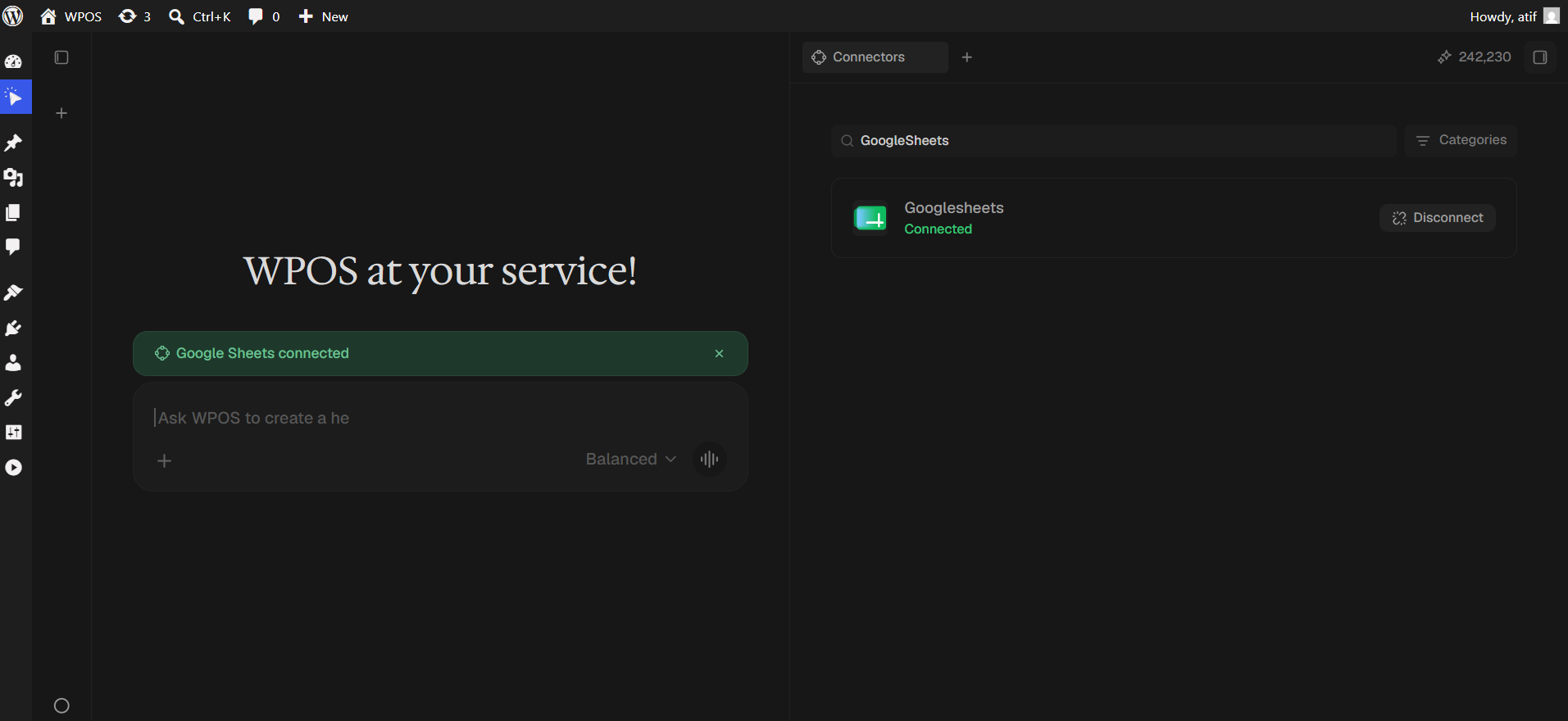
Confirm in WPOS
The row reads Connected and a green “Google Sheets connected” banner appears in the chat.
The connected row is labelled Googlesheets, one word, instead of Google Sheets. Connected rows render the raw toolkit slug rather than the catalog name. This is cosmetic and does not affect the connection.
The permission checkboxes were left unticked, or only the Sheets box was ticked and Drive was skipped. Disconnect, reconnect, and tick Select all.
“The caller does not have permission”
The sheet is not shared with the connected Google account. Share it with that address, or connect an account that already has access.
A sheet is not found by name
Names are not unique in Drive. Give the spreadsheet ID instead, the long string in the URL between /d/ and /edit.
Writes land on the wrong tab
A spreadsheet has multiple tabs. Name the tab explicitly in your prompt.
For popup failures, expired connections, and other issues shared across every
connector, see Introducing Connectors.
Was this page helpful?
{"docsConfig":{"theme":"mint","$schema":"https://mintlify.com/docs.json","name":"WPOS","description":"WordPress, finally operated. The operator manual for running WordPress sites with WPOS.","colors":{"primary":"#062565","light":"#89CAFF","dark":"#0A3A8F"},"logo":{"light":"https://mintcdn.com/wpos/r3ng18J_nwt1_fD2/logo/light.svg?fit=max\u0026auto=format\u0026n=r3ng18J_nwt1_fD2\u0026q=85\u0026s=67939bfd870e9c049cc8758c0d204b2b","dark":"https://mintcdn.com/wpos/r3ng18J_nwt1_fD2/logo/dark.svg?fit=max\u0026auto=format\u0026n=r3ng18J_nwt1_fD2\u0026q=85\u0026s=3b51beaae8bc10056a48a7979e2003e4","href":"https://wpos.ai"},"favicon":"https://mintcdn.com/wpos/JjJVXqByJvEYoF5u/favicon.png?fit=max\u0026auto=format\u0026n=JjJVXqByJvEYoF5u\u0026q=85\u0026s=72e51f12f02f818bbff4787ef2044acd","navbar":{"primary":{"type":"button","label":"Open the app","href":"https://app.wpos.ai"}},"footer":{"socials":{"x":"https://x.com/wpos_ai","website":"https://wpos.ai"}},"seo":{"metatags":{"og:site_name":"WPOS Docs"}},"fonts":{"family":"Inter Tight"},"integrations":{"posthog":{"apiKey":"phc_WpD8BFKAYUNIpEUU7ggxUue33nwbYg36d2Qyx0AlmqD","apiHost":"https://us.i.posthog.com","sessionRecording":true}},"contextual":{"options":["copy","view"],"display":"header"},"styling":{"latex":true},"navigation":{"pages":[]}},"deployment":{"deploymentMetadataValue":{"subdomain":"wpos","hasAudioNarration":false,"actualSubdomain":"wpos","customDomains":["docs.wpos.ai"],"gitSource":{"type":"github","owner":"wpcursor","repo":"wpos-docs","deployBranch":"main","contentDirectory":"","isPrivate":true,"mountPath":"","label":""},"chroma":{"liveDeploymentHistoryId":"6ae0c45d6c1a15a18d9e413a","collectionId":"c6f8b5c2-db73-43f8-919e-013914f8580a","schemaVersion":"v3","latestBuiltDeploymentHistoryId":"6ae0c45d6c1a15a18d9e413a"},"feedback":{"thumbs":true},"entitlements":{"AI_CHAT":{"status":"DISABLED"}},"buildId":"6ae0c45d6c1a15a18d9e413a","clientVersion":"0.0.4054","searchFilterCounts":[{"language":"default","tag":"Introduction","count":38},{"language":"default","tag":"Elementor Ultra","count":27},{"language":"default","tag":"Connectors","count":20},{"language":"default","tag":"Operate","count":11},{"language":"default","tag":"For agencies","count":10},{"language":"default","tag":"Partners","count":10},{"language":"default","tag":"Get started","count":9},{"language":"default","tag":"Build","count":9},{"language":"default","tag":"Examples","count":9},{"language":"default","tag":"Guides","count":5}]},"assistantConfig":{"enableAskAiButton":false,"enableStarterQuestions":false,"enableContextualStarterQuestions":false,"enableAskAiSearchBar":true},"basePath":"","hasChatPermissions":false,"hasWebMcpPermissions":false,"toggles":[{"name":"kill-isr","enabled":true,"variant":{"name":"disabled","enabled":false,"feature_enabled":true},"impressionData":false},{"name":"agent-mintlify-slack","enabled":true,"variant":{"name":"disabled","enabled":false,"feature_enabled":true},"impressionData":false},{"name":"agent-integrations-settings","enabled":true,"variant":{"name":"disabled","enabled":false,"feature_enabled":true},"impressionData":false},{"name":"automations-pr-grouping","enabled":true,"variant":{"name":"disabled","enabled":false,"feature_enabled":true},"impressionData":false},{"name":"custom-prefix","enabled":true,"variant":{"name":"disabled","enabled":false,"feature_enabled":true},"impressionData":false},{"name":"analytics-v7","enabled":true,"variant":{"name":"disabled","enabled":false,"feature_enabled":true},"impressionData":false},{"name":"user-flows-analytics","enabled":true,"variant":{"name":"disabled","enabled":false,"feature_enabled":true},"impressionData":false},{"name":"no-publish-flow","enabled":true,"variant":{"name":"disabled","enabled":false,"feature_enabled":true},"impressionData":false},{"name":"workos-onboarding","enabled":true,"variant":{"name":"disabled","enabled":false,"feature_enabled":true},"impressionData":false},{"name":"llms-txt-v2","enabled":true,"variant":{"name":"disabled","enabled":false,"feature_enabled":true},"impressionData":false},{"name":"snapshot-serving-live","enabled":true,"variant":{"name":"disabled","enabled":false,"feature_enabled":true},"impressionData":false},{"name":"stripTemperatureMiddleware","enabled":true,"variant":{"name":"disabled","enabled":false,"feature_enabled":true},"impressionData":false},{"name":"support-platform-pylon-zendesk","enabled":true,"variant":{"name":"disabled","enabled":false,"feature_enabled":true},"impressionData":false},{"name":"snapshot-serving","enabled":true,"variant":{"name":"disabled","enabled":false,"feature_enabled":true},"impressionData":false},{"name":"instant-rollback","enabled":true,"variant":{"name":"disabled","enabled":false,"feature_enabled":true},"impressionData":false},{"name":"granular-notifications-server","enabled":true,"variant":{"name":"disabled","enabled":false,"feature_enabled":true},"impressionData":false},{"name":"granular-notifications","enabled":true,"variant":{"name":"disabled","enabled":false,"feature_enabled":true},"impressionData":false},{"name":"automations-fable","enabled":true,"variant":{"name":"disabled","enabled":false,"feature_enabled":true},"impressionData":false},{"name":"fixed-ai-action-pricing","enabled":true,"variant":{"name":"disabled","enabled":false,"feature_enabled":true},"impressionData":false},{"name":"automation-resolve-merge-conflict","enabled":true,"variant":{"name":"disabled","enabled":false,"feature_enabled":true},"impressionData":false},{"name":"scoped-publishing","enabled":true,"variant":{"name":"disabled","enabled":false,"feature_enabled":true},"impressionData":false},{"name":"mintql","enabled":true,"variant":{"name":"disabled","enabled":false,"feature_enabled":true},"impressionData":false},{"name":"page-level-analytics","enabled":true,"variant":{"name":"disabled","enabled":false,"feature_enabled":true},"impressionData":false},{"name":"editor-version-history-v2","enabled":true,"variant":{"name":"disabled","enabled":false,"feature_enabled":true},"impressionData":false},{"name":"billing-page-v2","enabled":true,"variant":{"name":"disabled","enabled":false,"feature_enabled":true},"impressionData":false},{"name":"full-page-search","enabled":true,"variant":{"name":"disabled","enabled":false,"feature_enabled":true},"impressionData":false},{"name":"workspace-projects","enabled":true,"variant":{"name":"disabled","enabled":false,"feature_enabled":true},"impressionData":false},{"name":"assistant-v5","enabled":true,"variant":{"name":"disabled","enabled":false,"feature_enabled":true},"impressionData":false},{"name":"byok-sep-25","enabled":true,"variant":{"name":"disabled","enabled":false,"feature_enabled":true},"impressionData":false},{"name":"fork-pr-previews","enabled":true,"variant":{"name":"disabled","enabled":false,"feature_enabled":true},"impressionData":false},{"name":"revalidation-jwt","enabled":true,"variant":{"name":"disabled","enabled":false,"feature_enabled":true},"impressionData":false},{"name":"vite-origin","enabled":true,"variant":{"name":"disabled","enabled":false,"feature_enabled":true},"impressionData":false},{"name":"billing-updated-9-15","enabled":true,"variant":{"name":"disabled","enabled":false,"feature_enabled":true},"impressionData":false},{"name":"workos-sso-scim","enabled":true,"variant":{"name":"disabled","enabled":false,"feature_enabled":true},"impressionData":false},{"name":"hobby-abuse-scan","enabled":true,"variant":{"name":"disabled","enabled":false,"feature_enabled":true},"impressionData":false},{"name":"dashboard-inbox","enabled":true,"variant":{"name":"disabled","enabled":false,"feature_enabled":true},"impressionData":false},{"name":"workos-signup","enabled":true,"variant":{"name":"disabled","enabled":false,"feature_enabled":true},"impressionData":false},{"name":"turbopuffer-dual-write","enabled":true,"variant":{"name":"disabled","enabled":false,"feature_enabled":true},"impressionData":false},{"name":"workos-enabled","enabled":true,"variant":{"name":"disabled","enabled":false,"feature_enabled":true},"impressionData":false},{"name":"approve-review-flow","enabled":true,"variant":{"name":"disabled","enabled":false,"feature_enabled":true},"impressionData":false},{"name":"sso-setup-deadline-banner","enabled":true,"variant":{"name":"disabled","enabled":false,"feature_enabled":true},"impressionData":false},{"name":"rbac-expansion","enabled":true,"variant":{"name":"disabled","enabled":false,"feature_enabled":true},"impressionData":false}],"googleFontsInlined":true},"customCss":[{"filePath":"style.css","content":"html.dark{--background-dark:11 11 11;--gray-950:11 11 11;--gray-900:23 23 23;--default-border-color:34 34 34;--gray-800:66 66 66}html.light{--background-light:255 255 255;--default-border-color:229 229 229}.demo-embed{margin:1.75rem 0}.demo-embed+.demo-embed{margin-top:2.75rem}.demo-embed iframe,.demo-embed video,.yt-facade{display:block;width:100%;aspect-ratio:16/9;border:0;border-radius:14px;background:#0b0b0b}.yt-facade{position:relative;padding:0;overflow:hidden;cursor:pointer}.yt-facade-thumb{position:absolute;inset:0;background-size:cover;background-position:center;transition:transform .45s ease,filter .3s ease}.yt-facade:hover .yt-facade-thumb{transform:scale(1.02);filter:brightness(.88)}.yt-facade-play{position:absolute;top:50%;left:50%;display:flex;align-items:center;justify-content:center;width:72px;height:72px;padding:0;border-radius:50%;color:#fff;background:rgba(6,37,101,.88);box-shadow:0 6px 24px rgba(0,0,0,.35);transform:translate(-50%,-50%);transition:transform .2s ease,background .2s ease}.yt-facade-play svg{display:block;flex:none}.yt-facade:hover .yt-facade-play{background:#0a3a8f;transform:translate(-50%,-50%) scale(1.06)}.yt-facade:focus-visible{outline:3px solid #89caff;outline-offset:3px}.demo-caption{margin:.7rem 0 0;text-align:center;font-size:.85rem;line-height:1.4;color:rgb(115 115 115)}html.dark .demo-caption{color:rgb(150 150 150)}"}],"page":{"pagePath":"connectors/google-sheets","slug":"/connectors/google-sheets","pageMetadata":{"title":"Google Sheets","icon":"table","description":"Google Sheets is a spreadsheet application. Connect it to WPOS and the agent can use it as part of the work it does on your site.","href":"/connectors/google-sheets"},"description":{"compiledSource":"\"use strict\";\nconst {jsx: _jsx} = arguments[0];\nconst {useMDXComponents: _provideComponents} = arguments[0];\nfunction _createMdxContent(props) {\n const _components = {\n p: \"p\",\n ..._provideComponents(),\n ...props.components\n };\n return _jsx(_components.p, {\n children: \"Google Sheets is a spreadsheet application. Connect it to WPOS and the agent can use it as part of the work it does on your site.\"\n });\n}\nfunction MDXContent(props = {}) {\n const {wrapper: MDXLayout} = {\n ..._provideComponents(),\n ...props.components\n };\n return MDXLayout ? _jsx(MDXLayout, {\n ...props,\n children: _jsx(_createMdxContent, {\n ...props\n })\n }) : _createMdxContent(props);\n}\nreturn {\n default: MDXContent\n};\n","frontmatter":{},"scope":{}},"pageType":"default","mdx":{"mdxSource":{"compiledSource":"\"use strict\";const{Fragment:_Fragment,jsx:_jsx,jsxs:_jsxs}=arguments[0];const{useMDXComponents:_provideComponents}=arguments[0];const YouTubeVideo=({id,title,caption})=>{const[playing,setPlaying]=useState(false);return _jsxs(`div`,{className:`demo-embed`,children:[playing?_jsx(`iframe`,{src:`https://www.youtube-nocookie.com/embed/${id}?autoplay=1\u0026rel=0\u0026playsinline=1`,title,allow:`accelerometer; autoplay; clipboard-write; encrypted-media; gyroscope; picture-in-picture; web-share`,referrerPolicy:`strict-origin-when-cross-origin`,allowFullScreen:true}):_jsxs(`button`,{type:`button`,className:`yt-facade`,onClick:()=>setPlaying(true),\"aria-label\":`Play video: ${title}`,title,children:[_jsx(`span`,{className:`yt-facade-thumb`,style:{backgroundImage:`url(https://i.ytimg.com/vi/${id}/maxresdefault.jpg)`},\"aria-hidden\":`true`}),_jsx(`span`,{className:`yt-facade-play`,\"aria-hidden\":`true`,children:_jsx(`svg`,{width:`26`,height:`26`,viewBox:`0 0 24 24`,fill:`currentColor`,children:_jsx(`path`,{d:`M8 5.14v13.72a1 1 0 0 0 1.52.85l10.97-6.86a1 1 0 0 0 0-1.7L9.52 4.29A1 1 0 0 0 8 5.14z`})})})]}),caption?_jsx(`p`,{className:`demo-caption`,children:caption}):null]})};function _createMdxContent(props){const _components={a:`a`,code:`code`,li:`li`,p:`p`,pre:`pre`,span:`span`,strong:`strong`,ul:`ul`,..._provideComponents(),...props.components},{Accordion,AccordionGroup,CodeBlock,Frame,Heading,Note,OptimizedImage,Step,Steps,Warning,_MdxComponentBoundary}=_components;if(!Accordion)_missingMdxReference(`Accordion`,true);if(!AccordionGroup)_missingMdxReference(`AccordionGroup`,true);if(!CodeBlock)_missingMdxReference(`CodeBlock`,true);if(!Frame)_missingMdxReference(`Frame`,true);if(!Heading)_missingMdxReference(`Heading`,true);if(!Note)_missingMdxReference(`Note`,true);if(!OptimizedImage)_missingMdxReference(`OptimizedImage`,true);if(!Step)_missingMdxReference(`Step`,true);if(!Steps)_missingMdxReference(`Steps`,true);if(!Warning)_missingMdxReference(`Warning`,true);if(!_MdxComponentBoundary)_missingMdxReference(`_MdxComponentBoundary`,true);return _jsxs(_Fragment,{children:[_jsx(_components.p,{children:`Google Sheets is a spreadsheet application. Connected to WPOS, it lets the agent read and write rows, format cells, and use sheet data on a site, all from the chat beside your site’s live preview.`}),`\n`,_jsx(_MdxComponentBoundary,{name:`YouTubeVideo`,children:_jsx(YouTubeVideo,{id:`6OuyXskcKe0`,title:`Connect Google Sheets to WPOS`,caption:`Turn a CSV into a live Google Sheet from chat`})}),`\n`,_jsxs(_components.p,{children:[_jsx(_components.strong,{children:`Category:`}),` Productivity and documents `,_jsx(_components.strong,{children:`Actions available:`}),` 50+`]}),`\n`,_jsx(Heading,{level:`2`,id:`what-you-can-do`,children:`What you can do`}),`\n`,_jsxs(_components.ul,{children:[`\n`,_jsx(_components.li,{children:`Read and write rows`}),`\n`,_jsx(_components.li,{children:`Format cells`}),`\n`,_jsx(_components.li,{children:`Filter data`}),`\n`]}),`\n`,_jsx(Heading,{level:`2`,id:`example-requests`,children:`Example requests`}),`\n`,_jsxs(_components.p,{children:[`Once Google Sheets is connected, ask in the `,_jsx(_components.a,{href:`/operate/command-center`,children:`Command Center`}),`:`]}),`\n`,_jsx(CodeBlock,{filename:``,numberOfLines:`3`,language:`text`,children:_jsx(_components.pre,{className:`shiki shiki-themes github-light-default dark-plus`,style:{backgroundColor:`#ffffff`,\"--shiki-dark-bg\":`#0B0C0E`,color:`#1f2328`,\"--shiki-dark\":`#D4D4D4`},language:`text`,children:_jsxs(_components.code,{language:`text`,numberOfLines:`3`,children:[_jsx(_components.span,{className:`line`,children:_jsx(_components.span,{children:`Pull this Google Sheet into a table on the page.`})}),`\n`,_jsx(_components.span,{className:`line`,children:_jsx(_components.span,{children:`Add new form submissions to my Google Sheet.`})}),`\n`,_jsx(_components.span,{className:`line`,children:_jsx(_components.span,{})})]})})}),`\n`,_jsx(Heading,{level:`2`,id:`before-you-connect`,children:`Before you connect`}),`\n`,_jsxs(_components.ul,{children:[`\n`,_jsx(_components.li,{children:`A Google account with Drive access. A free personal account is enough.`}),`\n`,_jsxs(_components.li,{children:[_jsx(_components.strong,{children:`Edit`}),` access on any sheet you want WPOS to write to.`]}),`\n`,_jsx(_components.li,{children:`For Workspace accounts, third party app access must not be blocked by your admin.`}),`\n`]}),`\n`,_jsx(Heading,{level:`2`,id:`connect-it`,children:`Connect it`}),`\n`,_jsxs(Steps,{children:[_jsxs(Step,{title:`Open WPOS`,children:[_jsxs(_components.p,{children:[`In WordPress admin, open `,_jsx(_components.strong,{children:`WPOS`}),`. You land on the chat screen.`]}),_jsx(Frame,{caption:`WPOS opens on the chat screen.`,children:_jsx(OptimizedImage,{src:`https://mintcdn.com/wpos/xCBpSE-QeFfm67KI/images/connectors/google-sheets/01-wpos-home.png?fit=max\u0026auto=format\u0026n=xCBpSE-QeFfm67KI\u0026q=85\u0026s=4623baa3ace69532e626307f1da9f6fb`,alt:`The WPOS chat screen in WordPress admin.`,\"data-og-width\":`1918`,width:`1918`,\"data-og-height\":`876`,height:`876`,\"data-path\":`images/connectors/google-sheets/01-wpos-home.png`,\"data-optimize\":`true`,\"data-opv\":`3`,srcset:`https://mintcdn.com/wpos/xCBpSE-QeFfm67KI/images/connectors/google-sheets/01-wpos-home.png?w=280\u0026fit=max\u0026auto=format\u0026n=xCBpSE-QeFfm67KI\u0026q=85\u0026s=67ca31681edb40aab7da2dfabc90f3a9 280w, https://mintcdn.com/wpos/xCBpSE-QeFfm67KI/images/connectors/google-sheets/01-wpos-home.png?w=560\u0026fit=max\u0026auto=format\u0026n=xCBpSE-QeFfm67KI\u0026q=85\u0026s=4f9843679bb76005c510e616468999ca 560w, https://mintcdn.com/wpos/xCBpSE-QeFfm67KI/images/connectors/google-sheets/01-wpos-home.png?w=840\u0026fit=max\u0026auto=format\u0026n=xCBpSE-QeFfm67KI\u0026q=85\u0026s=d0abf4c95505d4496d47d0361381ebcf 840w, https://mintcdn.com/wpos/xCBpSE-QeFfm67KI/images/connectors/google-sheets/01-wpos-home.png?w=1100\u0026fit=max\u0026auto=format\u0026n=xCBpSE-QeFfm67KI\u0026q=85\u0026s=0856a1b967b572dd82a745dc0ad7818a 1100w, https://mintcdn.com/wpos/xCBpSE-QeFfm67KI/images/connectors/google-sheets/01-wpos-home.png?w=1650\u0026fit=max\u0026auto=format\u0026n=xCBpSE-QeFfm67KI\u0026q=85\u0026s=d81a7f4c4e68bd8fcf8316b597a864f8 1650w, https://mintcdn.com/wpos/xCBpSE-QeFfm67KI/images/connectors/google-sheets/01-wpos-home.png?w=2500\u0026fit=max\u0026auto=format\u0026n=xCBpSE-QeFfm67KI\u0026q=85\u0026s=4abe1392fc954e396d6f57d317227101 2500w`})})]}),_jsxs(Step,{title:`Open a new tab and choose Connectors`,children:[_jsxs(_components.p,{children:[`Click the `,_jsx(_components.strong,{children:`+`}),` button to open the launcher panel, then choose `,_jsx(_components.strong,{children:`Connectors`}),`.`]}),_jsx(Frame,{caption:`The launcher panel. Connectors is the fifth entry.`,children:_jsx(OptimizedImage,{src:`https://mintcdn.com/wpos/xCBpSE-QeFfm67KI/images/connectors/google-sheets/02-new-tab-connectors.png?fit=max\u0026auto=format\u0026n=xCBpSE-QeFfm67KI\u0026q=85\u0026s=c47953446dde957ec0f3a2cfbc1bc496`,alt:`The WPOS launcher panel listing Preview, Site tree, Files, Skills, Connectors, and Settings.`,\"data-og-width\":`1920`,width:`1920`,\"data-og-height\":`887`,height:`887`,\"data-path\":`images/connectors/google-sheets/02-new-tab-connectors.png`,\"data-optimize\":`true`,\"data-opv\":`3`,srcset:`https://mintcdn.com/wpos/xCBpSE-QeFfm67KI/images/connectors/google-sheets/02-new-tab-connectors.png?w=280\u0026fit=max\u0026auto=format\u0026n=xCBpSE-QeFfm67KI\u0026q=85\u0026s=967a24fb2c463996743aff477e2e7334 280w, https://mintcdn.com/wpos/xCBpSE-QeFfm67KI/images/connectors/google-sheets/02-new-tab-connectors.png?w=560\u0026fit=max\u0026auto=format\u0026n=xCBpSE-QeFfm67KI\u0026q=85\u0026s=a87cf37a17a5803782354d1bec2be6d4 560w, https://mintcdn.com/wpos/xCBpSE-QeFfm67KI/images/connectors/google-sheets/02-new-tab-connectors.png?w=840\u0026fit=max\u0026auto=format\u0026n=xCBpSE-QeFfm67KI\u0026q=85\u0026s=5ead09b721c612fa589c36af8d541624 840w, https://mintcdn.com/wpos/xCBpSE-QeFfm67KI/images/connectors/google-sheets/02-new-tab-connectors.png?w=1100\u0026fit=max\u0026auto=format\u0026n=xCBpSE-QeFfm67KI\u0026q=85\u0026s=92d45d2d1b149a5324ae8e609cb8a0bc 1100w, https://mintcdn.com/wpos/xCBpSE-QeFfm67KI/images/connectors/google-sheets/02-new-tab-connectors.png?w=1650\u0026fit=max\u0026auto=format\u0026n=xCBpSE-QeFfm67KI\u0026q=85\u0026s=5bd004ca3b3cccb1a7077165c922850d 1650w, https://mintcdn.com/wpos/xCBpSE-QeFfm67KI/images/connectors/google-sheets/02-new-tab-connectors.png?w=2500\u0026fit=max\u0026auto=format\u0026n=xCBpSE-QeFfm67KI\u0026q=85\u0026s=03fbec0807bfbcc178bf9596e82c6c3c 2500w`})})]}),_jsxs(Step,{title:`Find the connector`,children:[_jsx(_components.p,{children:`Every available connector is listed alphabetically, each with a button showing what it needs.`}),_jsx(Frame,{caption:`The Connectors panel, sorted alphabetically.`,children:_jsx(OptimizedImage,{src:`https://mintcdn.com/wpos/xCBpSE-QeFfm67KI/images/connectors/google-sheets/03-connectors-list.png?fit=max\u0026auto=format\u0026n=xCBpSE-QeFfm67KI\u0026q=85\u0026s=f7b1e92e173b81b10f3ea5f1f627320d`,alt:`The WPOS Connectors panel listing Calendly, Canva, Figma, Google Analytics, Google Calendar, and Google Docs.`,\"data-og-width\":`1913`,width:`1913`,\"data-og-height\":`891`,height:`891`,\"data-path\":`images/connectors/google-sheets/03-connectors-list.png`,\"data-optimize\":`true`,\"data-opv\":`3`,srcset:`https://mintcdn.com/wpos/xCBpSE-QeFfm67KI/images/connectors/google-sheets/03-connectors-list.png?w=280\u0026fit=max\u0026auto=format\u0026n=xCBpSE-QeFfm67KI\u0026q=85\u0026s=82682797e9711310f73385c829d59cf5 280w, https://mintcdn.com/wpos/xCBpSE-QeFfm67KI/images/connectors/google-sheets/03-connectors-list.png?w=560\u0026fit=max\u0026auto=format\u0026n=xCBpSE-QeFfm67KI\u0026q=85\u0026s=e1b3a48dbfd753743a7a478df0fa6aa1 560w, https://mintcdn.com/wpos/xCBpSE-QeFfm67KI/images/connectors/google-sheets/03-connectors-list.png?w=840\u0026fit=max\u0026auto=format\u0026n=xCBpSE-QeFfm67KI\u0026q=85\u0026s=1320d33f921a65c919fd8f5305a7b85d 840w, https://mintcdn.com/wpos/xCBpSE-QeFfm67KI/images/connectors/google-sheets/03-connectors-list.png?w=1100\u0026fit=max\u0026auto=format\u0026n=xCBpSE-QeFfm67KI\u0026q=85\u0026s=d64f152de35ebd76a83c2cfbcfb483a4 1100w, https://mintcdn.com/wpos/xCBpSE-QeFfm67KI/images/connectors/google-sheets/03-connectors-list.png?w=1650\u0026fit=max\u0026auto=format\u0026n=xCBpSE-QeFfm67KI\u0026q=85\u0026s=fe04a0cfb06b7d54bbabcfb0d0313788 1650w, https://mintcdn.com/wpos/xCBpSE-QeFfm67KI/images/connectors/google-sheets/03-connectors-list.png?w=2500\u0026fit=max\u0026auto=format\u0026n=xCBpSE-QeFfm67KI\u0026q=85\u0026s=37391b7e402c14044c5272581ca261c8 2500w`})})]}),_jsxs(Step,{title:`Search and press Connect`,children:[_jsxs(_components.p,{children:[`Type `,_jsx(_components.code,{children:`Google Sheets`}),` into `,_jsx(_components.strong,{children:`Search for integrations`}),`, then press `,_jsx(_components.strong,{children:`Connect`}),`.`]}),_jsx(Frame,{caption:`Search narrows the list to one row.`,children:_jsx(OptimizedImage,{src:`https://mintcdn.com/wpos/xCBpSE-QeFfm67KI/images/connectors/google-sheets/04-search.png?fit=max\u0026auto=format\u0026n=xCBpSE-QeFfm67KI\u0026q=85\u0026s=fc04551ad6cf167e065829cc170976da`,alt:`The Google Sheets row with a Connect button.`,\"data-og-width\":`1916`,width:`1916`,\"data-og-height\":`885`,height:`885`,\"data-path\":`images/connectors/google-sheets/04-search.png`,\"data-optimize\":`true`,\"data-opv\":`3`,srcset:`https://mintcdn.com/wpos/xCBpSE-QeFfm67KI/images/connectors/google-sheets/04-search.png?w=280\u0026fit=max\u0026auto=format\u0026n=xCBpSE-QeFfm67KI\u0026q=85\u0026s=7f25e7c85b123141f57a746c58ba60b3 280w, https://mintcdn.com/wpos/xCBpSE-QeFfm67KI/images/connectors/google-sheets/04-search.png?w=560\u0026fit=max\u0026auto=format\u0026n=xCBpSE-QeFfm67KI\u0026q=85\u0026s=3acc7f8f2108cebc6d1a001e8ed57e7b 560w, https://mintcdn.com/wpos/xCBpSE-QeFfm67KI/images/connectors/google-sheets/04-search.png?w=840\u0026fit=max\u0026auto=format\u0026n=xCBpSE-QeFfm67KI\u0026q=85\u0026s=cf643c519719ffc6bf55918eb4f73f8c 840w, https://mintcdn.com/wpos/xCBpSE-QeFfm67KI/images/connectors/google-sheets/04-search.png?w=1100\u0026fit=max\u0026auto=format\u0026n=xCBpSE-QeFfm67KI\u0026q=85\u0026s=685600c43e527c1194641baf5f65d4c0 1100w, https://mintcdn.com/wpos/xCBpSE-QeFfm67KI/images/connectors/google-sheets/04-search.png?w=1650\u0026fit=max\u0026auto=format\u0026n=xCBpSE-QeFfm67KI\u0026q=85\u0026s=1f87a7c0bad9fd0873e536a67d78b0e0 1650w, https://mintcdn.com/wpos/xCBpSE-QeFfm67KI/images/connectors/google-sheets/04-search.png?w=2500\u0026fit=max\u0026auto=format\u0026n=xCBpSE-QeFfm67KI\u0026q=85\u0026s=5c9605f8f98d630dda56975dafd32d1a 2500w`})})]}),_jsxs(Step,{title:`Choose your Google account`,children:[_jsx(_components.p,{children:`Pick the account whose spreadsheets you want WPOS to reach.`}),_jsx(Frame,{caption:`Google asks which account to connect.`,children:_jsx(OptimizedImage,{src:`https://mintcdn.com/wpos/xCBpSE-QeFfm67KI/images/connectors/google-sheets/05-google-account-chooser.png?fit=max\u0026auto=format\u0026n=xCBpSE-QeFfm67KI\u0026q=85\u0026s=fa09dc3b622128920b1f62b8dbaa3723`,alt:`Google's account chooser, headed to continue to Composio.`,\"data-og-width\":`1917`,width:`1917`,\"data-og-height\":`887`,height:`887`,\"data-path\":`images/connectors/google-sheets/05-google-account-chooser.png`,\"data-optimize\":`true`,\"data-opv\":`3`,srcset:`https://mintcdn.com/wpos/xCBpSE-QeFfm67KI/images/connectors/google-sheets/05-google-account-chooser.png?w=280\u0026fit=max\u0026auto=format\u0026n=xCBpSE-QeFfm67KI\u0026q=85\u0026s=8d9e6174dd329096059c412d36984aa5 280w, https://mintcdn.com/wpos/xCBpSE-QeFfm67KI/images/connectors/google-sheets/05-google-account-chooser.png?w=560\u0026fit=max\u0026auto=format\u0026n=xCBpSE-QeFfm67KI\u0026q=85\u0026s=e3e2a2c103963767bede675d5159d775 560w, https://mintcdn.com/wpos/xCBpSE-QeFfm67KI/images/connectors/google-sheets/05-google-account-chooser.png?w=840\u0026fit=max\u0026auto=format\u0026n=xCBpSE-QeFfm67KI\u0026q=85\u0026s=6c03915b07600513e51baef9d251be86 840w, https://mintcdn.com/wpos/xCBpSE-QeFfm67KI/images/connectors/google-sheets/05-google-account-chooser.png?w=1100\u0026fit=max\u0026auto=format\u0026n=xCBpSE-QeFfm67KI\u0026q=85\u0026s=b21564b157b4c2140c67366015925ff9 1100w, https://mintcdn.com/wpos/xCBpSE-QeFfm67KI/images/connectors/google-sheets/05-google-account-chooser.png?w=1650\u0026fit=max\u0026auto=format\u0026n=xCBpSE-QeFfm67KI\u0026q=85\u0026s=4e2ea7245d4ba47ab3c41981df012493 1650w, https://mintcdn.com/wpos/xCBpSE-QeFfm67KI/images/connectors/google-sheets/05-google-account-chooser.png?w=2500\u0026fit=max\u0026auto=format\u0026n=xCBpSE-QeFfm67KI\u0026q=85\u0026s=b16a30767d2fa13bf512eefa6814ec0a 2500w`})})]}),_jsxs(Step,{title:`Confirm you are signing back in`,children:[_jsxs(_components.p,{children:[`If you have authorized Composio with this account before, Google shows “You’re signing back in to Composio”. Click `,_jsx(_components.strong,{children:`Continue`}),`. First time users skip this screen.`]}),_jsx(Frame,{caption:`Returning users see this extra confirmation.`,children:_jsx(OptimizedImage,{src:`https://mintcdn.com/wpos/xCBpSE-QeFfm67KI/images/connectors/google-sheets/06-signing-back-in.png?fit=max\u0026auto=format\u0026n=xCBpSE-QeFfm67KI\u0026q=85\u0026s=6d6c4ba758d8c688a4f2c52b272040c3`,alt:`Google's signing back in to Composio screen.`,\"data-og-width\":`1917`,width:`1917`,\"data-og-height\":`882`,height:`882`,\"data-path\":`images/connectors/google-sheets/06-signing-back-in.png`,\"data-optimize\":`true`,\"data-opv\":`3`,srcset:`https://mintcdn.com/wpos/xCBpSE-QeFfm67KI/images/connectors/google-sheets/06-signing-back-in.png?w=280\u0026fit=max\u0026auto=format\u0026n=xCBpSE-QeFfm67KI\u0026q=85\u0026s=1c83d71f3164e580bd2c42780d3b2279 280w, https://mintcdn.com/wpos/xCBpSE-QeFfm67KI/images/connectors/google-sheets/06-signing-back-in.png?w=560\u0026fit=max\u0026auto=format\u0026n=xCBpSE-QeFfm67KI\u0026q=85\u0026s=1e3bde54999b7756c1302708bcbddb46 560w, https://mintcdn.com/wpos/xCBpSE-QeFfm67KI/images/connectors/google-sheets/06-signing-back-in.png?w=840\u0026fit=max\u0026auto=format\u0026n=xCBpSE-QeFfm67KI\u0026q=85\u0026s=6218f54df92b6fab85e298d2a58f6f5e 840w, https://mintcdn.com/wpos/xCBpSE-QeFfm67KI/images/connectors/google-sheets/06-signing-back-in.png?w=1100\u0026fit=max\u0026auto=format\u0026n=xCBpSE-QeFfm67KI\u0026q=85\u0026s=adcd80c13019019069876a1ca0bac602 1100w, https://mintcdn.com/wpos/xCBpSE-QeFfm67KI/images/connectors/google-sheets/06-signing-back-in.png?w=1650\u0026fit=max\u0026auto=format\u0026n=xCBpSE-QeFfm67KI\u0026q=85\u0026s=0b54d2d01750eccc05889db3d9f99c80 1650w, https://mintcdn.com/wpos/xCBpSE-QeFfm67KI/images/connectors/google-sheets/06-signing-back-in.png?w=2500\u0026fit=max\u0026auto=format\u0026n=xCBpSE-QeFfm67KI\u0026q=85\u0026s=61b4d2bf00fb48e19eec1b87c8894dbd 2500w`})})]}),_jsxs(Step,{title:`Grant Drive and Sheets access`,children:[_jsxs(_components.p,{children:[`Google asks for `,_jsx(_components.strong,{children:`two`}),` permissions: full access to your Drive files, and full access to your Sheets spreadsheets.`]}),_jsx(Warning,{children:_jsxs(_components.p,{children:[`Drive access is required, not optional. Spreadsheets live in Drive, so they cannot be listed, opened, or created without it. Ticking only the Sheets box leaves most operations failing. Tick `,_jsx(_components.strong,{children:`Select all`}),`.`]})}),_jsx(Frame,{caption:`Two permissions, both starting unticked.`,children:_jsx(OptimizedImage,{src:`https://mintcdn.com/wpos/xCBpSE-QeFfm67KI/images/connectors/google-sheets/07-google-consent.png?fit=max\u0026auto=format\u0026n=xCBpSE-QeFfm67KI\u0026q=85\u0026s=bdc59814d1c0aa10d88977d46700088a`,alt:`The Google consent screen listing Drive and Sheets permissions with empty checkboxes.`,\"data-og-width\":`1915`,width:`1915`,\"data-og-height\":`880`,height:`880`,\"data-path\":`images/connectors/google-sheets/07-google-consent.png`,\"data-optimize\":`true`,\"data-opv\":`3`,srcset:`https://mintcdn.com/wpos/xCBpSE-QeFfm67KI/images/connectors/google-sheets/07-google-consent.png?w=280\u0026fit=max\u0026auto=format\u0026n=xCBpSE-QeFfm67KI\u0026q=85\u0026s=66a1bc5236fe7b87141658a3b281cd93 280w, https://mintcdn.com/wpos/xCBpSE-QeFfm67KI/images/connectors/google-sheets/07-google-consent.png?w=560\u0026fit=max\u0026auto=format\u0026n=xCBpSE-QeFfm67KI\u0026q=85\u0026s=455b255533341271fa14d713463a8977 560w, https://mintcdn.com/wpos/xCBpSE-QeFfm67KI/images/connectors/google-sheets/07-google-consent.png?w=840\u0026fit=max\u0026auto=format\u0026n=xCBpSE-QeFfm67KI\u0026q=85\u0026s=b9f0cf56e87d519f614de46524447d07 840w, https://mintcdn.com/wpos/xCBpSE-QeFfm67KI/images/connectors/google-sheets/07-google-consent.png?w=1100\u0026fit=max\u0026auto=format\u0026n=xCBpSE-QeFfm67KI\u0026q=85\u0026s=36868e35ca40a6a066498c810bcb66ae 1100w, https://mintcdn.com/wpos/xCBpSE-QeFfm67KI/images/connectors/google-sheets/07-google-consent.png?w=1650\u0026fit=max\u0026auto=format\u0026n=xCBpSE-QeFfm67KI\u0026q=85\u0026s=afa5dce1bc8f10e3b448311baa3bc27d 1650w, https://mintcdn.com/wpos/xCBpSE-QeFfm67KI/images/connectors/google-sheets/07-google-consent.png?w=2500\u0026fit=max\u0026auto=format\u0026n=xCBpSE-QeFfm67KI\u0026q=85\u0026s=150257c284e26f3cc1be0a24bb3148d4 2500w`})})]}),_jsxs(Step,{title:`Confirm in WPOS`,children:[_jsxs(_components.p,{children:[`The row reads `,_jsx(_components.strong,{children:`Connected`}),` and a green “Google Sheets connected” banner appears in the chat.`]}),_jsx(Note,{children:_jsxs(_components.p,{children:[`The connected row is labelled `,_jsx(_components.strong,{children:`Googlesheets`}),`, one word, instead of Google Sheets. Connected rows render the raw toolkit slug rather than the catalog name. This is cosmetic and does not affect the connection.`]})}),_jsx(Frame,{caption:`Connected. Note the row label reads Googlesheets.`,children:_jsx(OptimizedImage,{src:`https://mintcdn.com/wpos/xCBpSE-QeFfm67KI/images/connectors/google-sheets/08-connected.png?fit=max\u0026auto=format\u0026n=xCBpSE-QeFfm67KI\u0026q=85\u0026s=d1cd6e97f449e6e066eae7fe943b56d3`,alt:`The connected row labelled Googlesheets with a Disconnect button.`,\"data-og-width\":`1913`,width:`1913`,\"data-og-height\":`880`,height:`880`,\"data-path\":`images/connectors/google-sheets/08-connected.png`,\"data-optimize\":`true`,\"data-opv\":`3`,srcset:`https://mintcdn.com/wpos/xCBpSE-QeFfm67KI/images/connectors/google-sheets/08-connected.png?w=280\u0026fit=max\u0026auto=format\u0026n=xCBpSE-QeFfm67KI\u0026q=85\u0026s=f9a3e46238c27687226d763ec130e1b0 280w, https://mintcdn.com/wpos/xCBpSE-QeFfm67KI/images/connectors/google-sheets/08-connected.png?w=560\u0026fit=max\u0026auto=format\u0026n=xCBpSE-QeFfm67KI\u0026q=85\u0026s=aaf9352e165ab17448a725e999d842ef 560w, https://mintcdn.com/wpos/xCBpSE-QeFfm67KI/images/connectors/google-sheets/08-connected.png?w=840\u0026fit=max\u0026auto=format\u0026n=xCBpSE-QeFfm67KI\u0026q=85\u0026s=d06ce220735cf111c47f9eb4c64c5932 840w, https://mintcdn.com/wpos/xCBpSE-QeFfm67KI/images/connectors/google-sheets/08-connected.png?w=1100\u0026fit=max\u0026auto=format\u0026n=xCBpSE-QeFfm67KI\u0026q=85\u0026s=2190d8ddb541c5b88ba6deb0b5574632 1100w, https://mintcdn.com/wpos/xCBpSE-QeFfm67KI/images/connectors/google-sheets/08-connected.png?w=1650\u0026fit=max\u0026auto=format\u0026n=xCBpSE-QeFfm67KI\u0026q=85\u0026s=2aa64355678dd94274bf175a65ac9d92 1650w, https://mintcdn.com/wpos/xCBpSE-QeFfm67KI/images/connectors/google-sheets/08-connected.png?w=2500\u0026fit=max\u0026auto=format\u0026n=xCBpSE-QeFfm67KI\u0026q=85\u0026s=13b11e8070cd13a840566b4613b069ea 2500w`})})]})]}),`\n`,_jsx(Heading,{level:`2`,id:`troubleshooting`,children:`Troubleshooting`}),`\n`,_jsxs(AccordionGroup,{children:[_jsx(Accordion,{title:`Connected, but no spreadsheets are found`,id:`connected-but-no-spreadsheets-are-found`,children:_jsxs(_components.p,{children:[`The permission checkboxes were left unticked, or only the Sheets box was ticked and Drive was skipped. Disconnect, reconnect, and tick `,_jsx(_components.strong,{children:`Select all`}),`.`]})}),_jsx(Accordion,{title:`“The caller does not have permission”`,id:`the-caller-does-not-have-permission`,children:_jsx(_components.p,{children:`The sheet is not shared with the connected Google account. Share it with that address, or connect an account that already has access.`})}),_jsx(Accordion,{title:`A sheet is not found by name`,id:`a-sheet-is-not-found-by-name`,children:_jsx(_components.p,{children:`Names are not unique in Drive. Give the spreadsheet ID instead, the long string in the URL between /d/ and /edit.`})}),_jsx(Accordion,{title:`Writes land on the wrong tab`,id:`writes-land-on-the-wrong-tab`,children:_jsx(_components.p,{children:`A spreadsheet has multiple tabs. Name the tab explicitly in your prompt.`})})]}),`\n`,_jsxs(_components.p,{children:[`For popup failures, expired connections, and other issues shared across every\nconnector, see `,_jsx(_components.a,{href:`/connect/connectors`,children:`Introducing Connectors`}),`.`]})]})}function MDXContent(props={}){const{wrapper:MDXLayout}={..._provideComponents(),...props.components};return MDXLayout?_jsx(MDXLayout,{...props,children:_jsx(_createMdxContent,{...props})}):_createMdxContent(props)}return{YouTubeVideo,default:MDXContent};function _missingMdxReference(id,component){throw new Error(`Expected `+(component?`component`:`object`)+\" `\"+id+\"` to be defined: you likely forgot to import, pass, or provide it.\")}","frontmatter":{},"scope":{"config":{},"pageMetadata":{"title":"Google Sheets","icon":"table","description":"Google Sheets is a spreadsheet application. Connect it to WPOS and the agent can use it as part of the work it does on your site.","href":"/connectors/google-sheets"}}},"mdxSourceWithNoJs":null,"noJsSplices":[[148,1181,")=>null;function _cr"]]},"mdxExtracts":{"tableOfContents":[{"title":"What you can do","slug":"what-you-can-do","depth":2,"children":[]},{"title":"Example requests","slug":"example-requests","depth":2,"children":[]},{"title":"Before you connect","slug":"before-you-connect","depth":2,"children":[]},{"title":"Connect it","slug":"connect-it","depth":2,"children":[]},{"title":"Troubleshooting","slug":"troubleshooting","depth":2,"children":[]}],"codeExamples":{}},"jsLinks":[],"subdomain":"wpos","siteName":"WPOS","title":"Google Sheets - WPOS","navMaps":{"firstHrefInVersion":{},"firstHrefInLanguage":{}},"lastModified":"2026-09-19T13:28:35.188Z","originalFileLocation":"connectors/google-sheets.mdx"},"headHtml":"\u003cscript data-mint-head>(function(){var d=document.documentElement,p=null;if(!p){try{p=localStorage.getItem(\"isDarkMode\")}catch(e){}if(p==='true')p='dark';else if(p==='false')p='light';if(p!=='light'\u0026\u0026p!=='dark'\u0026\u0026p!=='system')p=\"system\"}var r=p==='system'?(matchMedia(\"(prefers-color-scheme: dark)\").matches?'dark':'light'):p;d.classList.remove(r==='dark'?'light':'dark');d.classList.add(r);d.setAttribute(\"data-theme-preference\",p)})();\u003c/script>\u003cmeta data-mint-head name=\"description\" content=\"Google Sheets is a spreadsheet application. Connect it to WPOS and the agent can use it as part of the work it does on your site.\">\u003cmeta data-mint-head name=\"application-name\" content=\"WPOS\">\u003cmeta data-mint-head name=\"generator\" content=\"Mintlify\">\u003clink data-mint-head rel=\"icon\" type=\"image/png\" sizes=\"192x192\" href=\"/mintlify-assets/_mintlify/favicons/wpos/p4lnAUWxZyTXLe9X/_generated/favicon/android-chrome-192x192.png\" media=\"(prefers-color-scheme: light)\">\u003clink data-mint-head rel=\"apple-touch-icon\" type=\"image/png\" sizes=\"180x180\" href=\"/mintlify-assets/_mintlify/favicons/wpos/p4lnAUWxZyTXLe9X/_generated/favicon/apple-touch-icon.png\">\u003clink data-mint-head rel=\"icon\" type=\"image/png\" sizes=\"16x16\" href=\"/mintlify-assets/_mintlify/favicons/wpos/p4lnAUWxZyTXLe9X/_generated/favicon/favicon-16x16.png\" media=\"(prefers-color-scheme: light)\">\u003clink data-mint-head rel=\"icon\" type=\"image/png\" sizes=\"32x32\" href=\"/mintlify-assets/_mintlify/favicons/wpos/p4lnAUWxZyTXLe9X/_generated/favicon/favicon-32x32.png\" media=\"(prefers-color-scheme: light)\">\u003clink data-mint-head rel=\"shortcut icon\" type=\"image/x-icon\" href=\"/mintlify-assets/_mintlify/favicons/wpos/p4lnAUWxZyTXLe9X/_generated/favicon/favicon.ico\" media=\"(prefers-color-scheme: light)\">\u003clink data-mint-head rel=\"icon\" type=\"image/png\" sizes=\"192x192\" href=\"/mintlify-assets/_mintlify/favicons/wpos/p4lnAUWxZyTXLe9X/_generated/favicon-dark/android-chrome-192x192.png\" media=\"(prefers-color-scheme: dark)\">\u003clink data-mint-head rel=\"icon\" type=\"image/png\" sizes=\"16x16\" href=\"/mintlify-assets/_mintlify/favicons/wpos/p4lnAUWxZyTXLe9X/_generated/favicon-dark/favicon-16x16.png\" media=\"(prefers-color-scheme: dark)\">\u003clink data-mint-head rel=\"icon\" type=\"image/png\" sizes=\"32x32\" href=\"/mintlify-assets/_mintlify/favicons/wpos/p4lnAUWxZyTXLe9X/_generated/favicon-dark/favicon-32x32.png\" media=\"(prefers-color-scheme: dark)\">\u003clink data-mint-head rel=\"shortcut icon\" type=\"image/x-icon\" href=\"/mintlify-assets/_mintlify/favicons/wpos/p4lnAUWxZyTXLe9X/_generated/favicon-dark/favicon.ico\" media=\"(prefers-color-scheme: dark)\">\u003cmeta data-mint-head property=\"og:title\" content=\"Google Sheets - WPOS\">\u003cmeta data-mint-head property=\"og:description\" content=\"Google Sheets is a spreadsheet application. Connect it to WPOS and the agent can use it as part of the work it does on your site.\">\u003cmeta data-mint-head property=\"og:site_name\" content=\"WPOS Docs\">\u003cmeta data-mint-head property=\"og:url\" content=\"https://docs.wpos.ai/connectors/google-sheets\">\u003cmeta data-mint-head property=\"og:type\" content=\"website\">\u003cmeta data-mint-head property=\"og:image\" content=\"https://wpos.mintlify.app/_mintlify/api/og/v2?division=Productivity+and+documents\u0026amp;title=Google+Sheets\u0026amp;description=Google+Sheets+is+a+spreadsheet+application.+Connect+it+to+WPOS+and+the+agent+can+use+it+as+part+of+the+work+it+does+on+your+site.\u0026amp;theme=192c5c8437afe107ca6b4ae8\u0026amp;signature=c2656853af037740ec1267793bae7e5acbf2782859802ff5c7c8a537025a02b2\">\u003cmeta data-mint-head property=\"og:image:width\" content=\"1200\">\u003cmeta data-mint-head property=\"og:image:height\" content=\"630\">\u003cmeta data-mint-head name=\"twitter:card\" content=\"summary_large_image\">\u003cmeta data-mint-head name=\"twitter:title\" content=\"Google Sheets - WPOS\">\u003cmeta data-mint-head name=\"twitter:description\" content=\"Google Sheets is a spreadsheet application. Connect it to WPOS and the agent can use it as part of the work it does on your site.\">\u003cmeta data-mint-head name=\"twitter:image\" content=\"https://wpos.mintlify.app/_mintlify/api/og/v2?division=Productivity+and+documents\u0026amp;title=Google+Sheets\u0026amp;description=Google+Sheets+is+a+spreadsheet+application.+Connect+it+to+WPOS+and+the+agent+can+use+it+as+part+of+the+work+it+does+on+your+site.\u0026amp;theme=192c5c8437afe107ca6b4ae8\u0026amp;signature=c2656853af037740ec1267793bae7e5acbf2782859802ff5c7c8a537025a02b2\">\u003cmeta data-mint-head name=\"twitter:image:width\" content=\"1200\">\u003cmeta data-mint-head name=\"twitter:image:height\" content=\"630\">\u003cmeta data-mint-head name=\"msapplication-config\" content=\"/mintlify-assets/_mintlify/favicons/wpos/p4lnAUWxZyTXLe9X/_generated/favicon/browserconfig.xml\">\u003cmeta data-mint-head name=\"apple-mobile-web-app-title\" content=\"WPOS\">\u003cmeta data-mint-head name=\"msapplication-TileColor\" content=\"#062565\">\u003clink data-mint-head rel=\"canonical\" href=\"https://docs.wpos.ai/connectors/google-sheets\">\u003clink data-mint-head rel=\"alternate\" type=\"application/xml\" href=\"/sitemap.xml\">\u003clink data-mint-head rel=\"alternate\" type=\"text/markdown\" href=\"/connectors/google-sheets.md\">\u003cscript data-mint-head type=\"application/ld+json\">{\"@context\":\"https://schema.org\",\"@graph\":[{\"@type\":\"Organization\",\"@id\":\"https://docs.wpos.ai/#organization\",\"name\":\"WPOS\",\"url\":\"https://docs.wpos.ai\",\"logo\":{\"@type\":\"ImageObject\",\"url\":\"https://mintcdn.com/wpos/r3ng18J_nwt1_fD2/logo/light.svg?fit=max\u0026auto=format\u0026n=r3ng18J_nwt1_fD2\u0026q=85\u0026s=67939bfd870e9c049cc8758c0d204b2b\"}},{\"@type\":\"WebSite\",\"@id\":\"https://docs.wpos.ai#website\",\"name\":\"WPOS\",\"url\":\"https://docs.wpos.ai\",\"publisher\":{\"@id\":\"https://docs.wpos.ai/#organization\"}},{\"@type\":\"WebPage\",\"@id\":\"https://docs.wpos.ai/connectors/google-sheets#webpage\",\"url\":\"https://docs.wpos.ai/connectors/google-sheets\",\"name\":\"Google Sheets\",\"description\":\"Google Sheets is a spreadsheet application. Connect it to WPOS and the agent can use it as part of the work it does on your site.\",\"dateModified\":\"2026-09-19T13:28:35.188Z\",\"isPartOf\":{\"@id\":\"https://docs.wpos.ai#website\"},\"breadcrumb\":{\"@id\":\"https://docs.wpos.ai/connectors/google-sheets#breadcrumb\"}},{\"@type\":\"BreadcrumbList\",\"@id\":\"https://docs.wpos.ai/connectors/google-sheets#breadcrumb\",\"itemListElement\":[{\"@type\":\"ListItem\",\"position\":1,\"name\":\"Productivity and documents\",\"item\":\"https://docs.wpos.ai/connectors/google-drive\"},{\"@type\":\"ListItem\",\"position\":2,\"name\":\"Google Sheets\",\"item\":\"https://docs.wpos.ai/connectors/google-sheets\"}]},{\"@type\":[\"Article\",\"TechArticle\"],\"@id\":\"https://docs.wpos.ai/connectors/google-sheets#article\",\"headline\":\"Google Sheets\",\"name\":\"Google Sheets\",\"description\":\"Google Sheets is a spreadsheet application. Connect it to WPOS and the agent can use it as part of the work it does on your site.\",\"url\":\"https://docs.wpos.ai/connectors/google-sheets\",\"mainEntityOfPage\":{\"@id\":\"https://docs.wpos.ai/connectors/google-sheets#webpage\"},\"dateModified\":\"2026-09-19T13:28:35.188Z\",\"publisher\":{\"@id\":\"https://docs.wpos.ai/#organization\"},\"isPartOf\":{\"@id\":\"https://docs.wpos.ai#website\"}}]}\u003c/script>\u003cscript data-mint-head type=\"application/ld+json\">{\"@context\":\"https://schema.org\",\"@type\":\"WebSite\",\"name\":\"WPOS\",\"creator\":{\"@type\":\"Organization\",\"name\":\"Mintlify\",\"url\":\"https://mintlify.com\"}}\u003c/script>","siteName":"WPOS","nav":{"global":null,"tabs":[{"tab":"Introduction","pages":[{"title":"Introduction","href":""}]},{"tab":"Partners","pages":[{"title":"Partners","href":"/partners/overview"}]},{"tab":"Connectors","groups":[{"group":"About","pages":[{"title":"Introducing Connectors","icon":"plug","href":"/connect/connectors"}]},{"group":"CRM and sales","pages":[{"title":"HubSpot","icon":"hubspot","href":"/connectors/hubspot"},{"title":"Intercom","icon":"intercom","href":"/connectors/intercom"}]},{"group":"Marketing","pages":[{"title":"Mailchimp","icon":"mailchimp","href":"/connectors/mailchimp"}]},{"group":"Payments","pages":[{"title":"Stripe","icon":"stripe","href":"/connectors/stripe"},{"title":"PayPal","icon":"paypal","href":"/connectors/paypal"}]},{"group":"E-commerce","pages":[{"title":"WooCommerce","icon":"cart-shopping","href":"/connectors/woocommerce"}]},{"group":"Analytics and SEO","pages":[{"title":"Google Analytics","icon":"chart-line","href":"/connectors/google-analytics"},{"title":"Google Search Console","icon":"magnifying-glass-chart","href":"/connectors/google-search-console"}]},{"group":"Productivity and documents","pages":[{"title":"Google Drive","icon":"google-drive","description":"Google Drive is a file storage and sharing service. Connect it to WPOS and the agent can use it as part of the work it does on your site.","href":"/connectors/google-drive"},{"title":"Google Sheets","icon":"table","href":"/connectors/google-sheets"},{"title":"Google Docs","icon":"file-lines","description":"Google Docs is a document editor. Connect it to WPOS and the agent can use it as part of the work it does on your site.","href":"/connectors/google-docs"},{"title":"Notion","icon":"note-sticky","href":"/connectors/notion"}]},{"group":"Scheduling","pages":[{"title":"Calendly","icon":"calendar","href":"/connectors/calendly"},{"title":"Google Calendar","icon":"calendar-days","href":"/connectors/google-calendar"}]},{"group":"Design and forms","pages":[{"title":"Figma","icon":"figma","href":"/connectors/figma"},{"title":"Jotform","icon":"wpforms","href":"/connectors/jotform"},{"title":"Canva","icon":"palette","href":"/connectors/canva"},{"title":"Stitch","icon":"table-cells-large","href":"/connectors/stitch"}]},{"group":"Messaging","pages":[{"title":"Slack","icon":"slack","href":"/connectors/slack"}]}]},{"tab":"Elementor Ultra","pages":[{"title":"Elementor Ultra","href":"/ultra/overview"}]}]},"basePath":"","title":"Google Sheets - WPOS","buildId":"dpl_345ReqzYaAjzS9QpeJemsKdb7KDj","deploymentId":"dpl_345ReqzYaAjzS9QpeJemsKdb7KDj","dynamics":["07c022d89b","a74be98ba7"],"chunks":["Frame-PS-3COT9.js","DynamicMarkdown-BcnBltEQ.js","zoom-image-lightbox-B4-wUcHm.js","lightbox-handle-r17bVUz3.js"]}