

Who sees what
- The owner sees every site and sandbox in the workspace.
- Agency Managers and Operators see the sites assigned to them, plus any sandboxes they created themselves.
Assign sites to a member
- On the Members page, click the Assign sites icon on the member’s row.
- The Sites for page lists every site you can assign, with sandboxes tagged Sandbox. A search box appears when the list is long.
- Click Assign site next to each site they should work on, and choose their WordPress login (see below). Click Unassign to take a site away.
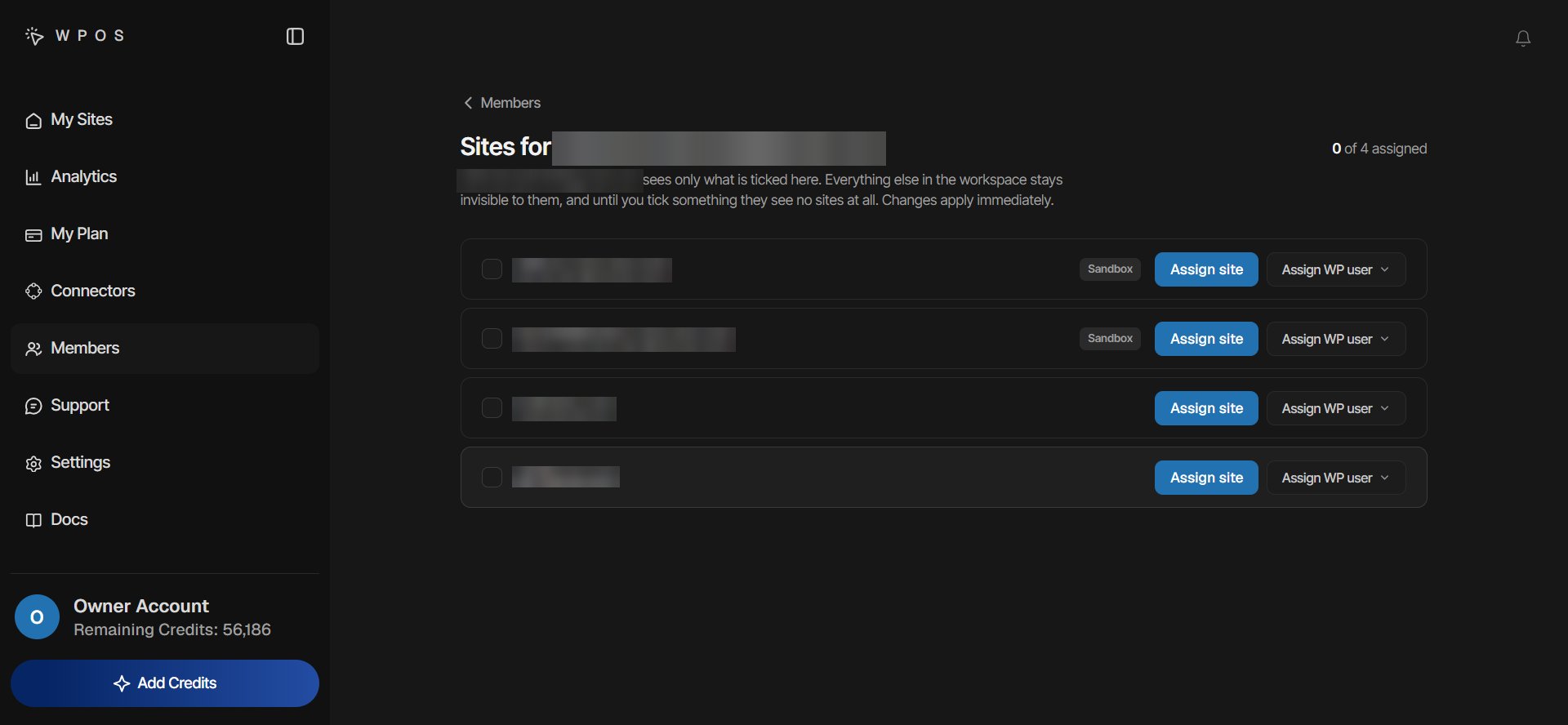
Sites for a member: assign each site, and choose the WordPress login that goes with it.
Assign a site to people
To work from the site’s side instead, open the site’s three-dot menu on the dashboard and choose Assign site. The page lists everyone in the workspace who can be put on that site, with Everyone, Managers, and Operators tabs and a search box. People already on the site are marked On this site. Use Assign site and Unassign the same way.Choose their WordPress login
Assigning a site needs a WordPress login to go with it. When you click Assign site and the member has no login on that site yet, the WordPress users panel opens and asks you to select one. You can give them an account that already exists, or create a new one.- Give an existing account
- Create a new account
Tick the account in the list. A dialog asks what to do about its
password:
- Keep the current one, when the member already holds this account.
- Set a new one, to give the account a new password.
- I already know it, when you will pass on the password yourself.
Creating WordPress accounts needs the Create WordPress users permission,
which only the owner has by default and which cannot be given to operators.
Giving someone an account that already exists does not need it.
Manage the WordPress users on a site
The WordPress users panel lists the site’s accounts, ten to a page, and shows who holds each one. From it you can:- Set a password. The new password is shown once, with a copy button. Only the owner can set the password on a WordPress Administrator.
- Release an account. Release account takes the login back from the member. If WPOS set its password, the password is changed as part of the release. If you entered it under I already know it, it is left as it is.
- Remove a user. Choose whether their content is deleted with them or moved to another user. WordPress does not allow the primary administrator to be removed, and an account someone holds has to be released first.
Unassigning a site
Unassign takes the site off the member and frees their WordPress account so it can be given to someone else.- If WPOS set the account’s password, it is changed, so the old one no longer signs in.
- If WPOS did not set it, it is not changed. They can still sign in until you change it in wp-admin.
- If the site cannot be reached, WPOS says the password could not be changed. Reset it on the site to lock them out.
What the member sees
A member’s site list shows only their assigned sites and their own sandboxes. The key icon on a site’s row, Show login credential, opens their WordPress login for that site: the login URL, their username, and their password behind Reveal password, each with a copy button.Member license keys
In Settings, a member sees Your license key instead of the account’s key. It works only on the sites they are assigned (“Works on the N sites you are assigned”), and credits spent with it come out of their own budget. Before anything is assigned, it says the key will start working once they get a site.Members
Roles, teams, credit budgets, and managing each member.
Invite members
Bring agency managers and operators into the workspace.