

Open the invite screen
On the Members page, click Add member. The Invite a member screen has two tabs: Invite by email and Invite by link.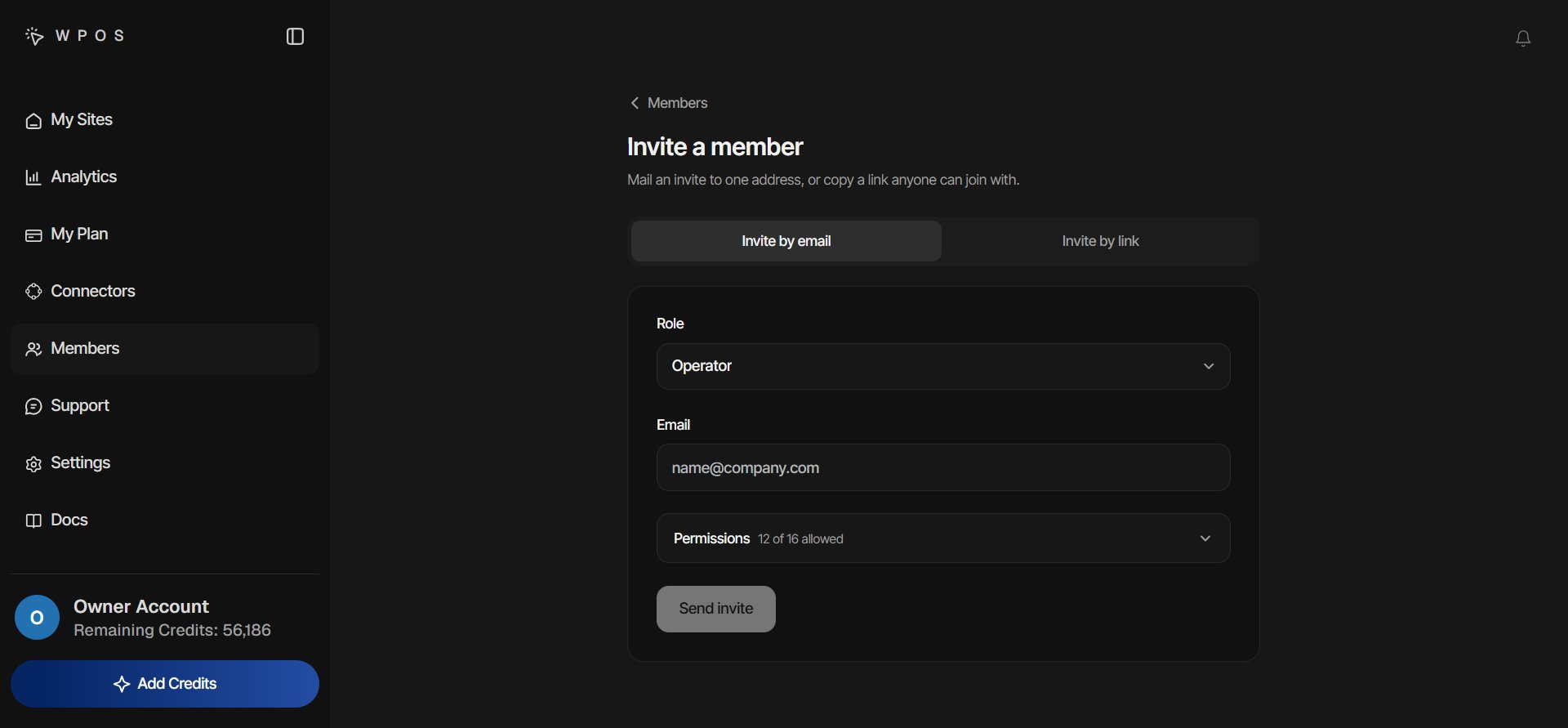
Invite a member: choose the role, enter their email, and set what they may do.
Choose the role and what they may do
Both tabs start with the same two choices.- Role. The owner picks Agency Manager or Operator (Operator is the default). A manager can only invite operators, so the role is fixed for them.
- Permissions. The strip shows how many switches are on, for example 13 of 19 allowed. Open it to see What an Operator may do (or What an Agency Manager may do) and switch individual permissions on or off. Filter the list by area: Sandbox, Site, Handoff, Plan, Connector, Support, or Referral. See Permissions for what each switch allows.
An Agency Manager can only pass on permissions they hold themselves. The
exceptions are Add sites and Create sandboxes, which a manager can
give even without holding them.
Invite by email
1
Enter their address
On Invite by email, type their address in Email, set the role and
permissions, and click Send invite.
2
WPOS checks the address
Before anything is sent, WPOS stops invites that cannot work: your own
address, someone who is already a member, or an address that already has
an invite waiting. To send a fresh invite to that address, remove the
waiting one under Pending invites first.
3
They get the email
The invite is for that email address only and expires after 7 days. The
confirmation on screen tells you how they will get in.
- New to WPOS. WPOS creates their account, and the email carries a temporary password. They sign in and join the workspace straight away.
- Already have a WPOS account. They sign in with their existing account and accept the invite from the email.
- Sign in with Google. They join with Continue with Google.
Invite by link
A link is useful when you do not know the person’s address yet, or want to send the invite through chat.- On Invite by link, set the role and permissions.
- Click Create invite link, then copy the link and share it.
What the invited person sees
The invite opens a Join page showing the workspace, the role they are joining as, and who invited them.
Once they join, they see only the sites you assign them. See
Members for roles, budgets, and assigning sites.
Pending invites
Invites that have not been accepted appear on the Members page under Pending invites. Each shows the role, the address (for email invites), when it expires, and Not accepted yet.- Copy link copies the invite’s joining link, so you can send it again yourself.
- Remove cancels the invite at once. Its link stops working and the row goes away.
Members
Roles, teams, credit budgets, and managing each member.
Workspace
The account view your team shares at app.wpos.ai.