

Create your account
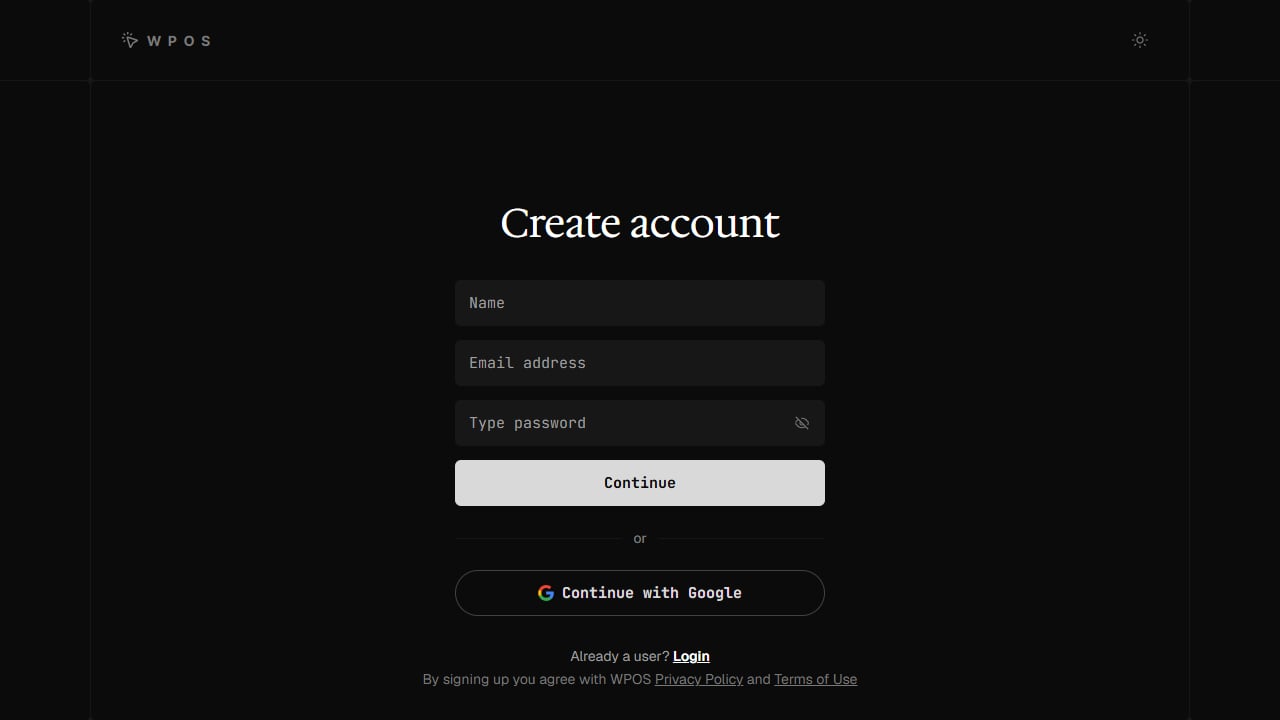
Create your account at app.wpos.ai with your name, email, and a password, or continue with Google.
1
Sign up
Go to app.wpos.ai and create an account with your
name, email, and a password, or click Continue with Google. If you sign
up with email, WPOS sends a verification link; open it to confirm your
address before you sign in.
2
Set up your workspace
Next, WPOS asks how you will use it:
- For my agency: collaboration features and shared context.
- Just for me: personal usage and individual settings.
3
Answer a few questions
WPOS asks a few short questions so it can fit the workspace to you. The
agency path covers how you found WPOS, your team size, your role, the
services you provide, your ideal client, the hosting you use, and your
toolkit. Just for me asks three of them. Use Next to move on and
Back to change an earlier answer. Your progress is saved, so you can
finish later from where you left off.
4
Open your workspace
The welcome screen confirms your workspace is ready. Click Continue to
workspace to open the dashboard.
Take the dashboard tour
The first time you open the dashboard, WPOS offers a short tour:- Quick tour: sandboxes and sites, setting one up, and running it.
- Full tour: every page of the workspace, one at a time.
- Maybe later: skip it for now.
Next steps
Quickstart
Connect your first site and make your first change.
Install the plugin
Get WPOS onto a site and connected to your account.
Workspace
Your sites, account, and billing in one place.
Invite members
Bring your team into the workspace.