

Select an element
1
Turn on the inspector
In the chat box of the Command Center, click
Inspect element. In the preview, the cursor becomes a crosshair and
elements outline as you move over them. Click the button again (Disable
inspector) to turn it off.
2
Click the element
Click the heading, button, card, image, or section you want to change. It
gets a numbered pin on the page, its Comment box opens on that pin, and
it appears as a numbered pill in the chat box, attached to your next
message.
3
Say what you want
Type the change for that one element in its Comment box and press
Enter, or click +, to attach the note to its pill. Or close the box
and write a single message in the chat box for everything you picked.
Select up to 5 elements at once
Keep clicking to pick more, for example two buttons that should line up, or three cards that should match. Each new pick gets the next number.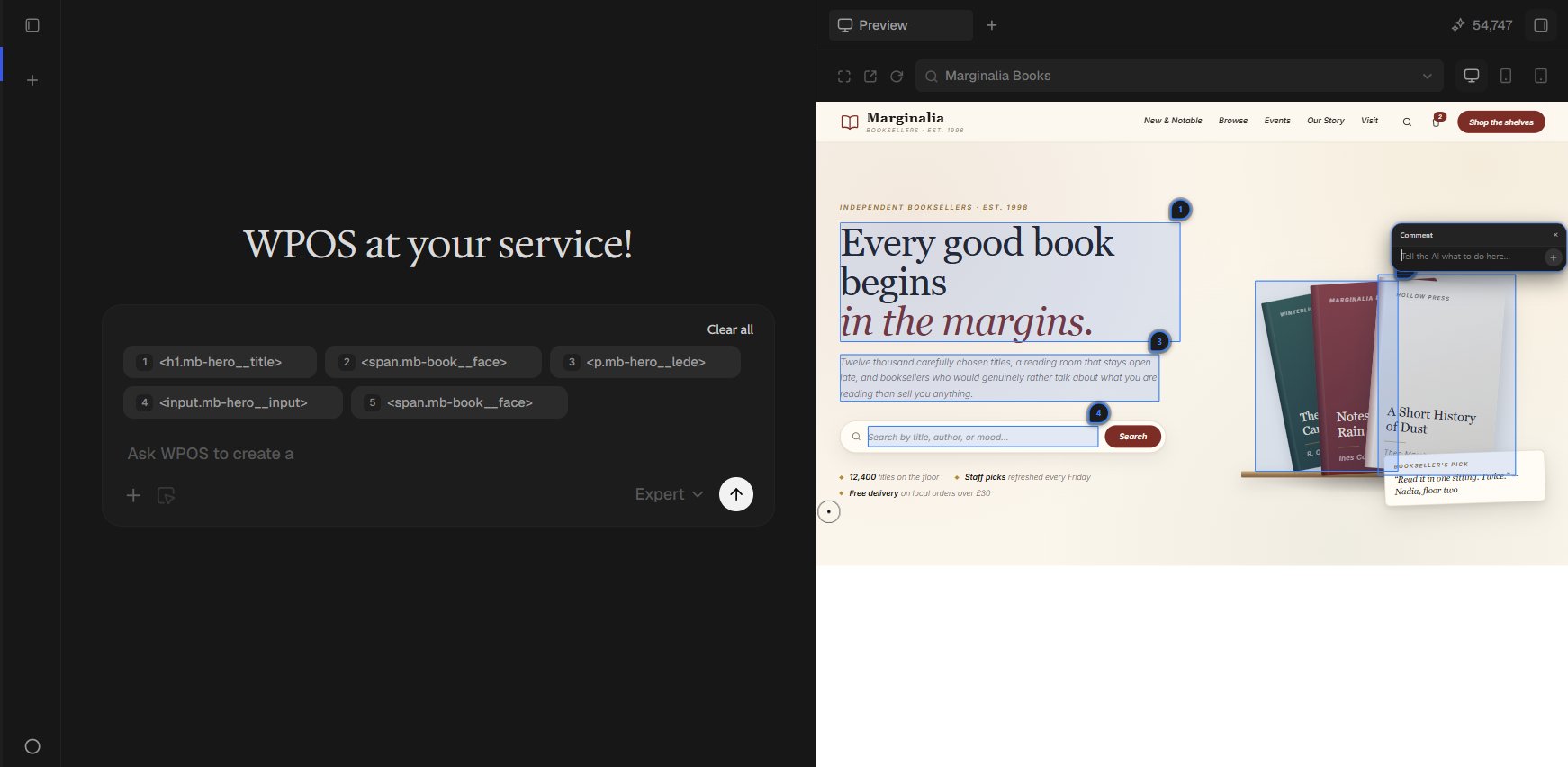
Five elements selected: numbered pins on the preview, a numbered pill for each in the chat box, and a pin's Comment box open.
- Numbered pins. Each pick gets a pin on the page, numbered 1 to 5 in the order you picked them, so you can refer to them in your message: “make 2 match 1”.
- A note per element. The Comment box that opens on a new pick takes a note for that element alone. Enter or + attaches it. A pin carrying a note turns blue, and clicking it reopens the note to edit. Remove this element in the box drops the pick.
- Click again to deselect. Clicking a pick again removes it, unless it carries a note: then it reopens the note instead, so you cannot lose what you wrote by clicking twice. Drop a pick that has a note with the x on its pill.
- Selection full. At 5, nothing new highlights: the cursor shows a blocked badge where you click, and a message says you can select up to 5 elements at once. Remove one to pick another.
<h1.mb-hero__title>. The x on a pill removes that pick, and a
pill carrying a note opens to show it in full when you click it. Clear all
appears once there is more than one thing attached, and clears the whole
message: every pick and any files with them.
What WPOS does with your selection
- Gets the whole picture. Every pick travels with its selector, tag, classes, text, size and position, the widget it belongs to, and your note for it, so the agent does not have to guess which “this” you mean.
- Finds the source. WPOS traces the element back to the widget and the style rule behind it, and makes the change there, instead of patching the page on top.
- Checks the result. It looks at the live page after the change to confirm it landed before it reports back.
- Tells you what it found. If something gets in the way, such as a conflict with another rule, it says so plainly rather than hiding it.
The Command Center
The chat and live preview where you select and edit.
Build by voice
Speak your request instead of typing it.