

Members is part of the paid plans. On the Free plan it does not appear in the
left nav. See Billing.
Roles
Every person in a workspace holds one of three roles.Nobody except the owner sees a client site until it is assigned to them. A new
member with nothing assigned sees no client sites at all, so you decide
exactly which clients each person can work on.
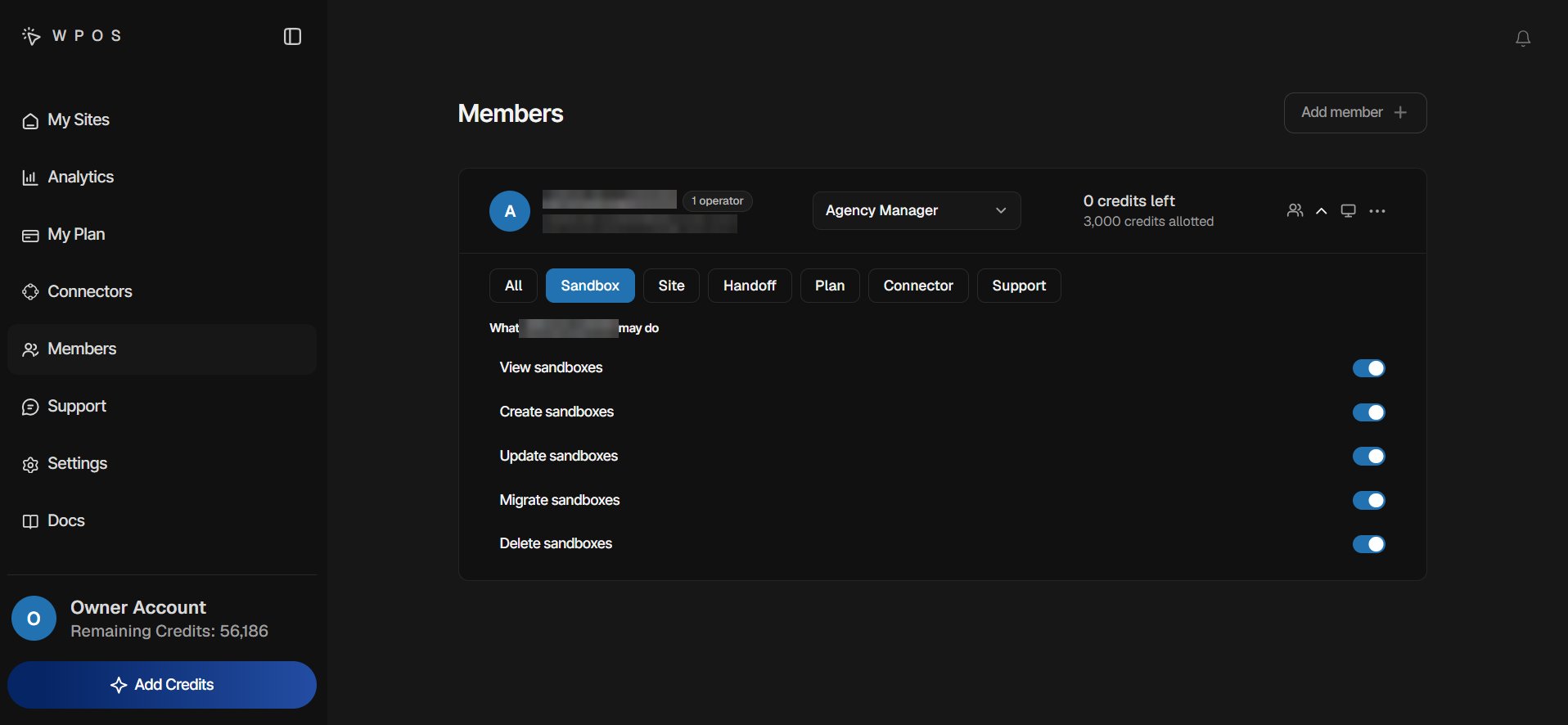
A member's permission switches, filtered to Sandbox. The chips along the top filter the list by area.
How a team is organized
Operators report to a manager, or to you. As the Members page puts it: “An operator works for one agency manager. Anybody with no manager reports to you.”- On the owner’s Members page, each manager’s row shows how many operators report to them, for example 3 operators. The team icon on that row unrolls the team underneath it, and a large team gets a View all link to a page of its own.
- To move an operator to another team, open the operator’s three-dot menu, choose Reassign manager, and pick who they report to.
- When an operator changes teams, their unspent credits go back to the manager they are leaving (or to you), and the new manager can set them a fresh budget.
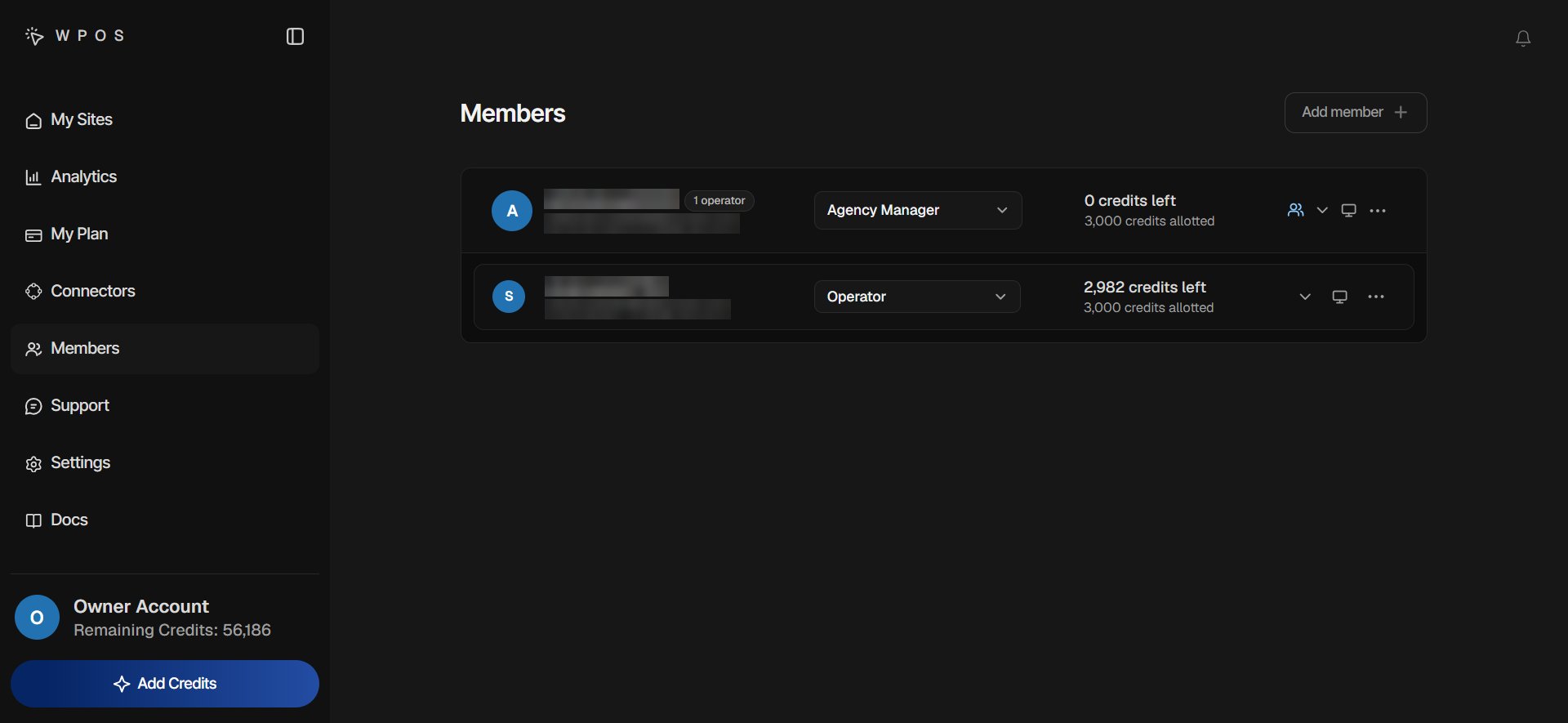
The owner's view of a team: an Agency Manager's row, opened to show the operator who reports to them.
The Members page
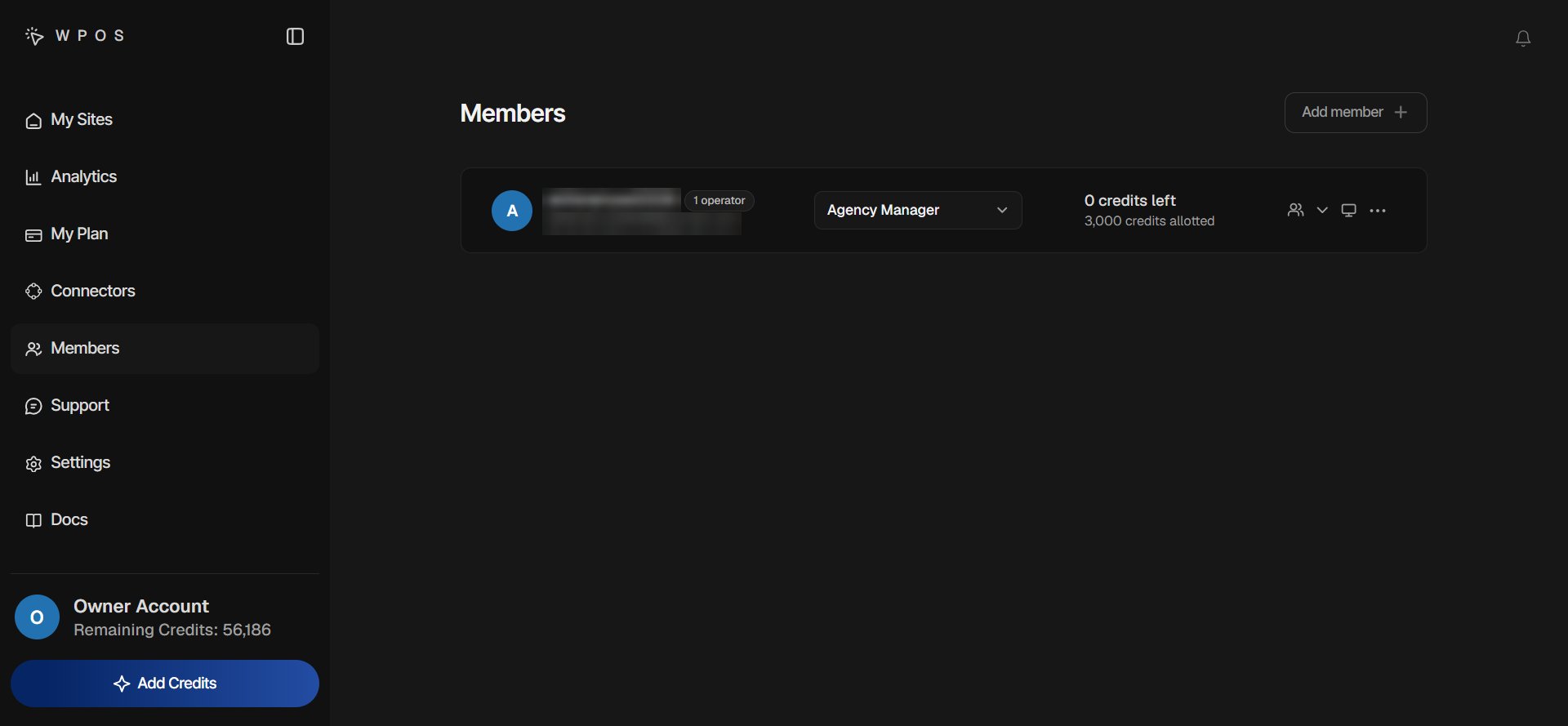
The Members page: each person's role, credit budget, and row controls, with Add member at the top.
- Name and email.
- Role. A dropdown for anyone you manage. The owner can choose Operator or Agency Manager; a manager can only set Operator.
- Credit budget. How many credits they have left and how many they have been allotted.
- Permissions. The arrow that opens their permission switches.
- Assign sites. Choose which sites this person can see and work on. See Assign sites.
- Three-dot menu. Reassign manager, Reset password, and Disable member.
Adding people
Click Add member to open the invite screen. You can invite someone by email or create an invite link, choose their role, and choose what they may do before they join. Owners can invite either role; managers can invite operators. See Invite members.Credits for members
Members do not have credits of their own. Each one spends from a credit budget that you give them out of the workspace’s pool.1
Open their budget
On the member’s row, click their credit budget. The Credits for dialog
shows the Total credits you can give and how many that member has now.
2
Give more or take back
Choose Give more to move credits from your pool into their budget, or
Take back to return credits they have not spent yet. Credits already
spent cannot be taken back.
When a member runs low
A member asks for more with Request Credits at the bottom of the left nav. They enter an amount and an optional reason, and the request goes to their agency manager, or to the owner if they report to the owner. A member can have one open request at a time and can withdraw it. The request appears at the top of the approver’s Members page with Approve and Decline.Access requests
When a member meets a control they are not allowed to use, such as adding a site or creating a sandbox, they can press Request access. The button changes to Access requested, and the request lands in the access requests queue on the Members page. An Agency Manager decides their own team’s requests for anything they can pass on, and the rest go to the owner. See When a member needs more.Resetting a password
The owner can issue a member a new password from their three-dot menu with Reset password. Their previous password stops working immediately. The new one is shown once, so copy it and send it to them; after that it can only be reset again. Ask them to change it once they are in.Disabling and re-activating a member
Choose Disable member from the three-dot menu. Before anything happens, the dialog shows exactly what will change:- Loses access to this workspace. Takes effect on their next request.
- Their sites are unassigned. The sites stay in the workspace, ready to give to someone else.
- Unspent credits are returned to whoever granted them. Credits already spent do not come back.
- A manager’s team is handed on. When you disable an Agency Manager, you choose who takes their operators. The operators keep their own budgets.
- Their login is disabled, not deleted, if this workspace created it. A login they had before joining, or one they also use for another workspace or their own sites, is left switched on and only loses access to yours.
Invite members
Add agency managers and operators by email or with an invite link.
Assign sites
Choose each member’s sites and give them their own WordPress login.